01
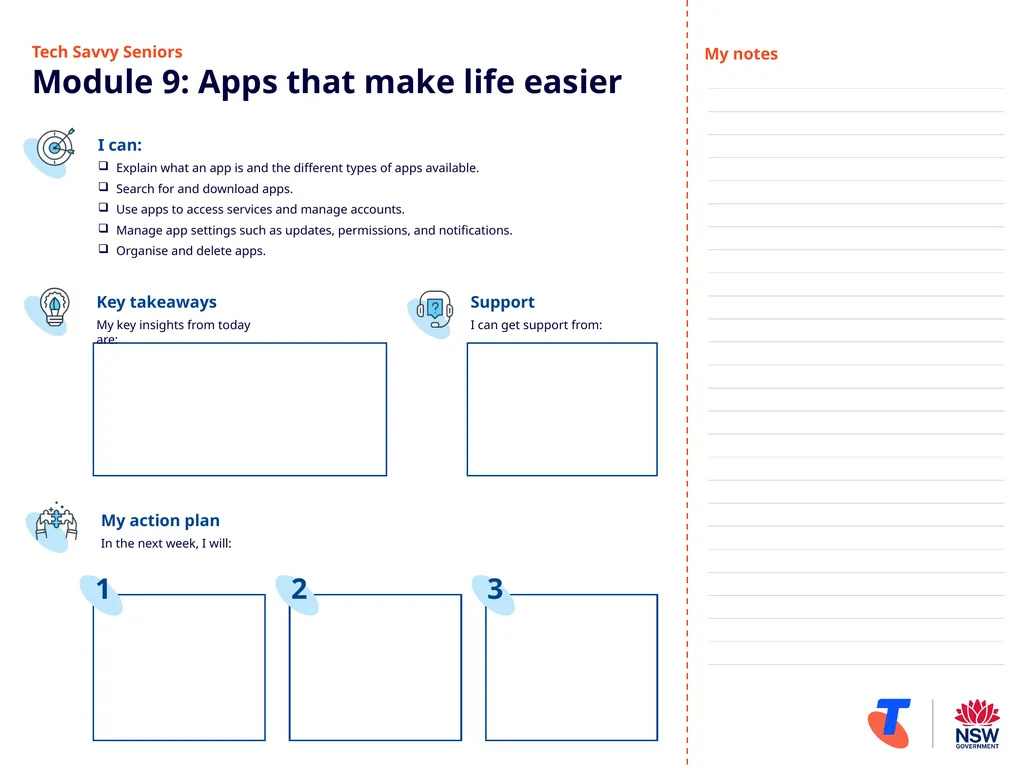
Tech Savvy Seniors�Module 9: Apps that make life easier I can:
Explain what an app is and the different types of apps available.
Search for and download apps.
Use apps to access services and manage accounts.
Manage app settings such as updates, permissions, and notifications.
Organise and delete apps. Key takeaways
My key insights from today are: Support
I can get support from: My action plan
In the next week, I will: 1 2 3 My notes<br>
02
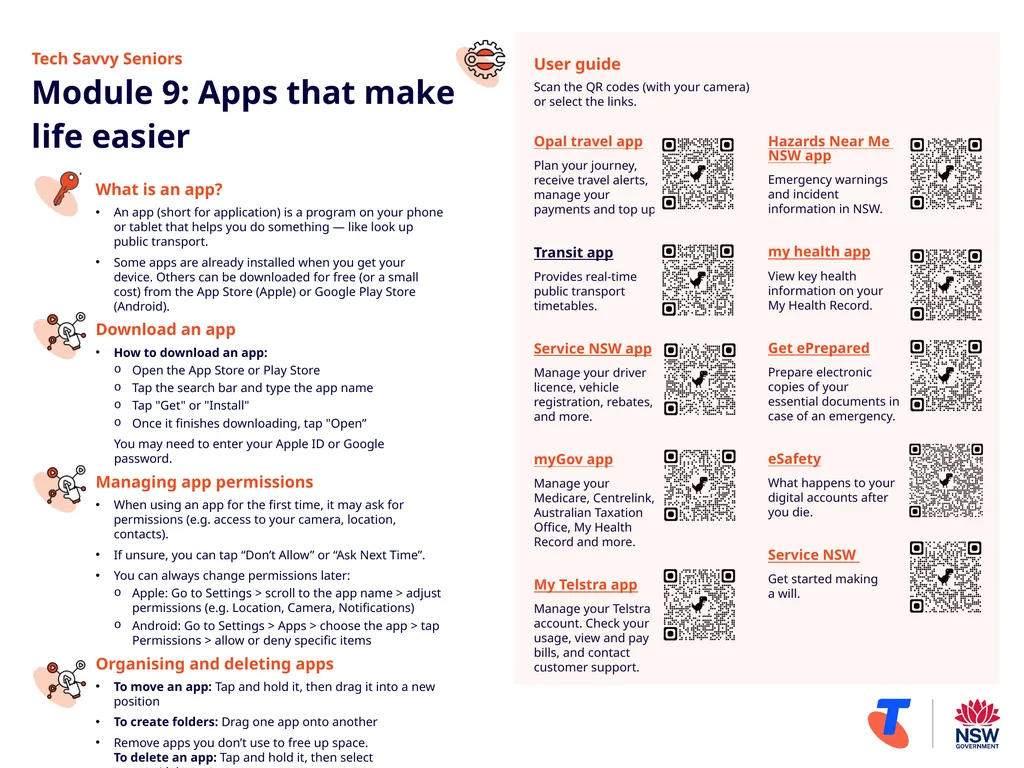
Tech Savvy Seniors �Module 9: Apps that make�life easier What is an app?
An app (short for application) is a program on your phone or tablet that helps you do something — like look up public transport.
Some apps are already installed when you get your device. Others can be downloaded for free (or a small cost) from the App Store (Apple) or Google Play Store (Android).
Download an app
How to download an app:
Open the App Store or Play Store
Tap the search bar and type the app name
Tap "Get" or "Install"
Once it finishes downloading, tap "Open”
You may need to enter your Apple ID or Google password.
Managing app permissions
When using an app for the first time, it may ask for permissions (e.g. access to your camera, location, contacts).
If unsure, you can tap “Don’t Allow” or “Ask Next Time”.
You can always change permissions later:
Apple: Go to Settings > scroll to the app name > adjust permissions (e.g. Location, Camera, Notifications)
Android: Go to Settings > Apps > choose the app > tap Permissions > allow or deny specific items
Organising and deleting apps
To move an app: Tap and hold it, then drag it into a new position
To create folders: Drag one app onto another
Remove apps you don’t use to free up space. �To delete an app: Tap and hold it, then select remove/delete User guide
Scan the QR codes (with your camera) or select the links. Opal travel app
Plan your journey, receive travel alerts, manage your payments and top up.
Transit app
Provides real-time public transport timetables.
Service NSW app
Manage your driver licence, vehicle registration, rebates, and more.
myGov app
Manage your Medicare, Centrelink, Australian Taxation Office, My Health Record and more.
My Telstra app
Manage your Telstra account. Check your usage, view and pay bills, and contact customer support. Hazards Near Me NSW app
Emergency warnings and incident information in NSW.
my health app
View key health information on your �My Health Record.
Get ePrepared
Prepare electronic copies of your essential documents in case of an emergency.
eSafety
What happens to your digital accounts after �you die.
Service NSW
Get started making �a will.<br>