
CMSC201 Computer Science I for Majors Lecture 16 –
LS
Published · 39 slides · 0 views
1 / 1
Description
CMSC201 Computer Science I for Majors Lecture 16 File IO (continued) Last Class We Covered Escape sequences Uses a backslash () File IO InputOutput How to open a file For reading or writing How to read lines from a file 2 3 Any
Related Topics
Share
Embed code
Download this presentation From Below
"CMSC201 Computer Science I for Majors Lecture 16 –" is the property of its rightful owner. Permission is granted to download and print the materials on this website for personal, non-commercial use only, and to display it on your personal computer provided you do not modify the materials and that you retain all copyright notices contained in the materials. By downloading content from our website, you accept the terms of this agreement.
Presentation Transcript
01
CMSC201
Computer Science I for Majors
Lecture 16 – File I/O (continued)<br>
02
Last Class We Covered Escape sequences
Uses a backslash (\)
File I/O
Input/Output
How to open a file
For reading or writing
How to read lines from a file 2<br>
Uses a backslash (\)
File I/O
Input/Output
How to open a file
For reading or writing
How to read lines from a file 2<br>
03
3 Any Questions from Last Time?<br>
04
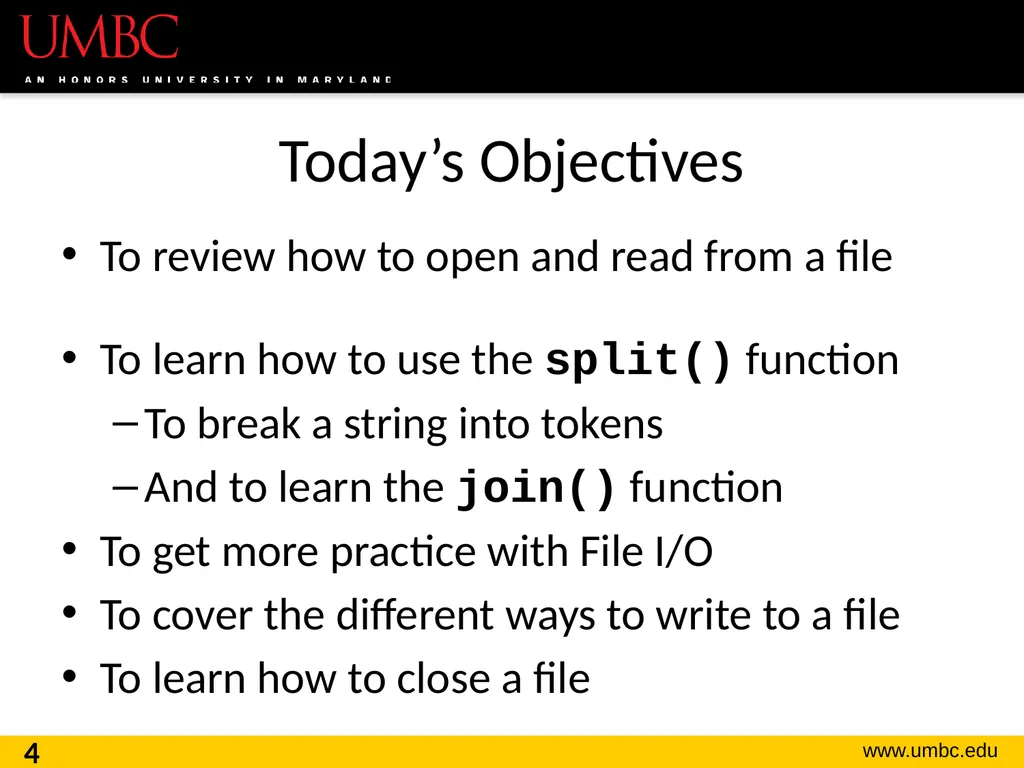
Today’s Objectives To review how to open and read from a file
To learn how to use the split() function
To break a string into tokens
And to learn the join() function
To get more practice with File I/O
To cover the different ways to write to a file
To learn how to close a file 4<br>
To learn how to use the split() function
To break a string into tokens
And to learn the join() function
To get more practice with File I/O
To cover the different ways to write to a file
To learn how to close a file 4<br>
05
5 Review from Last Class<br>
06
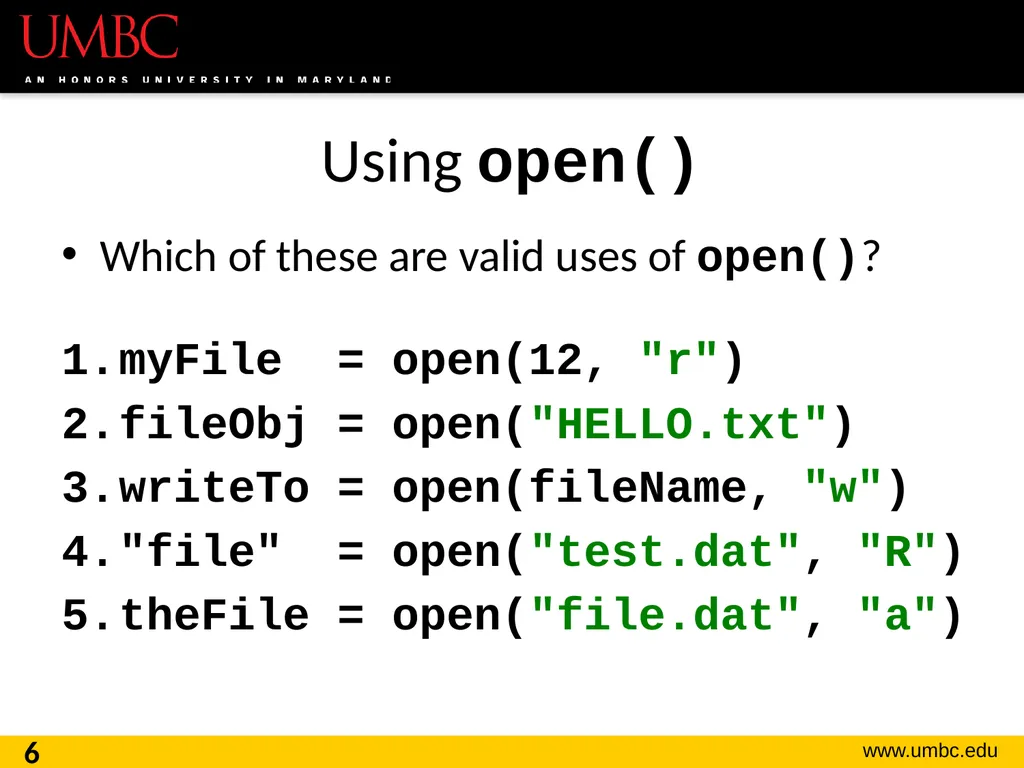
Using open() Which of these are valid uses of open()?
myFile = open(12, "r")
fileObj = open("HELLO.txt")
writeTo = open(fileName, "w")
"file" = open("test.dat", "R")
theFile = open("file.dat", "a") 6<br>
myFile = open(12, "r")
fileObj = open("HELLO.txt")
writeTo = open(fileName, "w")
"file" = open("test.dat", "R")
theFile = open("file.dat", "a") 6<br>
07
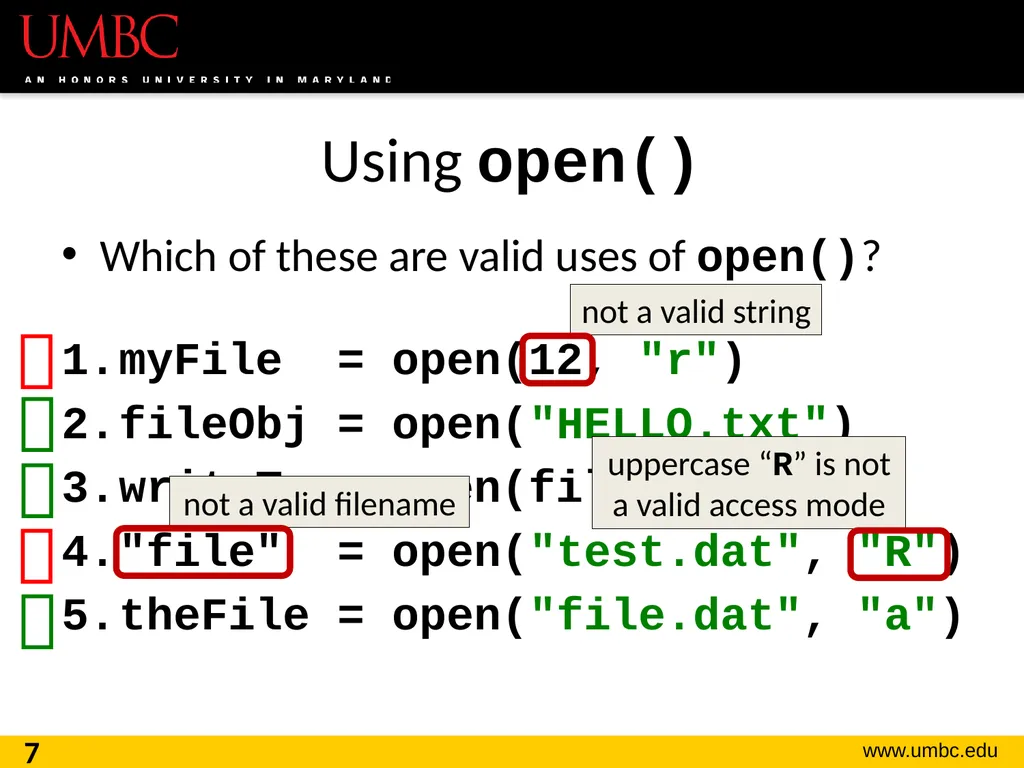
Using open() Which of these are valid uses of open()?
myFile = open(12, "r")
fileObj = open("HELLO.txt")
writeTo = open(fileName, "w")
"file" = open("test.dat", "R")
theFile = open("file.dat", "a") 7 not a valid string not a valid filename uppercase “R” is not a valid access mode<br>
myFile = open(12, "r")
fileObj = open("HELLO.txt")
writeTo = open(fileName, "w")
"file" = open("test.dat", "R")
theFile = open("file.dat", "a") 7 not a valid string not a valid filename uppercase “R” is not a valid access mode<br>
08
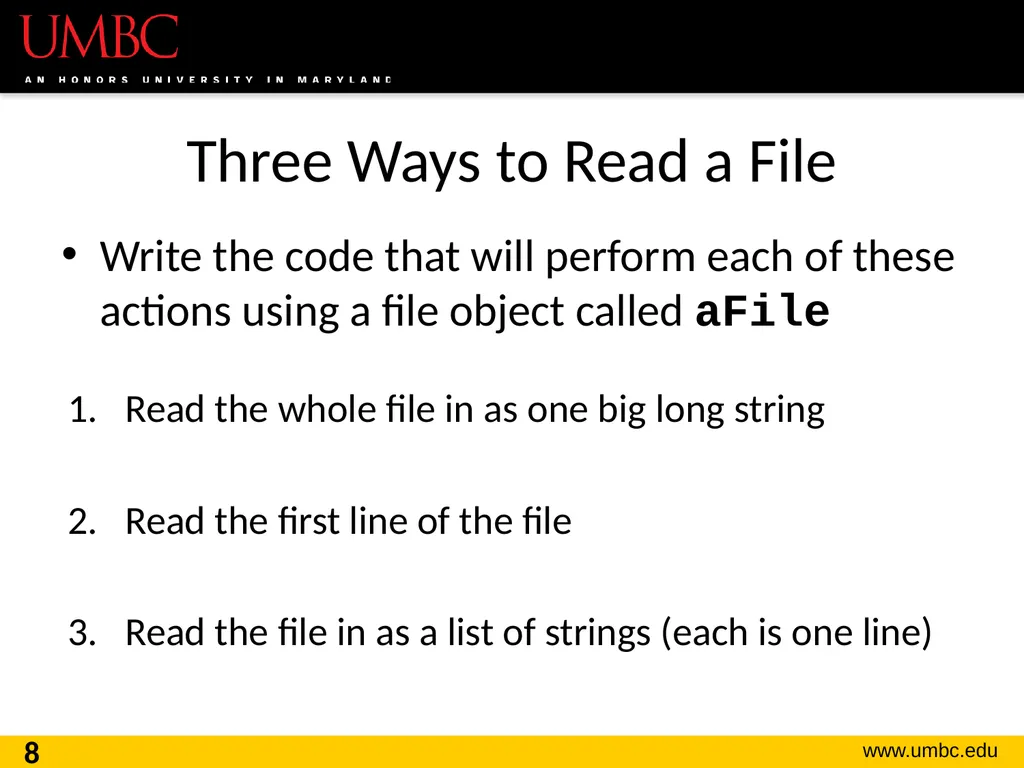
Three Ways to Read a File Write the code that will perform each of these actions using a file object called aFile
Read the whole file in as one big long string
Read the first line of the file
Read the file in as a list of strings (each is one line) 8<br>
Read the whole file in as one big long string
Read the first line of the file
Read the file in as a list of strings (each is one line) 8<br>
09
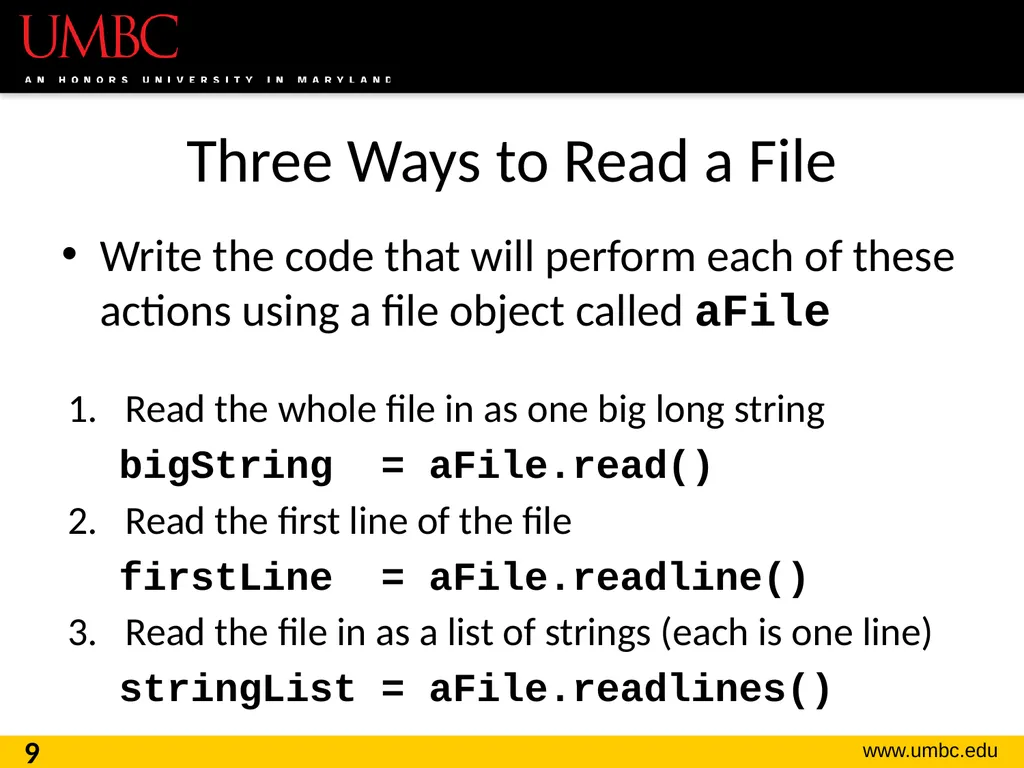
Three Ways to Read a File Write the code that will perform each of these actions using a file object called aFile
Read the whole file in as one big long string
bigString = aFile.read()
Read the first line of the file
firstLine = aFile.readline()
Read the file in as a list of strings (each is one line)
stringList = aFile.readlines() 9<br>
Read the whole file in as one big long string
bigString = aFile.read()
Read the first line of the file
firstLine = aFile.readline()
Read the file in as a list of strings (each is one line)
stringList = aFile.readlines() 9<br>
10
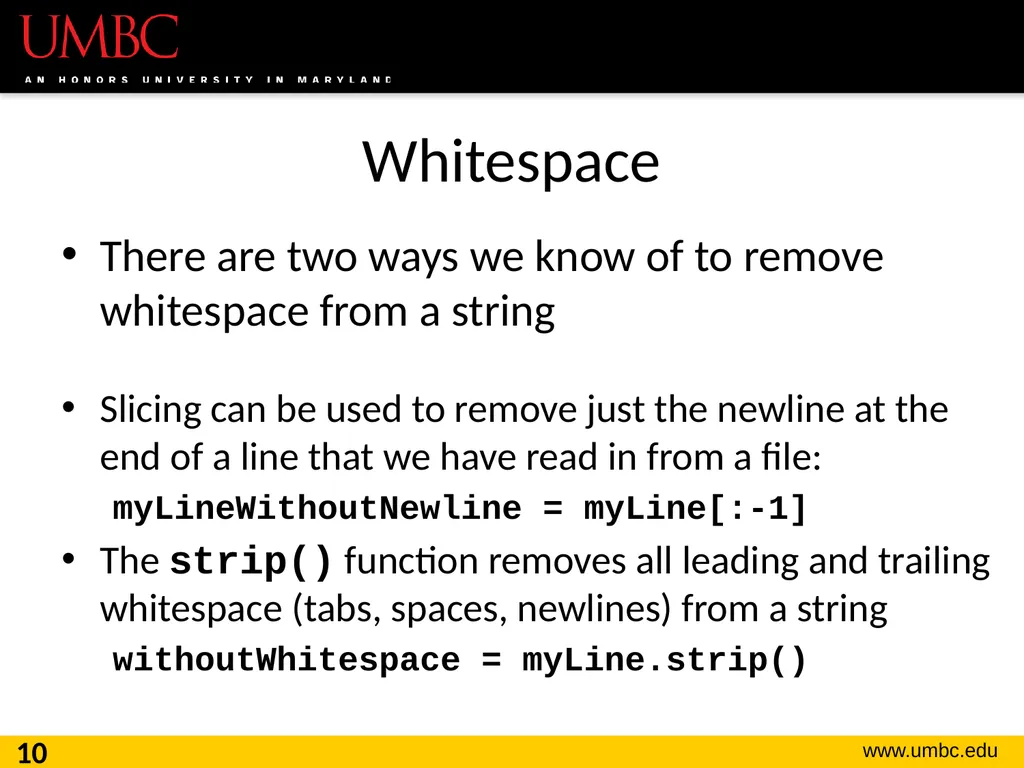
Whitespace There are two ways we know of to remove whitespace from a string
Slicing can be used to remove just the newline at the end of a line that we have read in from a file:
myLineWithoutNewline = myLine[:-1]
The strip() function removes all leading and trailing whitespace (tabs, spaces, newlines) from a string
withoutWhitespace = myLine.strip() 10<br>
Slicing can be used to remove just the newline at the end of a line that we have read in from a file:
myLineWithoutNewline = myLine[:-1]
The strip() function removes all leading and trailing whitespace (tabs, spaces, newlines) from a string
withoutWhitespace = myLine.strip() 10<br>
11
11 String Splitting<br>
12
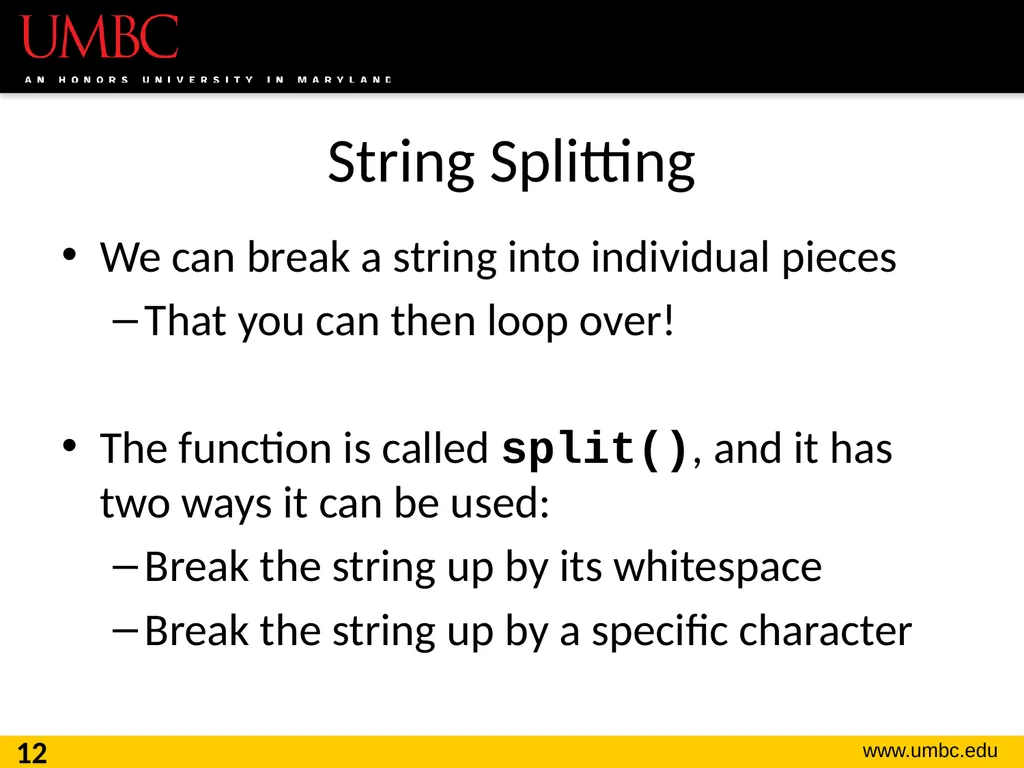
String Splitting We can break a string into individual pieces
That you can then loop over!
The function is called split(), and it has two ways it can be used:
Break the string up by its whitespace
Break the string up by a specific character 12<br>
That you can then loop over!
The function is called split(), and it has two ways it can be used:
Break the string up by its whitespace
Break the string up by a specific character 12<br>
13
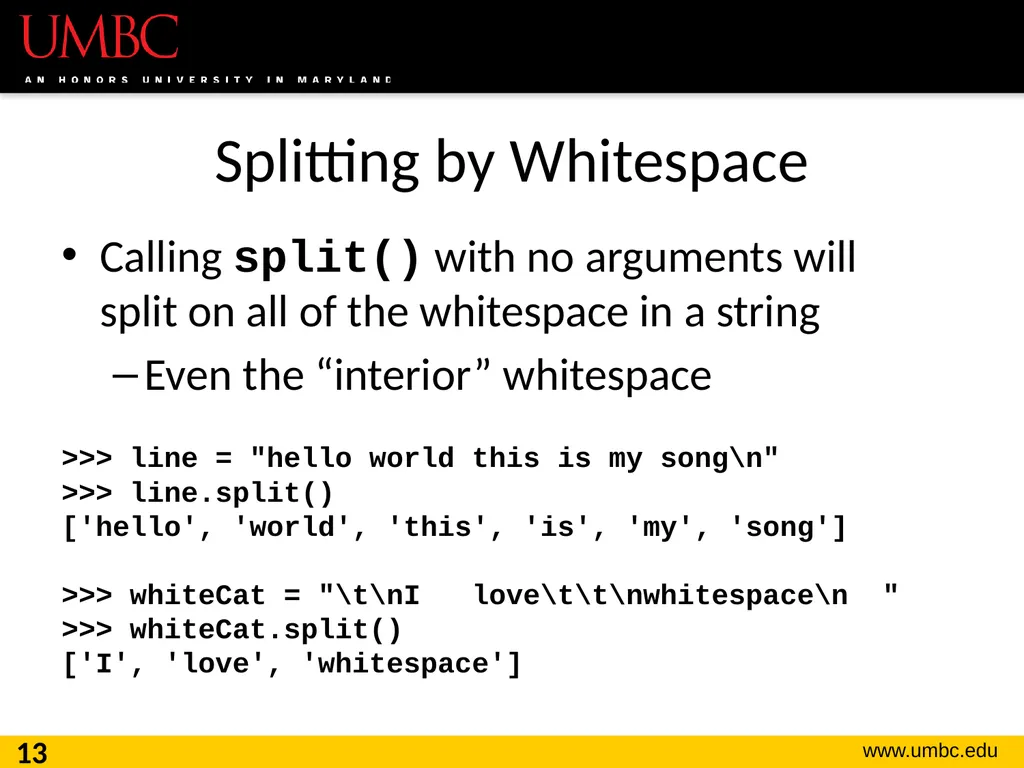
Splitting by Whitespace Calling split() with no arguments will
split on all of the whitespace in a string
Even the “interior” whitespace
>>> line = "hello world this is my song\n"
>>> line.split()
['hello', 'world', 'this', 'is', 'my', 'song']
>>> whiteCat = "\t\nI love\t\t\nwhitespace\n "
>>> whiteCat.split()
['I', 'love', 'whitespace'] 13<br>
Even the “interior” whitespace
>>> line = "hello world this is my song\n"
>>> line.split()
['hello', 'world', 'this', 'is', 'my', 'song']
>>> whiteCat = "\t\nI love\t\t\nwhitespace\n "
>>> whiteCat.split()
['I', 'love', 'whitespace'] 13<br>
14
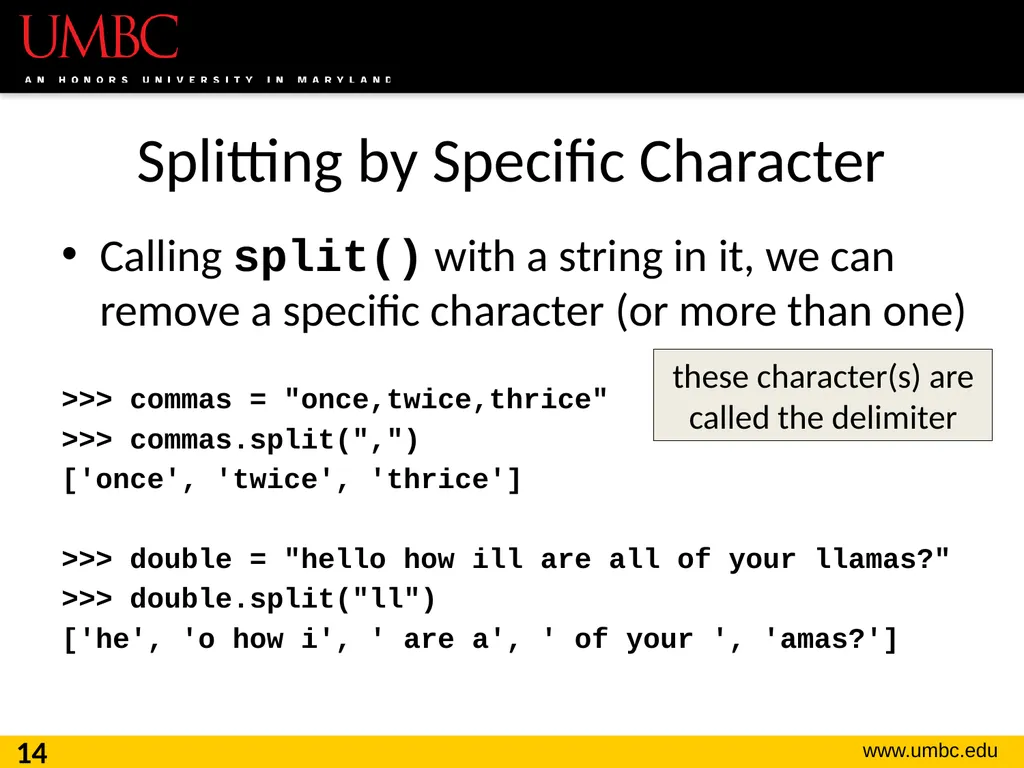
Splitting by Specific Character Calling split() with a string in it, we can remove a specific character (or more than one)
>>> commas = "once,twice,thrice"
>>> commas.split(",")
['once', 'twice', 'thrice']
>>> double = "hello how ill are all of your llamas?"
>>> double.split("ll")
['he', 'o how i', ' are a', ' of your ', 'amas?'] 14 these character(s) are called the delimiter<br>
>>> commas = "once,twice,thrice"
>>> commas.split(",")
['once', 'twice', 'thrice']
>>> double = "hello how ill are all of your llamas?"
>>> double.split("ll")
['he', 'o how i', ' are a', ' of your ', 'amas?'] 14 these character(s) are called the delimiter<br>
15
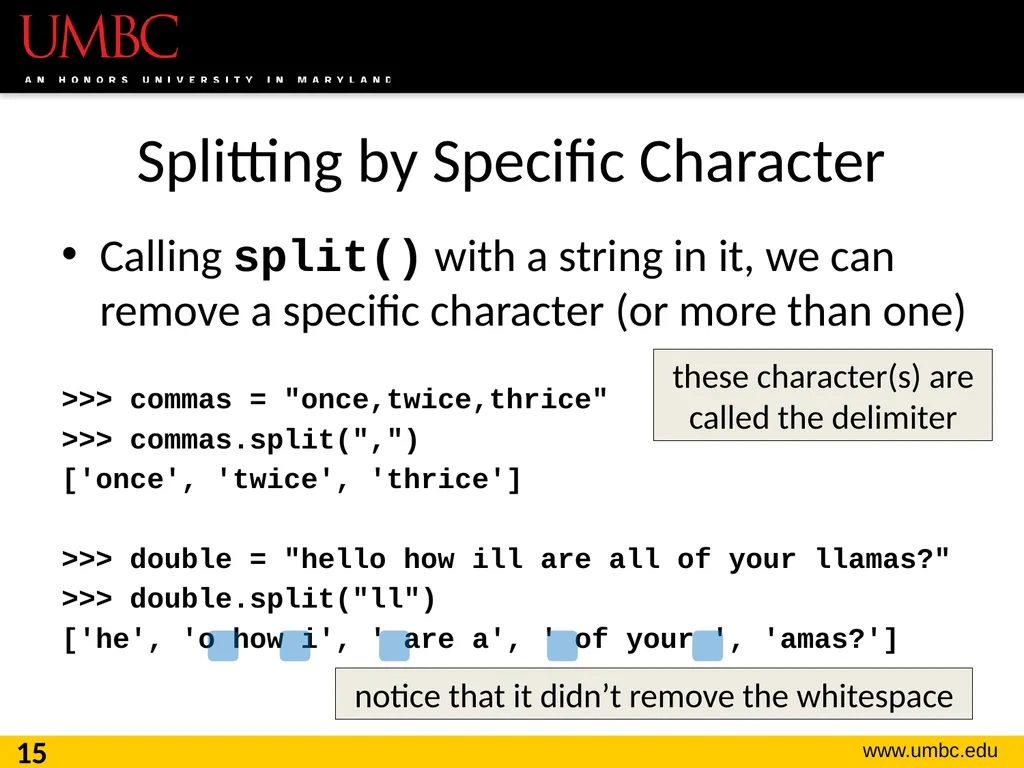
Splitting by Specific Character Calling split() with a string in it, we can remove a specific character (or more than one)
>>> commas = "once,twice,thrice"
>>> commas.split(",")
['once', 'twice', 'thrice']
>>> double = "hello how ill are all of your llamas?"
>>> double.split("ll")
['he', 'o how i', ' are a', ' of your ', 'amas?'] 15 notice that it didn’t remove the whitespace these character(s) are called the delimiter<br>
>>> commas = "once,twice,thrice"
>>> commas.split(",")
['once', 'twice', 'thrice']
>>> double = "hello how ill are all of your llamas?"
>>> double.split("ll")
['he', 'o how i', ' are a', ' of your ', 'amas?'] 15 notice that it didn’t remove the whitespace these character(s) are called the delimiter<br>
16
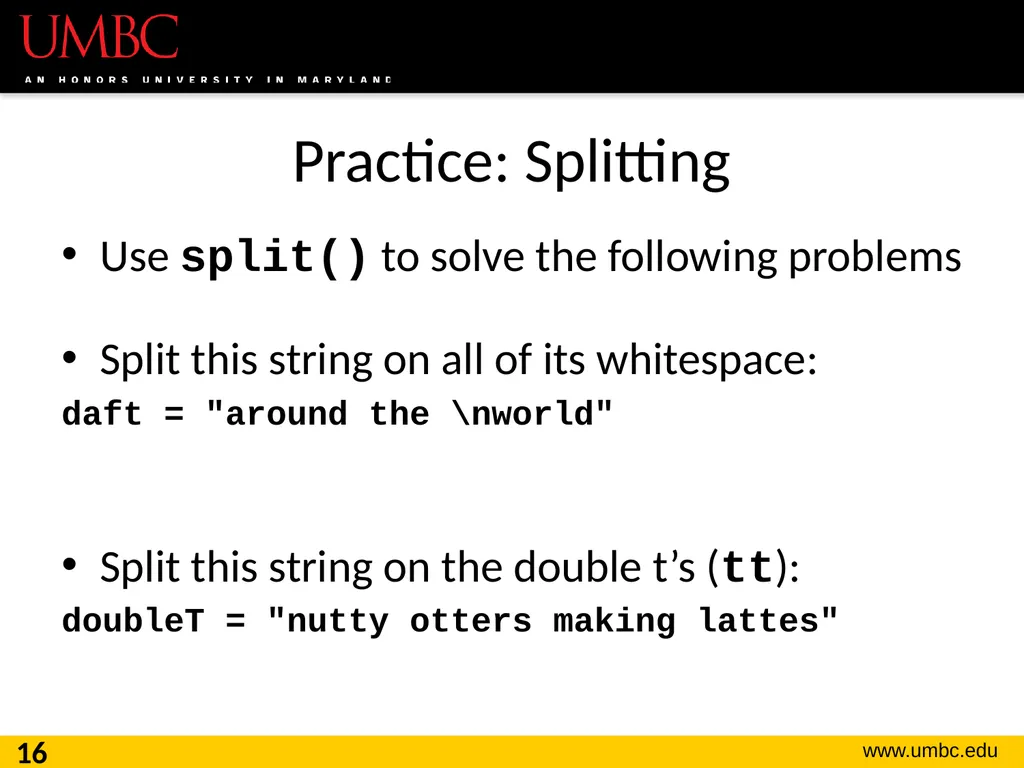
Practice: Splitting Use split() to solve the following problems
Split this string on all of its whitespace:
daft = "around the \nworld"
Split this string on the double t’s (tt):
doubleT = "nutty otters making lattes" 16<br>
Split this string on all of its whitespace:
daft = "around the \nworld"
Split this string on the double t’s (tt):
doubleT = "nutty otters making lattes" 16<br>
17
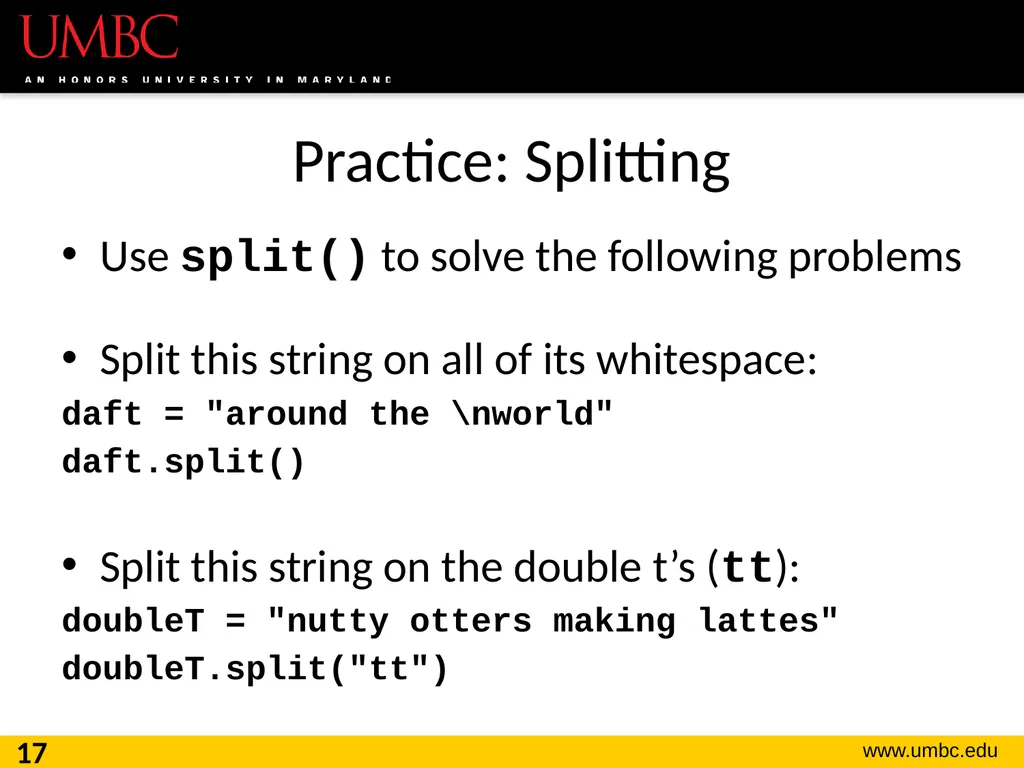
Practice: Splitting Use split() to solve the following problems
Split this string on all of its whitespace:
daft = "around the \nworld"
daft.split()
Split this string on the double t’s (tt):
doubleT = "nutty otters making lattes"
doubleT.split("tt") 17<br>
Split this string on all of its whitespace:
daft = "around the \nworld"
daft.split()
Split this string on the double t’s (tt):
doubleT = "nutty otters making lattes"
doubleT.split("tt") 17<br>
18
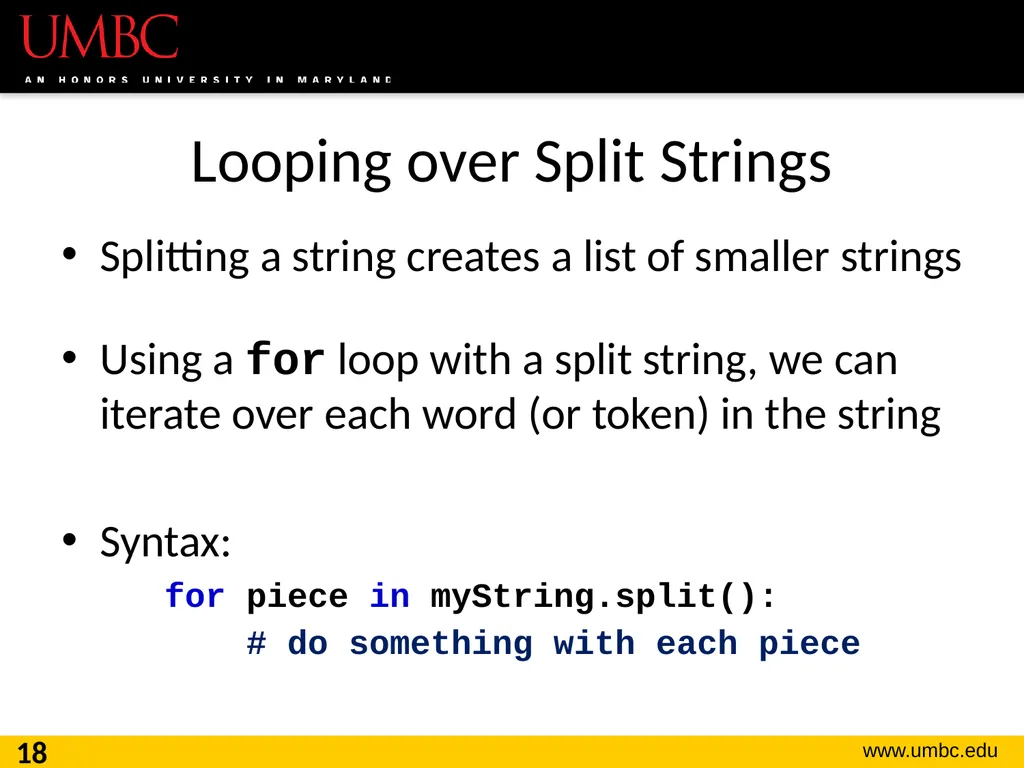
Looping over Split Strings Splitting a string creates a list of smaller strings
Using a for loop with a split string, we can iterate over each word (or token) in the string
Syntax:
for piece in myString.split():
# do something with each piece 18<br>
Using a for loop with a split string, we can iterate over each word (or token) in the string
Syntax:
for piece in myString.split():
# do something with each piece 18<br>
19
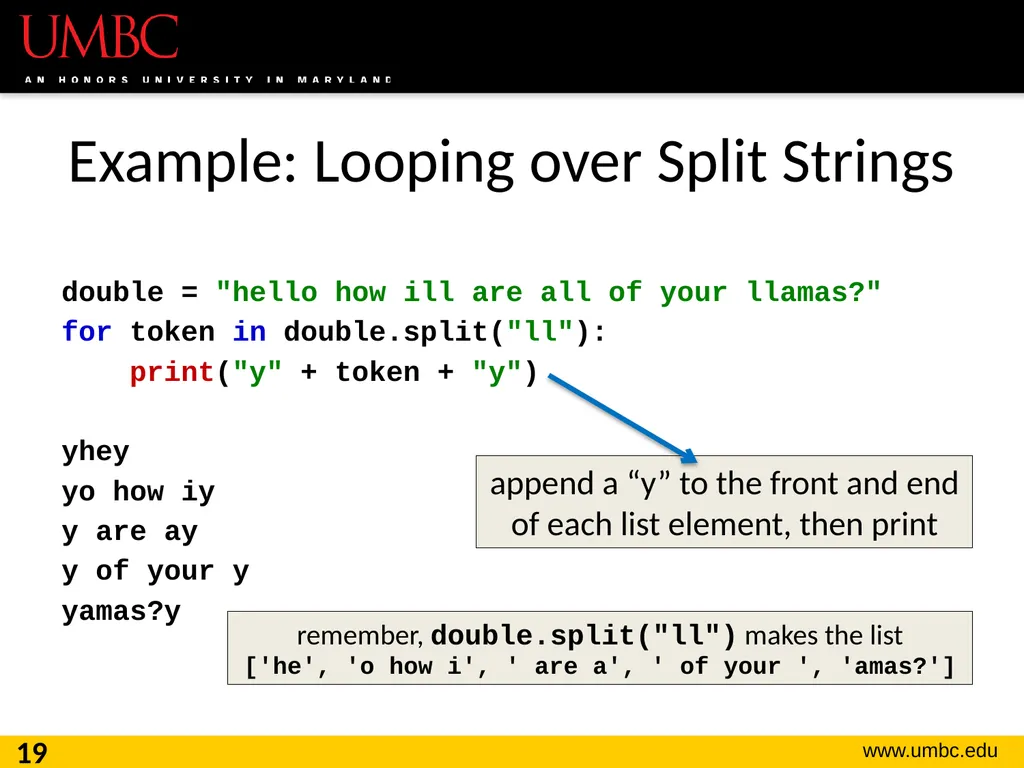
Example: Looping over Split Strings double = "hello how ill are all of your llamas?"
for token in double.split("ll"):
print("y" + token + "y")
yhey
yo how iy
y are ay
y of your y
yamas?y 19 remember, double.split("ll") makes the list
['he', 'o how i', ' are a', ' of your ', 'amas?'] append a “y” to the front and end of each list element, then print<br>
for token in double.split("ll"):
print("y" + token + "y")
yhey
yo how iy
y are ay
y of your y
yamas?y 19 remember, double.split("ll") makes the list
['he', 'o how i', ' are a', ' of your ', 'amas?'] append a “y” to the front and end of each list element, then print<br>
20
20 String Joining<br>
21
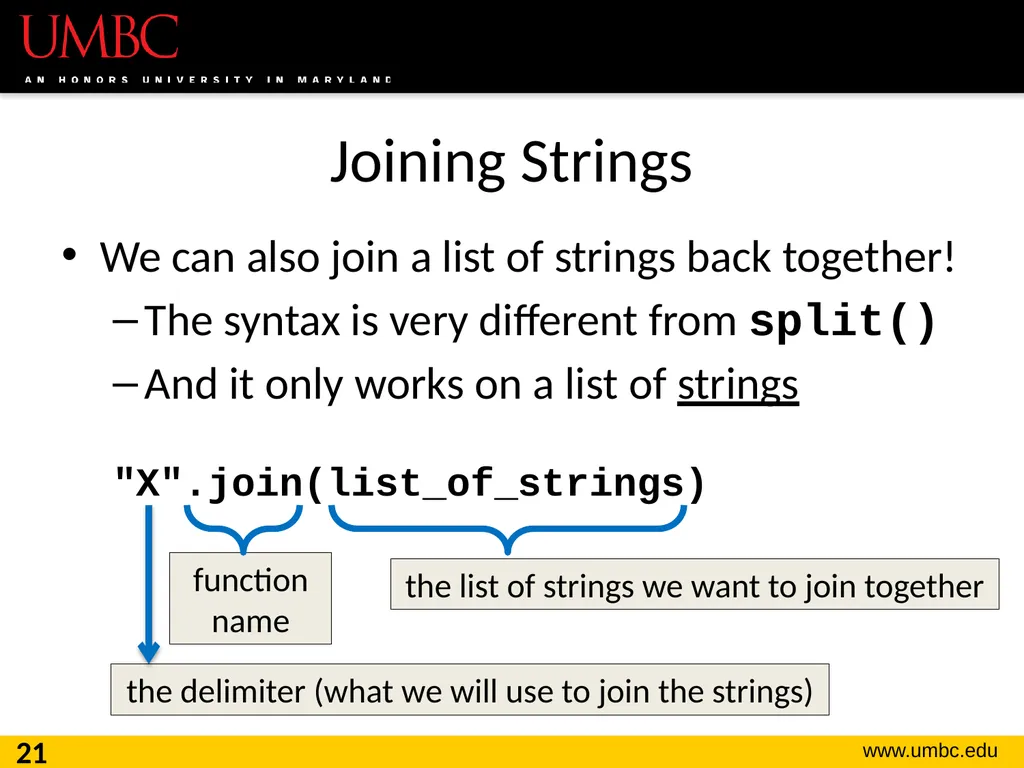
Joining Strings We can also join a list of strings back together!
The syntax is very different from split()
And it only works on a list of strings
"X".join(list_of_strings) 21 the delimiter (what we will use to join the strings) function name the list of strings we want to join together<br>
The syntax is very different from split()
And it only works on a list of strings
"X".join(list_of_strings) 21 the delimiter (what we will use to join the strings) function name the list of strings we want to join together<br>
22
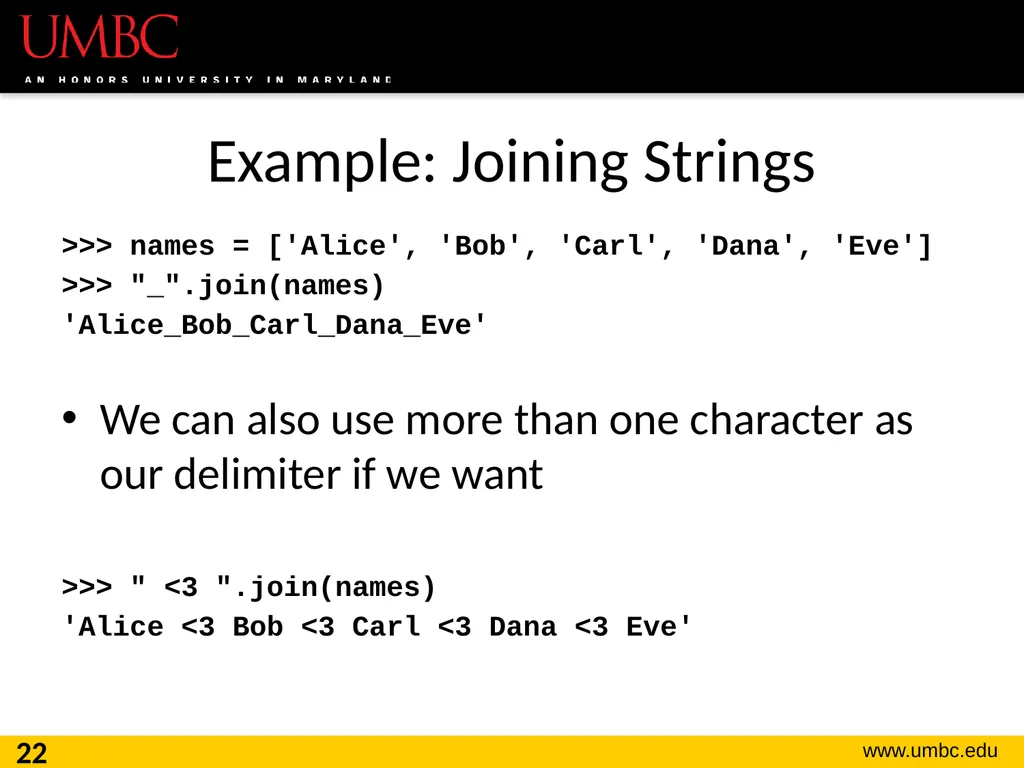
Example: Joining Strings >>> names = ['Alice', 'Bob', 'Carl', 'Dana', 'Eve']
>>> "_".join(names)
'Alice_Bob_Carl_Dana_Eve'
We can also use more than one character as our delimiter if we want
>>> " <3 ".join(names)
'Alice <3 Bob <3 Carl <3 Dana <3 Eve' 22<br>
>>> "_".join(names)
'Alice_Bob_Carl_Dana_Eve'
We can also use more than one character as our delimiter if we want
>>> " <3 ".join(names)
'Alice <3 Bob <3 Carl <3 Dana <3 Eve' 22<br>
23
23 Splitting into Variables<br>
24
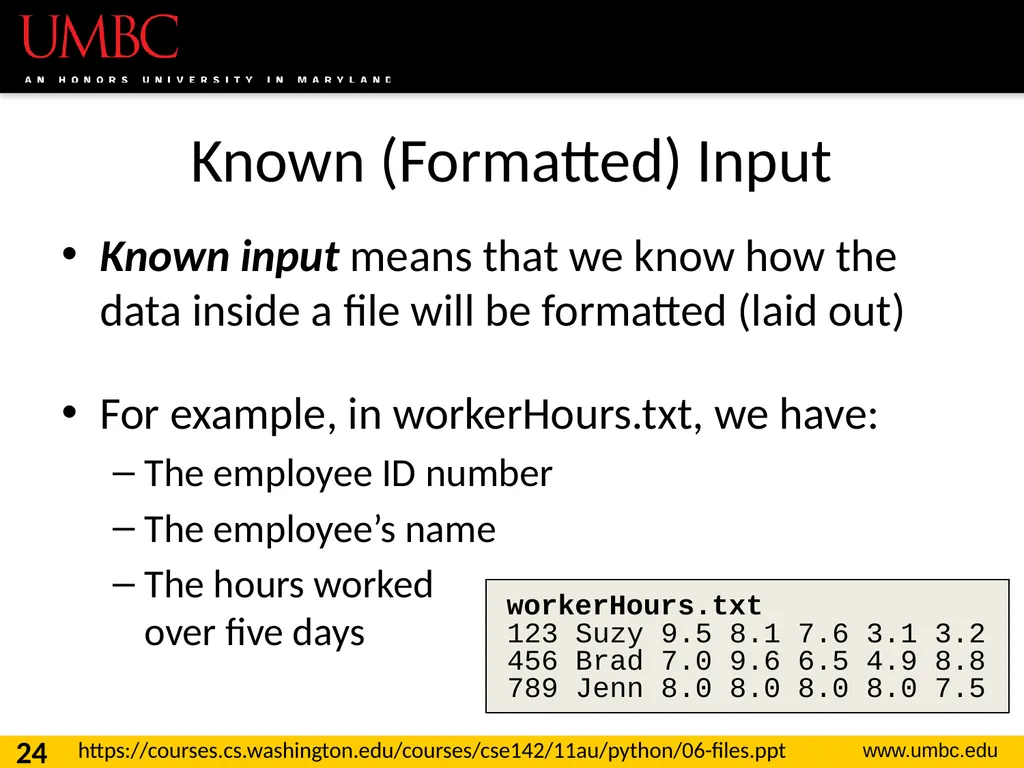
Known (Formatted) Input Known input means that we know how the data inside a file will be formatted (laid out)
For example, in workerHours.txt, we have:
The employee ID number
The employee’s name
The hours worked over five days 24 workerHours.txt
123 Suzy 9.5 8.1 7.6 3.1 3.2
456 Brad 7.0 9.6 6.5 4.9 8.8
789 Jenn 8.0 8.0 8.0 8.0 7.5 https://courses.cs.washington.edu/courses/cse142/11au/python/06-files.ppt<br>
For example, in workerHours.txt, we have:
The employee ID number
The employee’s name
The hours worked over five days 24 workerHours.txt
123 Suzy 9.5 8.1 7.6 3.1 3.2
456 Brad 7.0 9.6 6.5 4.9 8.8
789 Jenn 8.0 8.0 8.0 8.0 7.5 https://courses.cs.washington.edu/courses/cse142/11au/python/06-files.ppt<br>
25
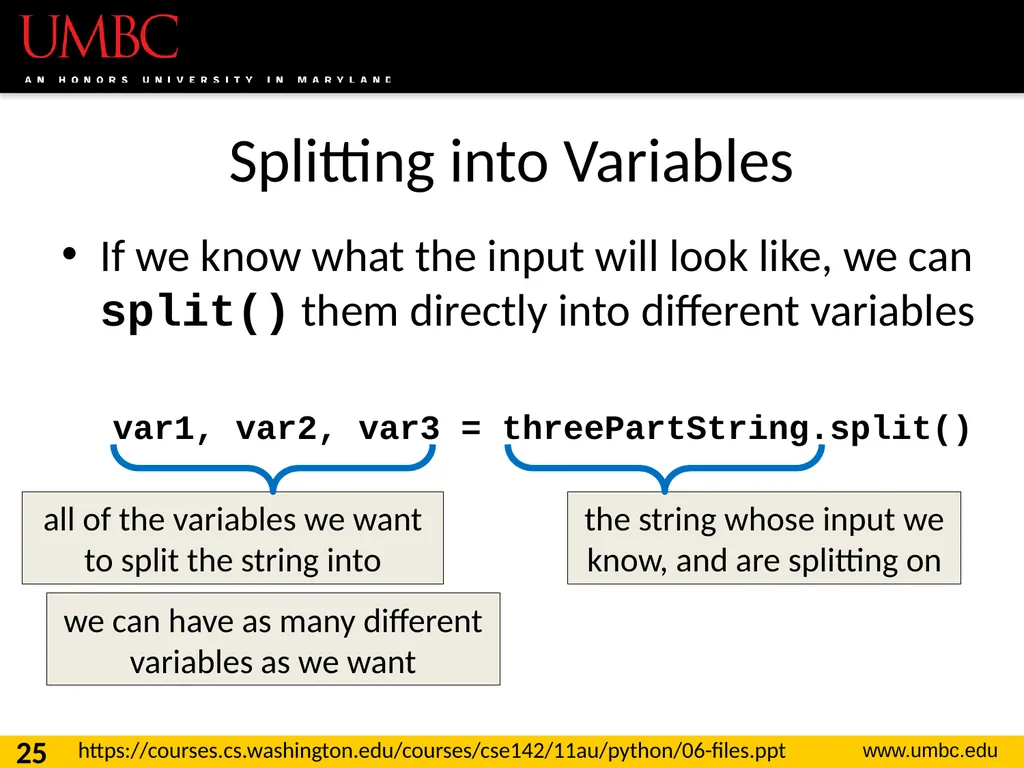
Splitting into Variables If we know what the input will look like, we can split() them directly into different variables
var1, var2, var3 = threePartString.split() 25 all of the variables we want to split the string into the string whose input we know, and are splitting on we can have as many different variables as we want https://courses.cs.washington.edu/courses/cse142/11au/python/06-files.ppt<br>
var1, var2, var3 = threePartString.split() 25 all of the variables we want to split the string into the string whose input we know, and are splitting on we can have as many different variables as we want https://courses.cs.washington.edu/courses/cse142/11au/python/06-files.ppt<br>
26
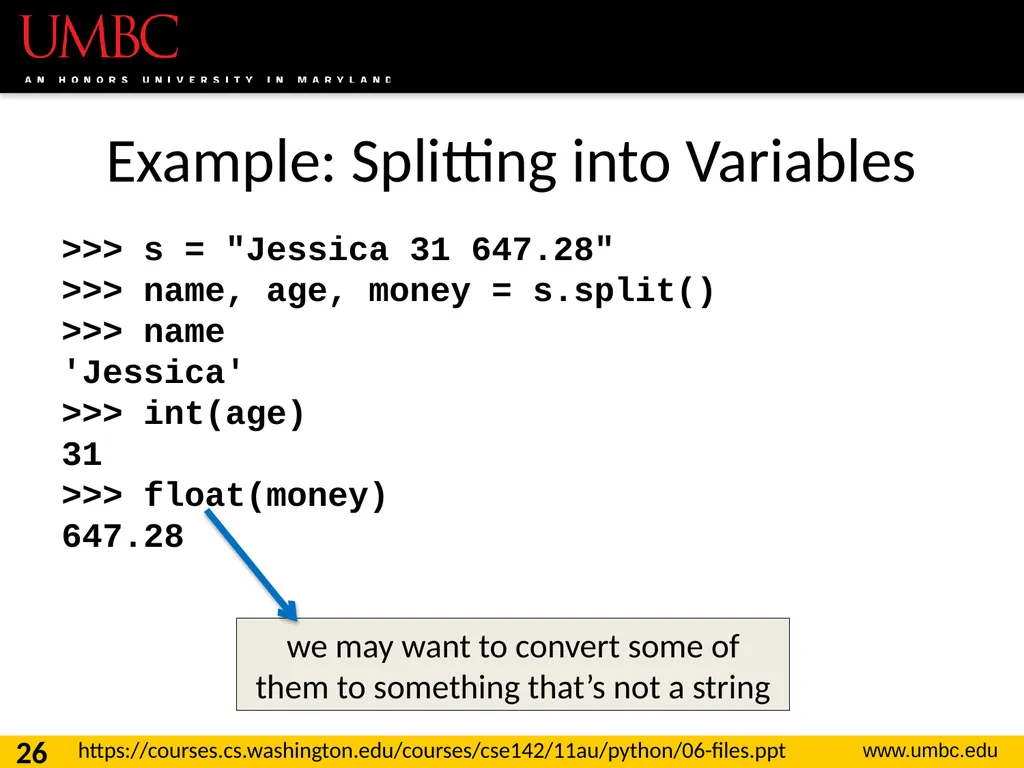
Example: Splitting into Variables >>> s = "Jessica 31 647.28"
>>> name, age, money = s.split()
>>> name
'Jessica'
>>> int(age)
31
>>> float(money)
647.28 26 we may want to convert some of them to something that’s not a string https://courses.cs.washington.edu/courses/cse142/11au/python/06-files.ppt<br>
>>> name, age, money = s.split()
>>> name
'Jessica'
>>> int(age)
31
>>> float(money)
647.28 26 we may want to convert some of them to something that’s not a string https://courses.cs.washington.edu/courses/cse142/11au/python/06-files.ppt<br>
27
27 Writing to Files<br>
28
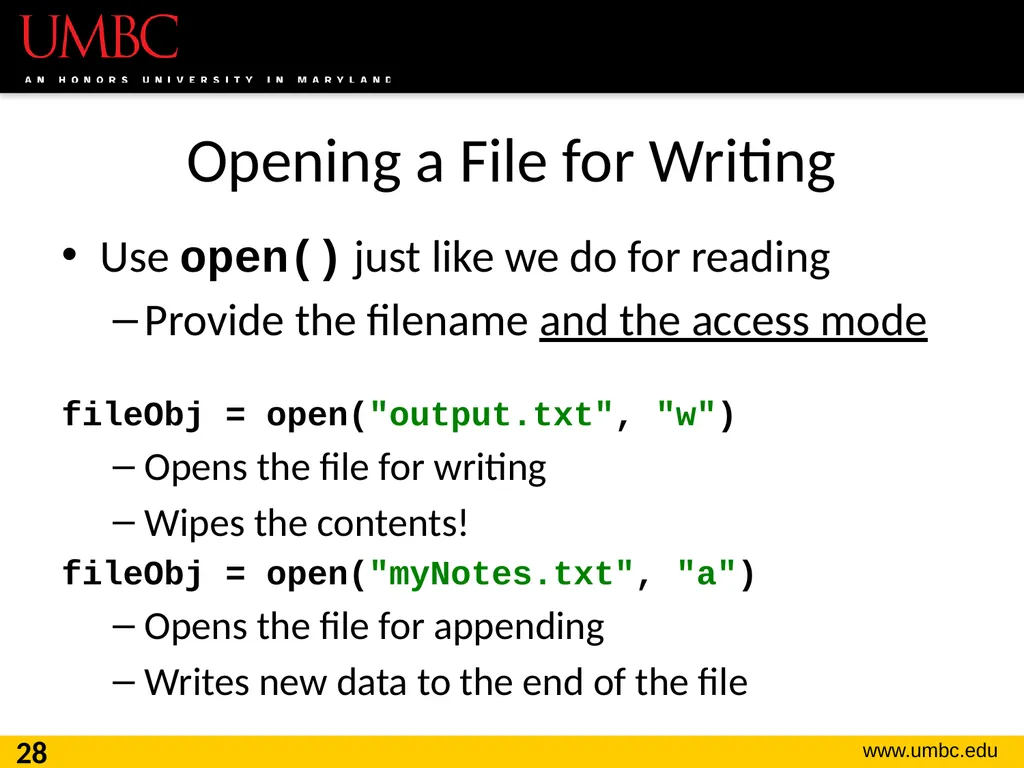
Opening a File for Writing Use open() just like we do for reading
Provide the filename and the access mode
fileObj = open("output.txt", "w")
Opens the file for writing
Wipes the contents!
fileObj = open("myNotes.txt", "a")
Opens the file for appending
Writes new data to the end of the file 28<br>
Provide the filename and the access mode
fileObj = open("output.txt", "w")
Opens the file for writing
Wipes the contents!
fileObj = open("myNotes.txt", "a")
Opens the file for appending
Writes new data to the end of the file 28<br>
29
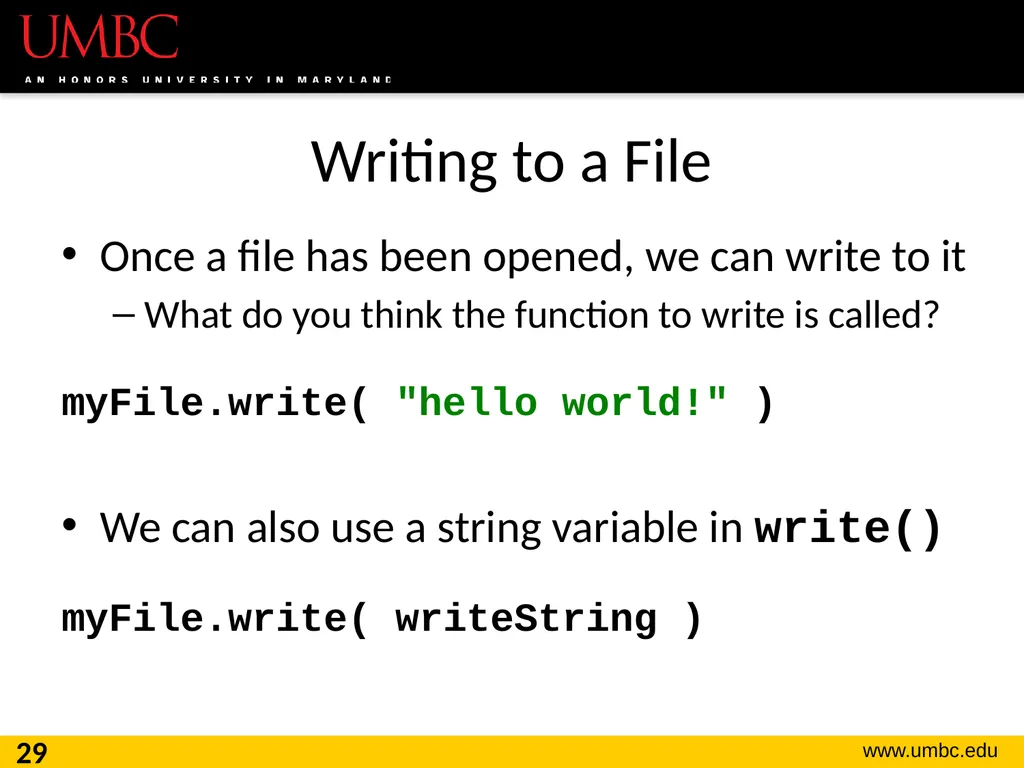
Writing to a File Once a file has been opened, we can write to it
What do you think the function to write is called?
myFile.write( "hello world!" )
We can also use a string variable in write()
myFile.write( writeString ) 29<br>
What do you think the function to write is called?
myFile.write( "hello world!" )
We can also use a string variable in write()
myFile.write( writeString ) 29<br>
30
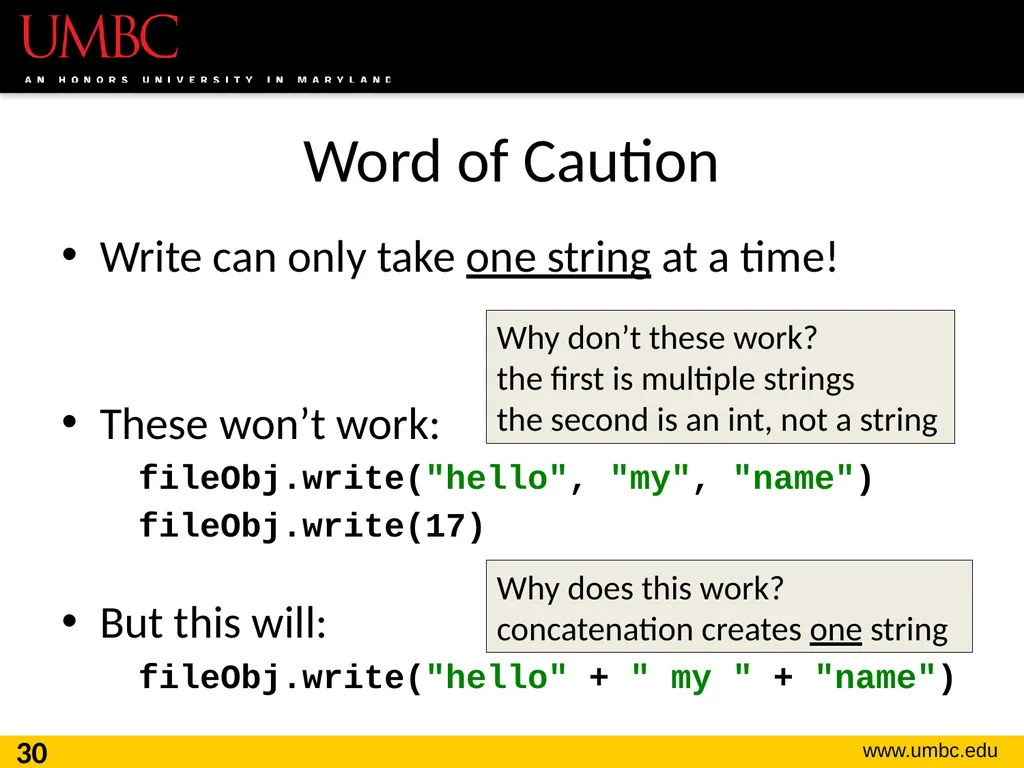
Word of Caution Write can only take one string at a time!
These won’t work:
fileObj.write("hello", "my", "name")
fileObj.write(17)
But this will:
fileObj.write("hello" + " my " + "name") 30 Why don’t these work?
the first is multiple strings
the second is an int, not a string Why does this work?
concatenation creates one string<br>
These won’t work:
fileObj.write("hello", "my", "name")
fileObj.write(17)
But this will:
fileObj.write("hello" + " my " + "name") 30 Why don’t these work?
the first is multiple strings
the second is an int, not a string Why does this work?
concatenation creates one string<br>
31
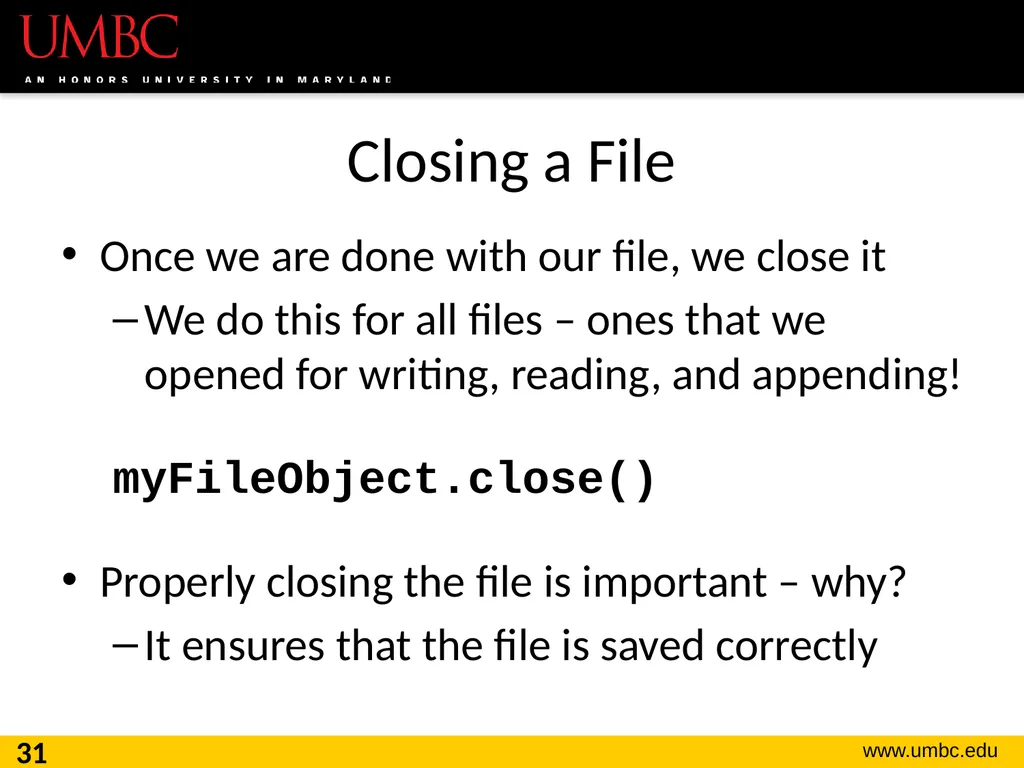
Closing a File Once we are done with our file, we close it
We do this for all files – ones that we opened for writing, reading, and appending!
myFileObject.close()
Properly closing the file is important – why?
It ensures that the file is saved correctly 31<br>
We do this for all files – ones that we opened for writing, reading, and appending!
myFileObject.close()
Properly closing the file is important – why?
It ensures that the file is saved correctly 31<br>
32
Time for… 32 LIVECODING!!!<br>
33
deSpacing Write a function that
Reads in from a file called “spaced.txt”
Counts how many whitespace (\n, \t, and ' ') characters it has
Prints out the total count of whitespace characters
Creates a new file without any of the whitespace characters (called “unspaced.txt”) 33<br>
Reads in from a file called “spaced.txt”
Counts how many whitespace (\n, \t, and ' ') characters it has
Prints out the total count of whitespace characters
Creates a new file without any of the whitespace characters (called “unspaced.txt”) 33<br>
34
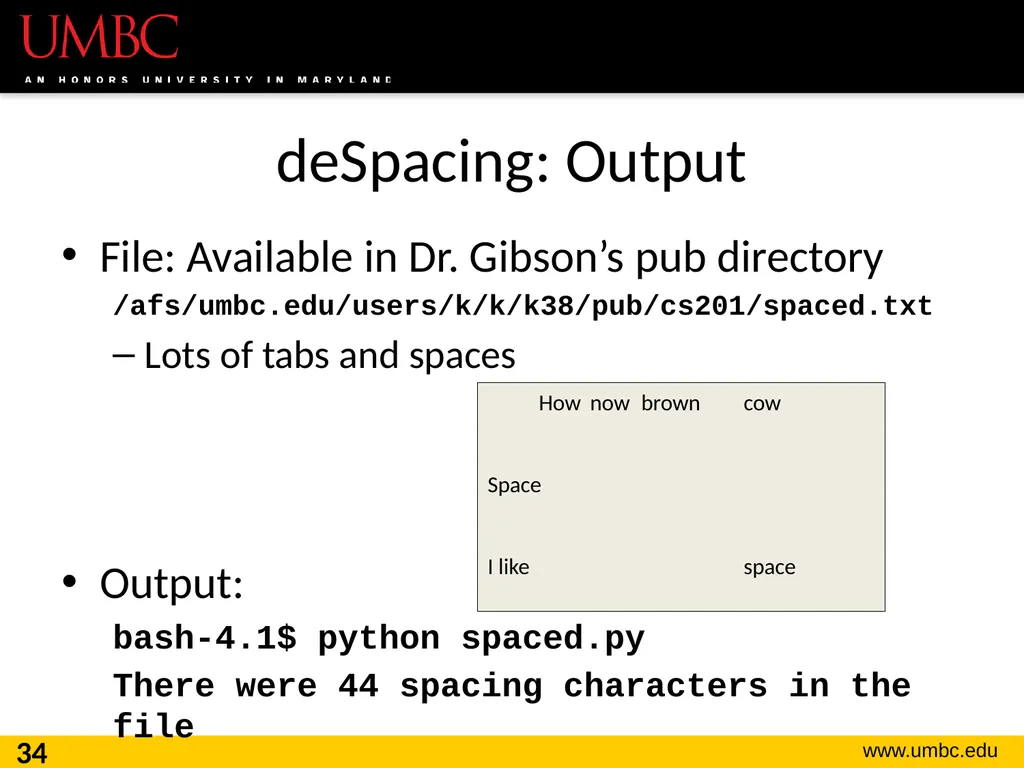
deSpacing: Output File: Available in Dr. Gibson’s pub directory
/afs/umbc.edu/users/k/k/k38/pub/cs201/spaced.txt
Lots of tabs and spaces
Output:
bash-4.1$ python spaced.py
There were 44 spacing characters in the file 34 How now brown cow
Space
I like space<br>
/afs/umbc.edu/users/k/k/k38/pub/cs201/spaced.txt
Lots of tabs and spaces
Output:
bash-4.1$ python spaced.py
There were 44 spacing characters in the file 34 How now brown cow
Space
I like space<br>
35
Announcements Homework 7 is/was due Wednesday
Project 1 comes out this week
It will be difficult
No collaboration allowed!
Start early!
Survey #2 will also come out this week 35<br>
Project 1 comes out this week
It will be difficult
No collaboration allowed!
Start early!
Survey #2 will also come out this week 35<br>
36
Practice Problems Update the Jabberwocky code to find the shortest line instead – think carefully about what you should initialize “shortest” to be.
Write code that opens a file and prints out every other line, starting with the first line.
Think carefully about what method you use for reading in the lines of the file. 36<br>
Write code that opens a file and prints out every other line, starting with the first line.
Think carefully about what method you use for reading in the lines of the file. 36<br>
37
Exercise: Writing to a File Remember our grocery list program?
At the end of our program, the user has added all of their items to the list grocery_list
Write the contents of grocery_list to a file
Don’t forget to open and close the file! 37<br>
At the end of our program, the user has added all of their items to the list grocery_list
Write the contents of grocery_list to a file
Don’t forget to open and close the file! 37<br>
38
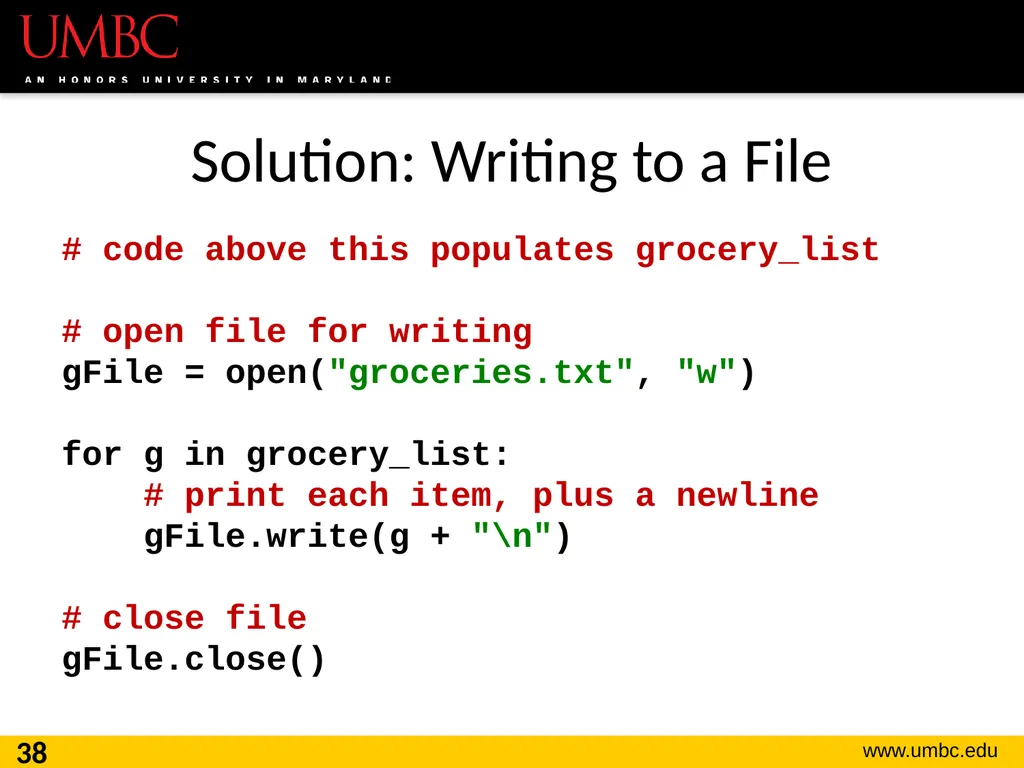
Solution: Writing to a File # code above this populates grocery_list
# open file for writing
gFile = open("groceries.txt", "w")
for g in grocery_list:
# print each item, plus a newline
gFile.write(g + "\n")
# close file
gFile.close() 38<br>
# open file for writing
gFile = open("groceries.txt", "w")
for g in grocery_list:
# print each item, plus a newline
gFile.write(g + "\n")
# close file
gFile.close() 38<br>
39
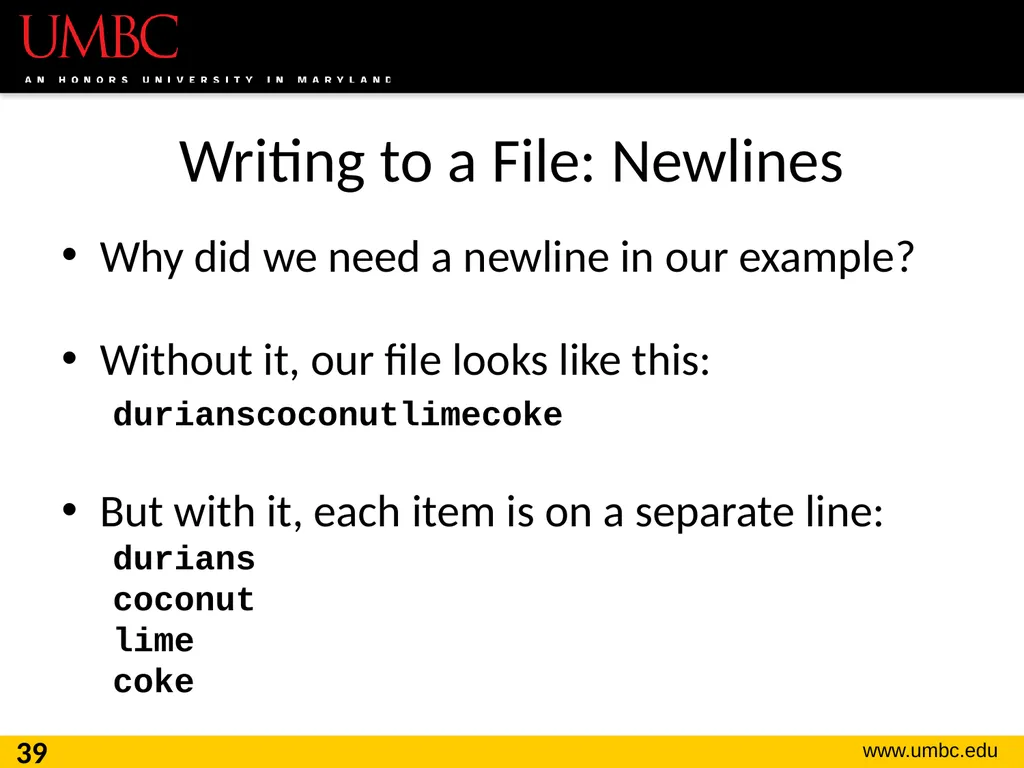
Writing to a File: Newlines Why did we need a newline in our example?
Without it, our file looks like this:
durianscoconutlimecoke
But with it, each item is on a separate line:
durians
coconut
lime
coke 39<br>
Without it, our file looks like this:
durianscoconutlimecoke
But with it, each item is on a separate line:
durians
coconut
lime
coke 39<br>