
Colleague Admin Staff Training What to expect
CP
Published · 56 slides · 0 views
1 / 1

Description
Colleague Admin Staff Training What to expect during these sessions We will focus on training relevant to your day-to-day functions What you will need Access to Colleague-Test UI and Self Service Colleague Training Manual - Student Your
Related Topics
Share
Embed code
Download this presentation From Below
"Colleague Admin Staff Training What to expect" is the property of its rightful owner. Permission is granted to download and print the materials on this website for personal, non-commercial use only, and to display it on your personal computer provided you do not modify the materials and that you retain all copyright notices contained in the materials. By downloading content from our website, you accept the terms of this agreement.
Presentation Transcript
01
Colleague Admin Staff
Training<br>
02
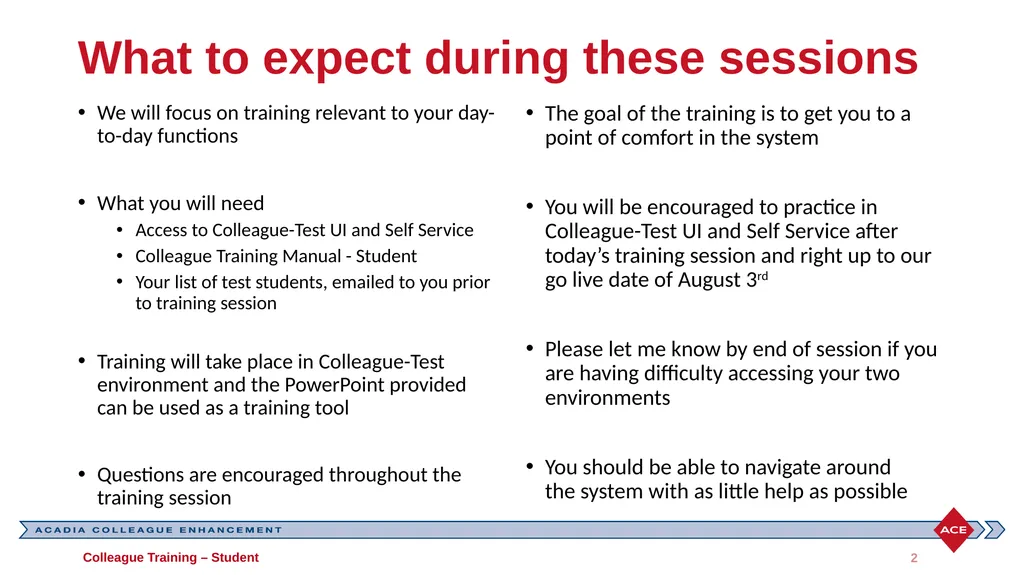
What to expect during these sessions We will focus on training relevant to your day-to-day functions
What you will need
Access to Colleague-Test UI and Self Service
Colleague Training Manual - Student
Your list of test students, emailed to you prior to training session
Training will take place in Colleague-Test environment and the PowerPoint provided can be used as a training tool
Questions are encouraged throughout the training session The goal of the training is to get you to a point of comfort in the system
You will be encouraged to practice in Colleague-Test UI and Self Service after today’s training session and right up to our go live date of August 3rd
Please let me know by end of session if you are having difficulty accessing your two environments
You should be able to navigate around the system with as little help as possible Colleague Training – Student 2<br>
What you will need
Access to Colleague-Test UI and Self Service
Colleague Training Manual - Student
Your list of test students, emailed to you prior to training session
Training will take place in Colleague-Test environment and the PowerPoint provided can be used as a training tool
Questions are encouraged throughout the training session The goal of the training is to get you to a point of comfort in the system
You will be encouraged to practice in Colleague-Test UI and Self Service after today’s training session and right up to our go live date of August 3rd
Please let me know by end of session if you are having difficulty accessing your two environments
You should be able to navigate around the system with as little help as possible Colleague Training – Student 2<br>
03
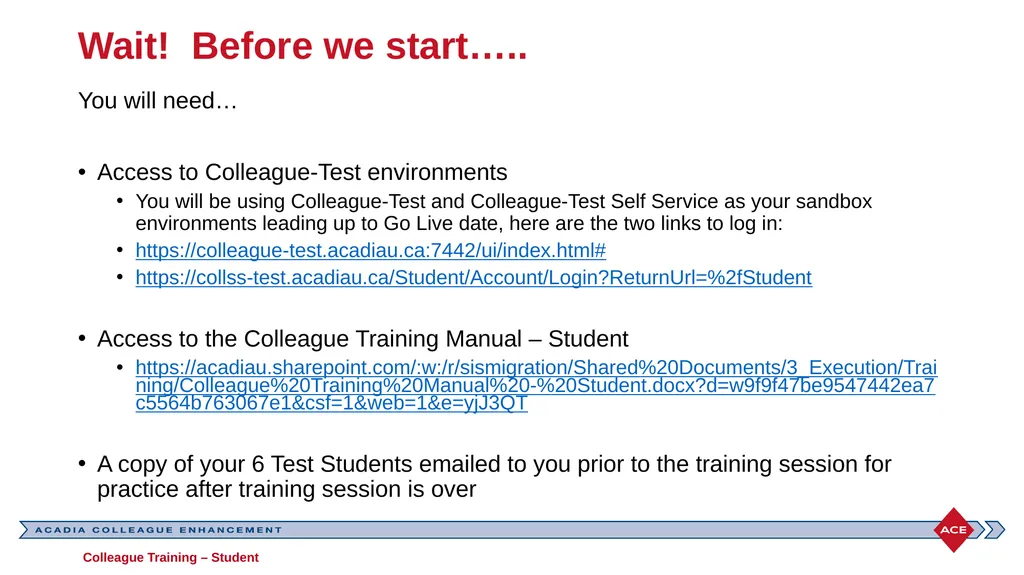
Wait! Before we start….. You will need…
Access to Colleague-Test environments
You will be using Colleague-Test and Colleague-Test Self Service as your sandbox environments leading up to Go Live date, here are the two links to log in:
https://colleague-test.acadiau.ca:7442/ui/index.html#
https://collss-test.acadiau.ca/Student/Account/Login?ReturnUrl=%2fStudent
Access to the Colleague Training Manual – Student
https://acadiau.sharepoint.com/:w:/r/sismigration/Shared%20Documents/3_Execution/Training/Colleague%20Training%20Manual%20-%20Student.docx?d=w9f9f47be9547442ea7c5564b763067e1&csf=1&web=1&e=yjJ3QT
A copy of your 6 Test Students emailed to you prior to the training session for practice after training session is over Colleague Training – Student<br>
Access to Colleague-Test environments
You will be using Colleague-Test and Colleague-Test Self Service as your sandbox environments leading up to Go Live date, here are the two links to log in:
https://colleague-test.acadiau.ca:7442/ui/index.html#
https://collss-test.acadiau.ca/Student/Account/Login?ReturnUrl=%2fStudent
Access to the Colleague Training Manual – Student
https://acadiau.sharepoint.com/:w:/r/sismigration/Shared%20Documents/3_Execution/Training/Colleague%20Training%20Manual%20-%20Student.docx?d=w9f9f47be9547442ea7c5564b763067e1&csf=1&web=1&e=yjJ3QT
A copy of your 6 Test Students emailed to you prior to the training session for practice after training session is over Colleague Training – Student<br>
04
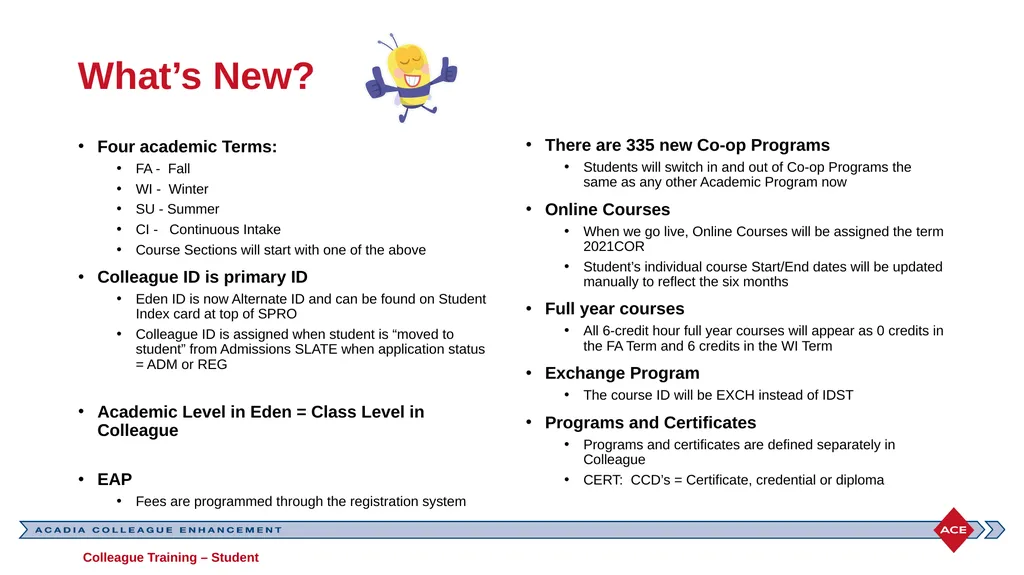
What’s New? Four academic Terms:
FA - Fall
WI - Winter
SU - Summer
CI - Continuous Intake
Course Sections will start with one of the above
Colleague ID is primary ID
Eden ID is now Alternate ID and can be found on Student Index card at top of SPRO
Colleague ID is assigned when student is “moved to student” from Admissions SLATE when application status = ADM or REG
Academic Level in Eden = Class Level in Colleague
EAP
Fees are programmed through the registration system There are 335 new Co-op Programs
Students will switch in and out of Co-op Programs the same as any other Academic Program now
Online Courses
When we go live, Online Courses will be assigned the term 2021COR
Student’s individual course Start/End dates will be updated manually to reflect the six months
Full year courses
All 6-credit hour full year courses will appear as 0 credits in the FA Term and 6 credits in the WI Term
Exchange Program
The course ID will be EXCH instead of IDST
Programs and Certificates
Programs and certificates are defined separately in Colleague
CERT: CCD’s = Certificate, credential or diploma Colleague Training – Student<br>
FA - Fall
WI - Winter
SU - Summer
CI - Continuous Intake
Course Sections will start with one of the above
Colleague ID is primary ID
Eden ID is now Alternate ID and can be found on Student Index card at top of SPRO
Colleague ID is assigned when student is “moved to student” from Admissions SLATE when application status = ADM or REG
Academic Level in Eden = Class Level in Colleague
EAP
Fees are programmed through the registration system There are 335 new Co-op Programs
Students will switch in and out of Co-op Programs the same as any other Academic Program now
Online Courses
When we go live, Online Courses will be assigned the term 2021COR
Student’s individual course Start/End dates will be updated manually to reflect the six months
Full year courses
All 6-credit hour full year courses will appear as 0 credits in the FA Term and 6 credits in the WI Term
Exchange Program
The course ID will be EXCH instead of IDST
Programs and Certificates
Programs and certificates are defined separately in Colleague
CERT: CCD’s = Certificate, credential or diploma Colleague Training – Student<br>
05
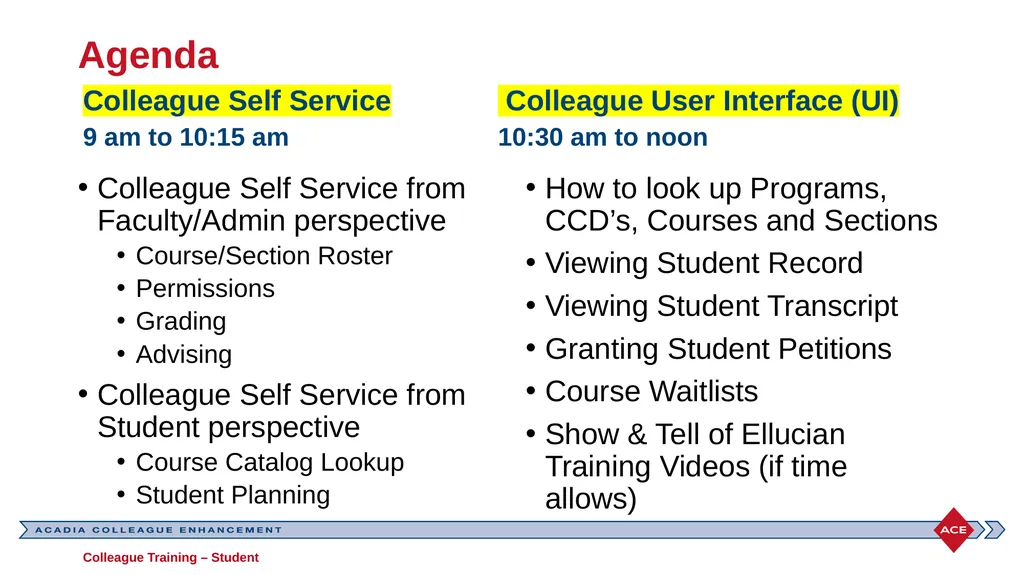
Agenda Colleague Self Service
9 am to 10:15 am Colleague Self Service from Faculty/Admin perspective
Course/Section Roster
Permissions
Grading
Advising
Colleague Self Service from Student perspective
Course Catalog Lookup
Student Planning Colleague User Interface (UI)
10:30 am to noon How to look up Programs, CCD’s, Courses and Sections
Viewing Student Record
Viewing Student Transcript
Granting Student Petitions
Course Waitlists
Show & Tell of Ellucian Training Videos (if time allows) Colleague Training – Student<br>
9 am to 10:15 am Colleague Self Service from Faculty/Admin perspective
Course/Section Roster
Permissions
Grading
Advising
Colleague Self Service from Student perspective
Course Catalog Lookup
Student Planning Colleague User Interface (UI)
10:30 am to noon How to look up Programs, CCD’s, Courses and Sections
Viewing Student Record
Viewing Student Transcript
Granting Student Petitions
Course Waitlists
Show & Tell of Ellucian Training Videos (if time allows) Colleague Training – Student<br>
06
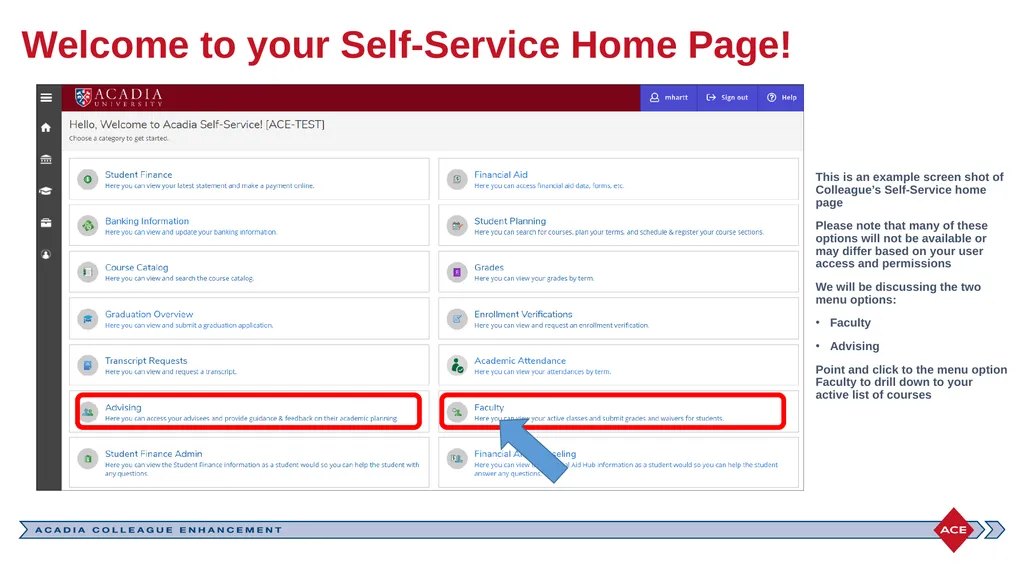
Welcome to your Self-Service Home Page! This is an example screen shot of Colleague’s Self-Service home page
Please note that many of these options will not be available or may differ based on your user access and permissions
We will be discussing the two menu options:
Faculty
Advising
Point and click to the menu option Faculty to drill down to your active list of courses<br>
Please note that many of these options will not be available or may differ based on your user access and permissions
We will be discussing the two menu options:
Faculty
Advising
Point and click to the menu option Faculty to drill down to your active list of courses<br>
07
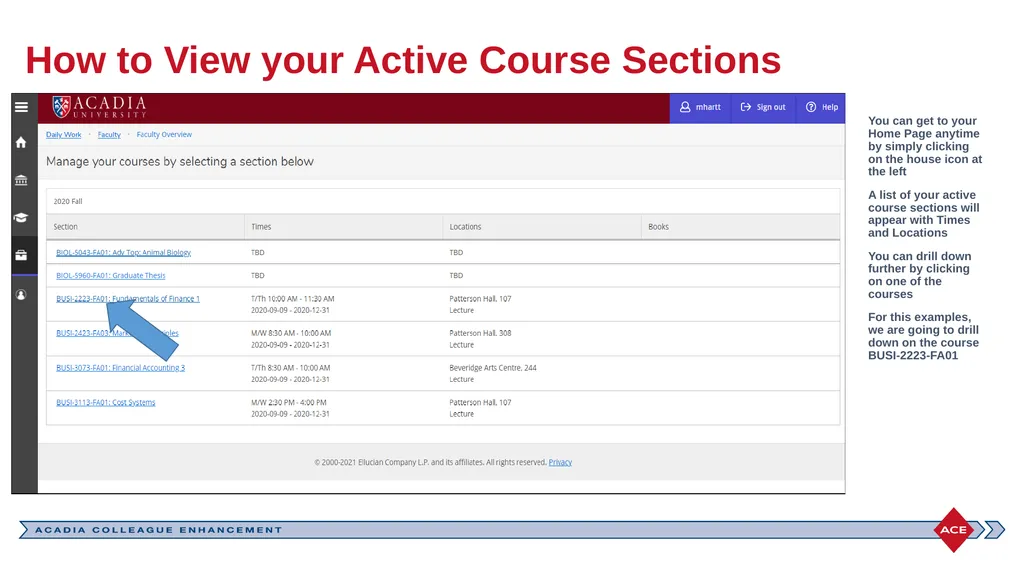
How to View your Active Course Sections You can get to your Home Page anytime by simply clicking on the house icon at the left
A list of your active course sections will appear with Times and Locations
You can drill down further by clicking on one of the courses
For this examples, we are going to drill down on the course BUSI-2223-FA01<br>
A list of your active course sections will appear with Times and Locations
You can drill down further by clicking on one of the courses
For this examples, we are going to drill down on the course BUSI-2223-FA01<br>
08
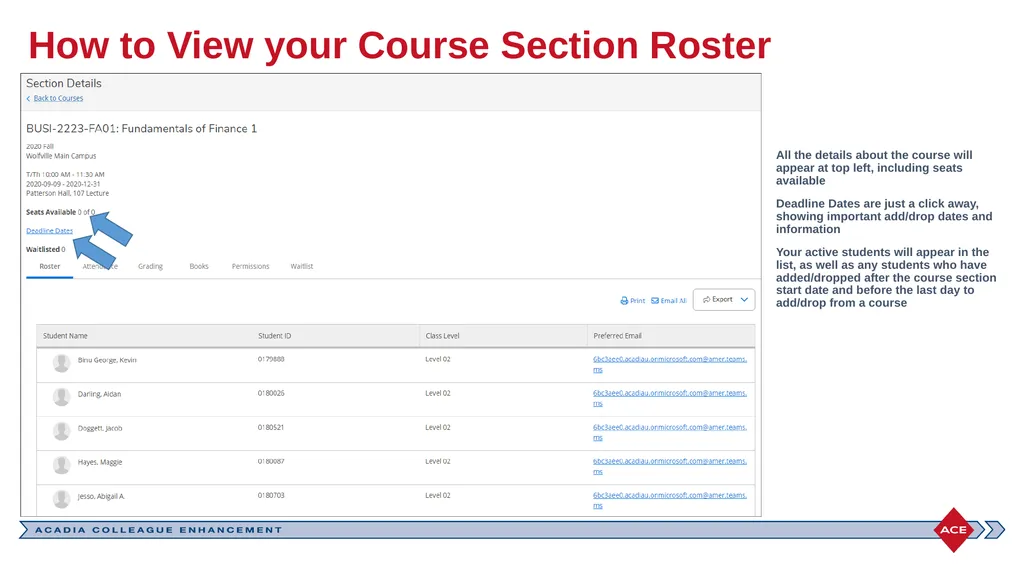
How to View your Course Section Roster All the details about the course will appear at top left, including seats available
Deadline Dates are just a click away, showing important add/drop dates and information
Your active students will appear in the list, as well as any students who have added/dropped after the course section start date and before the last day to add/drop from a course<br>
Deadline Dates are just a click away, showing important add/drop dates and information
Your active students will appear in the list, as well as any students who have added/dropped after the course section start date and before the last day to add/drop from a course<br>
09
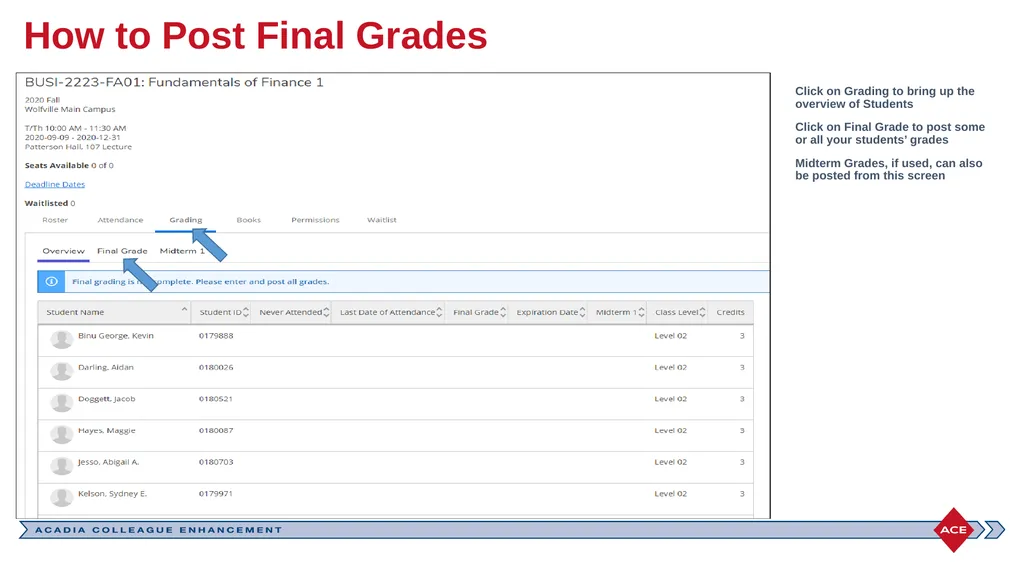
How to Post Final Grades Click on Grading to bring up the overview of Students
Click on Final Grade to post some or all your students’ grades
Midterm Grades, if used, can also be posted from this screen<br>
Click on Final Grade to post some or all your students’ grades
Midterm Grades, if used, can also be posted from this screen<br>
10
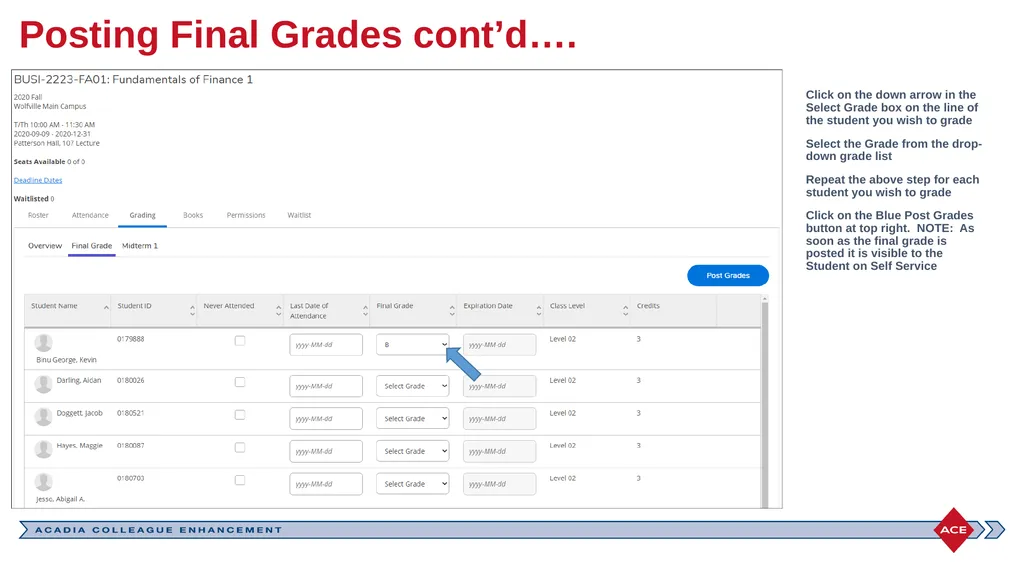
Posting Final Grades cont’d…. Click on the down arrow in the Select Grade box on the line of the student you wish to grade
Select the Grade from the drop- down grade list
Repeat the above step for each student you wish to grade
Click on the Blue Post Grades button at top right. NOTE: As soon as the final grade is posted it is visible to the Student on Self Service<br>
Select the Grade from the drop- down grade list
Repeat the above step for each student you wish to grade
Click on the Blue Post Grades button at top right. NOTE: As soon as the final grade is posted it is visible to the Student on Self Service<br>
11
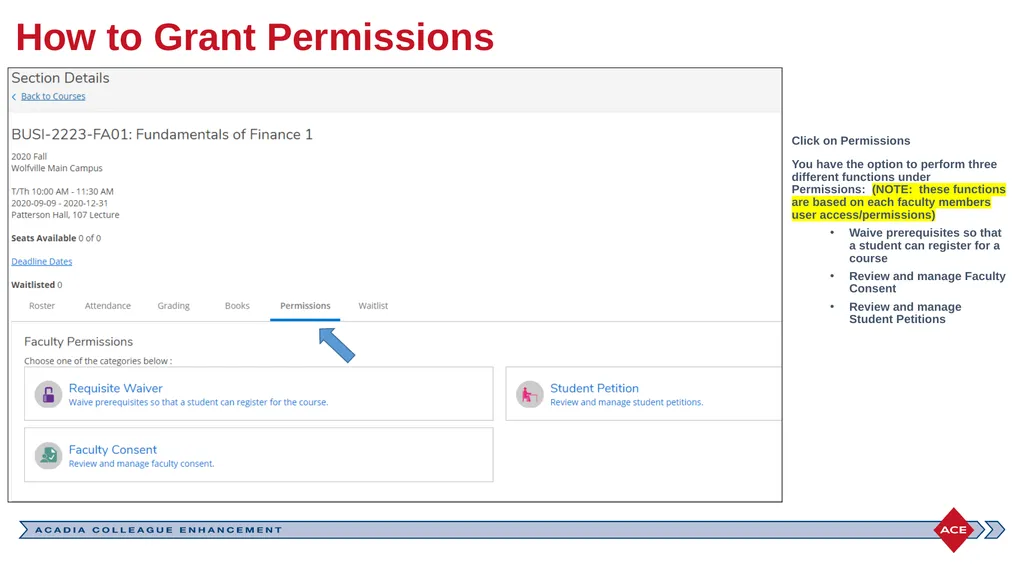
How to Grant Permissions Click on Permissions
You have the option to perform three different functions under Permissions: (NOTE: these functions are based on each faculty members user access/permissions)
Waive prerequisites so that a student can register for a course
Review and manage Faculty Consent
Review and manage Student Petitions<br>
You have the option to perform three different functions under Permissions: (NOTE: these functions are based on each faculty members user access/permissions)
Waive prerequisites so that a student can register for a course
Review and manage Faculty Consent
Review and manage Student Petitions<br>
12
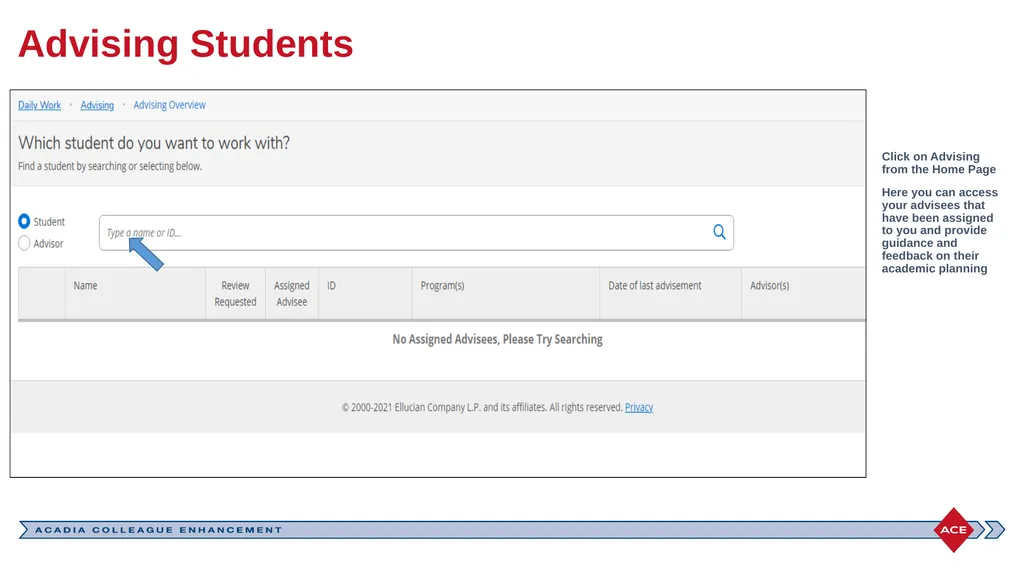
Advising Students Click on Advising from the Home Page
Here you can access your advisees that have been assigned to you and provide guidance and feedback on their academic planning<br>
Here you can access your advisees that have been assigned to you and provide guidance and feedback on their academic planning<br>
13
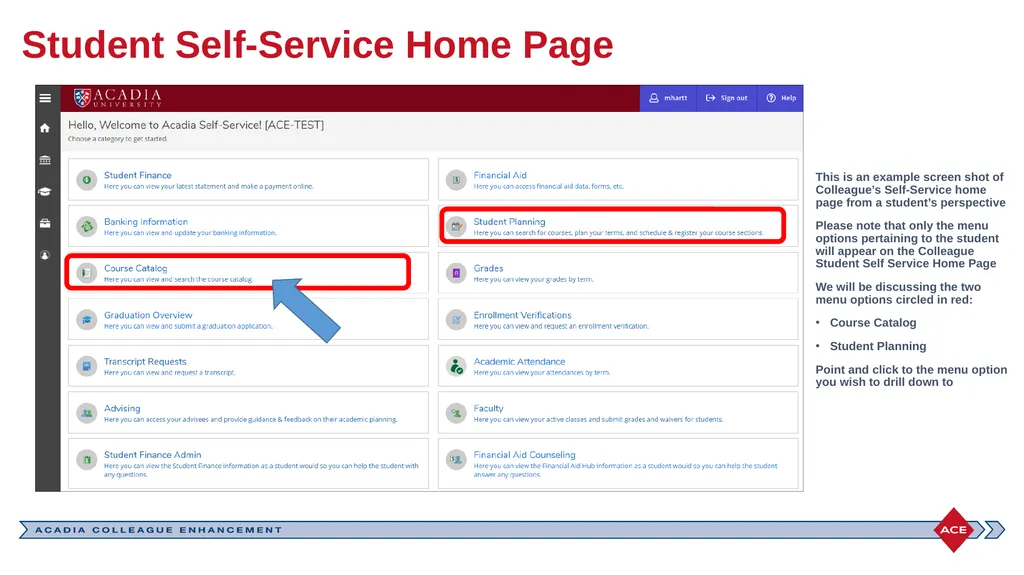
Student Self-Service Home Page This is an example screen shot of Colleague’s Self-Service home page from a student’s perspective
Please note that only the menu options pertaining to the student will appear on the Colleague Student Self Service Home Page
We will be discussing the two menu options circled in red:
Course Catalog
Student Planning
Point and click to the menu option you wish to drill down to<br>
Please note that only the menu options pertaining to the student will appear on the Colleague Student Self Service Home Page
We will be discussing the two menu options circled in red:
Course Catalog
Student Planning
Point and click to the menu option you wish to drill down to<br>
14
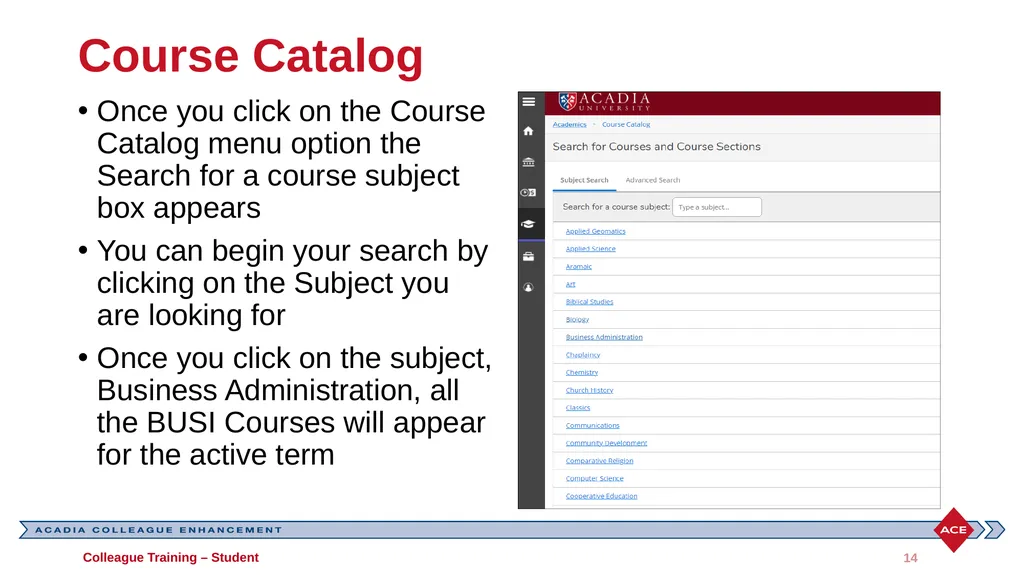
Course Catalog Once you click on the Course Catalog menu option the Search for a course subject box appears
You can begin your search by clicking on the Subject you are looking for
Once you click on the subject, Business Administration, all the BUSI Courses will appear for the active term Colleague Training – Student 14<br>
You can begin your search by clicking on the Subject you are looking for
Once you click on the subject, Business Administration, all the BUSI Courses will appear for the active term Colleague Training – Student 14<br>
15
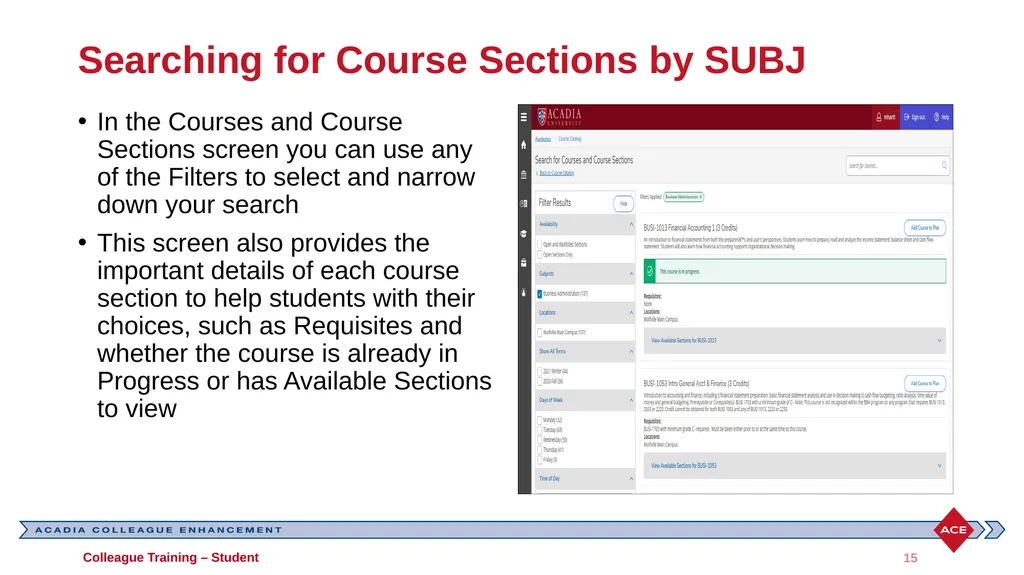
Searching for Course Sections by SUBJ In the Courses and Course Sections screen you can use any of the Filters to select and narrow down your search
This screen also provides the important details of each course section to help students with their choices, such as Requisites and whether the course is already in Progress or has Available Sections to view Colleague Training – Student 15<br>
This screen also provides the important details of each course section to help students with their choices, such as Requisites and whether the course is already in Progress or has Available Sections to view Colleague Training – Student 15<br>
16
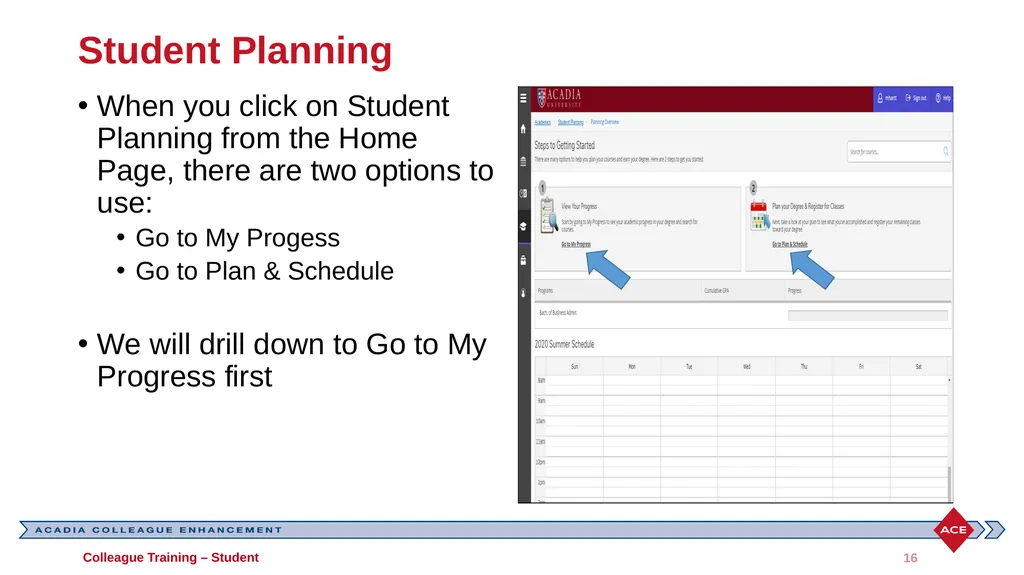
Student Planning When you click on Student Planning from the Home Page, there are two options to use:
Go to My Progess
Go to Plan & Schedule
We will drill down to Go to My Progress first Colleague Training – Student 16<br>
Go to My Progess
Go to Plan & Schedule
We will drill down to Go to My Progress first Colleague Training – Student 16<br>
17
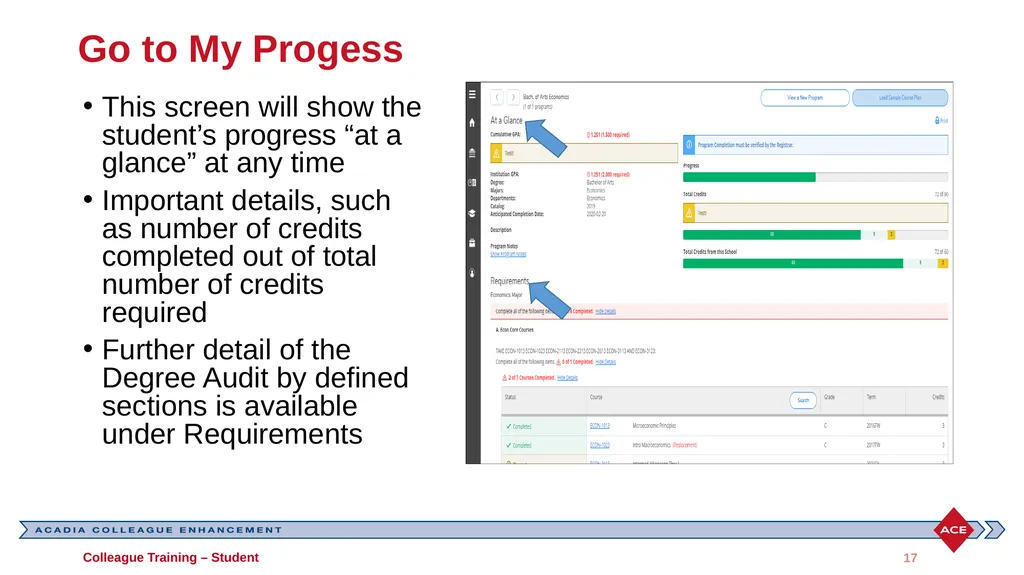
Go to My Progess This screen will show the student’s progress “at a glance” at any time
Important details, such as number of credits completed out of total number of credits required
Further detail of the Degree Audit by defined sections is available under Requirements Colleague Training – Student 17<br>
Important details, such as number of credits completed out of total number of credits required
Further detail of the Degree Audit by defined sections is available under Requirements Colleague Training – Student 17<br>
18
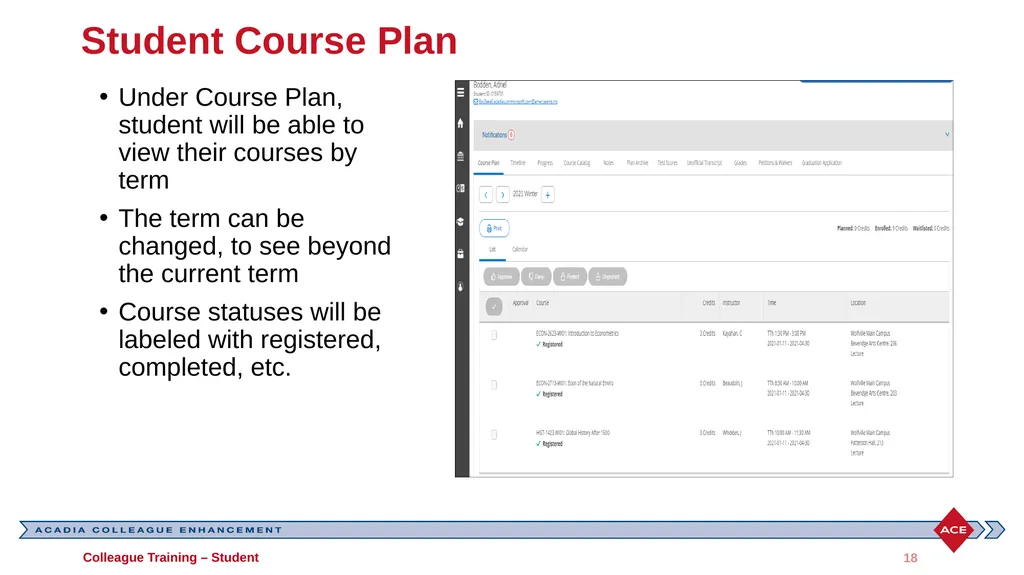
Student Course Plan Under Course Plan, student will be able to view their courses by term
The term can be changed, to see beyond the current term
Course statuses will be labeled with registered, completed, etc. Colleague Training – Student 18<br>
The term can be changed, to see beyond the current term
Course statuses will be labeled with registered, completed, etc. Colleague Training – Student 18<br>
19
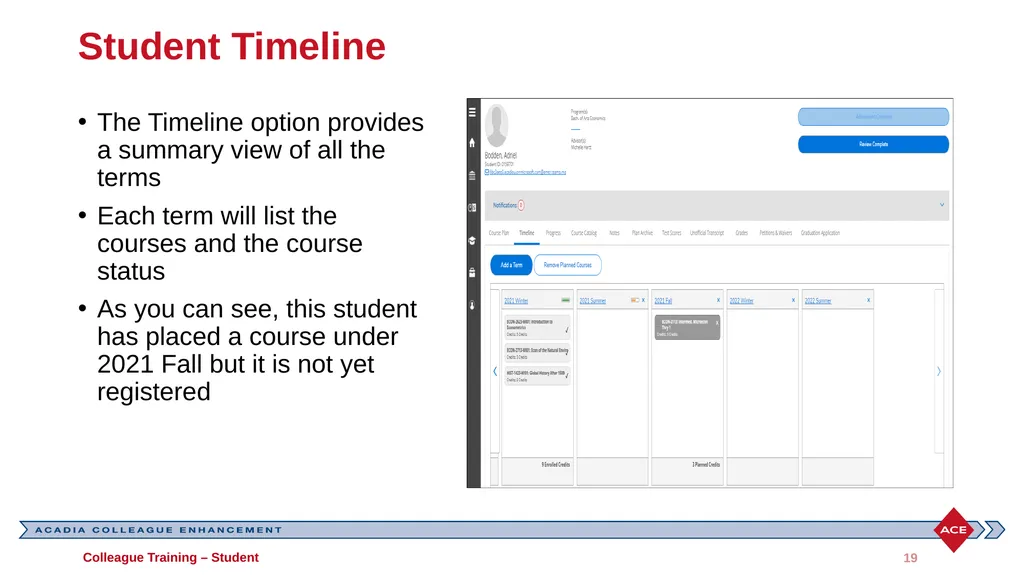
Student Timeline The Timeline option provides a summary view of all the terms
Each term will list the courses and the course status
As you can see, this student has placed a course under 2021 Fall but it is not yet registered Colleague Training – Student 19<br>
Each term will list the courses and the course status
As you can see, this student has placed a course under 2021 Fall but it is not yet registered Colleague Training – Student 19<br>
20
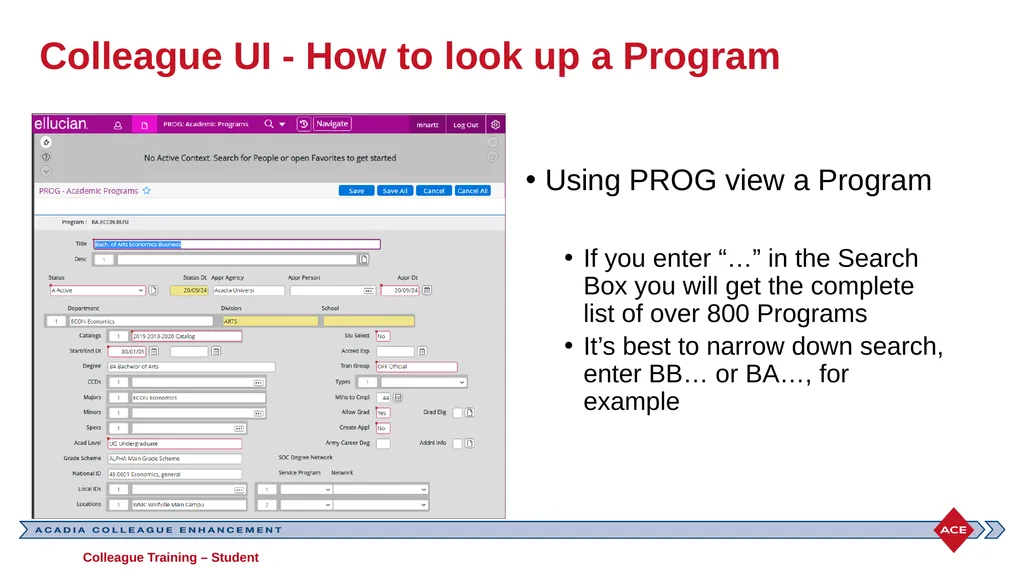
Colleague UI - How to look up a Program Using PROG view a Program
If you enter “…” in the Search Box you will get the complete list of over 800 Programs
It’s best to narrow down search, enter BB… or BA…, for example Colleague Training – Student<br>
If you enter “…” in the Search Box you will get the complete list of over 800 Programs
It’s best to narrow down search, enter BB… or BA…, for example Colleague Training – Student<br>
21
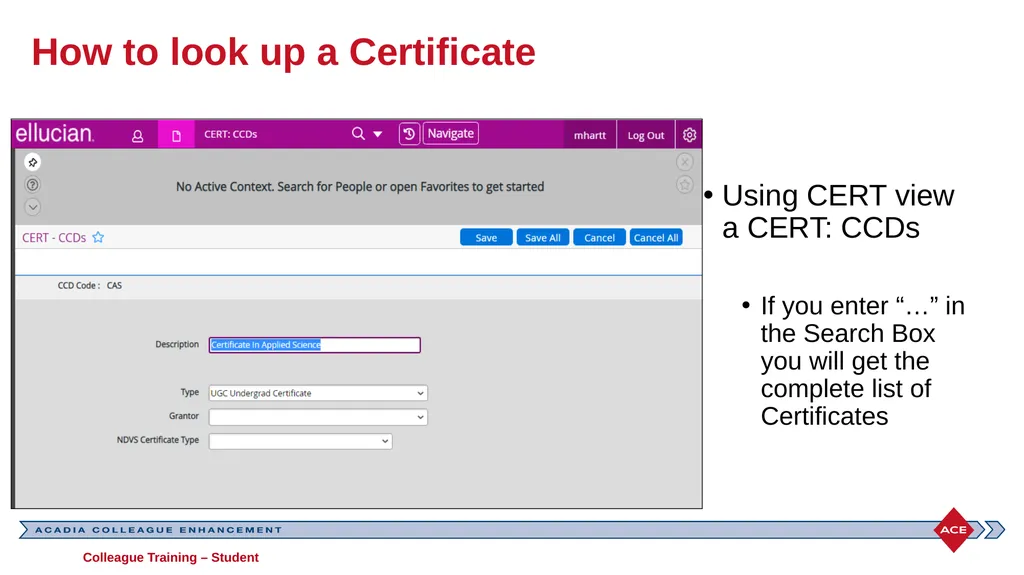
How to look up a Certificate Using CERT view a CERT: CCDs
If you enter “…” in the Search Box you will get the complete list of Certificates Colleague Training – Student<br>
If you enter “…” in the Search Box you will get the complete list of Certificates Colleague Training – Student<br>
22
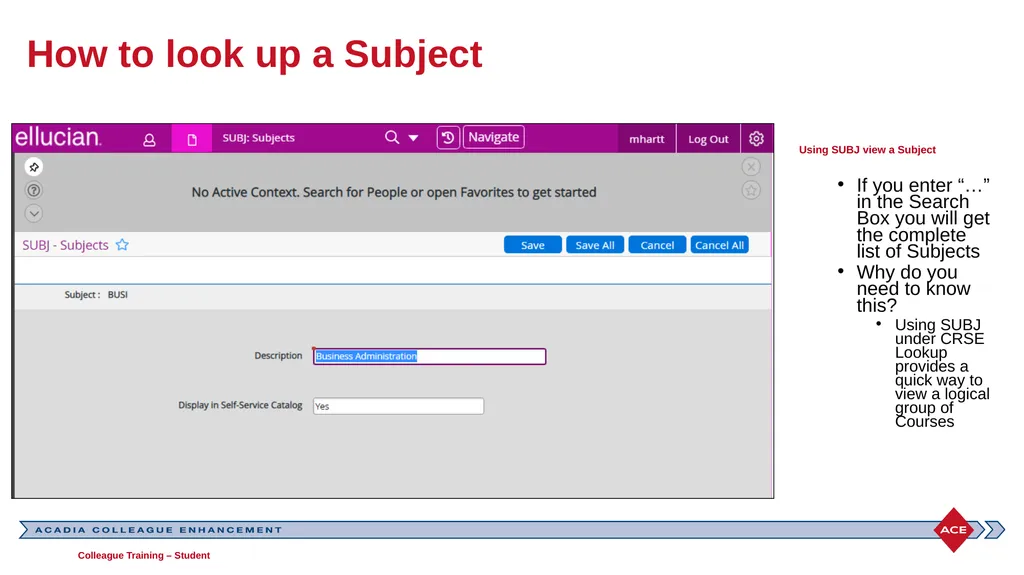
How to look up a Subject Using SUBJ view a Subject
If you enter “…” in the Search Box you will get the complete list of Subjects
Why do you need to know this?
Using SUBJ under CRSE Lookup provides a quick way to view a logical group of Courses Colleague Training – Student<br>
If you enter “…” in the Search Box you will get the complete list of Subjects
Why do you need to know this?
Using SUBJ under CRSE Lookup provides a quick way to view a logical group of Courses Colleague Training – Student<br>
23
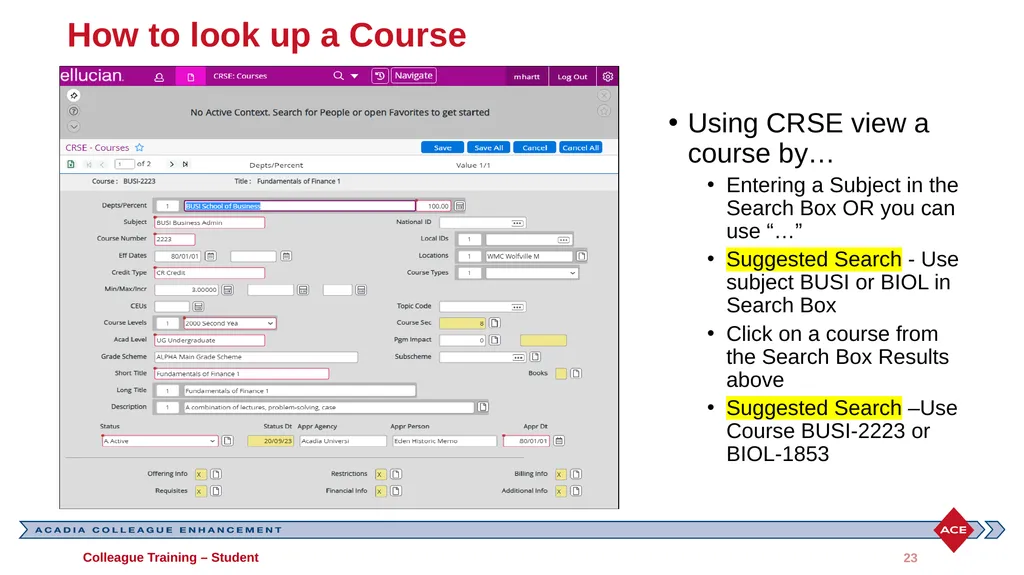
How to look up a Course Using CRSE view a course by…
Entering a Subject in the Search Box OR you can use “…”
Suggested Search - Use subject BUSI or BIOL in Search Box
Click on a course from the Search Box Results above
Suggested Search –Use Course BUSI-2223 or BIOL-1853 23 Colleague Training – Student<br>
Entering a Subject in the Search Box OR you can use “…”
Suggested Search - Use subject BUSI or BIOL in Search Box
Click on a course from the Search Box Results above
Suggested Search –Use Course BUSI-2223 or BIOL-1853 23 Colleague Training – Student<br>
24
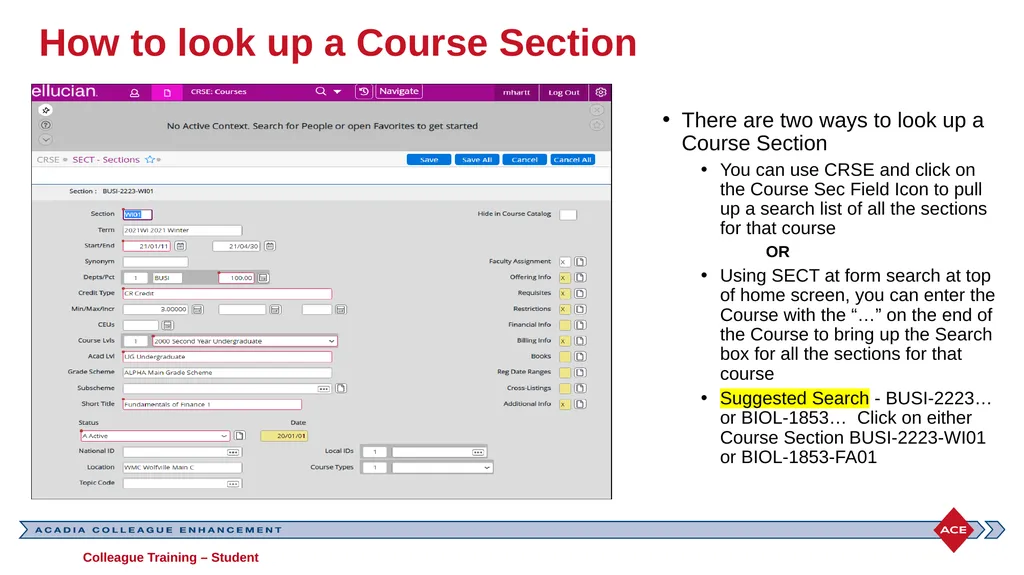
How to look up a Course Section There are two ways to look up a Course Section
You can use CRSE and click on the Course Sec Field Icon to pull up a search list of all the sections for that course
OR
Using SECT at form search at top of home screen, you can enter the Course with the “…” on the end of the Course to bring up the Search box for all the sections for that course
Suggested Search - BUSI-2223… or BIOL-1853… Click on either Course Section BUSI-2223-WI01 or BIOL-1853-FA01 Colleague Training – Student<br>
You can use CRSE and click on the Course Sec Field Icon to pull up a search list of all the sections for that course
OR
Using SECT at form search at top of home screen, you can enter the Course with the “…” on the end of the Course to bring up the Search box for all the sections for that course
Suggested Search - BUSI-2223… or BIOL-1853… Click on either Course Section BUSI-2223-WI01 or BIOL-1853-FA01 Colleague Training – Student<br>
25
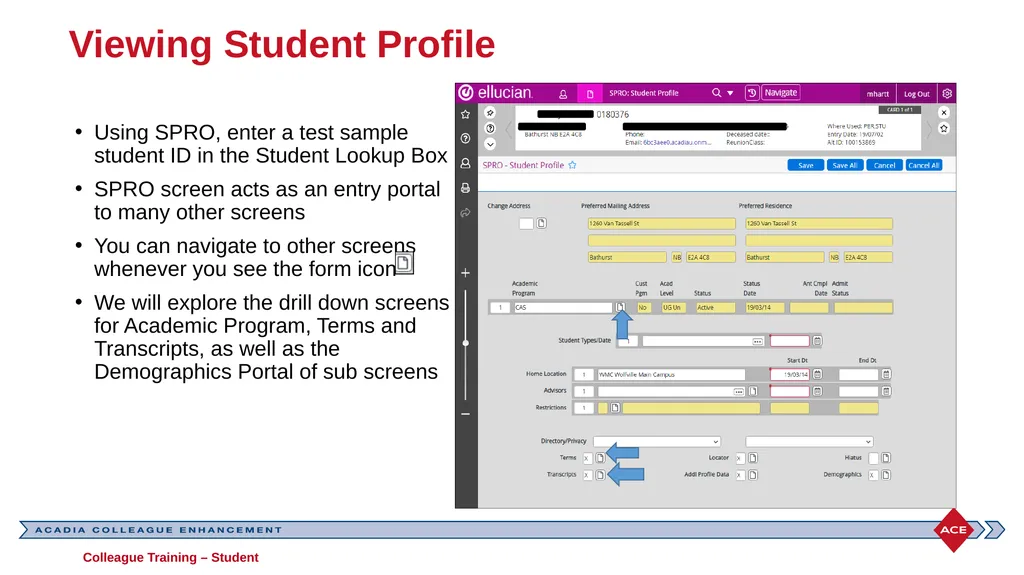
Viewing Student Profile Using SPRO, enter a test sample student ID in the Student Lookup Box
SPRO screen acts as an entry portal to many other screens
You can navigate to other screens whenever you see the form icon
We will explore the drill down screens for Academic Program, Terms and Transcripts, as well as the Demographics Portal of sub screens Colleague Training – Student<br>
SPRO screen acts as an entry portal to many other screens
You can navigate to other screens whenever you see the form icon
We will explore the drill down screens for Academic Program, Terms and Transcripts, as well as the Demographics Portal of sub screens Colleague Training – Student<br>
26
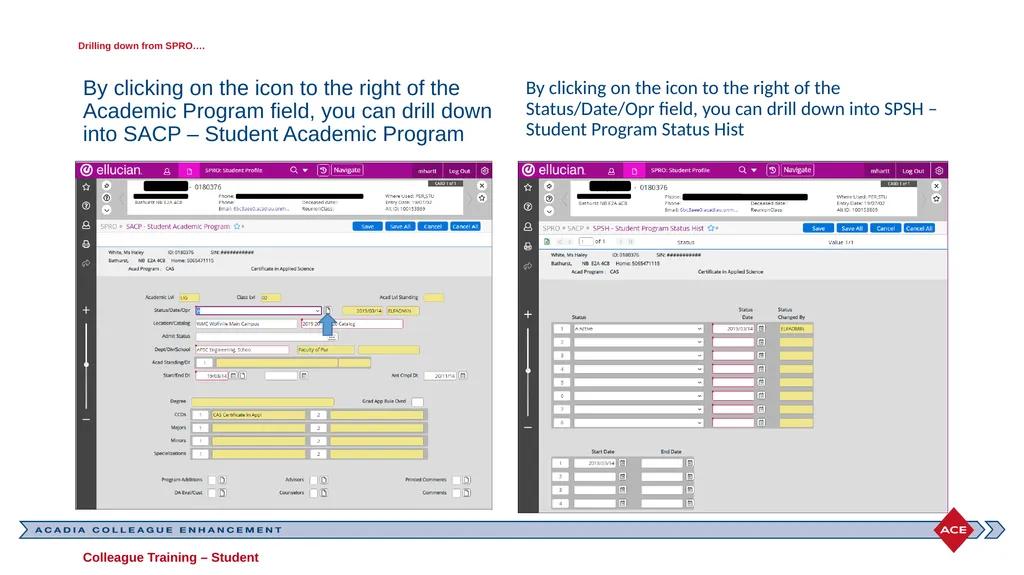
Drilling down from SPRO…. By clicking on the icon to the right of the Academic Program field, you can drill down into SACP – Student Academic Program By clicking on the icon to the right of the Status/Date/Opr field, you can drill down into SPSH – Student Program Status Hist Colleague Training – Student<br>
27
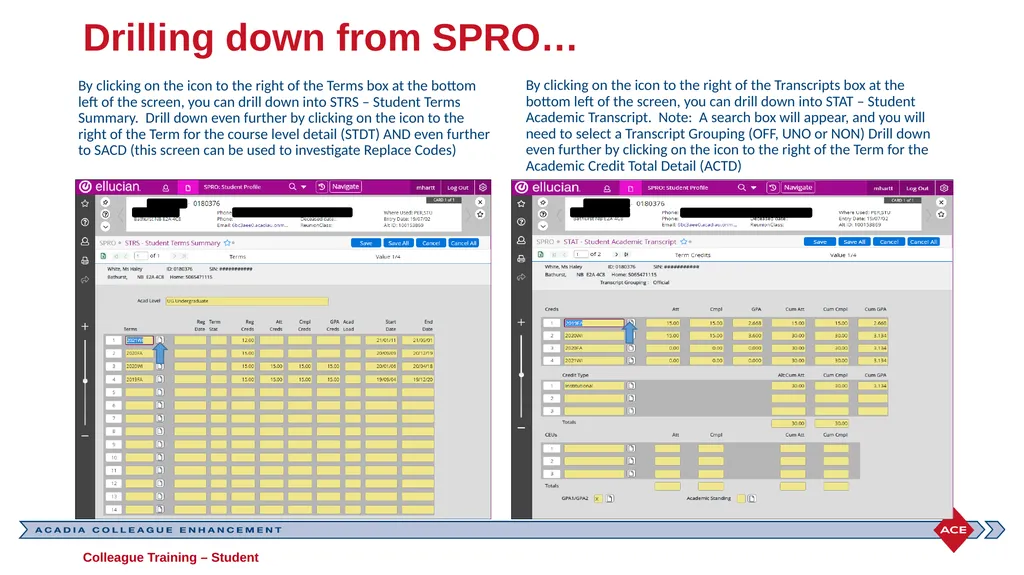
Drilling down from SPRO… By clicking on the icon to the right of the Terms box at the bottom left of the screen, you can drill down into STRS – Student Terms Summary. Drill down even further by clicking on the icon to the right of the Term for the course level detail (STDT) AND even further to SACD (this screen can be used to investigate Replace Codes) By clicking on the icon to the right of the Transcripts box at the bottom left of the screen, you can drill down into STAT – Student Academic Transcript. Note: A search box will appear, and you will need to select a Transcript Grouping (OFF, UNO or NON) Drill down even further by clicking on the icon to the right of the Term for the Academic Credit Total Detail (ACTD) Colleague Training – Student<br>
28
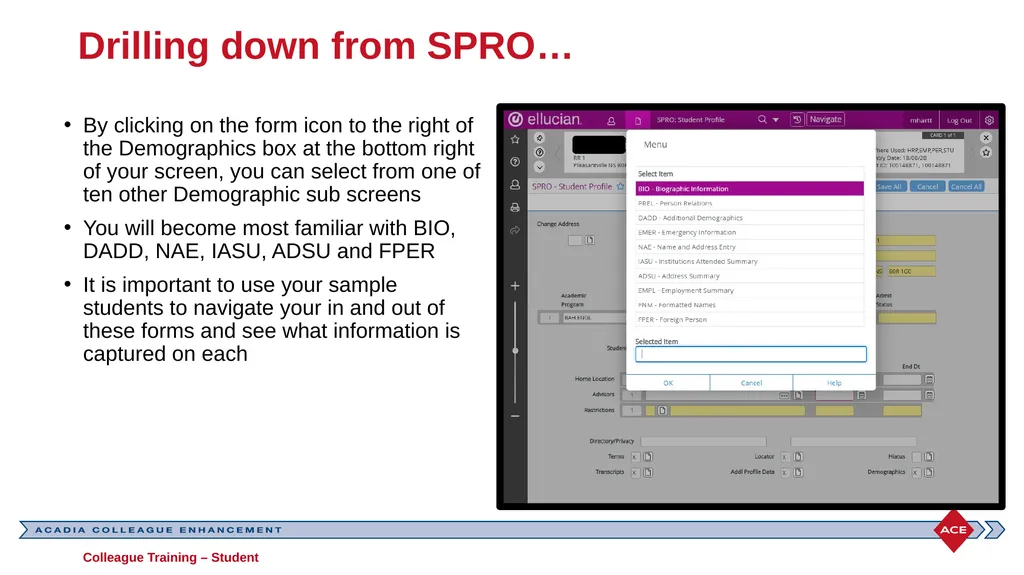
Drilling down from SPRO… By clicking on the form icon to the right of the Demographics box at the bottom right of your screen, you can select from one of ten other Demographic sub screens
You will become most familiar with BIO, DADD, NAE, IASU, ADSU and FPER
It is important to use your sample students to navigate your in and out of these forms and see what information is captured on each Colleague Training – Student<br>
You will become most familiar with BIO, DADD, NAE, IASU, ADSU and FPER
It is important to use your sample students to navigate your in and out of these forms and see what information is captured on each Colleague Training – Student<br>
29
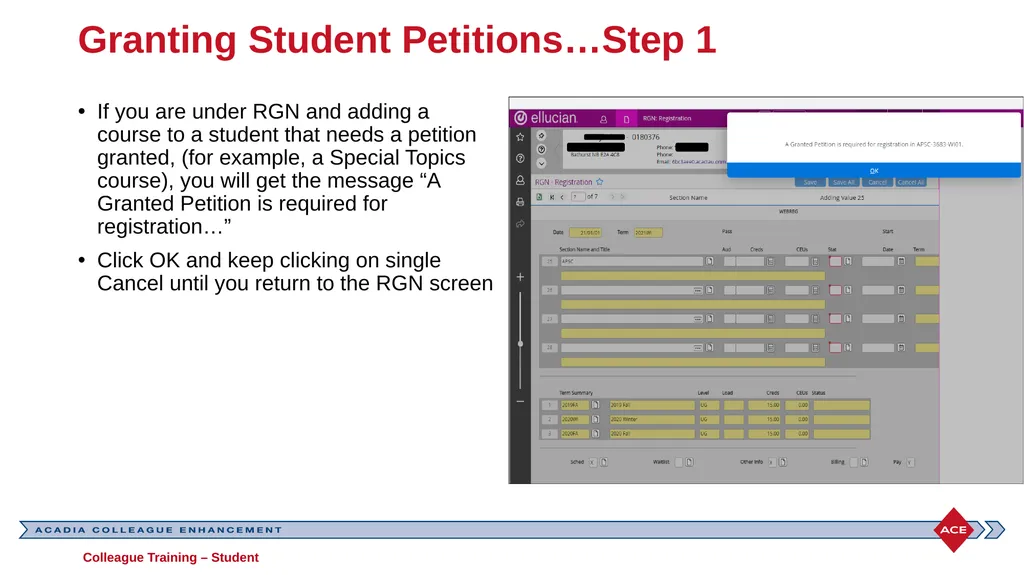
Granting Student Petitions…Step 1 If you are under RGN and adding a course to a student that needs a petition granted, (for example, a Special Topics course), you will get the message “A Granted Petition is required for registration…”
Click OK and keep clicking on single Cancel until you return to the RGN screen Colleague Training – Student<br>
Click OK and keep clicking on single Cancel until you return to the RGN screen Colleague Training – Student<br>
30
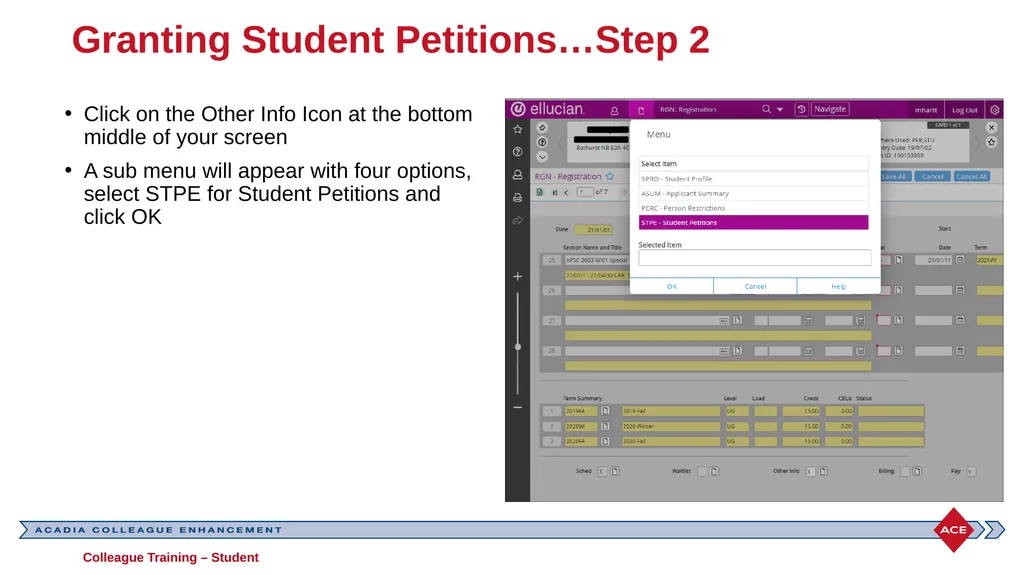
Granting Student Petitions…Step 2 Click on the Other Info Icon at the bottom middle of your screen
A sub menu will appear with four options, select STPE for Student Petitions and click OK Colleague Training – Student<br>
A sub menu will appear with four options, select STPE for Student Petitions and click OK Colleague Training – Student<br>
31
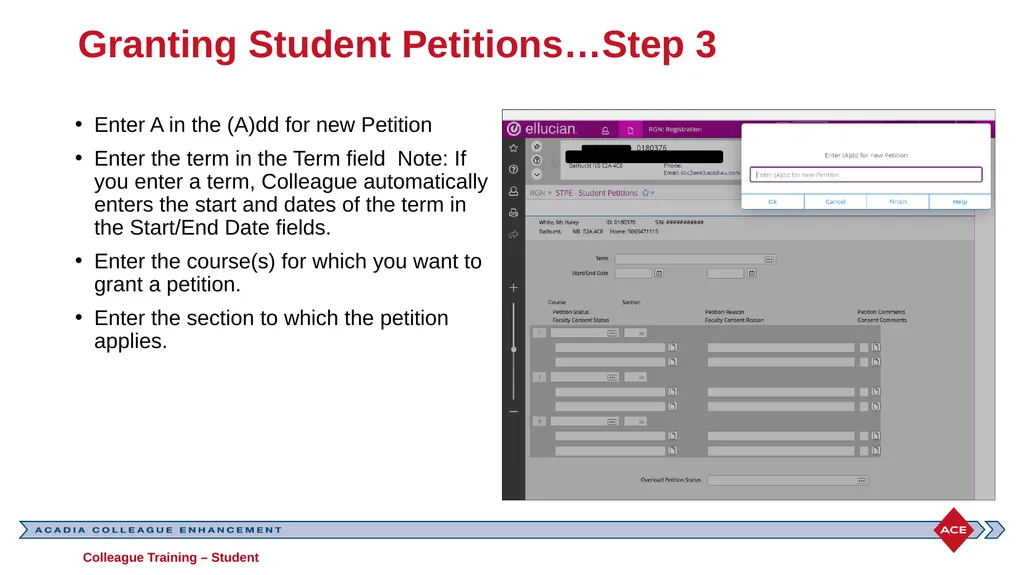
Granting Student Petitions…Step 3 Enter A in the (A)dd for new Petition
Enter the term in the Term field Note: If you enter a term, Colleague automatically enters the start and dates of the term in the Start/End Date fields.
Enter the course(s) for which you want to grant a petition.
Enter the section to which the petition applies. Colleague Training – Student<br>
Enter the term in the Term field Note: If you enter a term, Colleague automatically enters the start and dates of the term in the Start/End Date fields.
Enter the course(s) for which you want to grant a petition.
Enter the section to which the petition applies. Colleague Training – Student<br>
32
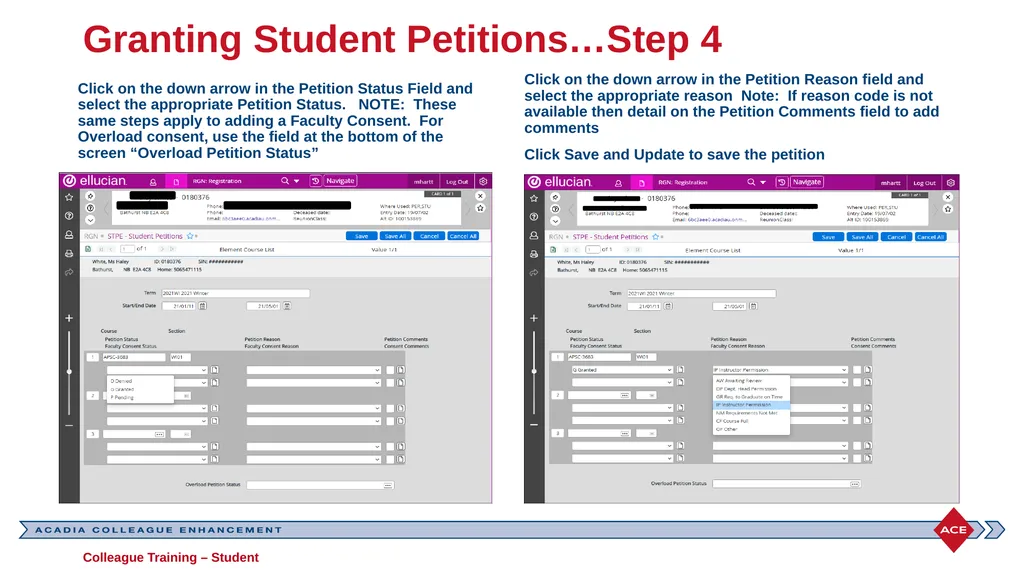
Granting Student Petitions…Step 4 Click on the down arrow in the Petition Status Field and select the appropriate Petition Status. NOTE: These same steps apply to adding a Faculty Consent. For Overload consent, use the field at the bottom of the screen “Overload Petition Status” Click on the down arrow in the Petition Reason field and select the appropriate reason Note: If reason code is not available then detail on the Petition Comments field to add comments
Click Save and Update to save the petition Colleague Training – Student<br>
Click Save and Update to save the petition Colleague Training – Student<br>
33
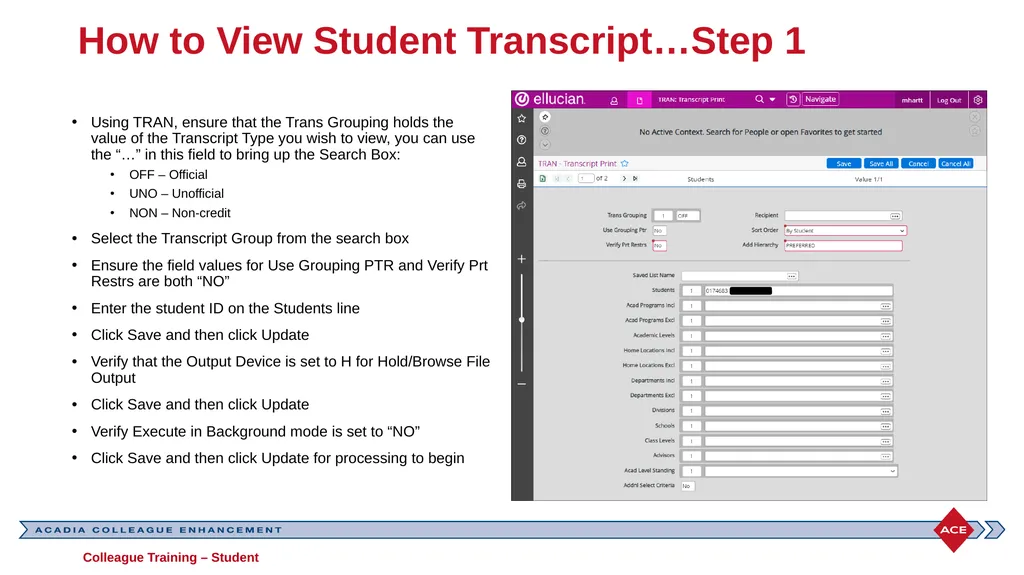
How to View Student Transcript…Step 1 Using TRAN, ensure that the Trans Grouping holds the value of the Transcript Type you wish to view, you can use the “…” in this field to bring up the Search Box:
OFF – Official
UNO – Unofficial
NON – Non-credit
Select the Transcript Group from the search box
Ensure the field values for Use Grouping PTR and Verify Prt Restrs are both “NO”
Enter the student ID on the Students line
Click Save and then click Update
Verify that the Output Device is set to H for Hold/Browse File Output
Click Save and then click Update
Verify Execute in Background mode is set to “NO”
Click Save and then click Update for processing to begin Colleague Training – Student<br>
OFF – Official
UNO – Unofficial
NON – Non-credit
Select the Transcript Group from the search box
Ensure the field values for Use Grouping PTR and Verify Prt Restrs are both “NO”
Enter the student ID on the Students line
Click Save and then click Update
Verify that the Output Device is set to H for Hold/Browse File Output
Click Save and then click Update
Verify Execute in Background mode is set to “NO”
Click Save and then click Update for processing to begin Colleague Training – Student<br>
34
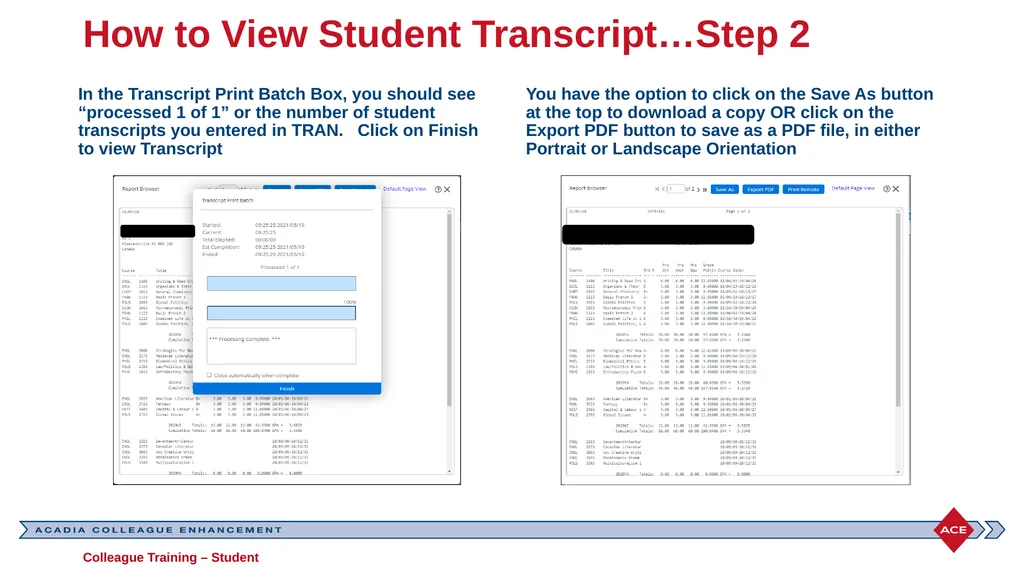
How to View Student Transcript…Step 2 In the Transcript Print Batch Box, you should see “processed 1 of 1” or the number of student transcripts you entered in TRAN. Click on Finish to view Transcript You have the option to click on the Save As button at the top to download a copy OR click on the Export PDF button to save as a PDF file, in either Portrait or Landscape Orientation Colleague Training – Student<br>
35
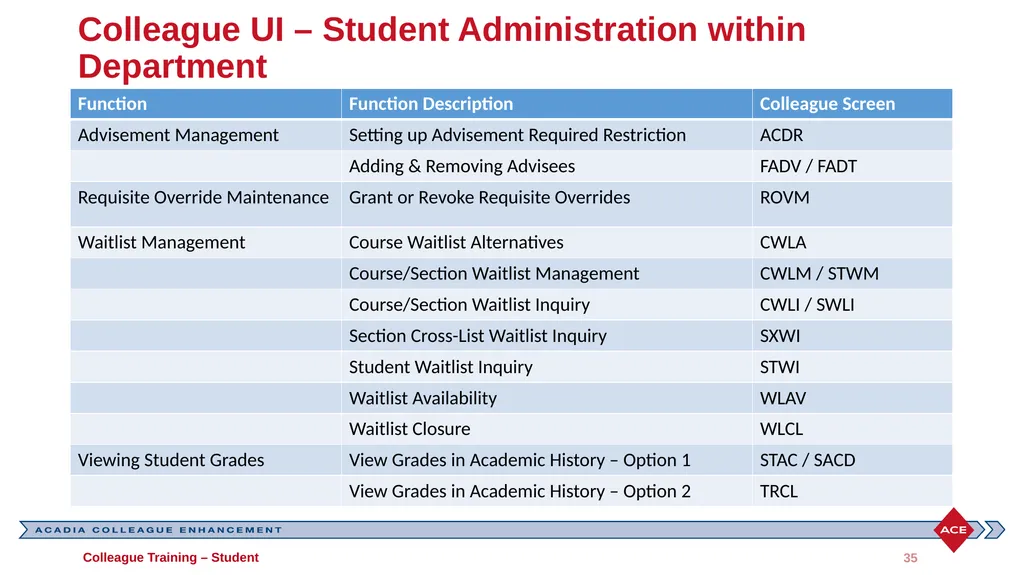
Colleague UI – Student Administration within Department Colleague Training – Student 35<br>
36
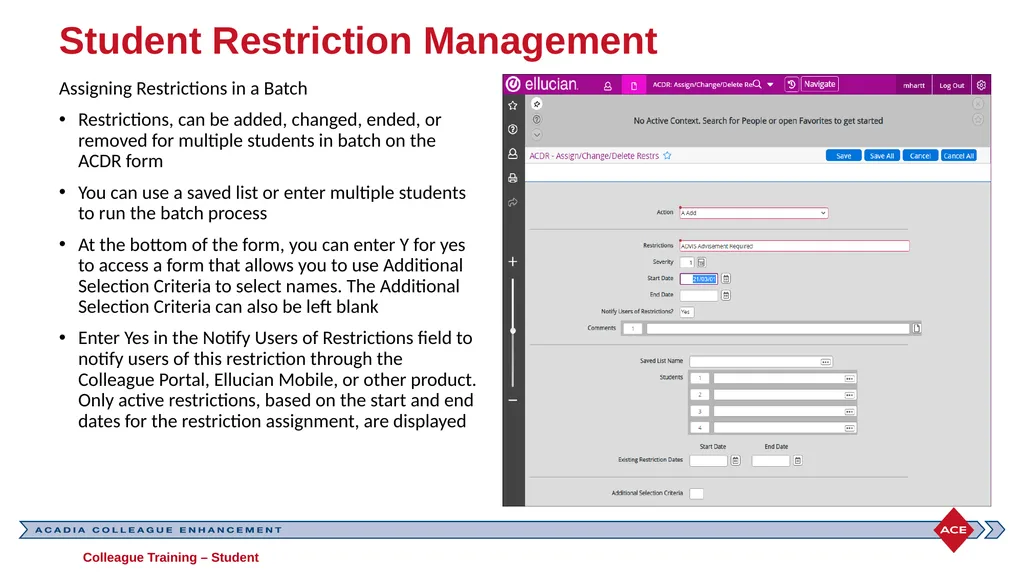
Student Restriction Management Assigning Restrictions in a Batch
Restrictions, can be added, changed, ended, or removed for multiple students in batch on the ACDR form
You can use a saved list or enter multiple students to run the batch process
At the bottom of the form, you can enter Y for yes to access a form that allows you to use Additional Selection Criteria to select names. The Additional Selection Criteria can also be left blank
Enter Yes in the Notify Users of Restrictions field to notify users of this restriction through the Colleague Portal, Ellucian Mobile, or other product. Only active restrictions, based on the start and end dates for the restriction assignment, are displayed Colleague Training – Student<br>
Restrictions, can be added, changed, ended, or removed for multiple students in batch on the ACDR form
You can use a saved list or enter multiple students to run the batch process
At the bottom of the form, you can enter Y for yes to access a form that allows you to use Additional Selection Criteria to select names. The Additional Selection Criteria can also be left blank
Enter Yes in the Notify Users of Restrictions field to notify users of this restriction through the Colleague Portal, Ellucian Mobile, or other product. Only active restrictions, based on the start and end dates for the restriction assignment, are displayed Colleague Training – Student<br>
37
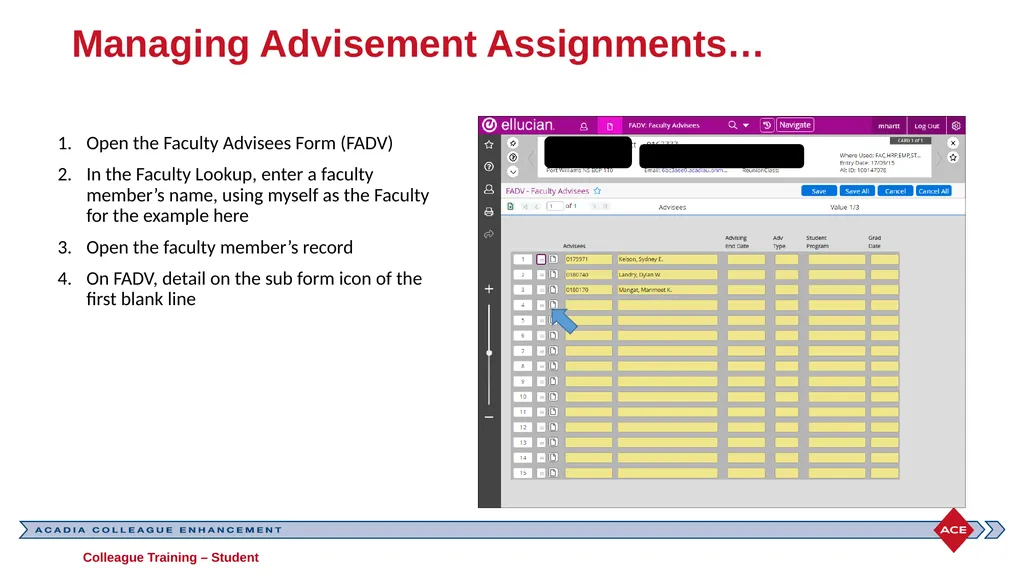
Managing Advisement Assignments… Open the Faculty Advisees Form (FADV)
In the Faculty Lookup, enter a faculty member’s name, using myself as the Faculty for the example here
Open the faculty member’s record
On FADV, detail on the sub form icon of the first blank line Colleague Training – Student<br>
In the Faculty Lookup, enter a faculty member’s name, using myself as the Faculty for the example here
Open the faculty member’s record
On FADV, detail on the sub form icon of the first blank line Colleague Training – Student<br>
38
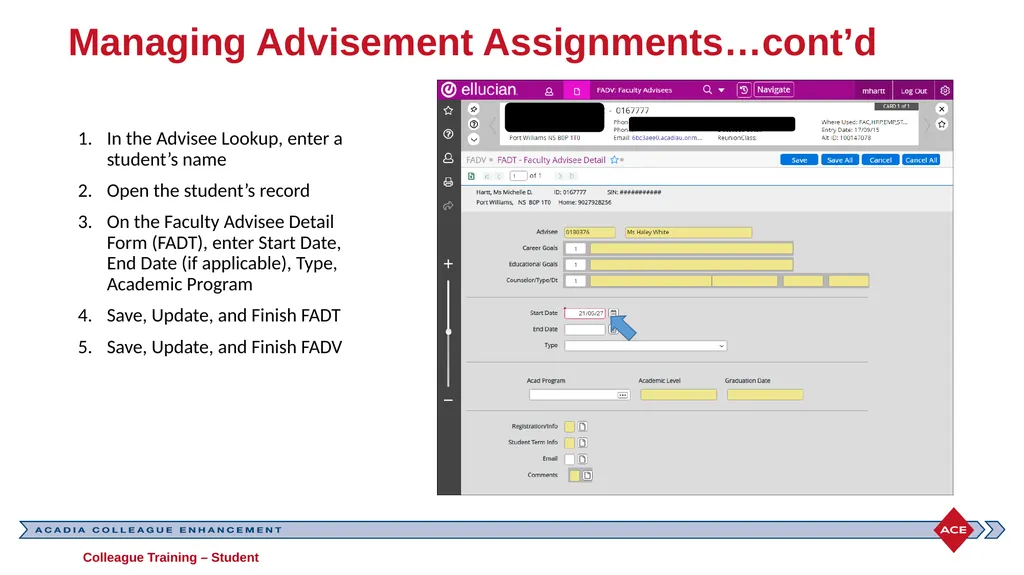
Managing Advisement Assignments…cont’d In the Advisee Lookup, enter a student’s name
Open the student’s record
On the Faculty Advisee Detail Form (FADT), enter Start Date, End Date (if applicable), Type, Academic Program
Save, Update, and Finish FADT
Save, Update, and Finish FADV Colleague Training – Student<br>
Open the student’s record
On the Faculty Advisee Detail Form (FADT), enter Start Date, End Date (if applicable), Type, Academic Program
Save, Update, and Finish FADT
Save, Update, and Finish FADV Colleague Training – Student<br>
39
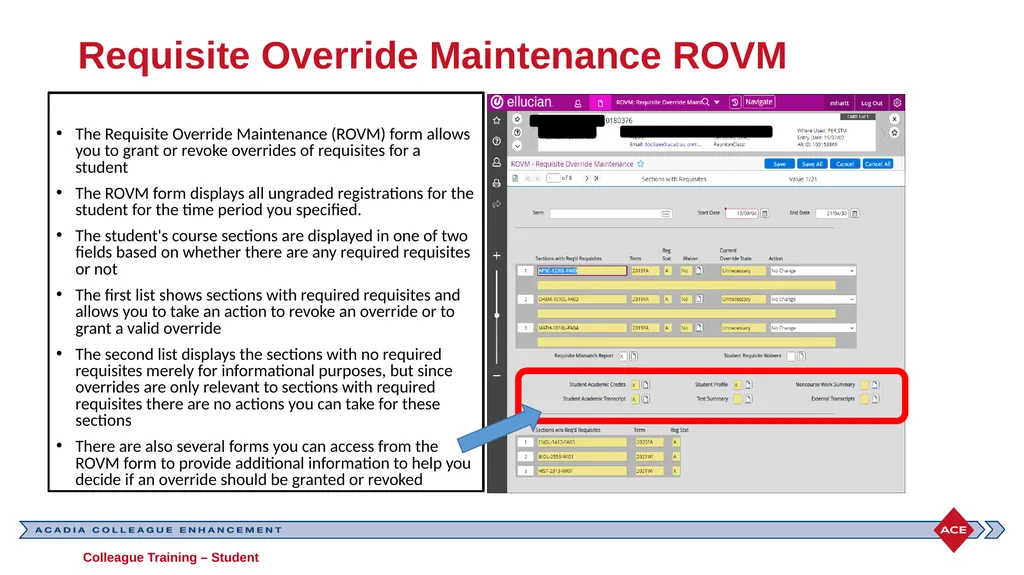
Requisite Override Maintenance ROVM The Requisite Override Maintenance (ROVM) form allows you to grant or revoke overrides of requisites for a student
The ROVM form displays all ungraded registrations for the student for the time period you specified.
The student's course sections are displayed in one of two fields based on whether there are any required requisites or not
The first list shows sections with required requisites and allows you to take an action to revoke an override or to grant a valid override
The second list displays the sections with no required requisites merely for informational purposes, but since overrides are only relevant to sections with required requisites there are no actions you can take for these sections
There are also several forms you can access from the ROVM form to provide additional information to help you decide if an override should be granted or revoked Colleague Training – Student<br>
The ROVM form displays all ungraded registrations for the student for the time period you specified.
The student's course sections are displayed in one of two fields based on whether there are any required requisites or not
The first list shows sections with required requisites and allows you to take an action to revoke an override or to grant a valid override
The second list displays the sections with no required requisites merely for informational purposes, but since overrides are only relevant to sections with required requisites there are no actions you can take for these sections
There are also several forms you can access from the ROVM form to provide additional information to help you decide if an override should be granted or revoked Colleague Training – Student<br>
40
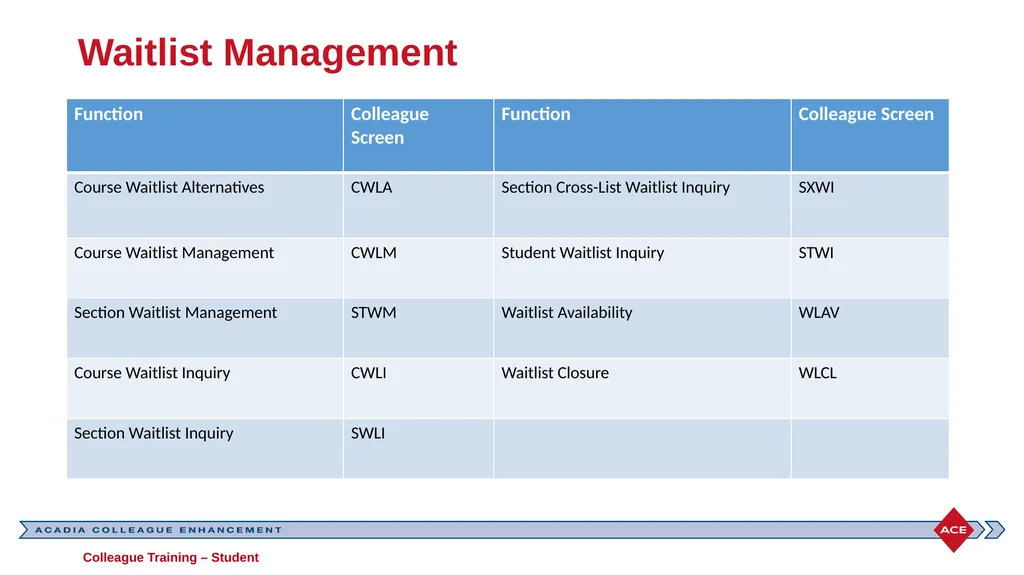
Waitlist Management Colleague Training – Student<br>
41
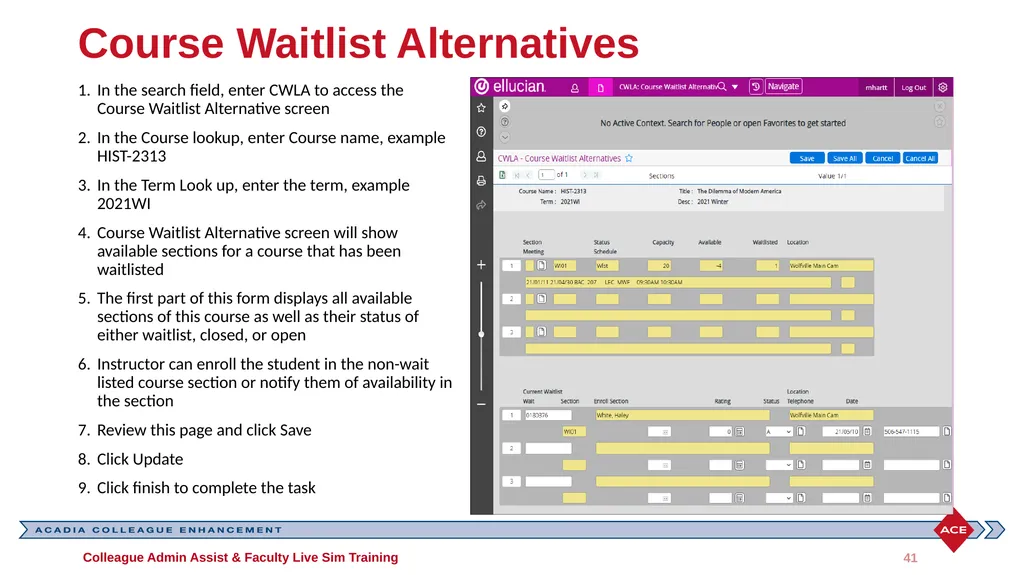
Course Waitlist Alternatives In the search field, enter CWLA to access the Course Waitlist Alternative screen
In the Course lookup, enter Course name, example HIST-2313
In the Term Look up, enter the term, example 2021WI
Course Waitlist Alternative screen will show available sections for a course that has been waitlisted
The first part of this form displays all available sections of this course as well as their status of either waitlist, closed, or open
Instructor can enroll the student in the non-wait listed course section or notify them of availability in the section
Review this page and click Save
Click Update
Click finish to complete the task Colleague Admin Assist & Faculty Live Sim Training 41<br>
In the Course lookup, enter Course name, example HIST-2313
In the Term Look up, enter the term, example 2021WI
Course Waitlist Alternative screen will show available sections for a course that has been waitlisted
The first part of this form displays all available sections of this course as well as their status of either waitlist, closed, or open
Instructor can enroll the student in the non-wait listed course section or notify them of availability in the section
Review this page and click Save
Click Update
Click finish to complete the task Colleague Admin Assist & Faculty Live Sim Training 41<br>
42
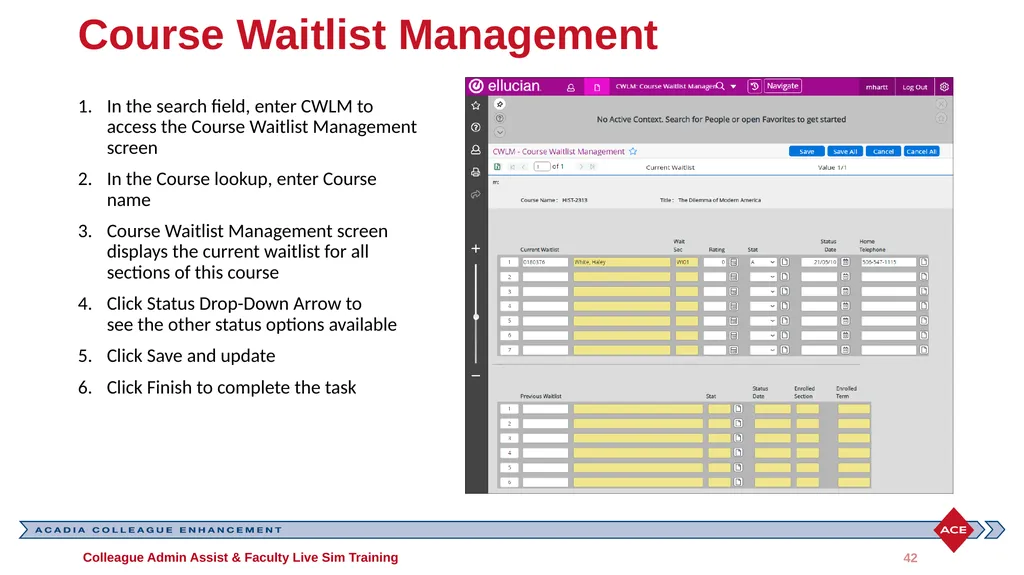
Course Waitlist Management In the search field, enter CWLM to access the Course Waitlist Management screen
In the Course lookup, enter Course name
Course Waitlist Management screen displays the current waitlist for all sections of this course
Click Status Drop-Down Arrow to see the other status options available
Click Save and update
Click Finish to complete the task Colleague Admin Assist & Faculty Live Sim Training 42<br>
In the Course lookup, enter Course name
Course Waitlist Management screen displays the current waitlist for all sections of this course
Click Status Drop-Down Arrow to see the other status options available
Click Save and update
Click Finish to complete the task Colleague Admin Assist & Faculty Live Sim Training 42<br>
43
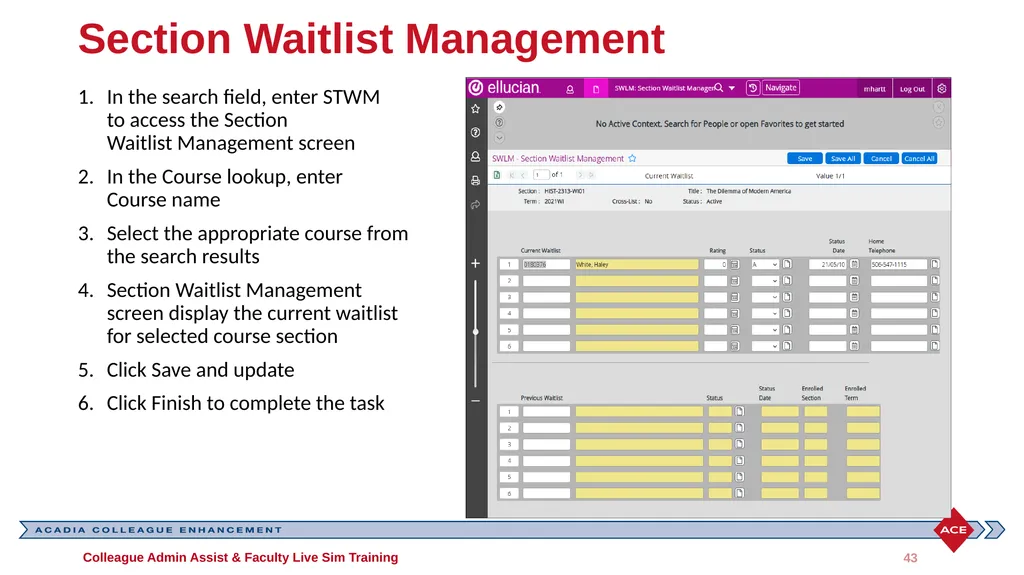
Section Waitlist Management In the search field, enter STWM to access the Section Waitlist Management screen
In the Course lookup, enter Course name
Select the appropriate course from the search results
Section Waitlist Management screen display the current waitlist for selected course section
Click Save and update
Click Finish to complete the task Colleague Admin Assist & Faculty Live Sim Training 43<br>
In the Course lookup, enter Course name
Select the appropriate course from the search results
Section Waitlist Management screen display the current waitlist for selected course section
Click Save and update
Click Finish to complete the task Colleague Admin Assist & Faculty Live Sim Training 43<br>
44
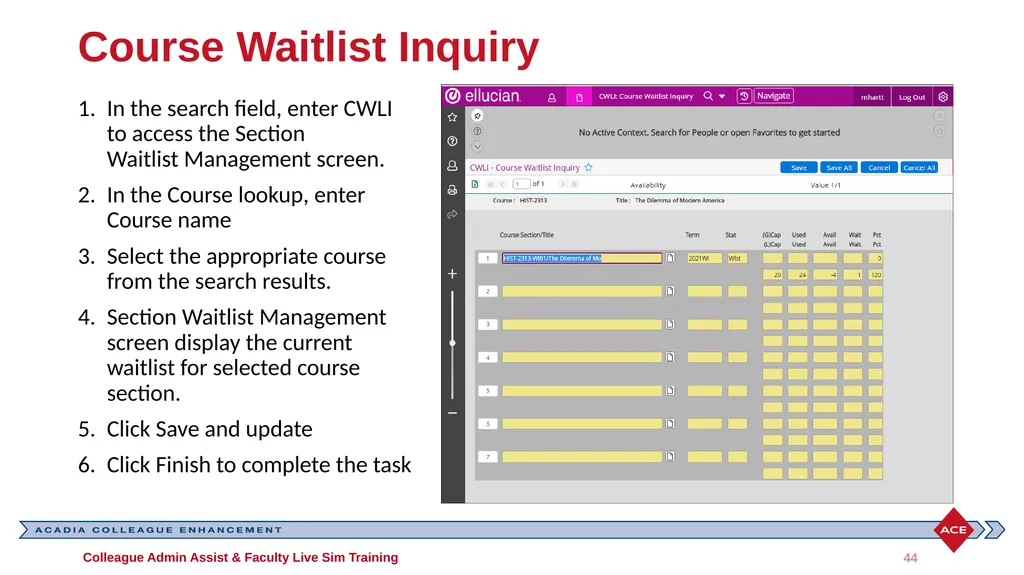
Course Waitlist Inquiry In the search field, enter CWLI to access the Section Waitlist Management screen.
In the Course lookup, enter Course name
Select the appropriate course from the search results.
Section Waitlist Management screen display the current waitlist for selected course section.
Click Save and update
Click Finish to complete the task Colleague Admin Assist & Faculty Live Sim Training 44<br>
In the Course lookup, enter Course name
Select the appropriate course from the search results.
Section Waitlist Management screen display the current waitlist for selected course section.
Click Save and update
Click Finish to complete the task Colleague Admin Assist & Faculty Live Sim Training 44<br>
45
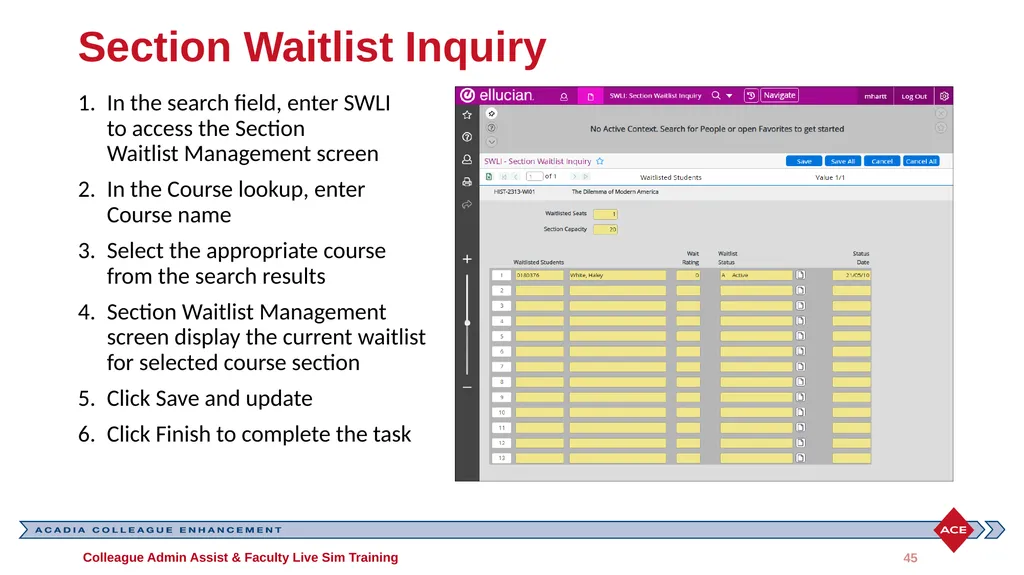
Section Waitlist Inquiry In the search field, enter SWLI to access the Section Waitlist Management screen
In the Course lookup, enter Course name
Select the appropriate course from the search results
Section Waitlist Management screen display the current waitlist for selected course section
Click Save and update
Click Finish to complete the task Colleague Admin Assist & Faculty Live Sim Training 45<br>
In the Course lookup, enter Course name
Select the appropriate course from the search results
Section Waitlist Management screen display the current waitlist for selected course section
Click Save and update
Click Finish to complete the task Colleague Admin Assist & Faculty Live Sim Training 45<br>
46
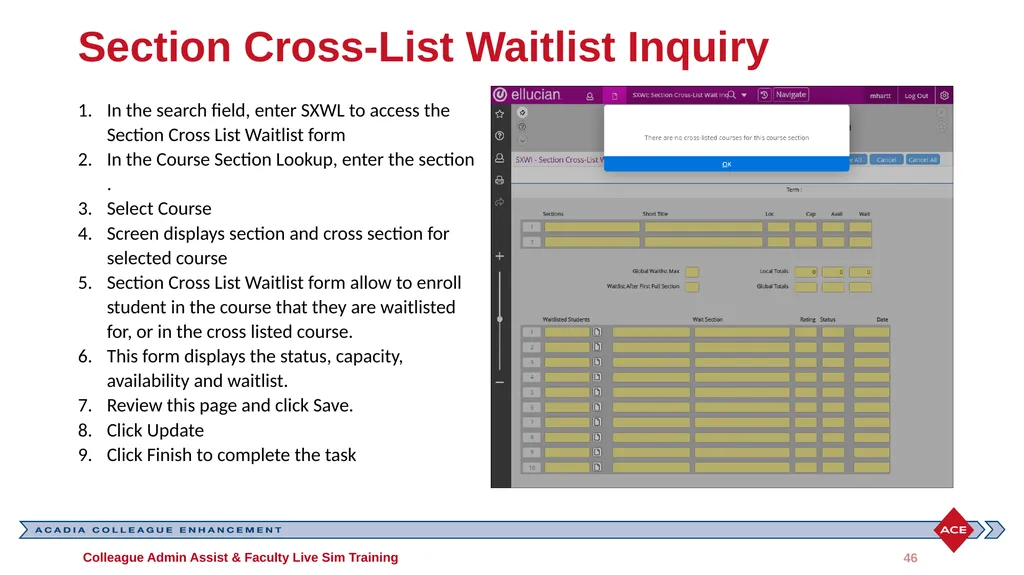
Section Cross-List Waitlist Inquiry In the search field, enter SXWL to access the Section Cross List Waitlist form
In the Course Section Lookup, enter the section .
Select Course
Screen displays section and cross section for selected course
Section Cross List Waitlist form allow to enroll student in the course that they are waitlisted for, or in the cross listed course.
This form displays the status, capacity, availability and waitlist.
Review this page and click Save.
Click Update
Click Finish to complete the task Colleague Admin Assist & Faculty Live Sim Training 46<br>
In the Course Section Lookup, enter the section .
Select Course
Screen displays section and cross section for selected course
Section Cross List Waitlist form allow to enroll student in the course that they are waitlisted for, or in the cross listed course.
This form displays the status, capacity, availability and waitlist.
Review this page and click Save.
Click Update
Click Finish to complete the task Colleague Admin Assist & Faculty Live Sim Training 46<br>
47
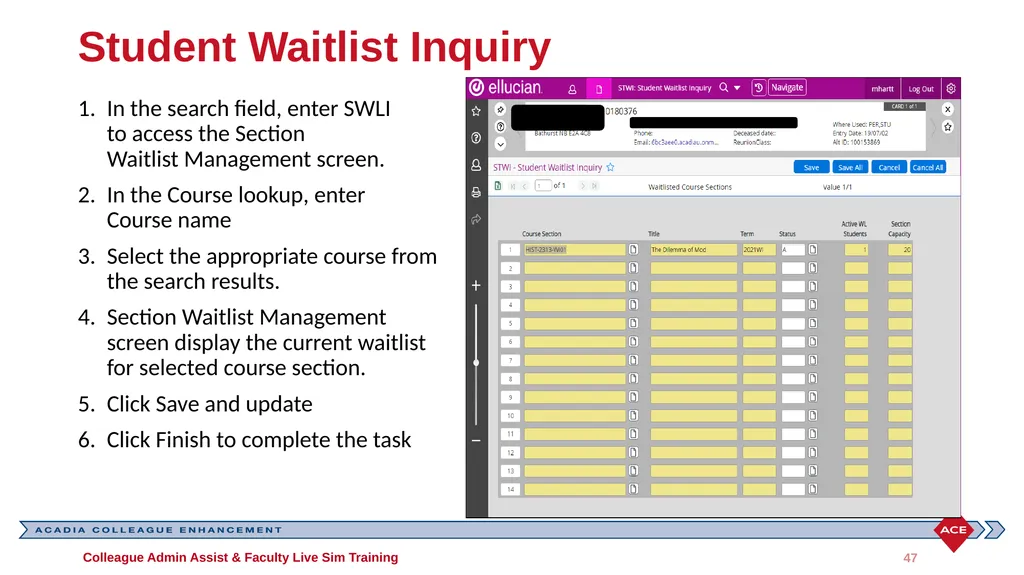
Student Waitlist Inquiry In the search field, enter SWLI to access the Section Waitlist Management screen.
In the Course lookup, enter Course name
Select the appropriate course from the search results.
Section Waitlist Management screen display the current waitlist for selected course section.
Click Save and update
Click Finish to complete the task Colleague Admin Assist & Faculty Live Sim Training 47<br>
In the Course lookup, enter Course name
Select the appropriate course from the search results.
Section Waitlist Management screen display the current waitlist for selected course section.
Click Save and update
Click Finish to complete the task Colleague Admin Assist & Faculty Live Sim Training 47<br>
48
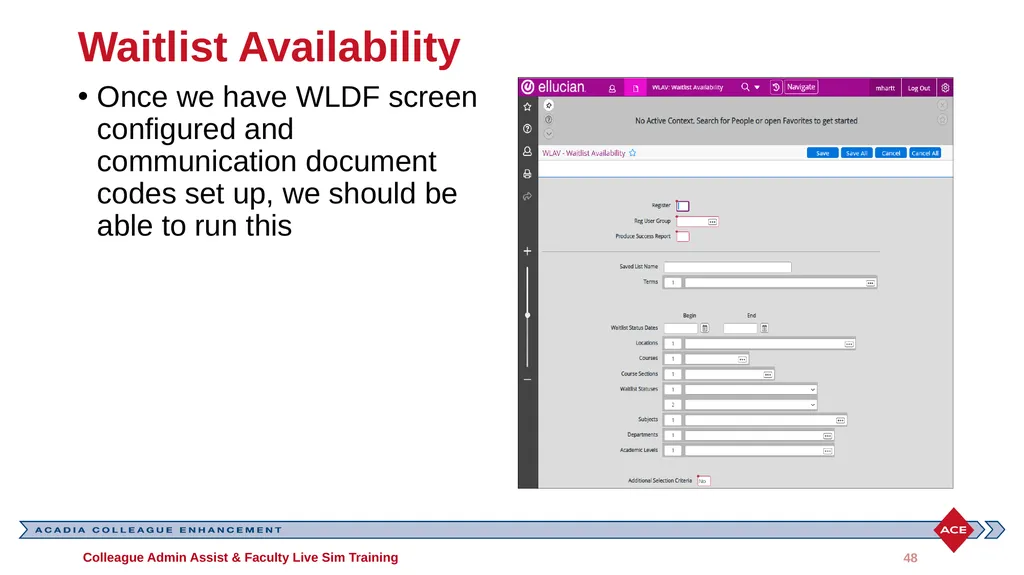
Waitlist Availability Once we have WLDF screen configured and communication document codes set up, we should be able to run this Colleague Admin Assist & Faculty Live Sim Training 48<br>
49
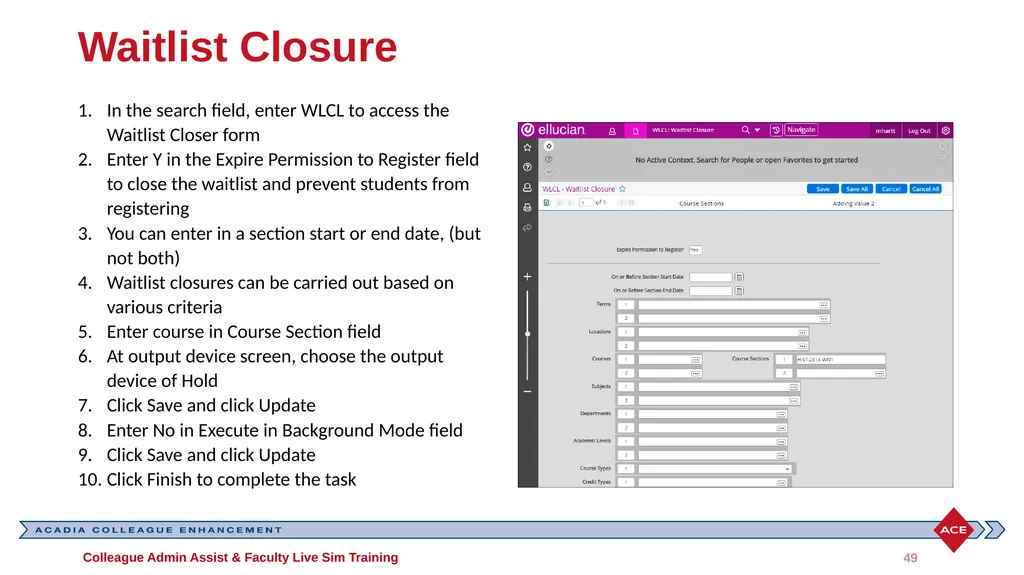
Waitlist Closure In the search field, enter WLCL to access the Waitlist Closer form
Enter Y in the Expire Permission to Register field to close the waitlist and prevent students from registering
You can enter in a section start or end date, (but not both)
Waitlist closures can be carried out based on various criteria
Enter course in Course Section field
At output device screen, choose the output device of Hold
Click Save and click Update
Enter No in Execute in Background Mode field
Click Save and click Update
Click Finish to complete the task Colleague Admin Assist & Faculty Live Sim Training 49<br>
Enter Y in the Expire Permission to Register field to close the waitlist and prevent students from registering
You can enter in a section start or end date, (but not both)
Waitlist closures can be carried out based on various criteria
Enter course in Course Section field
At output device screen, choose the output device of Hold
Click Save and click Update
Enter No in Execute in Background Mode field
Click Save and click Update
Click Finish to complete the task Colleague Admin Assist & Faculty Live Sim Training 49<br>
50
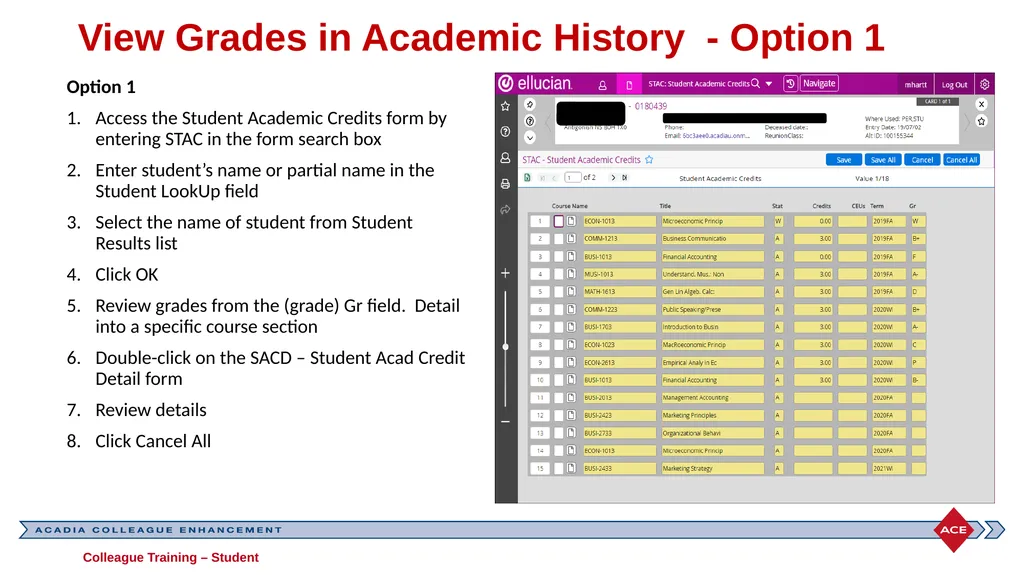
View Grades in Academic History - Option 1 Option 1
Access the Student Academic Credits form by entering STAC in the form search box
Enter student’s name or partial name in the Student LookUp field
Select the name of student from Student Results list
Click OK
Review grades from the (grade) Gr field. Detail into a specific course section
Double-click on the SACD – Student Acad Credit Detail form
Review details
Click Cancel All Colleague Training – Student<br>
Access the Student Academic Credits form by entering STAC in the form search box
Enter student’s name or partial name in the Student LookUp field
Select the name of student from Student Results list
Click OK
Review grades from the (grade) Gr field. Detail into a specific course section
Double-click on the SACD – Student Acad Credit Detail form
Review details
Click Cancel All Colleague Training – Student<br>
51
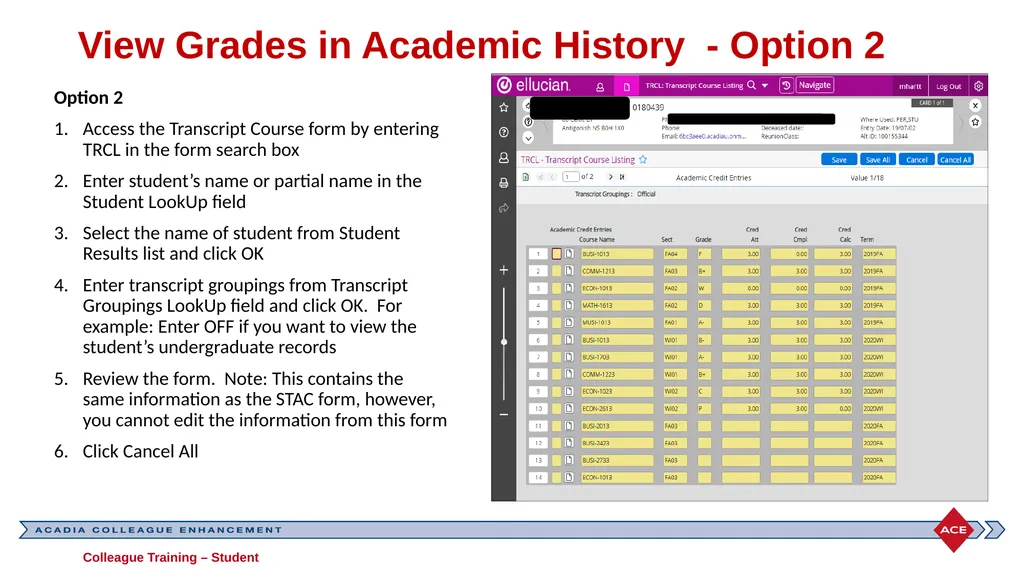
View Grades in Academic History - Option 2 Option 2
Access the Transcript Course form by entering TRCL in the form search box
Enter student’s name or partial name in the Student LookUp field
Select the name of student from Student Results list and click OK
Enter transcript groupings from Transcript Groupings LookUp field and click OK. For example: Enter OFF if you want to view the student’s undergraduate records
Review the form. Note: This contains the same information as the STAC form, however, you cannot edit the information from this form
Click Cancel All Colleague Training – Student<br>
Access the Transcript Course form by entering TRCL in the form search box
Enter student’s name or partial name in the Student LookUp field
Select the name of student from Student Results list and click OK
Enter transcript groupings from Transcript Groupings LookUp field and click OK. For example: Enter OFF if you want to view the student’s undergraduate records
Review the form. Note: This contains the same information as the STAC form, however, you cannot edit the information from this form
Click Cancel All Colleague Training – Student<br>
52
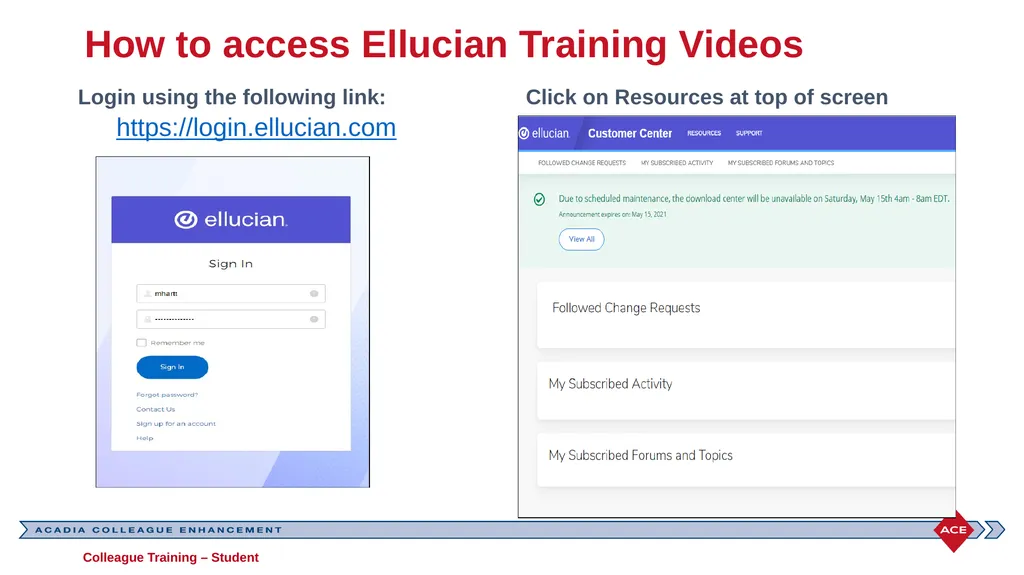
How to access Ellucian Training Videos Login using the following link:
https://login.ellucian.com Click on Resources at top of screen Colleague Training – Student<br>
https://login.ellucian.com Click on Resources at top of screen Colleague Training – Student<br>
53
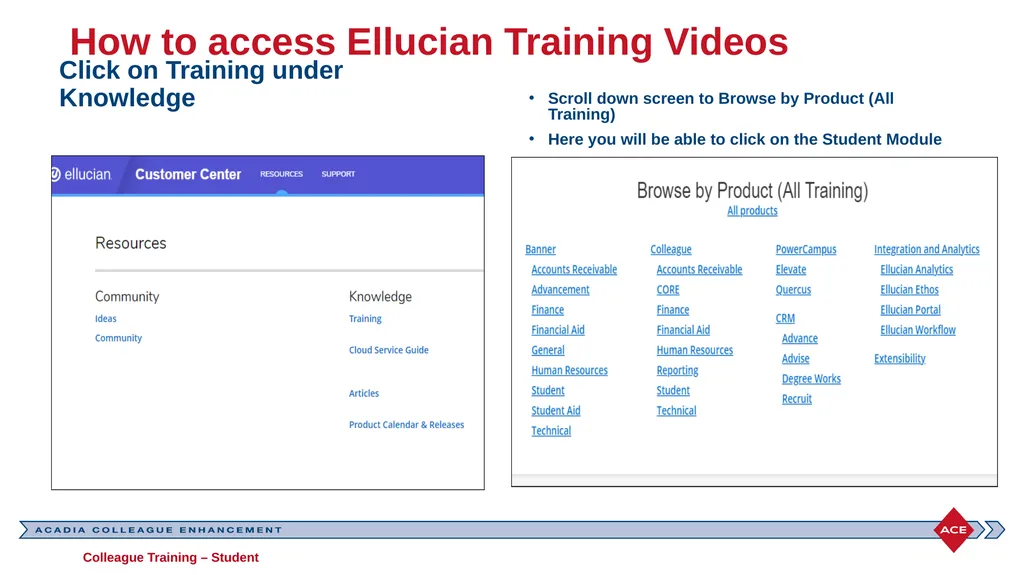
How to access Ellucian Training Videos Click on Training under Knowledge Scroll down screen to Browse by Product (All Training)
Here you will be able to click on the Student Module Colleague Training – Student<br>
Here you will be able to click on the Student Module Colleague Training – Student<br>
54
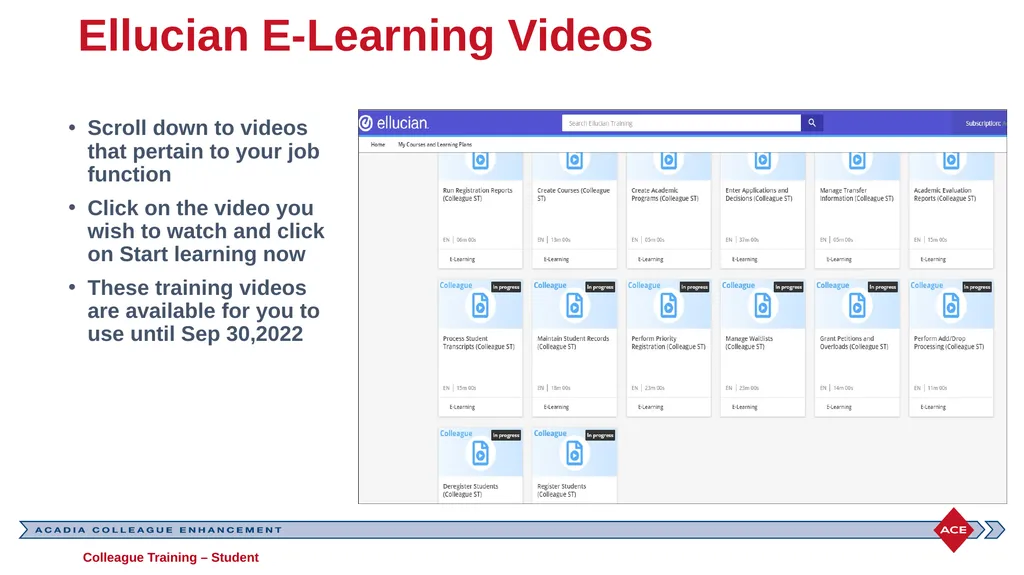
Ellucian E-Learning Videos Scroll down to videos that pertain to your job function
Click on the video you wish to watch and click on Start learning now
These training videos are available for you to use until Sep 30,2022 Colleague Training – Student<br>
Click on the video you wish to watch and click on Start learning now
These training videos are available for you to use until Sep 30,2022 Colleague Training – Student<br>
55
Are you lost?
We empower you with tools and training, don’t wait for go live day to “figure something out”……
Reach out to one of our Team Members if you have questions navigating your way through Colleague Colleague Training – Student<br>
We empower you with tools and training, don’t wait for go live day to “figure something out”……
Reach out to one of our Team Members if you have questions navigating your way through Colleague Colleague Training – Student<br>
56
Any Questions?
Can you see your way clear?
Practise will lead you to….
Getting Familiar
Feeling Comfortable
Readiness for Go Live
Happiness
….. Thank you! Colleague Training – Student<br>
Can you see your way clear?
Practise will lead you to….
Getting Familiar
Feeling Comfortable
Readiness for Go Live
Happiness
….. Thank you! Colleague Training – Student<br>