Introduction to Colleague An introduction to using Durham Techs Enterprise Resource Planning System (ERP) Objectives Develop and understanding of how Colleague is used at Durham Tech Understand basic terminology specific to Colleague
"Introduction to Colleague An introduction to using" is the property of its rightful owner. Permission is granted to
download and print the materials on this website for personal, non-commercial use only, and to display it
on your personal computer provided you do not modify the materials and that you retain all copyright
notices contained in the materials. By downloading content from our website, you accept the terms of this
agreement.
Presentation Transcript
01
Introduction to Colleague An introduction to using Durham Tech’s Enterprise Resource Planning System (ERP)<br>
02
Objectives Develop and understanding of how Colleague is used at Durham Tech
Understand basic terminology specific to Colleague
Mnemonics should be learned by individual departmental or the Systems Office
Learn how to log into and out of Colleague correctly
Know how to use the help function to get the answers you need
Perform several basic search functions in the system
Know what additional resources are available for training and development
Spend some time working in the system in a lab setting<br>
03
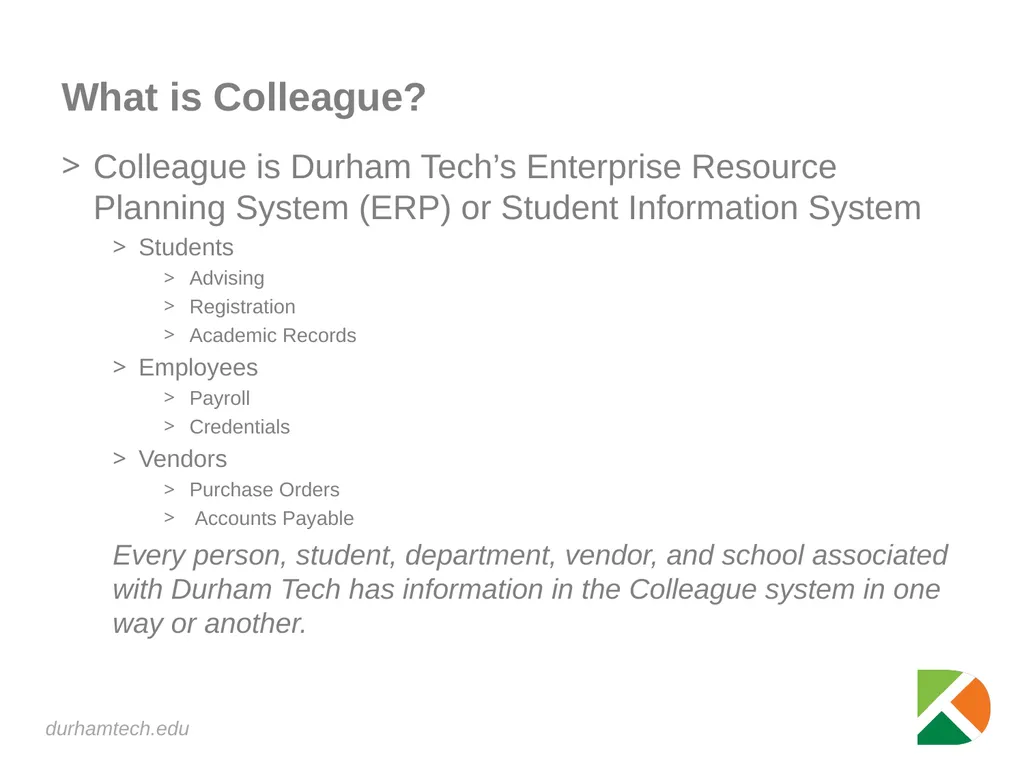
What is Colleague? Colleague is Durham Tech’s Enterprise Resource Planning System (ERP) or Student Information System
Students
Advising
Registration
Academic Records
Employees
Payroll
Credentials
Vendors
Purchase Orders
Accounts Payable
Every person, student, department, vendor, and school associated with Durham Tech has information in the Colleague system in one way or another.<br>
04
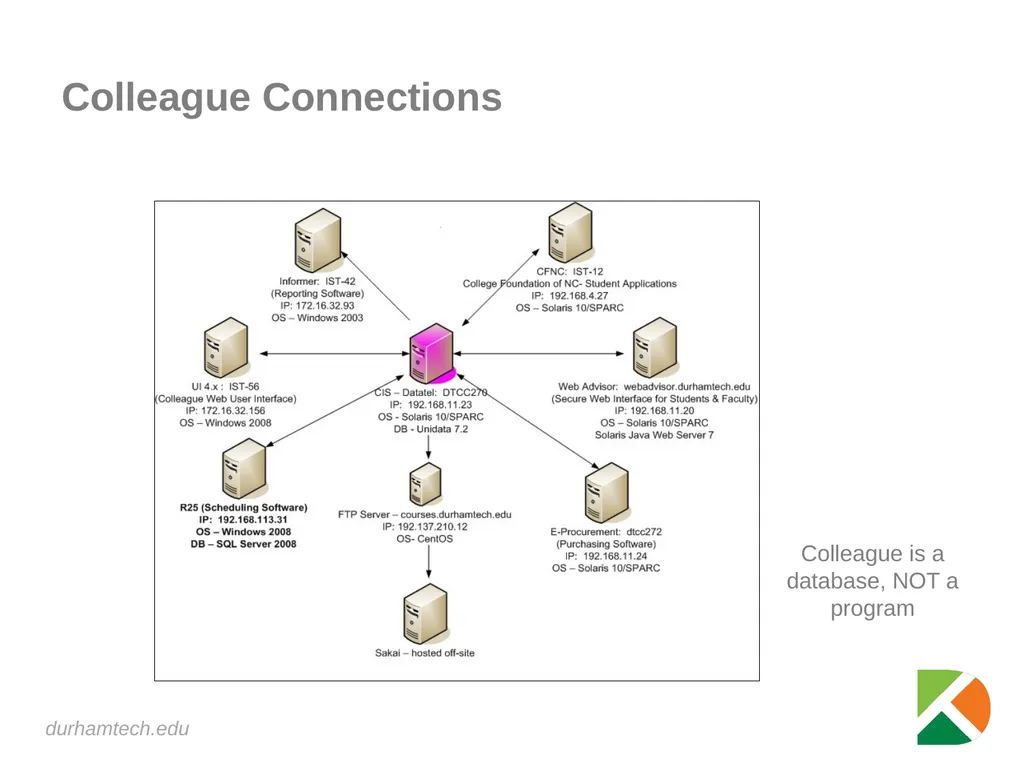
Colleague Connections Colleague is a database, NOT a program<br>
05
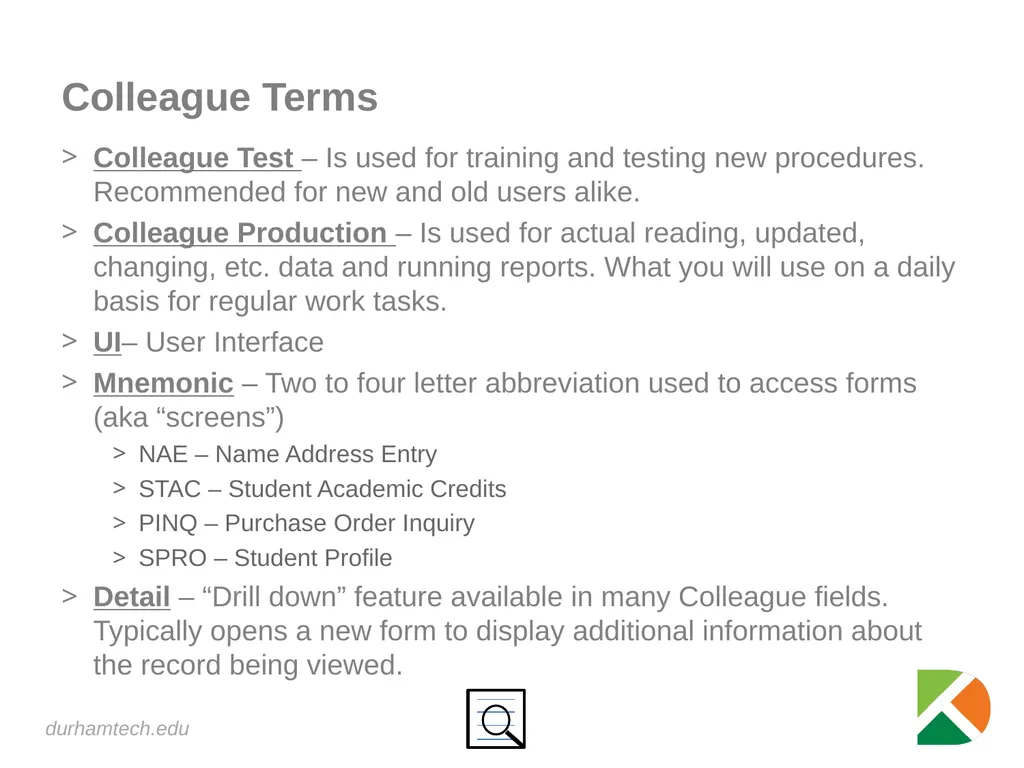
Colleague Terms Colleague Test – Is used for training and testing new procedures. Recommended for new and old users alike.
Colleague Production – Is used for actual reading, updated, changing, etc. data and running reports. What you will use on a daily basis for regular work tasks.
UI– User Interface
Mnemonic – Two to four letter abbreviation used to access forms (aka “screens”)
NAE – Name Address Entry
STAC – Student Academic Credits
PINQ – Purchase Order Inquiry
SPRO – Student Profile
Detail – “Drill down” feature available in many Colleague fields. Typically opens a new form to display additional information about the record being viewed.<br>
06
Advanced Colleague Terms Context - Is used to manage a list of selected persons.
HOLD – Optional destination for reports (in lieu of printing them). When a user choose the destination of HOLD, the process creates a plain-text file in the Unidata _HOLD_ directory, then presents the results to the user in a “print preview.”
Shared List / Savedlist – A “saved select list”. A savedlist can be retrieved at any time to process a given set of records over and over. Many Colleague processes create savedlists, and even more will accept a savedlist to determine which records get processed. Savedlists are stored as ASCII files in the Colleague database and contain the record ID’s for a given data file. See also Select list.
Security Class – Grouping of user process rights. Security classes determine which processes various users can run, and whether they are editable or inquiry-only. Security classes are maintained in each application (CORE, ST, CF, HR, UT) through the SCD screen, and are assigned to users in the UT application through the SOD screen.<br>
07
Logging into and out of Colleague Enable pop-ups for ist-56.durhamtech.edu – if needed
IE – Tools (Gear)->Internet Options->Privacy->Pop-up Blocker->Settings
colleague.durhamtech.edu
colleague-test.durhamtech.edu
Links available on Durham Tech's Website from Faculty Staff Web Page
Colleague Production Website
Colleague Test Website
Always use logout to exit!
Closing browser window could cause work to be lost and/or records to be lost and/or locked!<br>
08
Colleague Walkthroughs Introductory Video (7 minutes) – Quick Start (can be accessed from the Help drop down in Colleague on any mnemonic, at any time.)
Class Walkthrough by instructor
Username: usually the Last Name, 1st Initial of First Name, & Last 4 #s of ID
Password: different from WebAdvisor and Sakai websites
People Search vs. Forms Search
@
Keep Context Open vs. Auto Close Context
Save vs. Cancel
Keyword search for forms
How to add Favorites & remove Favorites
Create a Savedlist
Hold for printing option
Help Feature<br>
09
Additional Resources Faculty Staff Web Page Advisor Training WebAdvisor & Colleague
Advisor Training Documentation
Faculty Staff Web Page ITS Colleague UI section
System Office Training
Ellucian Documentation<br>