Introduction to Linux command line for bioinformatics Wenjun Kang, MS Jorge Andrade, PhD 6282013 Bioinformatics Core, Center for Research Informatics, University of Chicago Goals The goal of this tutorial is to provide hands-on training
"Introduction to Linux command line for" is the property of its rightful owner. Permission is granted to
download and print the materials on this website for personal, non-commercial use only, and to display it
on your personal computer provided you do not modify the materials and that you retain all copyright
notices contained in the materials. By downloading content from our website, you accept the terms of this
agreement.
Presentation Transcript
01
Introduction to Linux command line for bioinformatics Wenjun Kang, MS
Jorge Andrade, PhD
6/28/2013
Bioinformatics Core, Center for Research Informatics, University of Chicago<br>
02
Goals The goal of this tutorial is to provide hands-on training basics of using Linux via the command line.
It addresses people who have no previous experience with Unix-like systems, or who know a few commands but would like to know more.<br>
03
Topics What’s Unix/Linux
Navigation
Directory and file operations
File transfer between computers
I/O redirection and pipe
Text extraction and manipulation
Shell scripts
Exercises<br>
04
Unix/Linux UNIX is the operating system of choice for engineering and scientific computing.
The variant of UNIX found at CRI is GNU/Linux.
CRI currently uses CentOS Linux. There are many other distributions (RedHat, Ubuntu, Debian)<br>
05
Difference between Unix and Linux Unix developed in the late 1960s and Linux in the early 1990s based on Unix-like system MINIX
Linux is a UNIX clone
Linux is an operating system kernel
The terms are often used interchangeably<br>
06
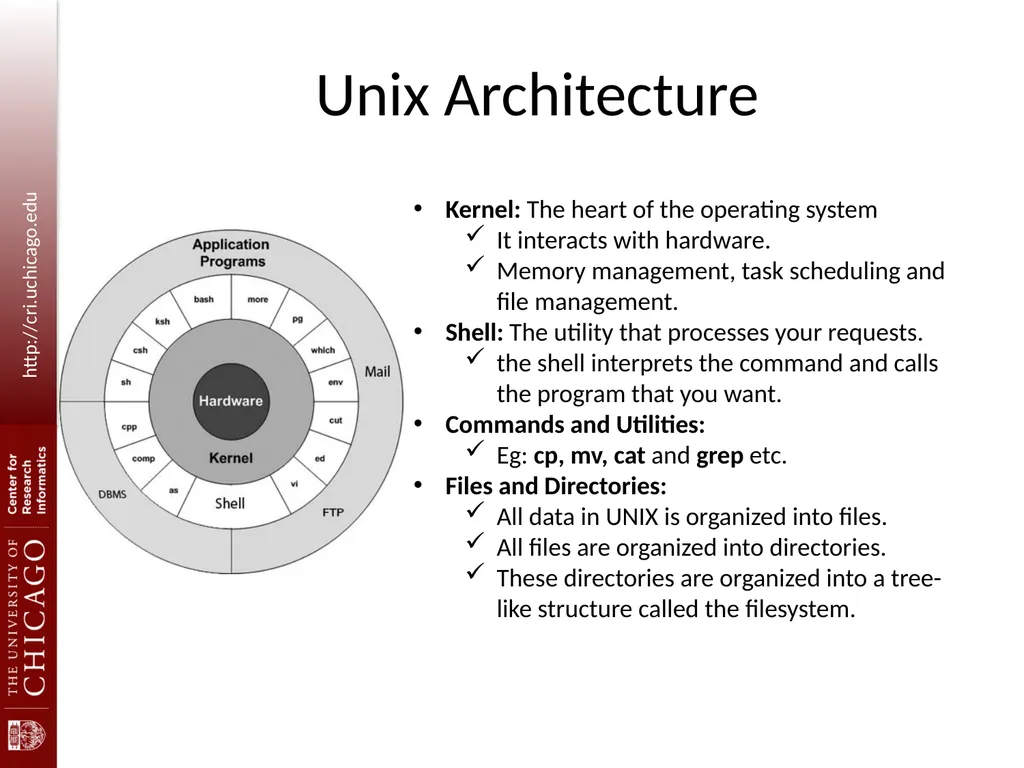
Unix Architecture Kernel: The heart of the operating system
It interacts with hardware.
Memory management, task scheduling and file management.
Shell: The utility that processes your requests.
the shell interprets the command and calls the program that you want.
Commands and Utilities:
Eg: cp, mv, cat and grep etc.
Files and Directories:
All data in UNIX is organized into files.
All files are organized into directories.
These directories are organized into a tree-like structure called the filesystem.<br>
07
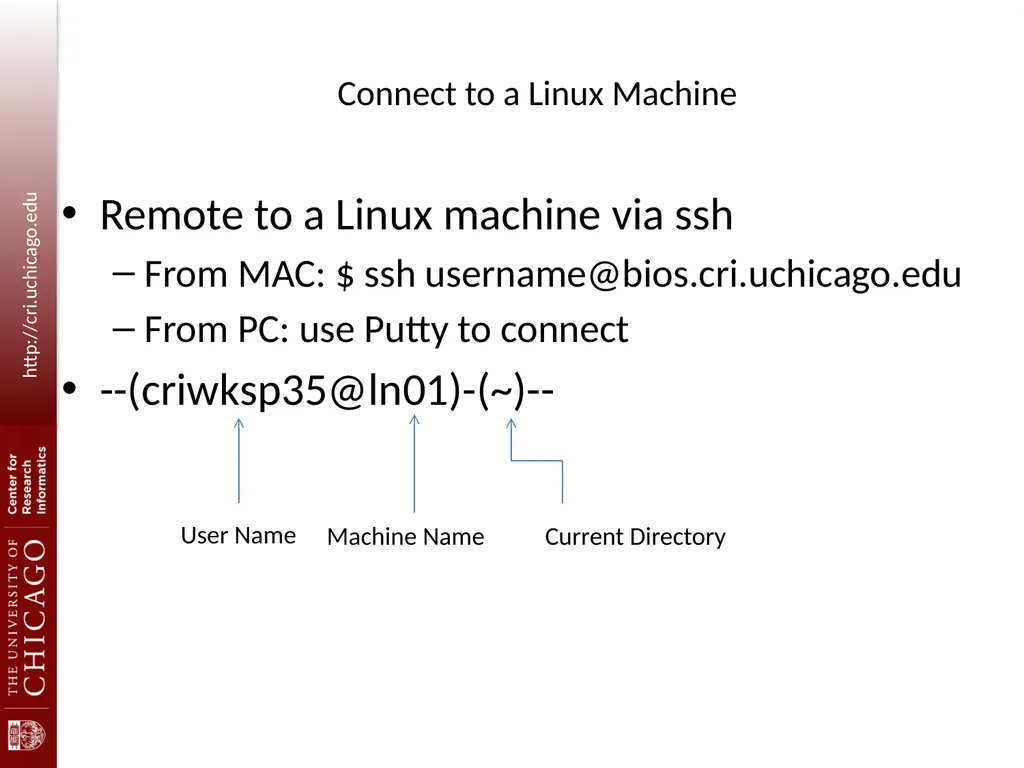
Connect to a Linux Machine Remote to a Linux machine via ssh
From MAC: $ ssh username@bios.cri.uchicago.edu
From PC: use Putty to connect
--(criwksp35@ln01)-(~)-- User Name Machine Name Current Directory<br>
08
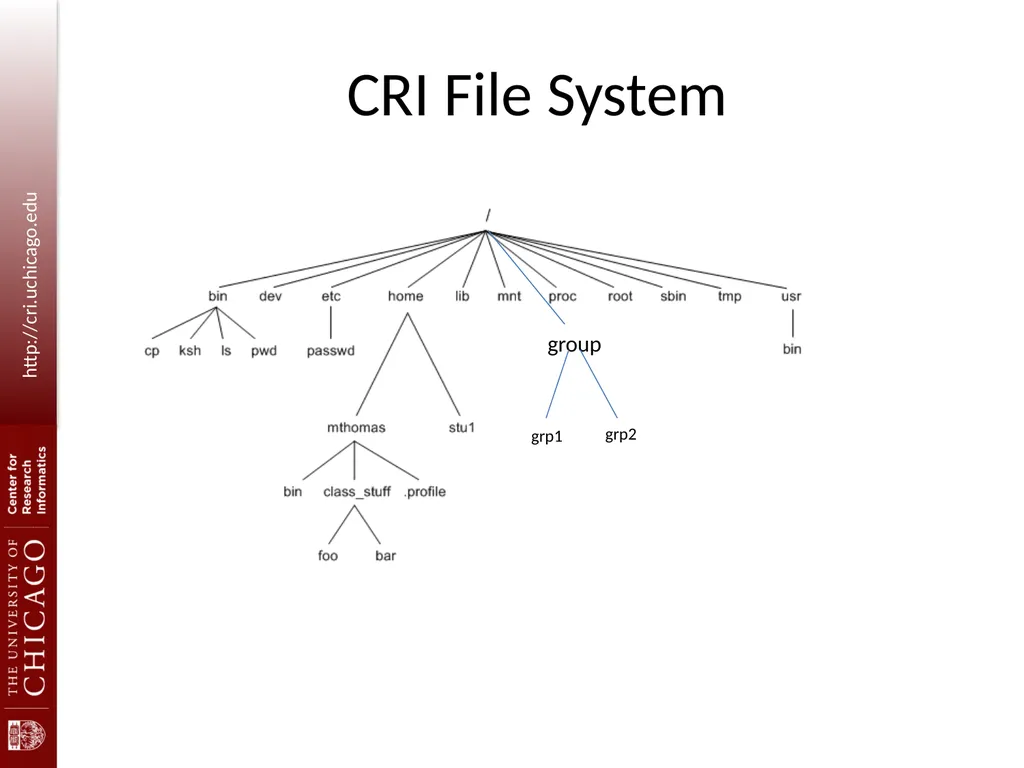
CRI File System group grp1 grp2<br>
09
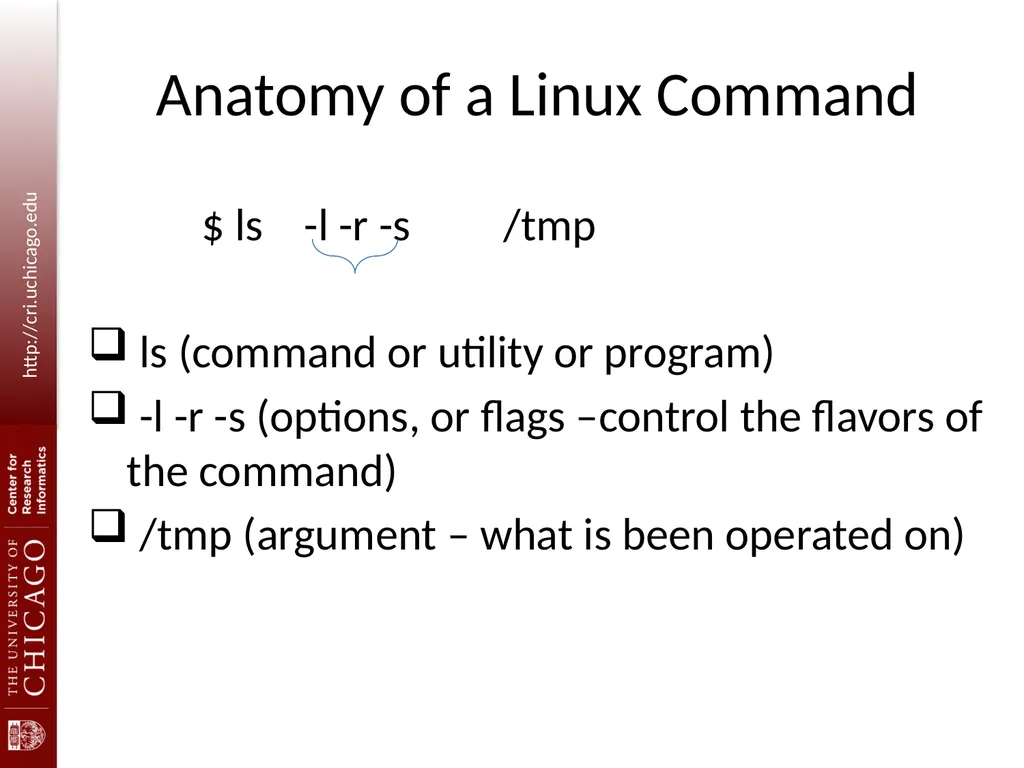
Anatomy of a Linux Command $ ls -l -r -s /tmp
ls (command or utility or program)
-l -r -s (options, or flags –control the flavors of the command)
/tmp (argument – what is been operated on)<br>
10
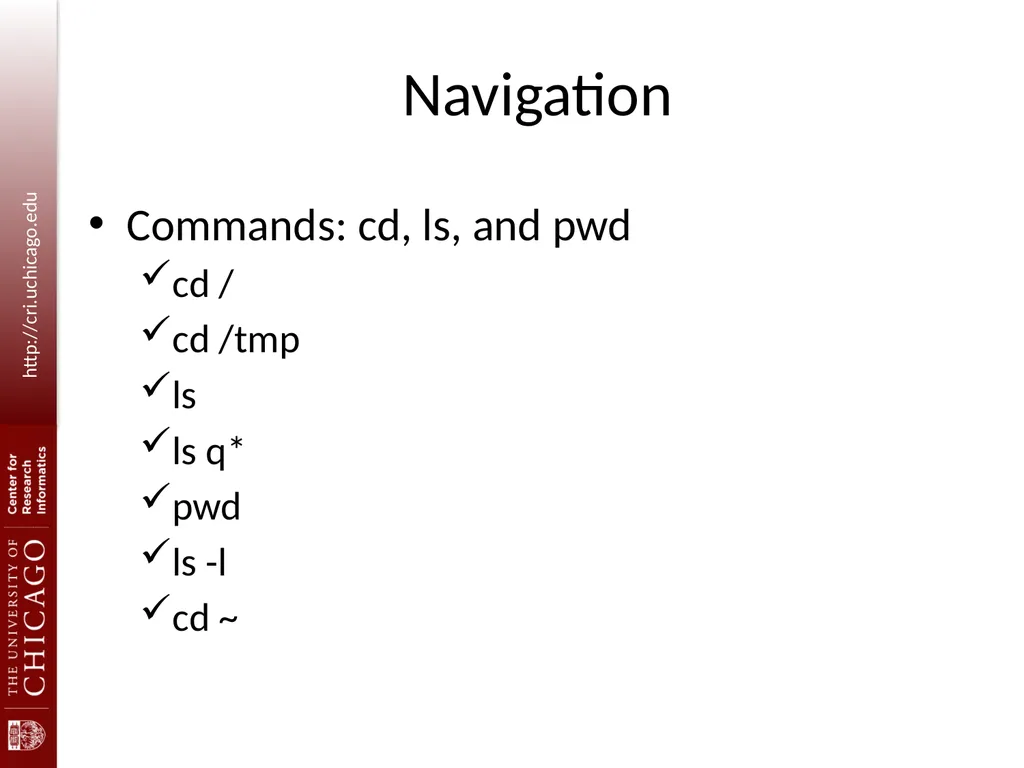
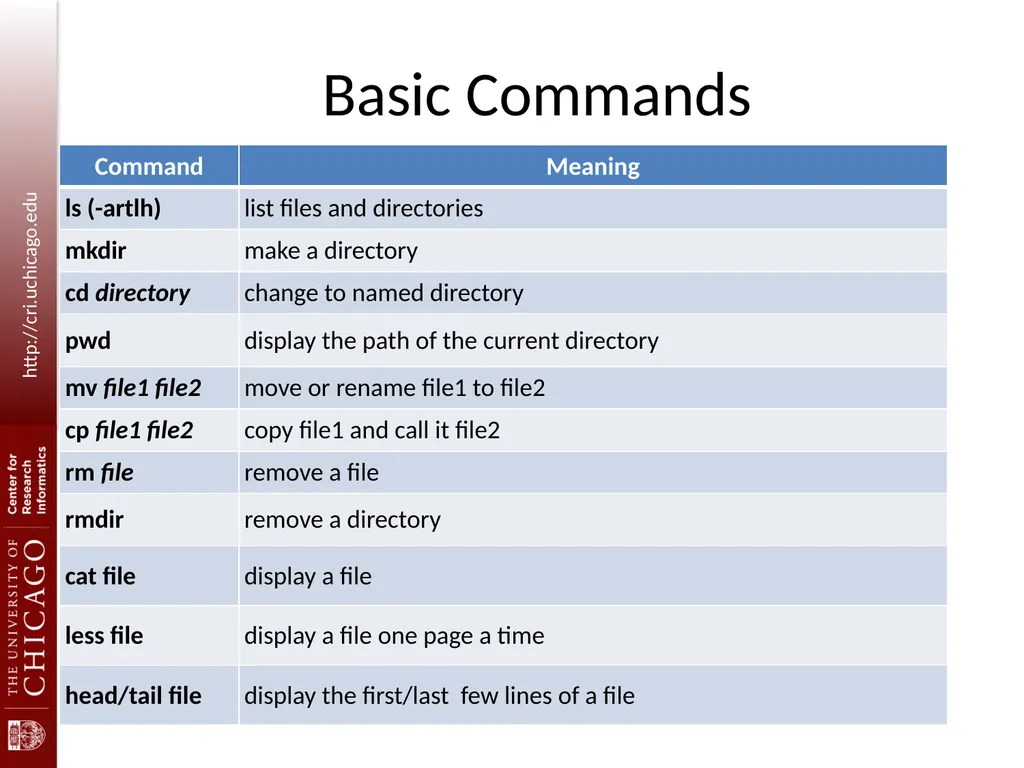
Navigation Commands: cd, ls, and pwd
cd /
cd /tmp
ls
ls q*
pwd
ls -l
cd ~<br>
11
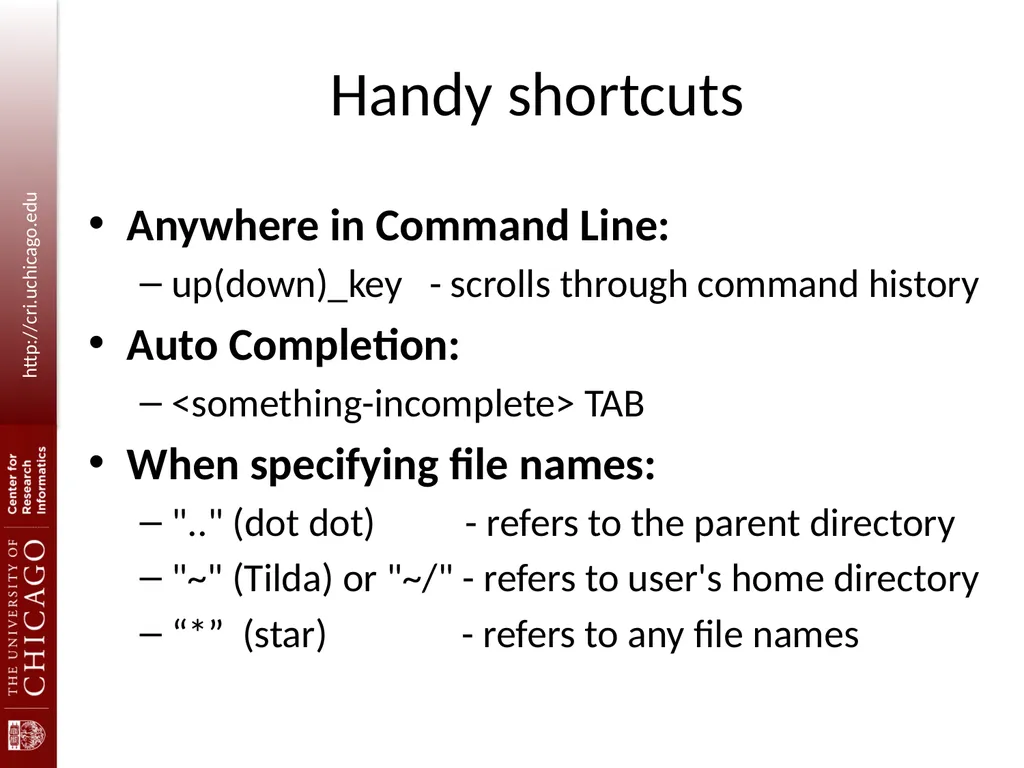
Handy shortcuts Anywhere in Command Line:
up(down)_key - scrolls through command history
Auto Completion:
<something-incomplete> TAB
When specifying file names:
".." (dot dot) - refers to the parent directory
"~" (Tilda) or "~/" - refers to user's home directory
“*” (star) - refers to any file names<br>
12
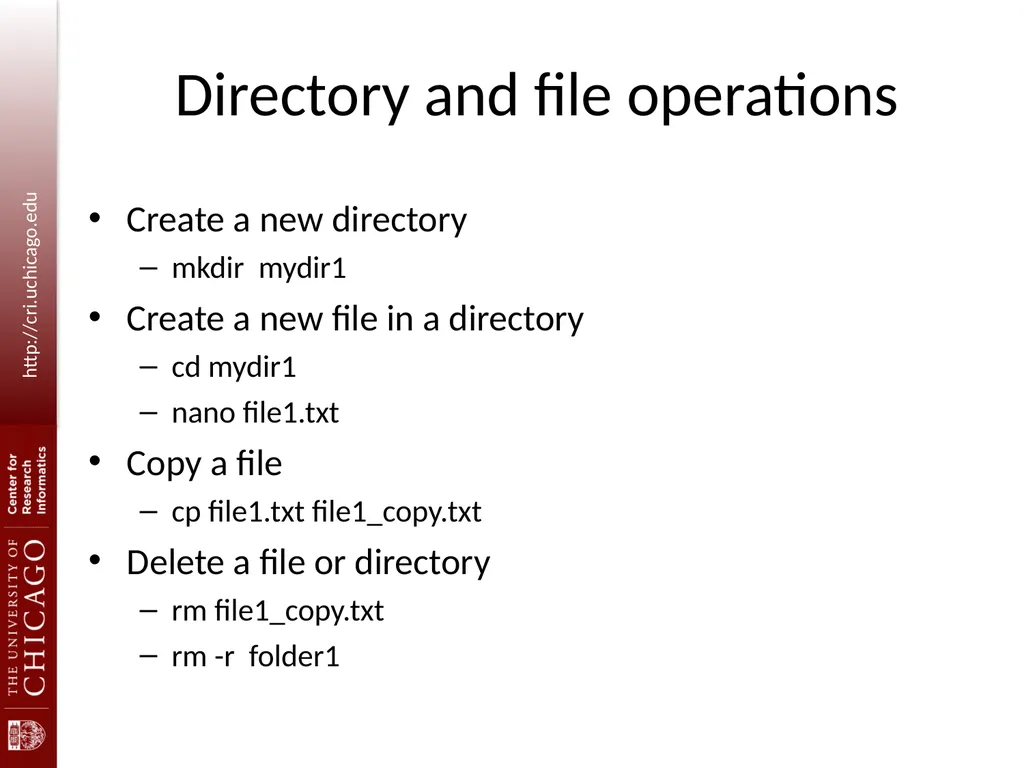
Directory and file operations Create a new directory
mkdir mydir1
Create a new file in a directory
cd mydir1
nano file1.txt
Copy a file
cp file1.txt file1_copy.txt
Delete a file or directory
rm file1_copy.txt
rm -r folder1<br>
13
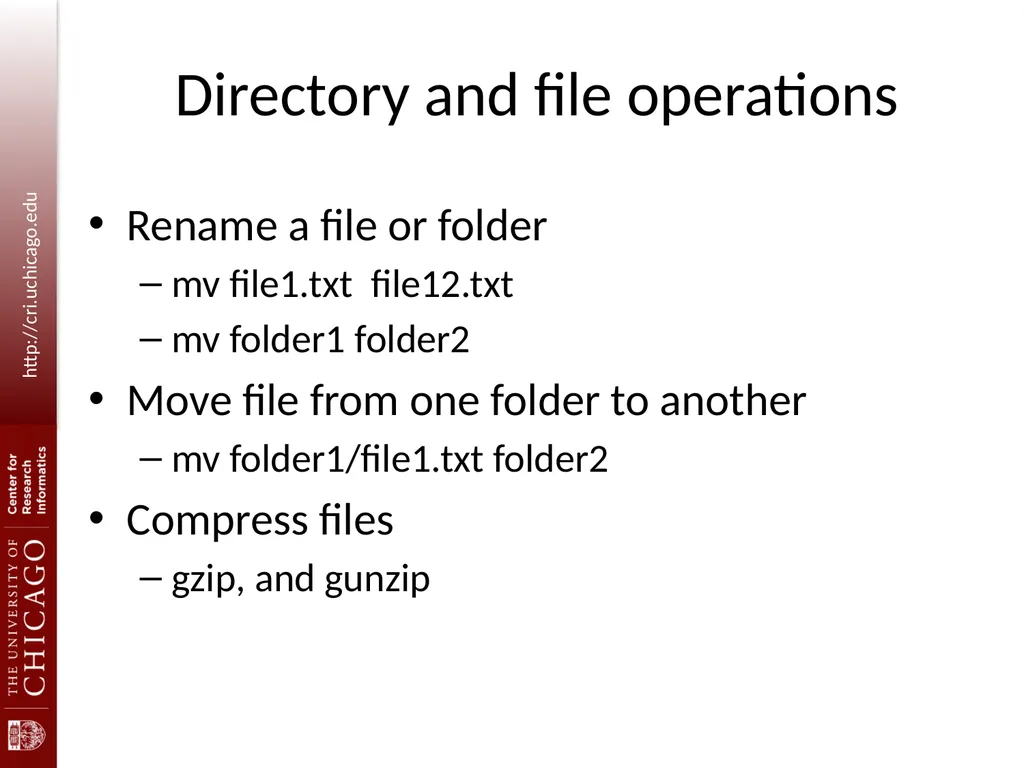
Directory and file operations Rename a file or folder
mv file1.txt file12.txt
mv folder1 folder2
Move file from one folder to another
mv folder1/file1.txt folder2
Compress files
gzip, and gunzip<br>
14
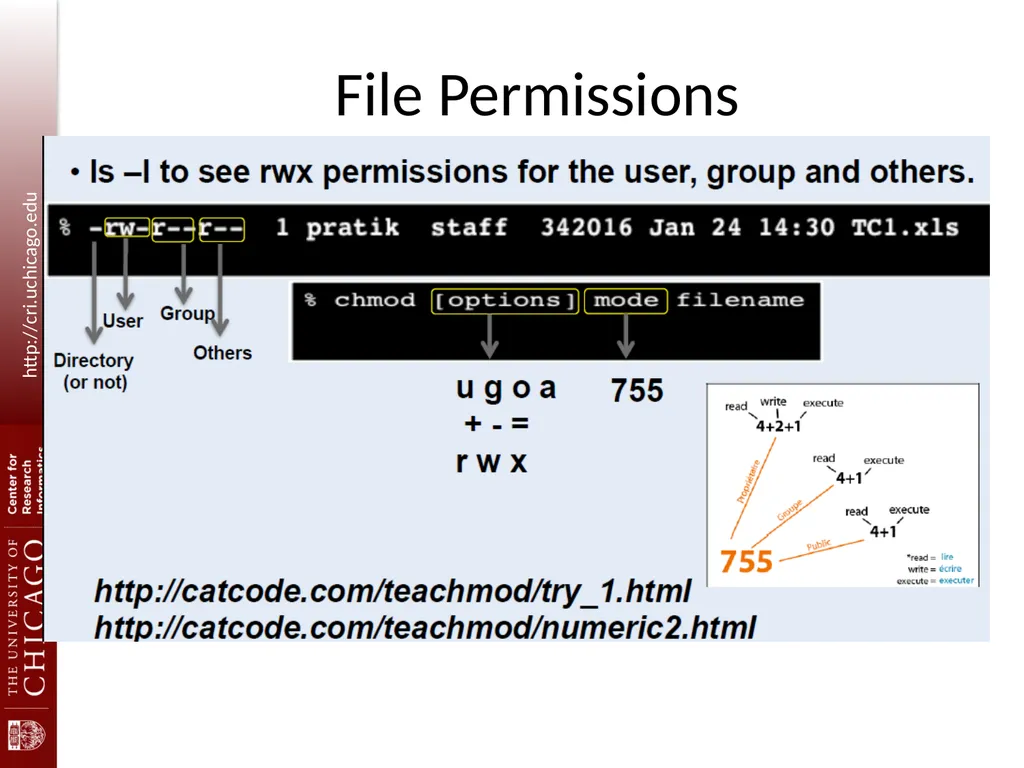
File Permissions<br>
15
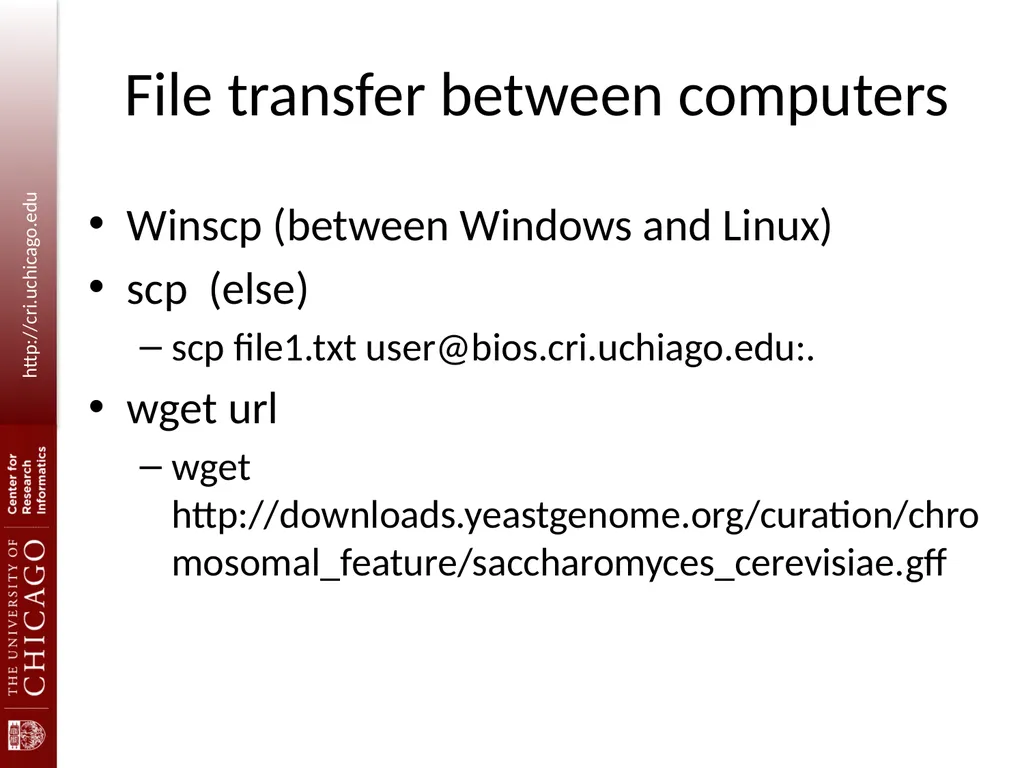
File transfer between computers Winscp (between Windows and Linux)
scp (else)
scp file1.txt user@bios.cri.uchiago.edu:.
wget url
wget http://downloads.yeastgenome.org/curation/chromosomal_feature/saccharomyces_cerevisiae.gff<br>
16
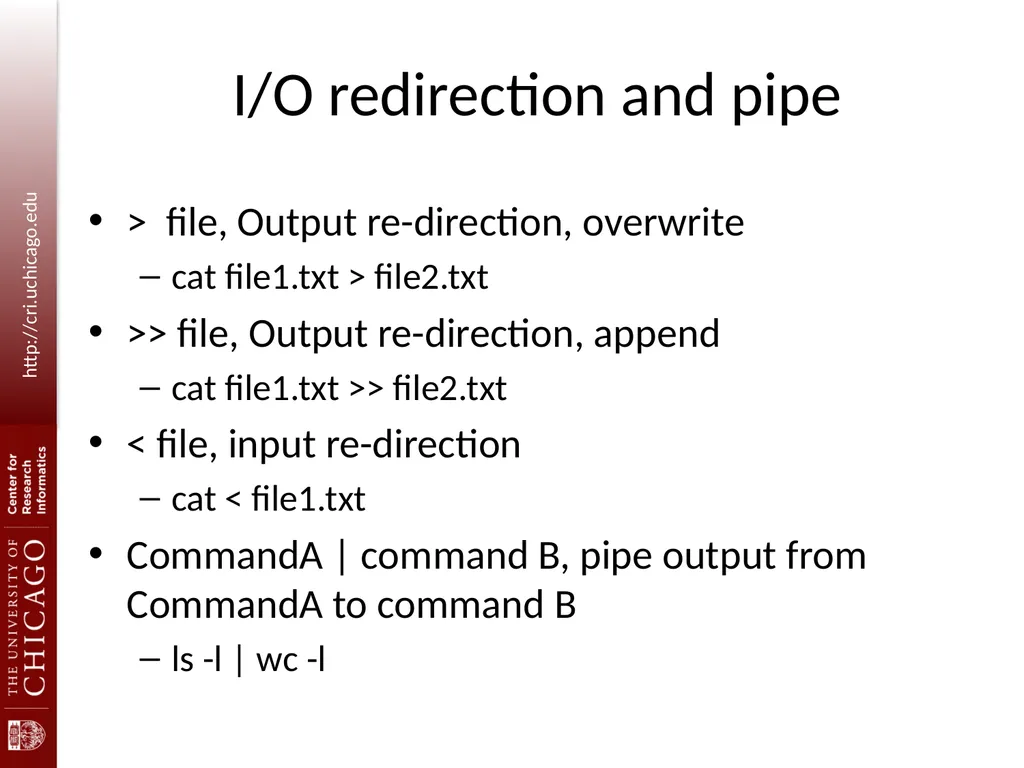
I/O redirection and pipe > file, Output re-direction, overwrite
cat file1.txt > file2.txt
>> file, Output re-direction, append
cat file1.txt >> file2.txt
< file, input re-direction
cat < file1.txt
CommandA | command B, pipe output from CommandA to command B
ls -l | wc -l<br>
17
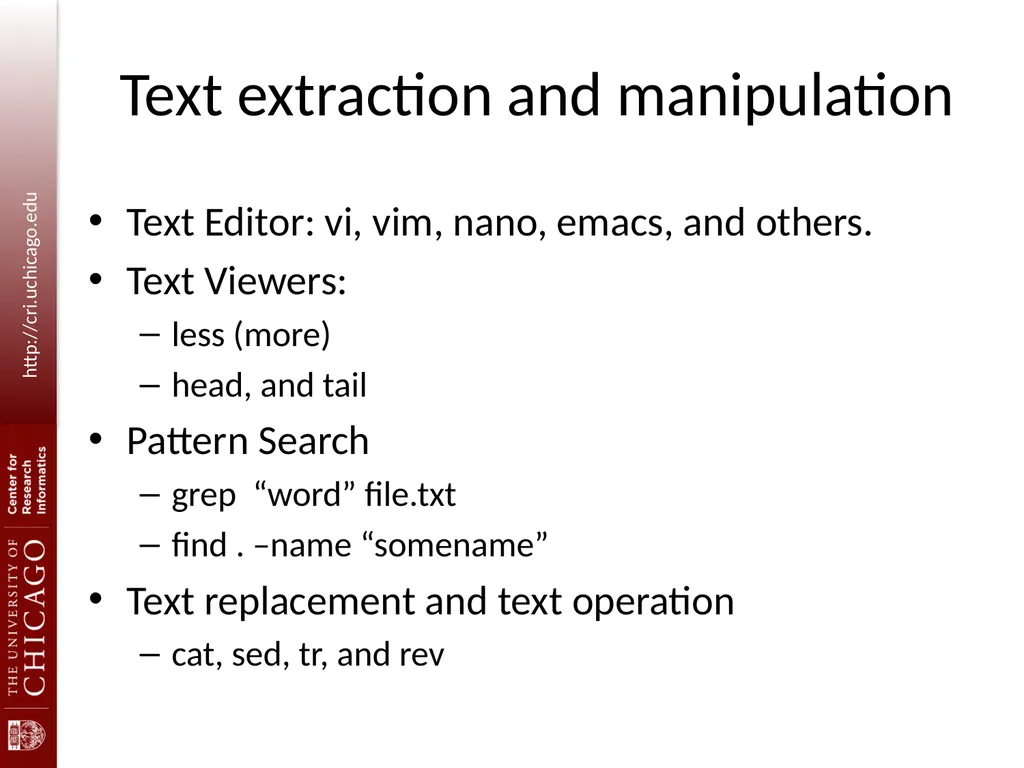
Text extraction and manipulation Text Editor: vi, vim, nano, emacs, and others.
Text Viewers:
less (more)
head, and tail
Pattern Search
grep “word” file.txt
find . –name “somename”
Text replacement and text operation
cat, sed, tr, and rev<br>
18
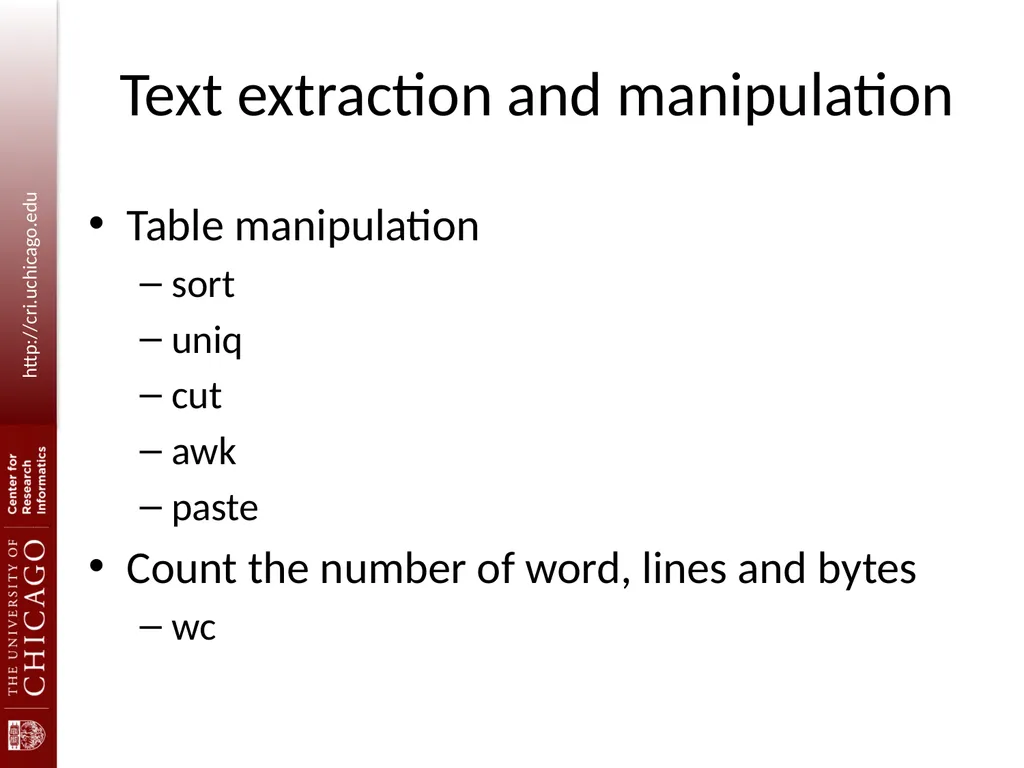
Text extraction and manipulation Table manipulation
sort
uniq
cut
awk
paste
Count the number of word, lines and bytes
wc<br>