
New User Tutorial UPS ShipExec™ Thin Client

Description: New User Tutorial UPS ShipExec Thin Client Training for New Users Log in to ShipExec Thin Client: https:kits.iu.eduups Click on the Shipping dropdown and click on Shipping and Rating Choose the name of your study from the Study
Related Topics
Download Presentation
"New User Tutorial UPS ShipExec™ Thin Client" is the property of its rightful owner. Permission is granted to download and print the materials on this website for personal, non-commercial use only, and to display it on your personal computer provided you do not modify the materials and that you retain all copyright notices contained in the materials. By downloading content from our website, you accept the terms of this agreement.
Presentation Transcript
slide1. New User Tutorial UPS ShipExec™ Thin Client Training for New Users<br>
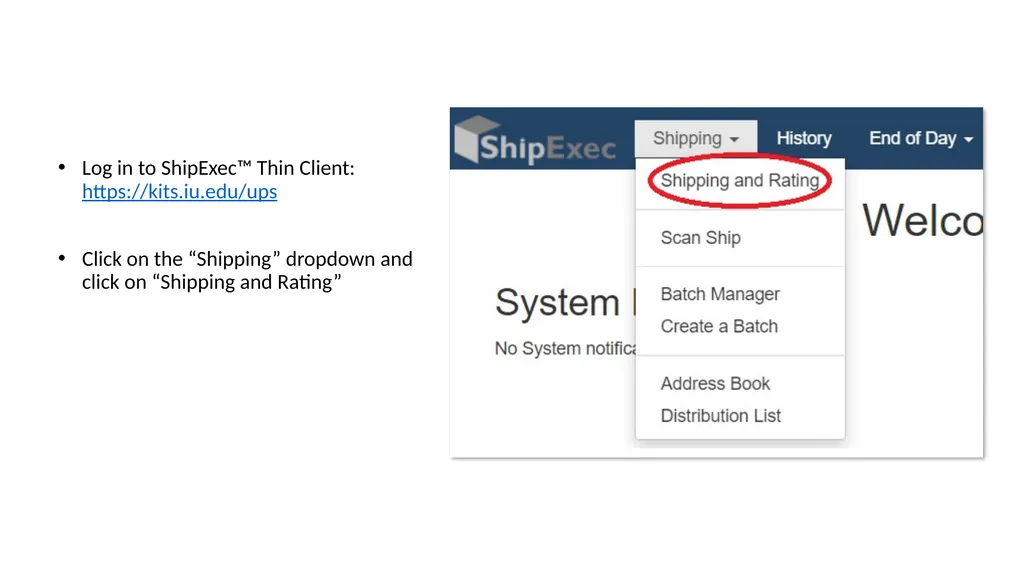
slide2. Log in to ShipExec™ Thin Client: https://kits.iu.edu/ups
Click on the “Shipping” dropdown and click on “Shipping and Rating”<br>
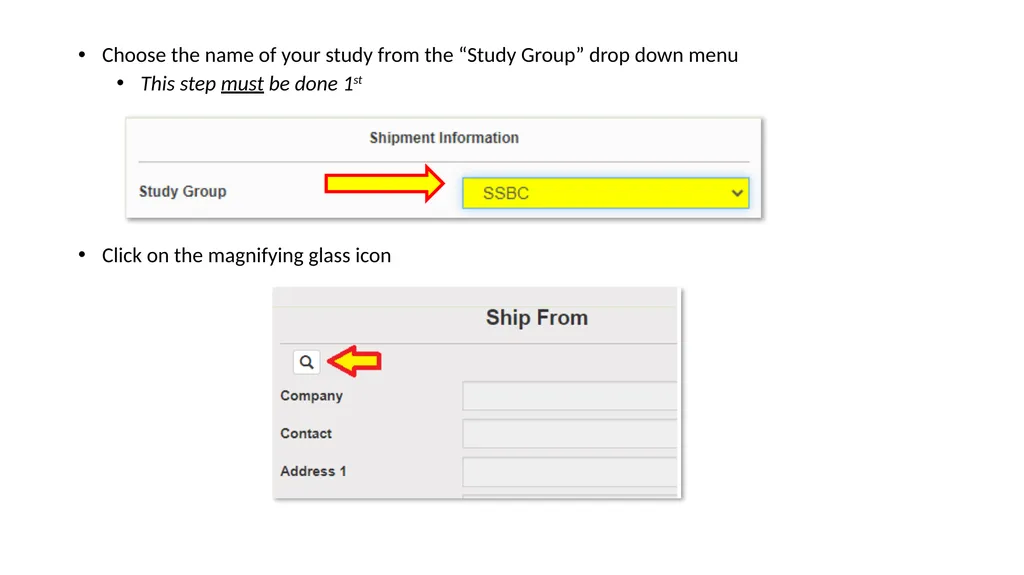
slide3. Choose the name of your study from the “Study Group” drop down menu
This step must be done 1st Click on the magnifying glass icon<br>
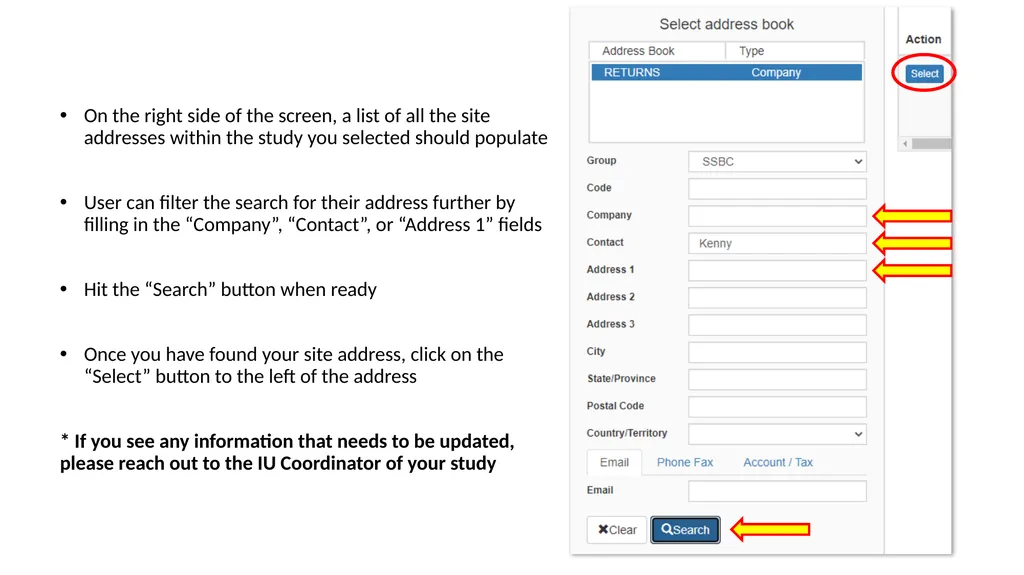
slide4. On the right side of the screen, a list of all the site addresses within the study you selected should populate
User can filter the search for their address further by filling in the “Company”, “Contact”, or “Address 1” fields
Hit the “Search” button when ready
Once you have found your site address, click on the “Select” button to the left of the address
* If you see any information that needs to be updated, please reach out to the IU Coordinator of your study<br>
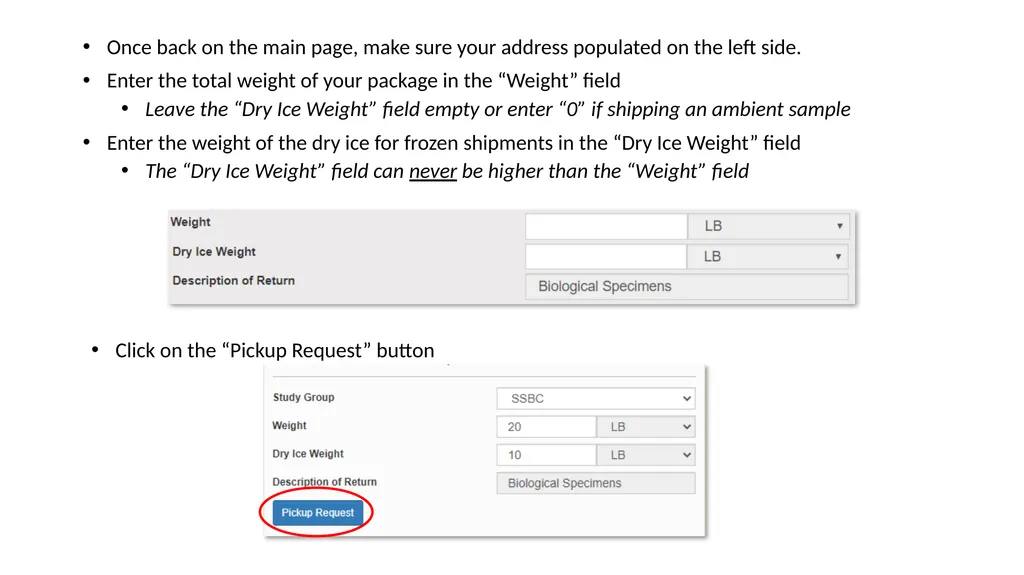
slide5. Once back on the main page, make sure your address populated on the left side.
Enter the total weight of your package in the “Weight” field
Leave the “Dry Ice Weight” field empty or enter “0” if shipping an ambient sample
Enter the weight of the dry ice for frozen shipments in the “Dry Ice Weight” field
The “Dry Ice Weight” field can never be higher than the “Weight” field Click on the “Pickup Request” button<br>
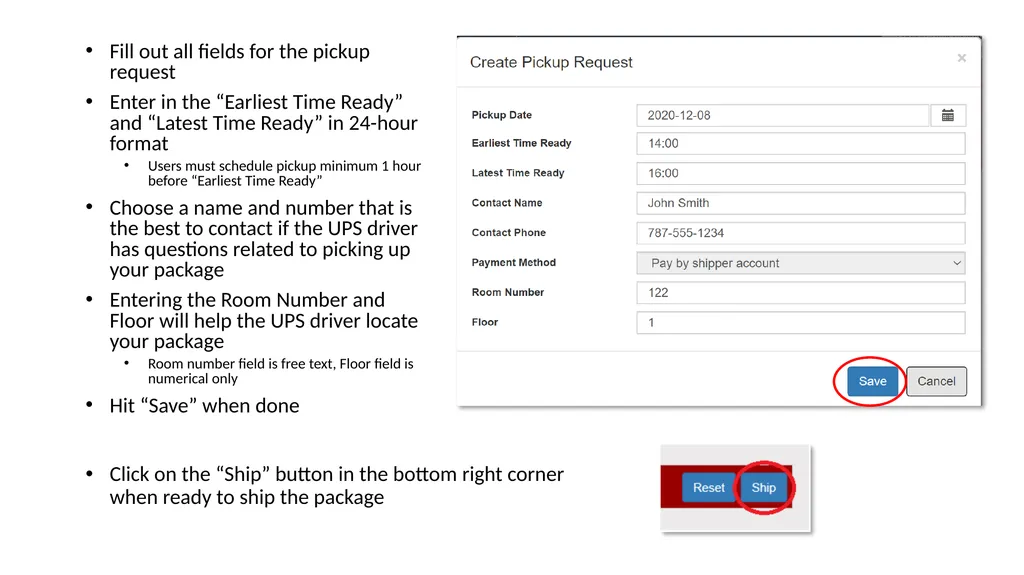
slide6. Fill out all fields for the pickup request
Enter in the “Earliest Time Ready” and “Latest Time Ready” in 24-hour format
Users must schedule pickup minimum 1 hour before “Earliest Time Ready”
Choose a name and number that is the best to contact if the UPS driver has questions related to picking up your package
Entering the Room Number and Floor will help the UPS driver locate your package
Room number field is free text, Floor field is numerical only
Hit “Save” when done Click on the “Ship” button in the bottom right corner when ready to ship the package<br>
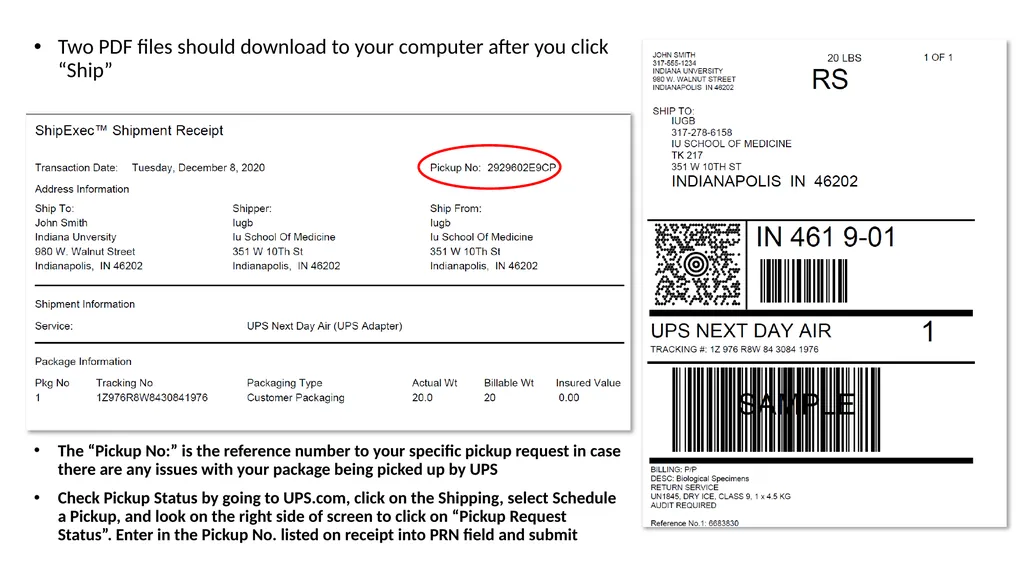
slide7. Two PDF files should download to your computer after you click “Ship” The “Pickup No:” is the reference number to your specific pickup request in case there are any issues with your package being picked up by UPS
Check Pickup Status by going to UPS.com, click on the Shipping, select Schedule a Pickup, and look on the right side of screen to click on “Pickup Request Status”. Enter in the Pickup No. listed on receipt into PRN field and submit<br>
slide8. Print out the UPS air waybill to any printer at your location
Fold the UPS air waybill and slide it inside the plastic UPS sleeve
Peel the back off the plastic UPS sleeve and stick the sleeve to your package, making sure it is laying as flat as possible along the surface of the package.<br>
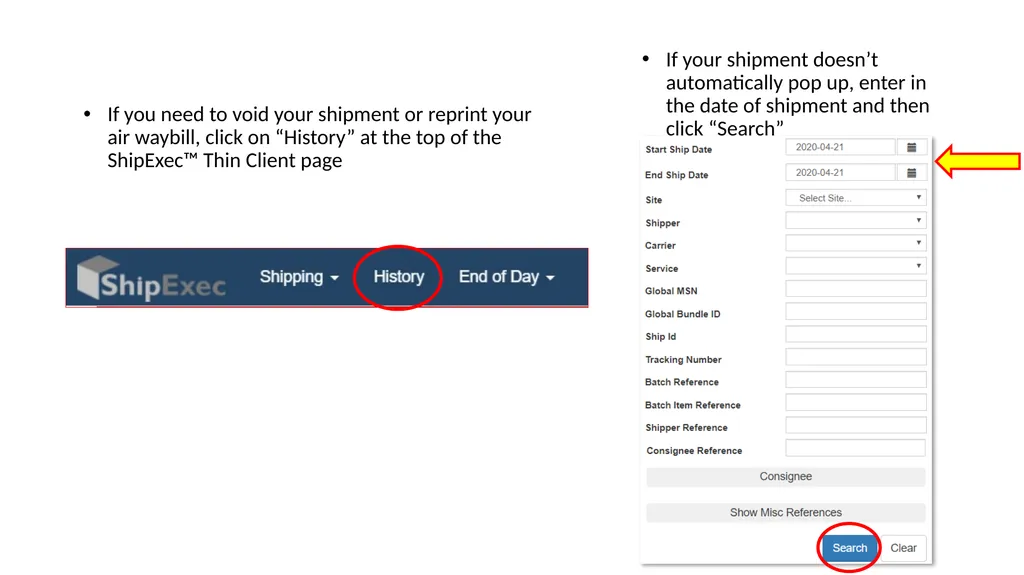
slide9. If you need to void your shipment or reprint your air waybill, click on “History” at the top of the ShipExec™ Thin Client page If your shipment doesn’t automatically pop up, enter in the date of shipment and then click “Search”<br>
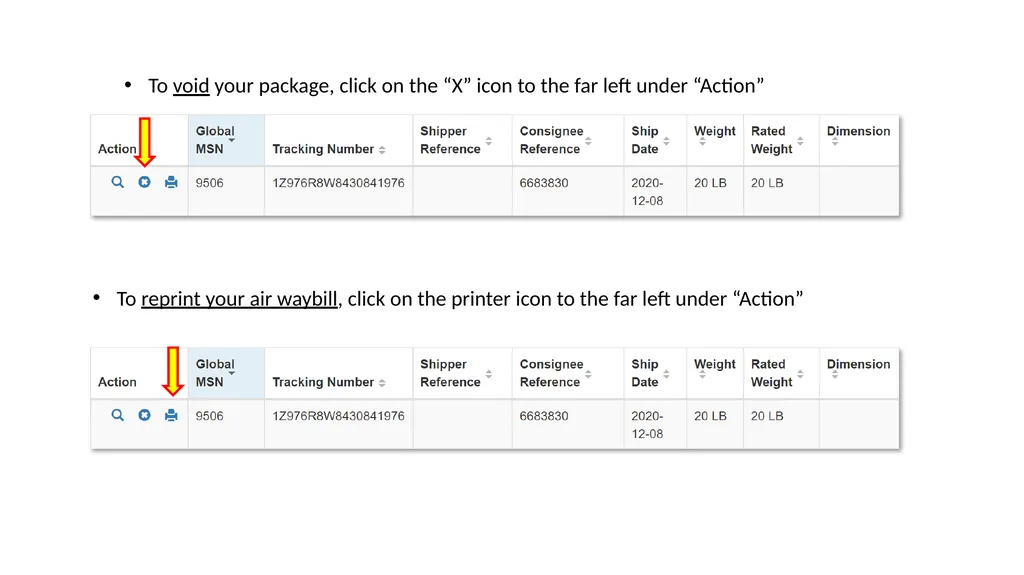
slide10. To void your package, click on the “X” icon to the far left under “Action” To reprint your air waybill, click on the printer icon to the far left under “Action”<br>
slide2. Log in to ShipExec™ Thin Client: https://kits.iu.edu/ups
Click on the “Shipping” dropdown and click on “Shipping and Rating”<br>
slide3. Choose the name of your study from the “Study Group” drop down menu
This step must be done 1st Click on the magnifying glass icon<br>
slide4. On the right side of the screen, a list of all the site addresses within the study you selected should populate
User can filter the search for their address further by filling in the “Company”, “Contact”, or “Address 1” fields
Hit the “Search” button when ready
Once you have found your site address, click on the “Select” button to the left of the address
* If you see any information that needs to be updated, please reach out to the IU Coordinator of your study<br>
slide5. Once back on the main page, make sure your address populated on the left side.
Enter the total weight of your package in the “Weight” field
Leave the “Dry Ice Weight” field empty or enter “0” if shipping an ambient sample
Enter the weight of the dry ice for frozen shipments in the “Dry Ice Weight” field
The “Dry Ice Weight” field can never be higher than the “Weight” field Click on the “Pickup Request” button<br>
slide6. Fill out all fields for the pickup request
Enter in the “Earliest Time Ready” and “Latest Time Ready” in 24-hour format
Users must schedule pickup minimum 1 hour before “Earliest Time Ready”
Choose a name and number that is the best to contact if the UPS driver has questions related to picking up your package
Entering the Room Number and Floor will help the UPS driver locate your package
Room number field is free text, Floor field is numerical only
Hit “Save” when done Click on the “Ship” button in the bottom right corner when ready to ship the package<br>
slide7. Two PDF files should download to your computer after you click “Ship” The “Pickup No:” is the reference number to your specific pickup request in case there are any issues with your package being picked up by UPS
Check Pickup Status by going to UPS.com, click on the Shipping, select Schedule a Pickup, and look on the right side of screen to click on “Pickup Request Status”. Enter in the Pickup No. listed on receipt into PRN field and submit<br>
slide8. Print out the UPS air waybill to any printer at your location
Fold the UPS air waybill and slide it inside the plastic UPS sleeve
Peel the back off the plastic UPS sleeve and stick the sleeve to your package, making sure it is laying as flat as possible along the surface of the package.<br>
slide9. If you need to void your shipment or reprint your air waybill, click on “History” at the top of the ShipExec™ Thin Client page If your shipment doesn’t automatically pop up, enter in the date of shipment and then click “Search”<br>
slide10. To void your package, click on the “X” icon to the far left under “Action” To reprint your air waybill, click on the printer icon to the far left under “Action”<br>