October 21, 2016 Eric Nelson PCard Supporting Documentation: OnBase tips, tricks and best practices introduction OnBase is the tool that the University uses to store many different types of documentation, including PCard Transaction
"October 21, 2016 Eric Nelson PCard Supporting" is the property of its rightful owner. Permission is granted to
download and print the materials on this website for personal, non-commercial use only, and to display it
on your personal computer provided you do not modify the materials and that you retain all copyright
notices contained in the materials. By downloading content from our website, you accept the terms of this
agreement.
Presentation Transcript
01
October 21, 2016
Eric Nelson PCard Supporting Documentation: OnBase tips, tricks and best practices<br>
02
introduction OnBase is the tool that the University uses to store many different types of documentation, including PCard Transaction Documentation.
A detailed guide for uploading documentation for PCard transactions can be found on the following website:
https://nau.edu/its/learn/psfinancials_pca/
It is highly recommended that you read this guide as it provides helpful information in case you run into errors when first attempting to access OnBase.
NOTE: Please be aware that the Pcard reconciliation process can vary from department to department. Some of what may be covered may not apply to you.<br>
03
Types of documentation to upload At a minimum, upload:
Receipt
Business Food/Meal Purchase Authorization (If Applicable)
Other Documentation:
Proof of Delivery (Highly Recommended)
Approvals
Other documentation that supports the expense<br>
04
The Basics – Uploading documentation Scan the documentation for each transaction separately
Save files on your computer or other accessible network location (i.e. Bonsai)
Navigate to the appropriate transaction in PeopleSoft Financials
Click on the “Public Purpose” link
Click on the “Documentation” link
This will open OnBase.
If nothing has been uploaded for the transaction, OnBase will say “No Folder Found”
Click the Green Arrow at the top of the window to go to the upload screen<br>
05
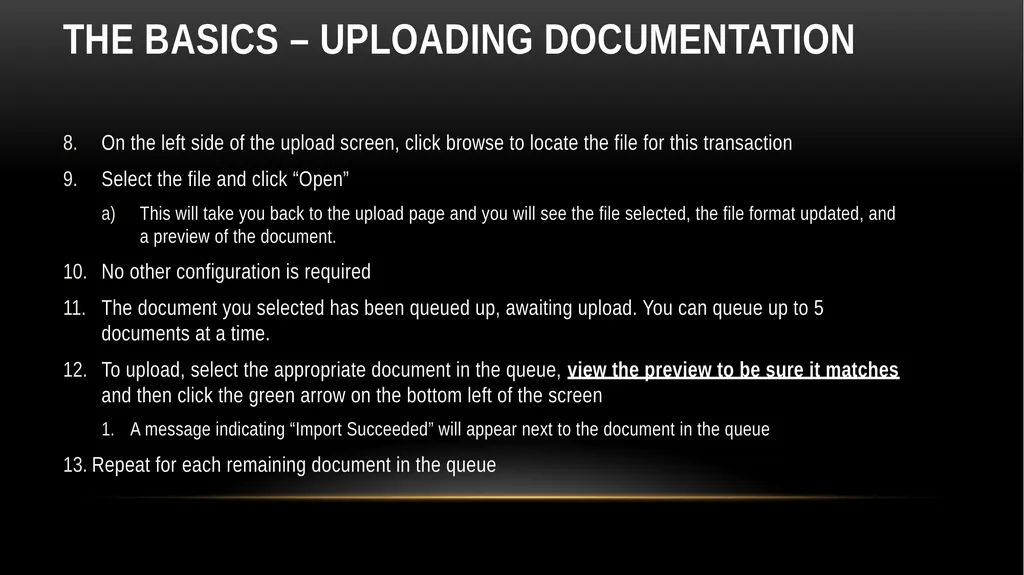
The Basics – Uploading documentation On the left side of the upload screen, click browse to locate the file for this transaction
Select the file and click “Open”
This will take you back to the upload page and you will see the file selected, the file format updated, and a preview of the document.
No other configuration is required
The document you selected has been queued up, awaiting upload. You can queue up to 5 documents at a time.
To upload, select the appropriate document in the queue, view the preview to be sure it matches and then click the green arrow on the bottom left of the screen
A message indicating “Import Succeeded” will appear next to the document in the queue
Repeat for each remaining document in the queue<br>
06
Uploading multiple documents Drag and Drop:
Select all of the files on your computer that you want to upload for that transaction
Click and drag the files into the upload window
When a green symbol with a plus sign appears, let go and the files will be dropped and queued into OnBase
Select a file to preview it and the click the upload button to upload it. Repeat for each additional file
If you have additional files to upload, you can drag them into the queue area to add them to the queue.
Up to 5 files can be added/uploaded before you must reset the upload screen<br>
07
Uploading multiple documents Browse for Each File:
Browse the normal way for a file to add it to the queue
To add additional files, browse again for the file, select the file and click open. The new file will be added to the queue
Select a file to preview it and the click the upload button to upload it. Repeat for each additional file
Up to 5 files can be added/uploaded before you must reset the upload screen<br>
08
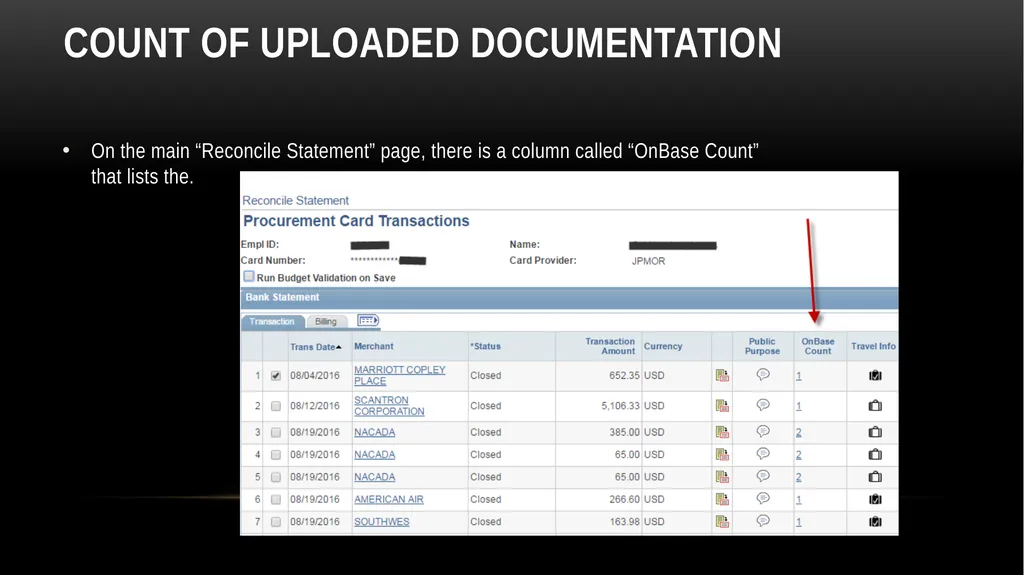
Count of Uploaded Documentation On the main “Reconcile Statement” page, there is a column called “OnBase Count” that lists the.<br>
09
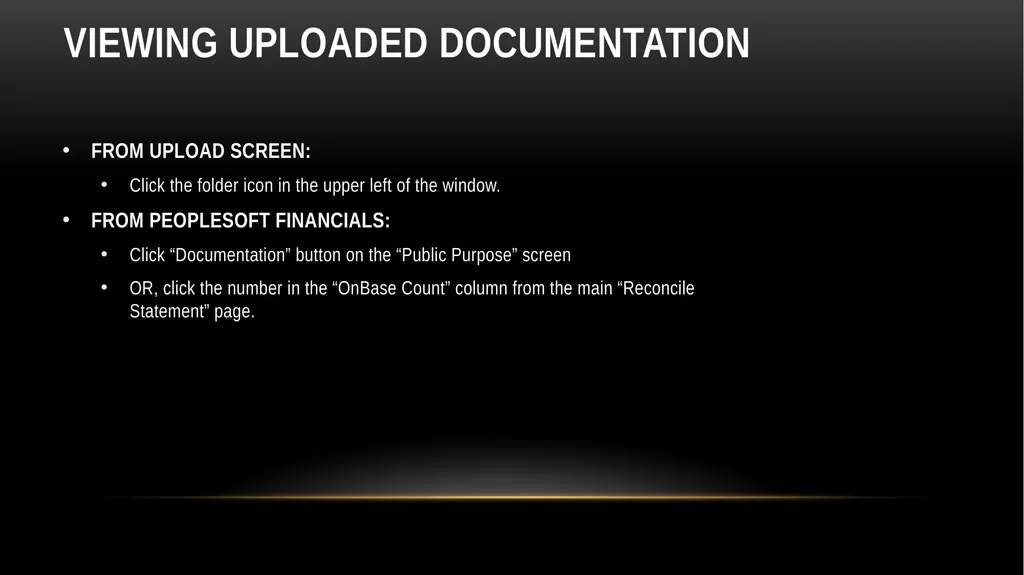
Viewing Uploaded Documentation FROM UPLOAD SCREEN:
Click the folder icon in the upper left of the window.
FROM PEOPLESOFT FINANCIALS:
Click “Documentation” button on the “Public Purpose” screen
OR, click the number in the “OnBase Count” column from the main “Reconcile Statement” page.<br>
10
Demonstration Uploading
Viewing<br>
11
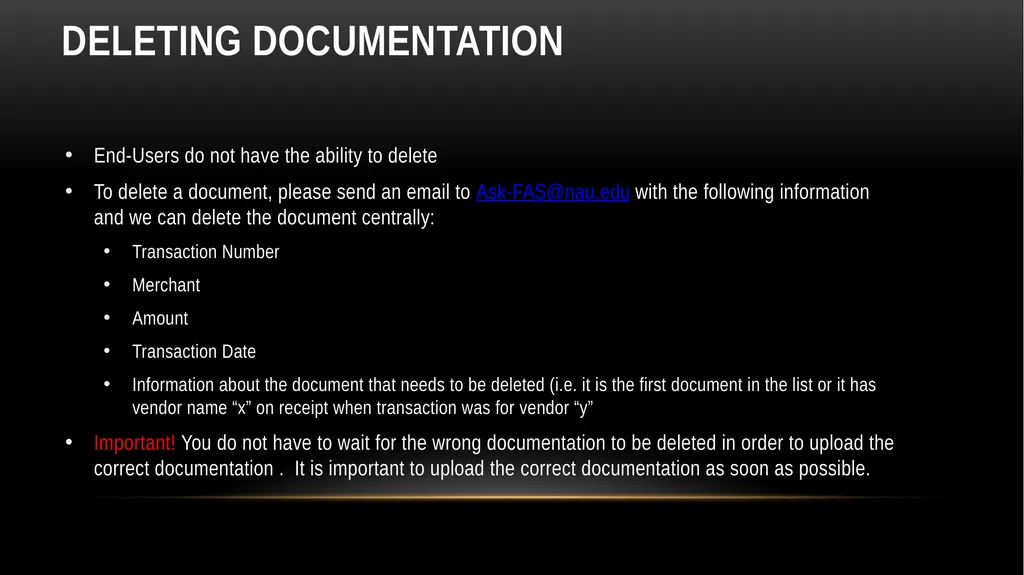
Deleting documentation End-Users do not have the ability to delete
To delete a document, please send an email to Ask-FAS@nau.edu with the following information and we can delete the document centrally:
Transaction Number
Merchant
Amount
Transaction Date
Information about the document that needs to be deleted (i.e. it is the first document in the list or it has vendor name “x” on receipt when transaction was for vendor “y”
Important! You do not have to wait for the wrong documentation to be deleted in order to upload the correct documentation . It is important to upload the correct documentation as soon as possible.<br>
12
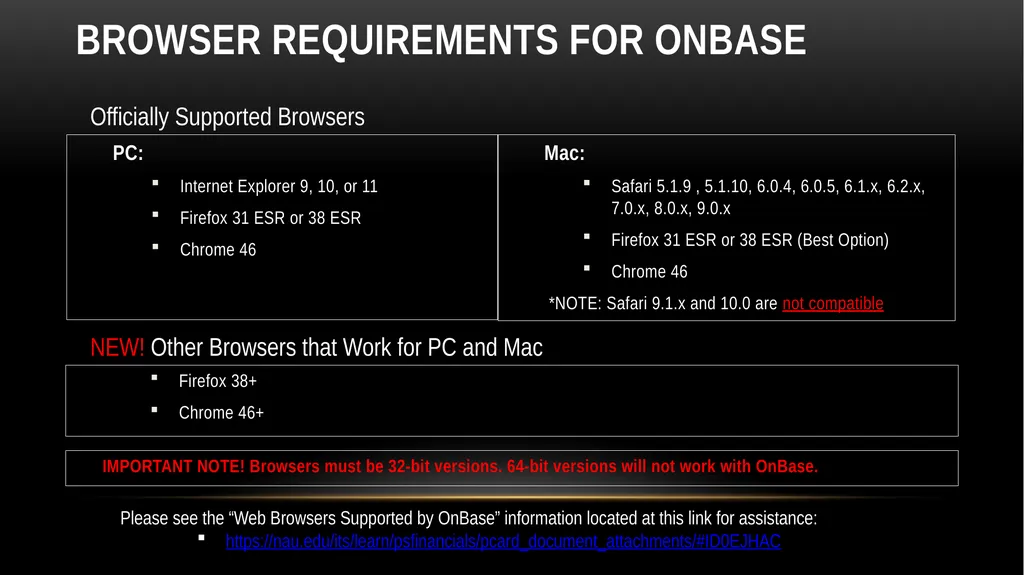
PC:
Internet Explorer 9, 10, or 11
Firefox 31 ESR or 38 ESR
Chrome 46 Mac:
Safari 5.1.9 , 5.1.10, 6.0.4, 6.0.5, 6.1.x, 6.2.x, 7.0.x, 8.0.x, 9.0.x
Firefox 31 ESR or 38 ESR (Best Option)
Chrome 46
*NOTE: Safari 9.1.x and 10.0 are not compatible Browser requirements for onbase Please see the “Web Browsers Supported by OnBase” information located at this link for assistance:
https://nau.edu/its/learn/psfinancials/pcard_document_attachments/#ID0EJHAC NEW! Other Browsers that Work for PC and Mac Officially Supported Browsers Firefox 38+
Chrome 46+ IMPORTANT NOTE! Browsers must be 32-bit versions. 64-bit versions will not work with OnBase.<br>
13
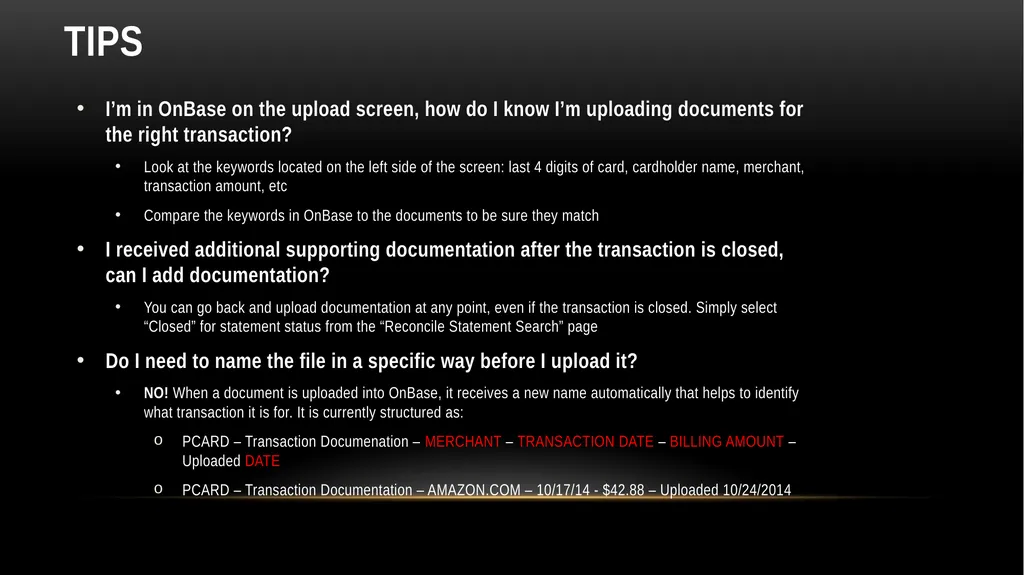
tips I’m in OnBase on the upload screen, how do I know I’m uploading documents for the right transaction?
Look at the keywords located on the left side of the screen: last 4 digits of card, cardholder name, merchant, transaction amount, etc
Compare the keywords in OnBase to the documents to be sure they match
I received additional supporting documentation after the transaction is closed, can I add documentation?
You can go back and upload documentation at any point, even if the transaction is closed. Simply select “Closed” for statement status from the “Reconcile Statement Search” page
Do I need to name the file in a specific way before I upload it?
NO! When a document is uploaded into OnBase, it receives a new name automatically that helps to identify what transaction it is for. It is currently structured as:
PCARD – Transaction Documenation – MERCHANT – TRANSACTION DATE – BILLING AMOUNT – Uploaded DATE
PCARD – Transaction Documentation – AMAZON.COM – 10/17/14 - $42.88 – Uploaded 10/24/2014<br>
14
Tips Continued Do I have to wait until the end of the month to upload documents?
NO! With transactions being loaded daily into PeopleSoft Financials, the reconciliation should no longer be a process you complete at the end of each month. Instead, transactions can be verified, approved, and documents uploaded on a continuous basis.
This will help alleviate the workload that has to be done at the end of the month
What do I do with the original document after I have uploaded it?
Once uploaded, you can destroy the original document
It is important to verify that you can view the documentation for the transaction in OnBase prior to destroying the original
Keep in mind that if you have to return an item, some merchants may require the original receipt<br>
15
Scanning tips Be sure to scan documents for each transaction separately.
If you have multiple documents for one transaction, those can be scanned as 1 document.
Scan documents in the order of your transaction list in PeopleSoft Financials. This way, if your scanner uses a sequential naming convention, the documents will be in the same order. This will make it easier to select the right document for upload.
Some departments have found it useful to rename the file in such a way that it makes identifying which transaction it pertains to easier, without having to open it.
Many use Konica Minolta multi-function machines: If you have a keyboard attached to your Konica Minolta it will make it easier to name the file as you scan.
Keep in mind that the file name changes once it is uploaded into OnBase, so only change the name if it is helpful while uploading.<br>
16
Conclusion The detailed business process for reconciling/approving PCard transactions (including uploading documentation) can be found at the following website:
https://nau.edu/its/learn/psfinancials_pca/
Any questions on the documentation upload process, contact Eric.Nelson@nau.edu or PCard@nau.edu<br>