Tech Savvy Seniors Module 4: Browse the internet
Description: Tech Savvy Seniors Module 4: Browse the internet safely Key takeaways My key insights from today are: I can: Explain what the internet is and how it can be used. Use a web browser to search for everyday information. Recognise safe,
Related Topics
Download Presentation
"Tech Savvy Seniors Module 4: Browse the internet" is the property of its rightful owner. Permission is granted to download and print the materials on this website for personal, non-commercial use only, and to display it on your personal computer provided you do not modify the materials and that you retain all copyright notices contained in the materials. By downloading content from our website, you accept the terms of this agreement.
Presentation Transcript
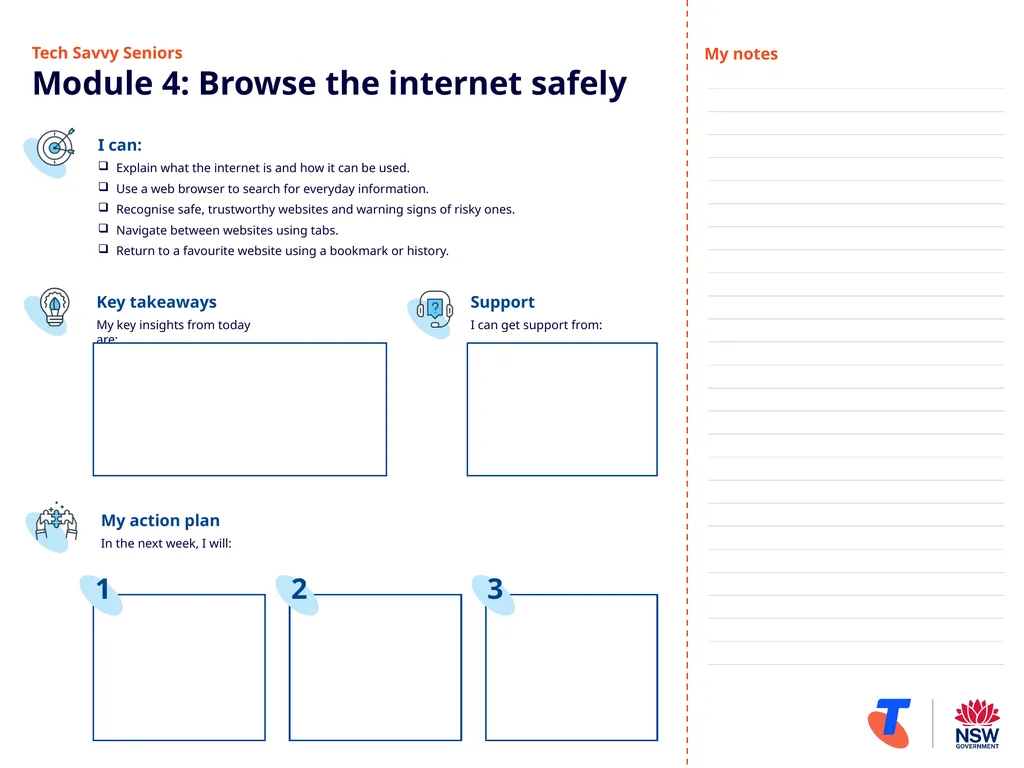
slide1. Tech Savvy SeniorsModule 4: Browse the internet safely Key takeaways
My key insights from today are: I can:
Explain what the internet is and how it can be used.
Use a web browser to search for everyday information.
Recognise safe, trustworthy websites and warning signs of risky ones.
Navigate between websites using tabs.
Return to a favourite website using a bookmark or history. Support
I can get support from: My action plan
In the next week, I will: 1 2 3 My notes<br>
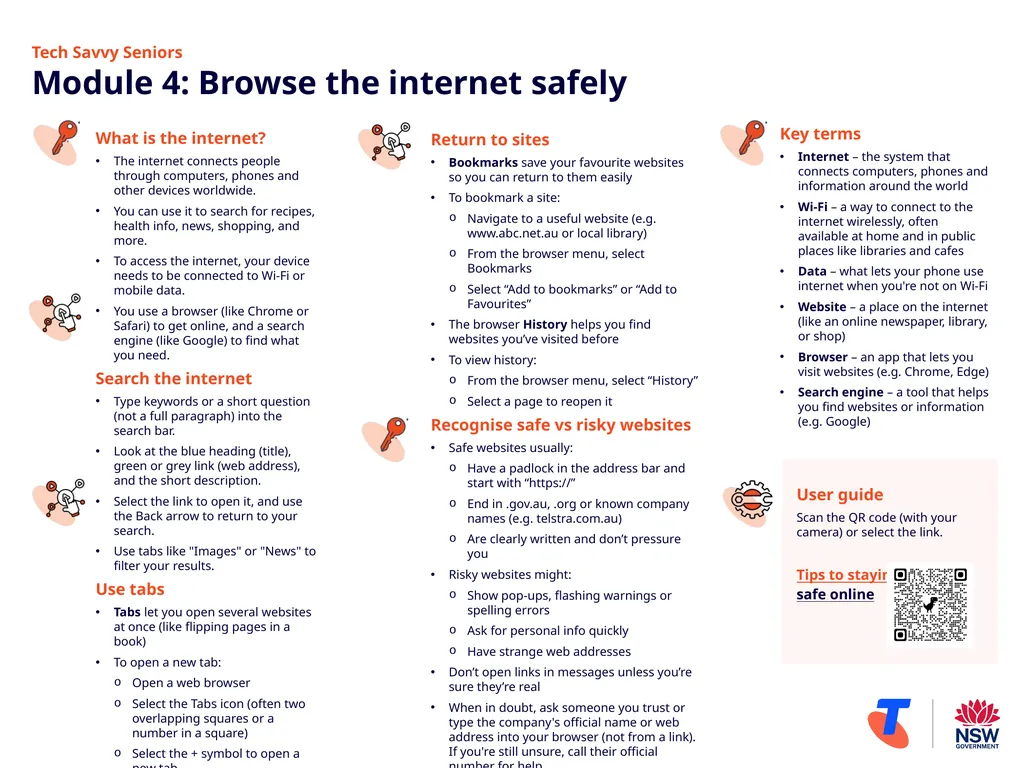
slide2. What is the internet?
The internet connects people through computers, phones and other devices worldwide.
You can use it to search for recipes, health info, news, shopping, and more.
To access the internet, your device needs to be connected to Wi-Fi or mobile data.
You use a browser (like Chrome or Safari) to get online, and a search engine (like Google) to find what you need.
Search the internet
Type keywords or a short question (not a full paragraph) into the search bar.
Look at the blue heading (title), green or grey link (web address), and the short description.
Select the link to open it, and use the Back arrow to return to your search.
Use tabs like "Images" or "News" to filter your results.
Use tabs
Tabs let you open several websites at once (like flipping pages in a book)
To open a new tab:
Open a web browser
Select the Tabs icon (often two overlapping squares or a number in a square)
Select the + symbol to open a new tab Return to sites
Bookmarks save your favourite websites so you can return to them easily
To bookmark a site:
Navigate to a useful website (e.g. www.abc.net.au or local library)
From the browser menu, select Bookmarks
Select “Add to bookmarks” or “Add to Favourites”
The browser History helps you find websites you’ve visited before
To view history:
From the browser menu, select “History”
Select a page to reopen it
Recognise safe vs risky websites
Safe websites usually:
Have a padlock in the address bar and start with “https://”
End in .gov.au, .org or known company names (e.g. telstra.com.au)
Are clearly written and don’t pressure you
Risky websites might:
Show pop-ups, flashing warnings or spelling errors
Ask for personal info quickly
Have strange web addresses
Don’t open links in messages unless you’re sure they’re real
When in doubt, ask someone you trust or type the company's official name or web address into your browser (not from a link). If you're still unsure, call their official number for help. Key terms
Internet – the system that connects computers, phones and information around the world
Wi-Fi – a way to connect to the internet wirelessly, often available at home and in public places like libraries and cafes
Data – what lets your phone use internet when you're not on Wi-Fi
Website – a place on the internet (like an online newspaper, library, or shop)
Browser – an app that lets you visit websites (e.g. Chrome, Edge)
Search engine – a tool that helps you find websites or information (e.g. Google) Tech Savvy Seniors Module 4: Browse the internet safely User guide
Scan the QR code (with your camera) or select the link.
Tips to staying safe online<br>
My key insights from today are: I can:
Explain what the internet is and how it can be used.
Use a web browser to search for everyday information.
Recognise safe, trustworthy websites and warning signs of risky ones.
Navigate between websites using tabs.
Return to a favourite website using a bookmark or history. Support
I can get support from: My action plan
In the next week, I will: 1 2 3 My notes<br>
slide2. What is the internet?
The internet connects people through computers, phones and other devices worldwide.
You can use it to search for recipes, health info, news, shopping, and more.
To access the internet, your device needs to be connected to Wi-Fi or mobile data.
You use a browser (like Chrome or Safari) to get online, and a search engine (like Google) to find what you need.
Search the internet
Type keywords or a short question (not a full paragraph) into the search bar.
Look at the blue heading (title), green or grey link (web address), and the short description.
Select the link to open it, and use the Back arrow to return to your search.
Use tabs like "Images" or "News" to filter your results.
Use tabs
Tabs let you open several websites at once (like flipping pages in a book)
To open a new tab:
Open a web browser
Select the Tabs icon (often two overlapping squares or a number in a square)
Select the + symbol to open a new tab Return to sites
Bookmarks save your favourite websites so you can return to them easily
To bookmark a site:
Navigate to a useful website (e.g. www.abc.net.au or local library)
From the browser menu, select Bookmarks
Select “Add to bookmarks” or “Add to Favourites”
The browser History helps you find websites you’ve visited before
To view history:
From the browser menu, select “History”
Select a page to reopen it
Recognise safe vs risky websites
Safe websites usually:
Have a padlock in the address bar and start with “https://”
End in .gov.au, .org or known company names (e.g. telstra.com.au)
Are clearly written and don’t pressure you
Risky websites might:
Show pop-ups, flashing warnings or spelling errors
Ask for personal info quickly
Have strange web addresses
Don’t open links in messages unless you’re sure they’re real
When in doubt, ask someone you trust or type the company's official name or web address into your browser (not from a link). If you're still unsure, call their official number for help. Key terms
Internet – the system that connects computers, phones and information around the world
Wi-Fi – a way to connect to the internet wirelessly, often available at home and in public places like libraries and cafes
Data – what lets your phone use internet when you're not on Wi-Fi
Website – a place on the internet (like an online newspaper, library, or shop)
Browser – an app that lets you visit websites (e.g. Chrome, Edge)
Search engine – a tool that helps you find websites or information (e.g. Google) Tech Savvy Seniors Module 4: Browse the internet safely User guide
Scan the QR code (with your camera) or select the link.
Tips to staying safe online<br>