Travel Approval Spend Authorization Expense Report
Description: Travel Approval Spend Authorization Expense Report Non-Employee Travel Workday Mobile App Upload receipts as you travel WSU Employee Travel Workday Expense Hub Workday Expense Hub From the Expense Hub: Create Expense Report Suggested Links
Related Topics
Download Presentation
"Travel Approval Spend Authorization Expense Report" is the property of its rightful owner. Permission is granted to download and print the materials on this website for personal, non-commercial use only, and to display it on your personal computer provided you do not modify the materials and that you retain all copyright notices contained in the materials. By downloading content from our website, you accept the terms of this agreement.
Presentation Transcript
slide1. Travel<br>
slide2. Approval
Spend Authorization
Expense Report
Non-Employee Travel
Workday Mobile App
Upload receipts as you travel WSU Employee Travel<br>
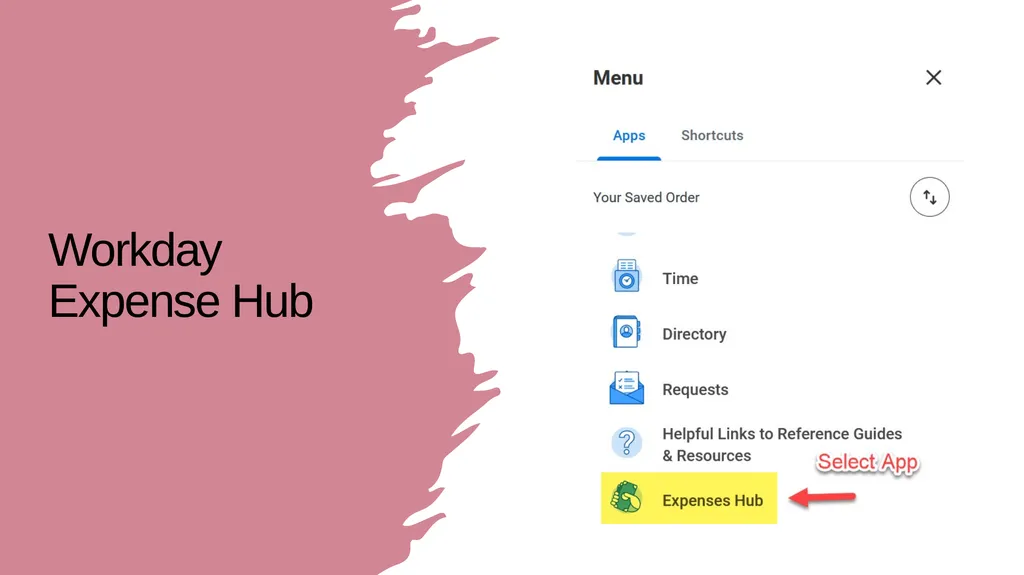
slide3. Workday Expense Hub<br>
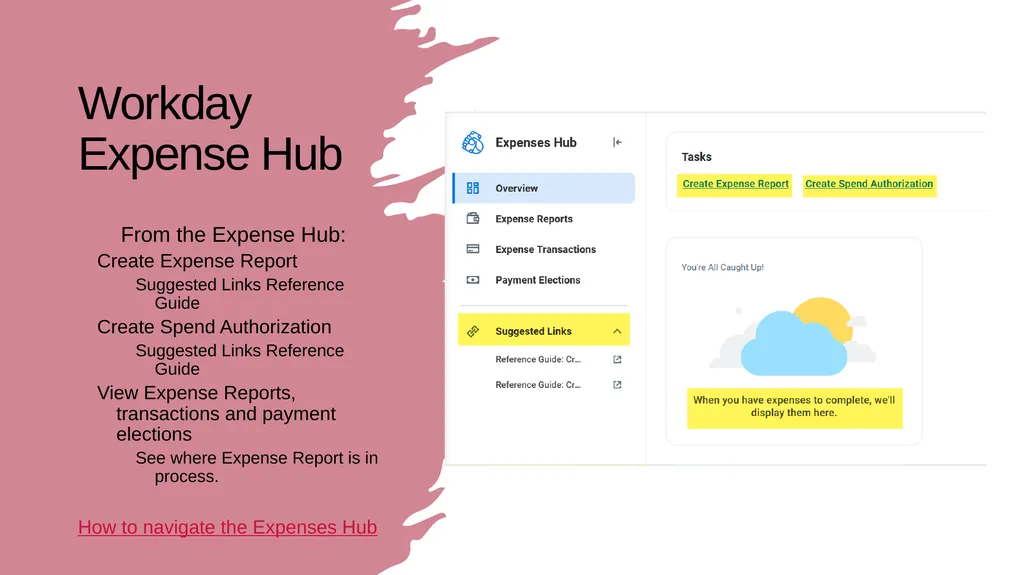
slide4. Workday Expense Hub From the Expense Hub:
Create Expense Report
Suggested Links Reference Guide
Create Spend Authorization
Suggested Links Reference Guide
View Expense Reports, transactions and payment elections
See where Expense Report is in process.
How to navigate the Expenses Hub<br>
slide5. Approval | Spend Authorization<br>
slide6. Travel Approval The University maintains a positive control over travel, which must be deemed appropriate and result in a benefit to WSU. Prior approval by a University official or their designee is required for all University travel in order for individuals to be eligible to:
Travel on behalf of WSU; and
Receive reimbursement for authorized and allowable expenses.
Prior approval also acknowledges that employees are traveling in the capacity of their job duties and, therefore, covered under WSU’s industrial insurance and worker’s compensation insurance.
Verbal prior approval by the administrator is acceptable when a Spend Authorization is not required.<br>
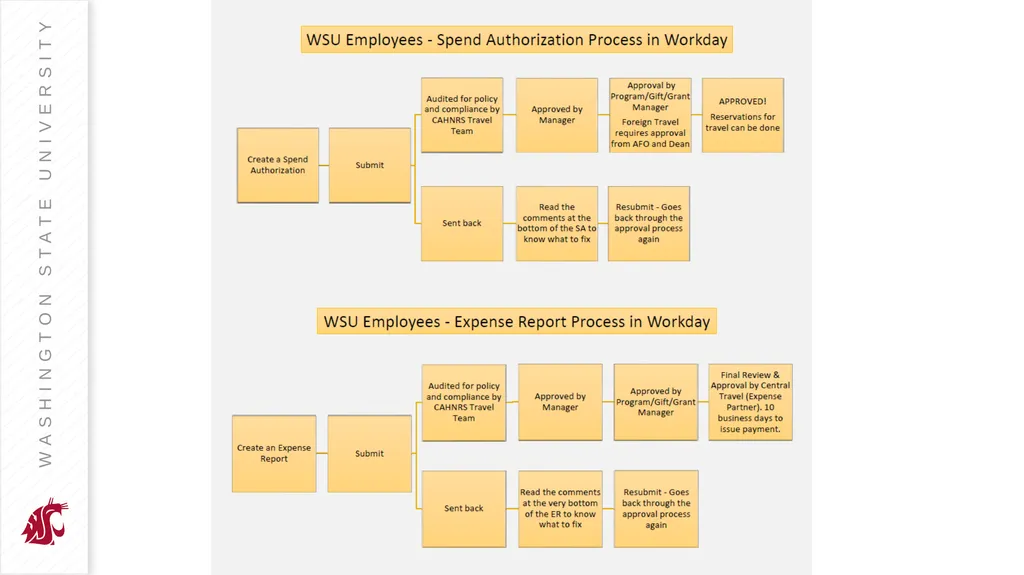
slide7. Spend Authorization Spend Authorizations (SA) approve travel and cost estimates for the following travel situations:
When a cash advance for travel purposes is requested.
When an exception to policy is requested (External Committee Member).
When the traveler is going out of state or out of the country.
When official WSU travel is partially or entirely supported by funds not administered by the WSU Controller’s Office, e.g., from a third party (another educational institution, a private organization) or the traveler’s personal funds.
When seeking authorization for candidate, pre-hire student, or academic affiliate travel.
When the administrative unit requires it. An individual unit may require written approval for all travel.<br>
slide8. Authorized Approval Spend Authorizations and Expense Reports are approved in Workday by the employee’s manager and the appropriate financial manager (e.g. cost center, project, program, gift, grant). The area finance officer approves if the manager role is unassigned or if the travel is foreign.<br>
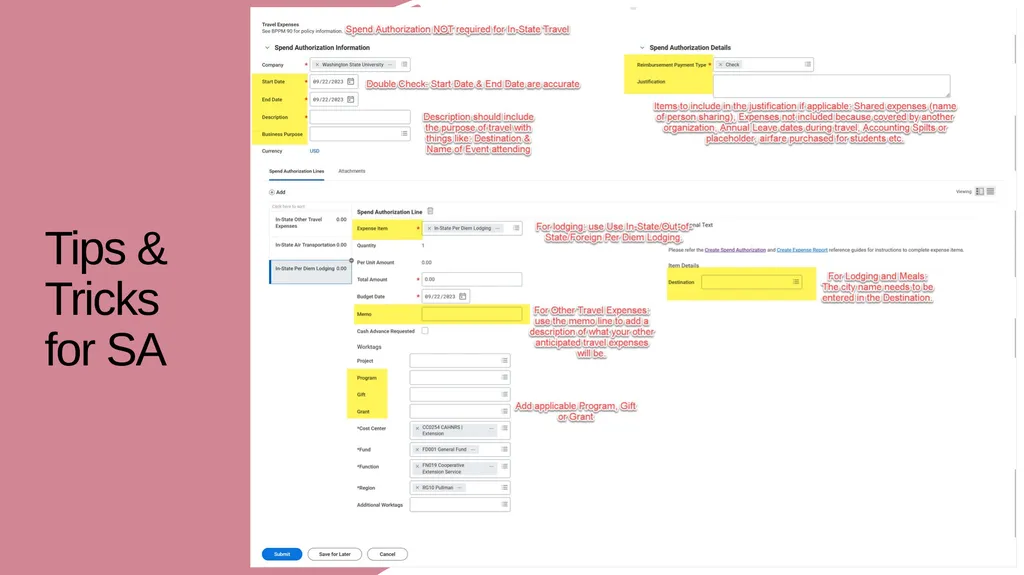
slide10. Tips & Tricks for SA<br>
slide11. Expense Report<br>
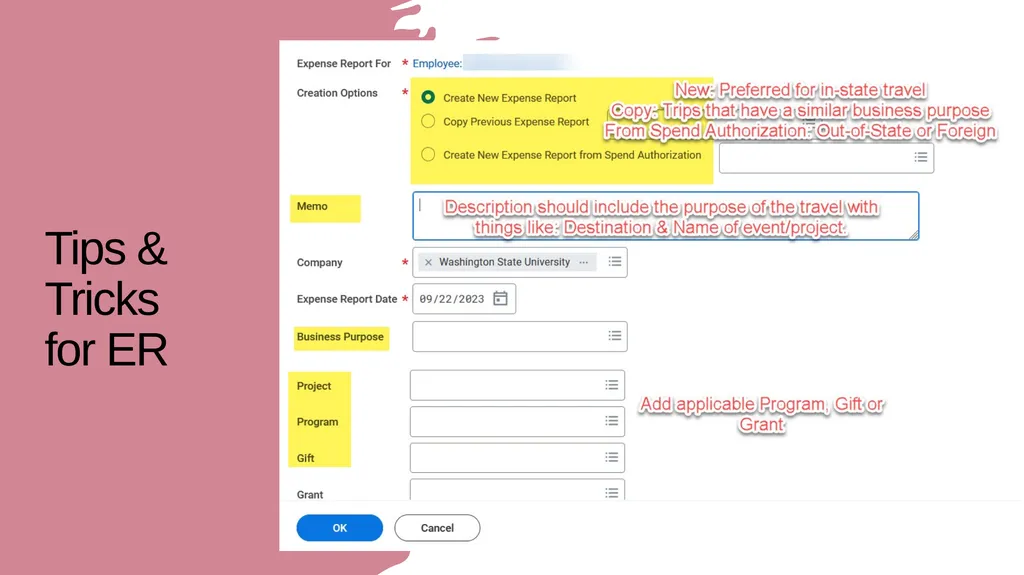
slide12. Expense Reports An Expense Report (ER) is a University-defined electronic transaction in Workday used to substantiate and/or authorize reimbursement payments of travel costs for University employees.
The department may also use the Expense Report in Workday to substantiate and/or authorize payment of travel costs for the following nonemployees:
Pre-hires
Candidates
Academic affiliates
Students
Contingent Workers.
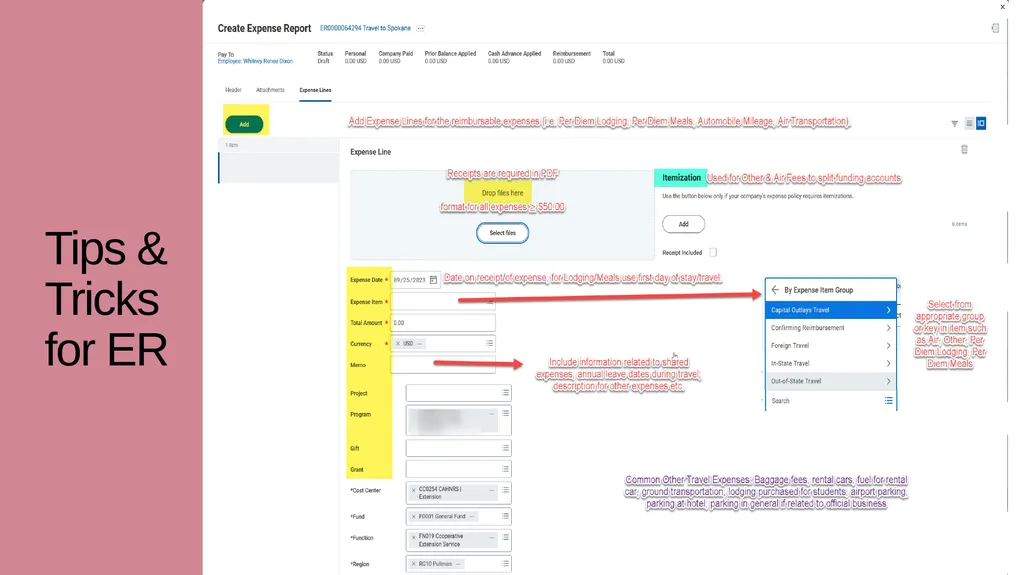
Any miscellaneous travel expense in excess of $50 must be submitted with original receipts.
Any miscellaneous non-travel expense requires a receipt regardless of the amount.
Personal expenses and those not essential to the transaction of official state business are not reimbursable.<br>
slide13. Tips & Tricks for ER<br>
slide14. Tips & Tricks for ER<br>
slide15. Workday Mobile App<br>
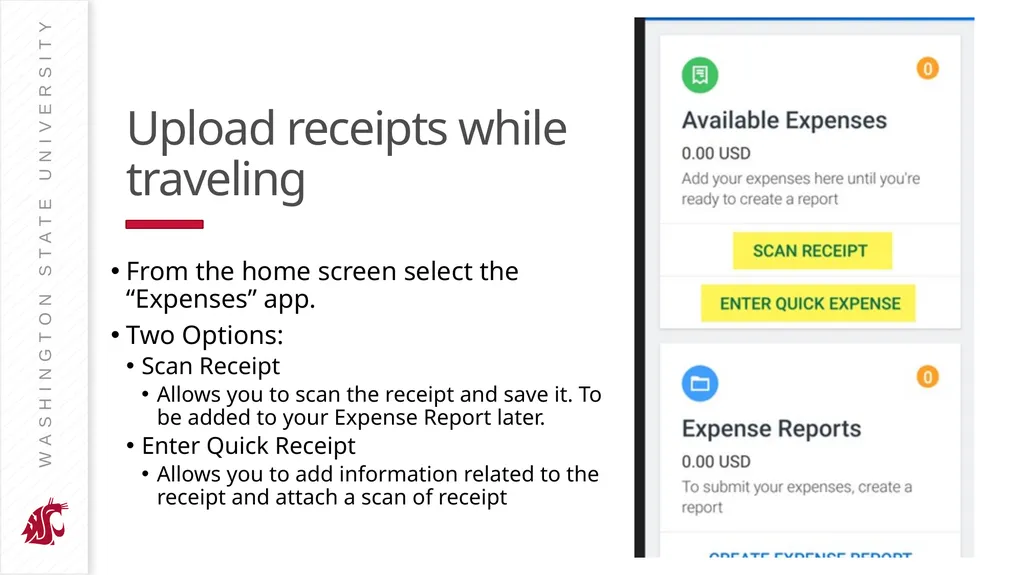
slide16. Upload receipts while traveling From the home screen select the “Expenses” app.
Two Options:
Scan Receipt
Allows you to scan the receipt and save it. To be added to your Expense Report later.
Enter Quick Receipt
Allows you to add information related to the receipt and attach a scan of receipt<br>
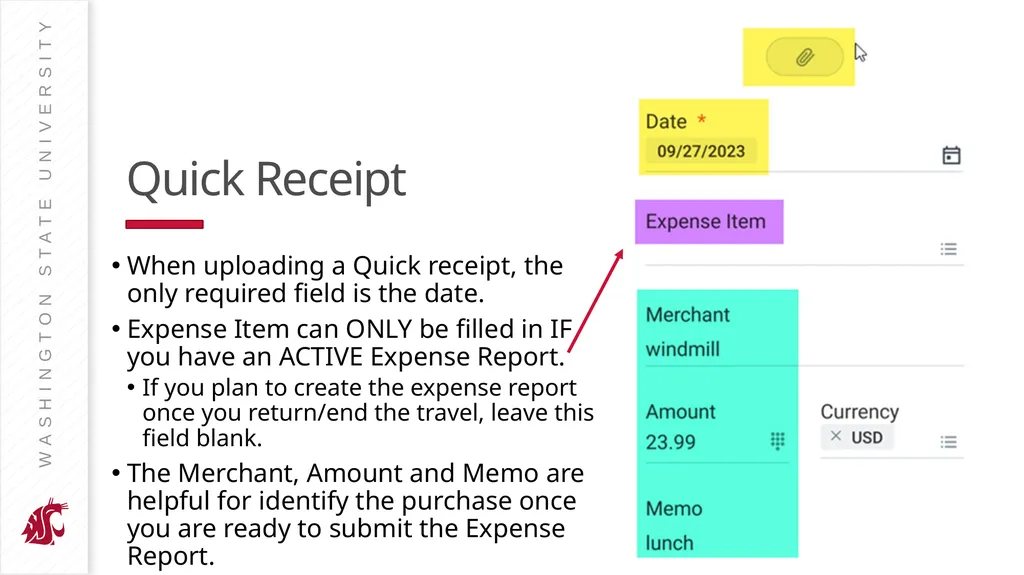
slide17. Quick Receipt When uploading a Quick receipt, the only required field is the date.
Expense Item can ONLY be filled in IF you have an ACTIVE Expense Report.
If you plan to create the expense report once you return/end the travel, leave this field blank.
The Merchant, Amount and Memo are helpful for identify the purchase once you are ready to submit the Expense Report.<br>
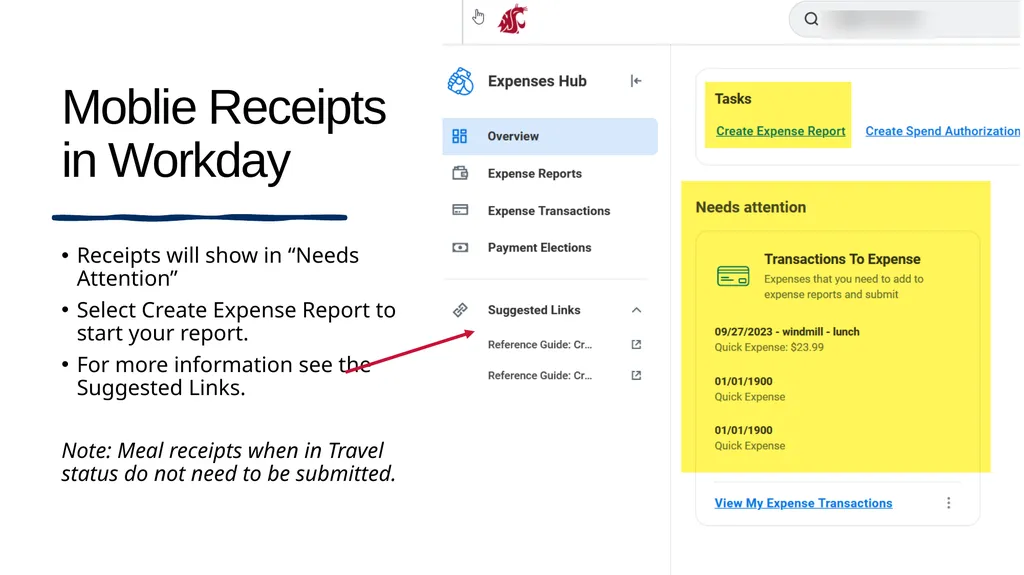
slide18. Moblie Receipts in Workday Receipts will show in “Needs Attention”
Select Create Expense Report to start your report.
For more information see the Suggested Links.
Note: Meal receipts when in Travel status do not need to be submitted.<br>
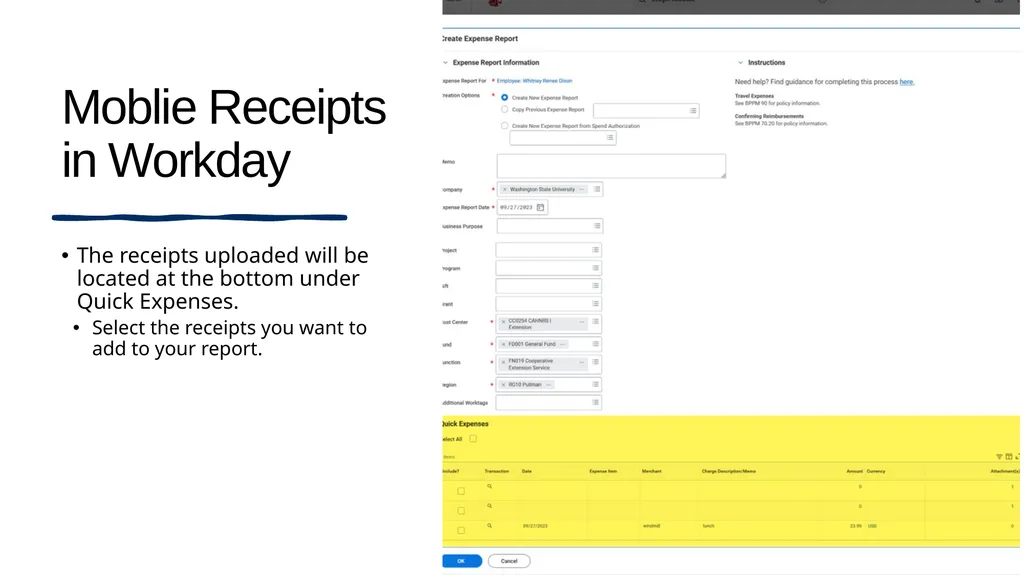
slide19. Moblie Receipts in Workday The receipts uploaded will be located at the bottom under Quick Expenses.
Select the receipts you want to add to your report.<br>
slide20. Non-Employee Travel<br>
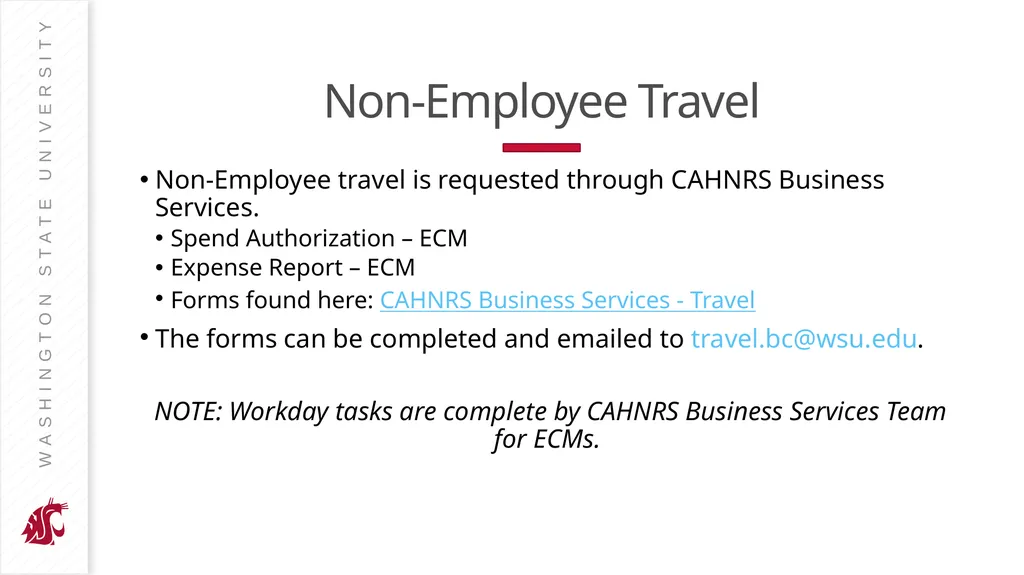
slide21. Non-Employee Travel Non-Employee travel is requested through CAHNRS Business Services.
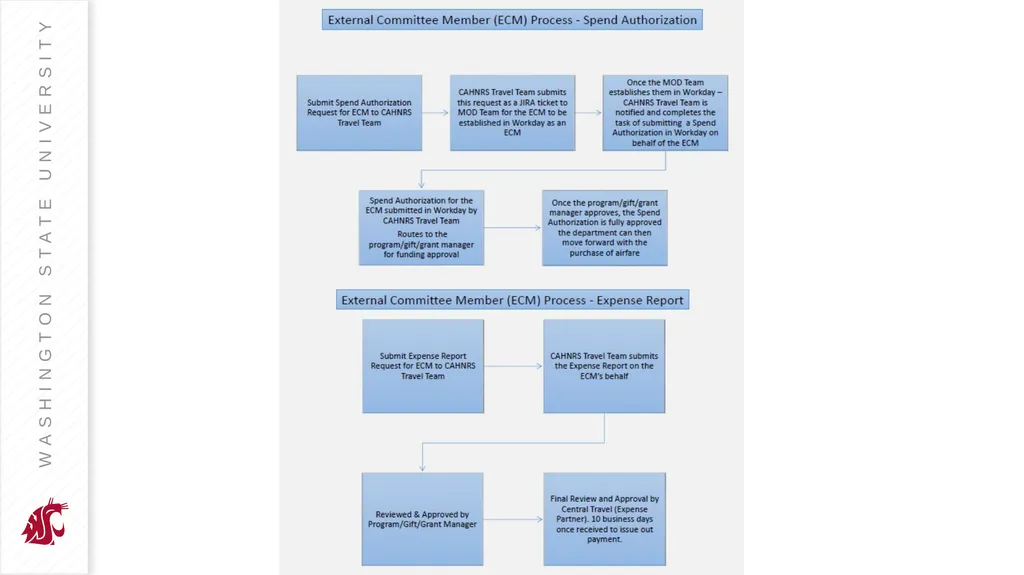
Spend Authorization – ECM
Expense Report – ECM
Forms found here: CAHNRS Business Services - Travel
The forms can be completed and emailed to travel.bc@wsu.edu.
NOTE: Workday tasks are complete by CAHNRS Business Services Team for ECMs.<br>
slide23. For assistance contact CAHNRS Business Services Travel

travel.bc@wsu.edu<br>
slide2. Approval
Spend Authorization
Expense Report
Non-Employee Travel
Workday Mobile App
Upload receipts as you travel WSU Employee Travel<br>
slide3. Workday Expense Hub<br>
slide4. Workday Expense Hub From the Expense Hub:
Create Expense Report
Suggested Links Reference Guide
Create Spend Authorization
Suggested Links Reference Guide
View Expense Reports, transactions and payment elections
See where Expense Report is in process.
How to navigate the Expenses Hub<br>
slide5. Approval | Spend Authorization<br>
slide6. Travel Approval The University maintains a positive control over travel, which must be deemed appropriate and result in a benefit to WSU. Prior approval by a University official or their designee is required for all University travel in order for individuals to be eligible to:
Travel on behalf of WSU; and
Receive reimbursement for authorized and allowable expenses.
Prior approval also acknowledges that employees are traveling in the capacity of their job duties and, therefore, covered under WSU’s industrial insurance and worker’s compensation insurance.
Verbal prior approval by the administrator is acceptable when a Spend Authorization is not required.<br>
slide7. Spend Authorization Spend Authorizations (SA) approve travel and cost estimates for the following travel situations:
When a cash advance for travel purposes is requested.
When an exception to policy is requested (External Committee Member).
When the traveler is going out of state or out of the country.
When official WSU travel is partially or entirely supported by funds not administered by the WSU Controller’s Office, e.g., from a third party (another educational institution, a private organization) or the traveler’s personal funds.
When seeking authorization for candidate, pre-hire student, or academic affiliate travel.
When the administrative unit requires it. An individual unit may require written approval for all travel.<br>
slide8. Authorized Approval Spend Authorizations and Expense Reports are approved in Workday by the employee’s manager and the appropriate financial manager (e.g. cost center, project, program, gift, grant). The area finance officer approves if the manager role is unassigned or if the travel is foreign.<br>
slide10. Tips & Tricks for SA<br>
slide11. Expense Report<br>
slide12. Expense Reports An Expense Report (ER) is a University-defined electronic transaction in Workday used to substantiate and/or authorize reimbursement payments of travel costs for University employees.
The department may also use the Expense Report in Workday to substantiate and/or authorize payment of travel costs for the following nonemployees:
Pre-hires
Candidates
Academic affiliates
Students
Contingent Workers.
Any miscellaneous travel expense in excess of $50 must be submitted with original receipts.
Any miscellaneous non-travel expense requires a receipt regardless of the amount.
Personal expenses and those not essential to the transaction of official state business are not reimbursable.<br>
slide13. Tips & Tricks for ER<br>
slide14. Tips & Tricks for ER<br>
slide15. Workday Mobile App<br>
slide16. Upload receipts while traveling From the home screen select the “Expenses” app.
Two Options:
Scan Receipt
Allows you to scan the receipt and save it. To be added to your Expense Report later.
Enter Quick Receipt
Allows you to add information related to the receipt and attach a scan of receipt<br>
slide17. Quick Receipt When uploading a Quick receipt, the only required field is the date.
Expense Item can ONLY be filled in IF you have an ACTIVE Expense Report.
If you plan to create the expense report once you return/end the travel, leave this field blank.
The Merchant, Amount and Memo are helpful for identify the purchase once you are ready to submit the Expense Report.<br>
slide18. Moblie Receipts in Workday Receipts will show in “Needs Attention”
Select Create Expense Report to start your report.
For more information see the Suggested Links.
Note: Meal receipts when in Travel status do not need to be submitted.<br>
slide19. Moblie Receipts in Workday The receipts uploaded will be located at the bottom under Quick Expenses.
Select the receipts you want to add to your report.<br>
slide20. Non-Employee Travel<br>
slide21. Non-Employee Travel Non-Employee travel is requested through CAHNRS Business Services.
Spend Authorization – ECM
Expense Report – ECM
Forms found here: CAHNRS Business Services - Travel
The forms can be completed and emailed to travel.bc@wsu.edu.
NOTE: Workday tasks are complete by CAHNRS Business Services Team for ECMs.<br>
slide23. For assistance contact CAHNRS Business Services Travel
travel.bc@wsu.edu<br>