1.2 Computer Basics Learning Goals Describe why
Description: 1.2 Computer Basics Learning Goals Describe why computers are important. Explain how computers work. Explain the difference between computer hardware and computer software. Describe what an operating system is. Learning Goals Learning Goals
Related Topics
Download Presentation
"1.2 Computer Basics Learning Goals Describe why" is the property of its rightful owner. Permission is granted to download and print the materials on this website for personal, non-commercial use only, and to display it on your personal computer provided you do not modify the materials and that you retain all copyright notices contained in the materials. By downloading content from our website, you accept the terms of this agreement.
Presentation Transcript
slide1. 1.2 Computer Basics<br>
slide2. Learning Goals Describe why computers are important.
Explain how computers work.
Explain the difference between computer hardware and computer software.
Describe what an operating system is. Learning Goals<br>
slide3. Learning Goals Identify the operating system you have on your own computer and phone.
Define office productivity and communications software.
Turn on and log in to a computer.
Identify parts of the computer desktop. Learning Goals<br>
slide4. Importance Why is it important to learn how to use a computer? Importance<br>
slide5. What is a Computer? An electronic device that:
accepts data (input),
manipulates the data (process),
provides output (output) and
stores the results (storage). What is a Computer?<br>
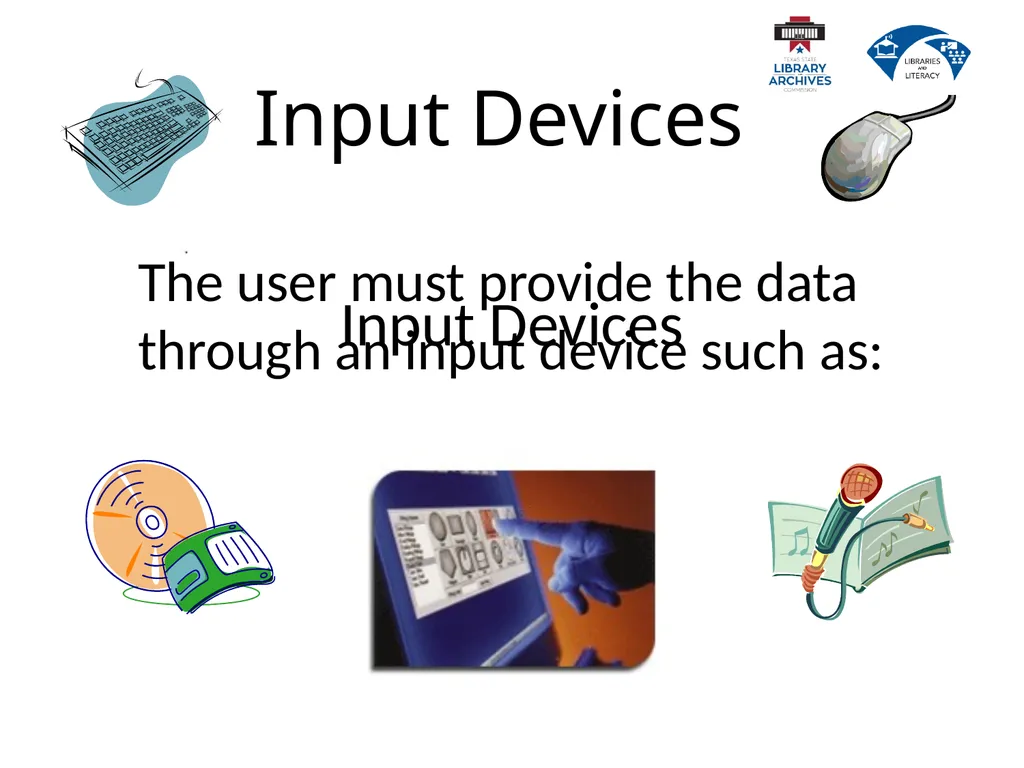
slide6. Input Devices The user must provide the data through an input device such as: Input Devices<br>
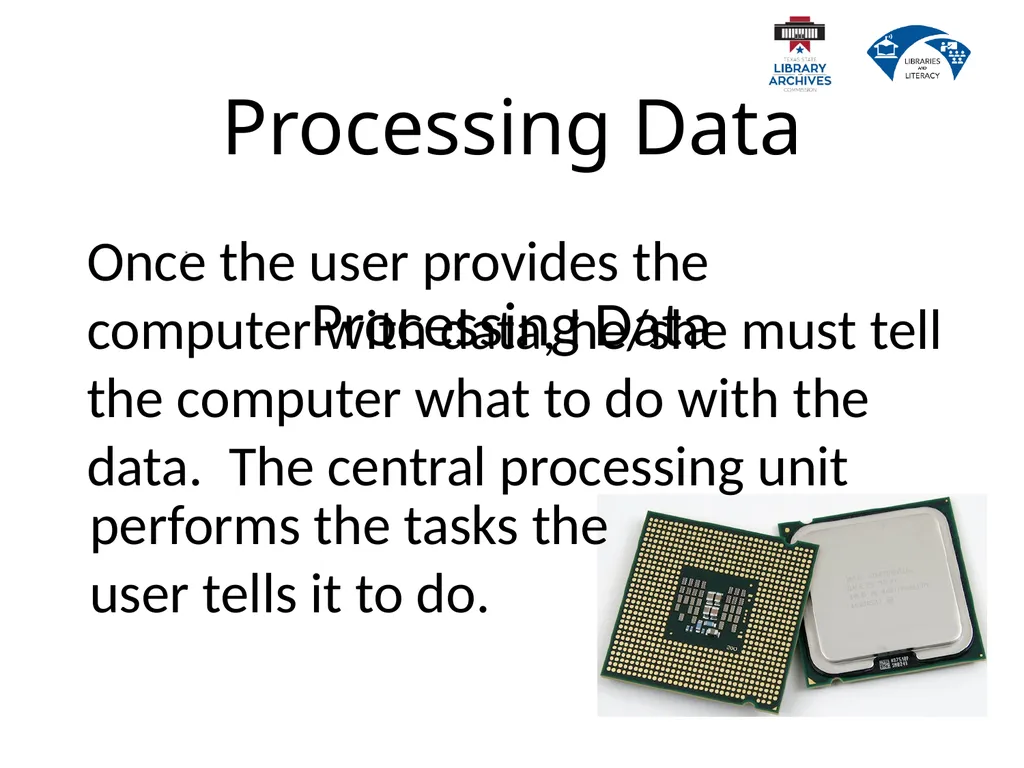
slide7. Processing Data Processing Data<br>
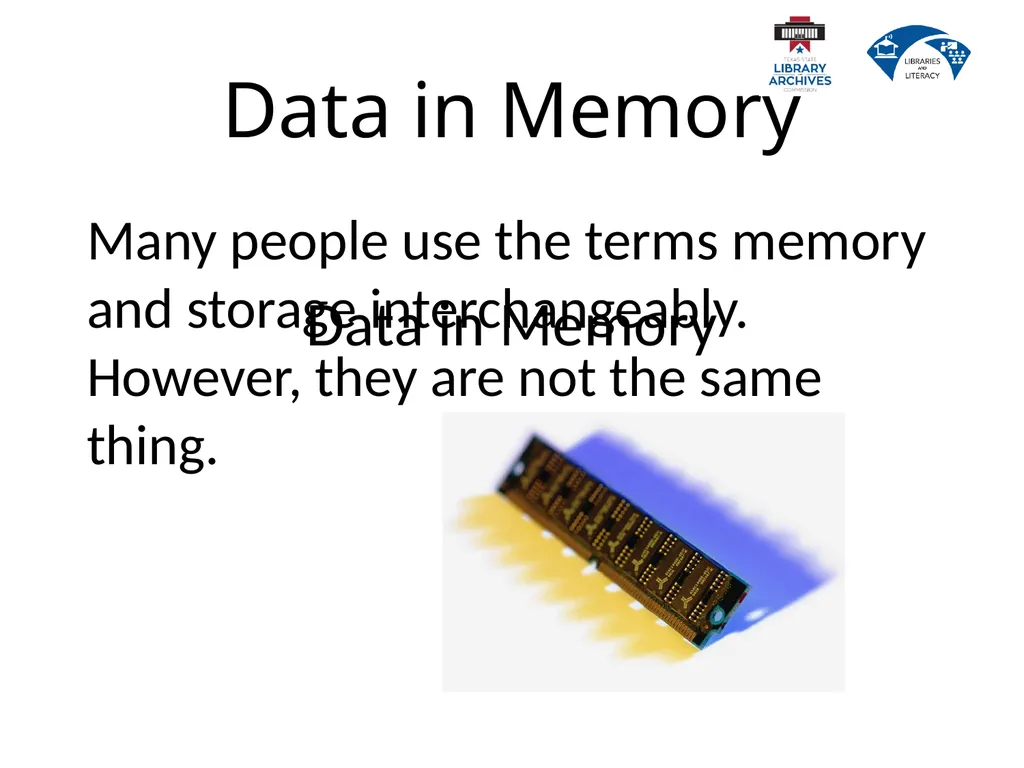
slide8. Many people use the terms memory and storage interchangeably. However, they are not the same thing. Data in Memory Data in Memory<br>
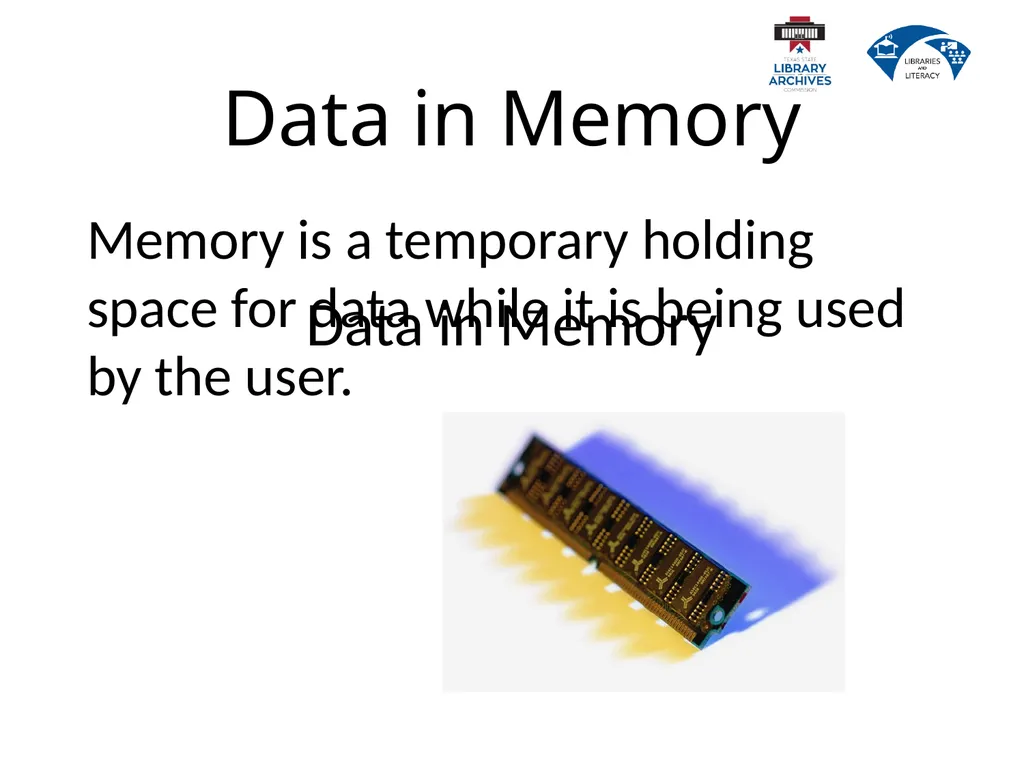
slide9. Data in Memory Memory is a temporary holding space for data while it is being used by the user. Data in Memory<br>
slide10. Data in Memory Example: This presentation has been saved to “storage,” but we are viewing it through the computer’s memory. If I make a change to it and do not save it to “storage” again, the changes will be lost. Data in Memory<br>
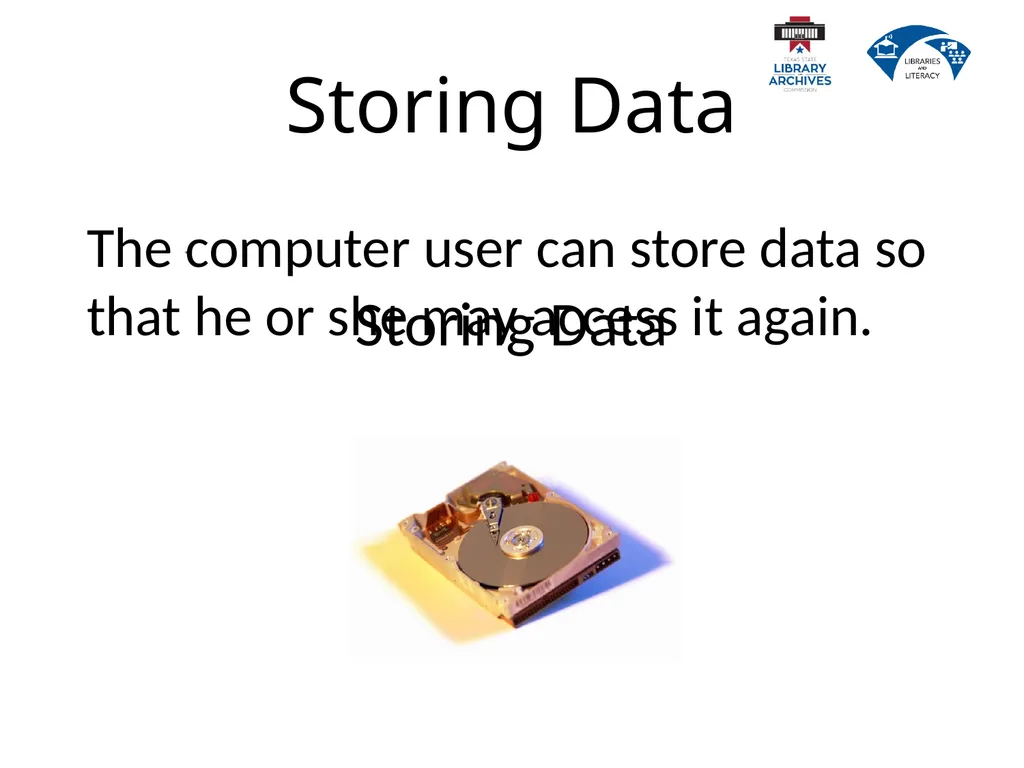
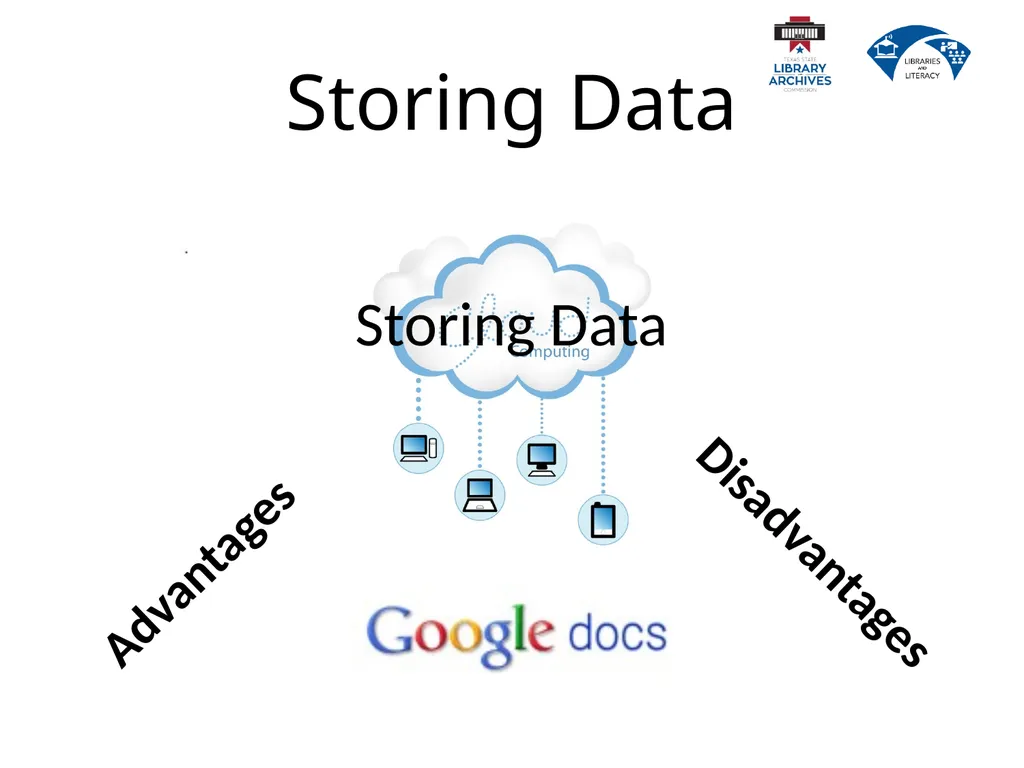
slide11. The computer user can store data so that he or she may access it again. Storing Data Storing Data<br>
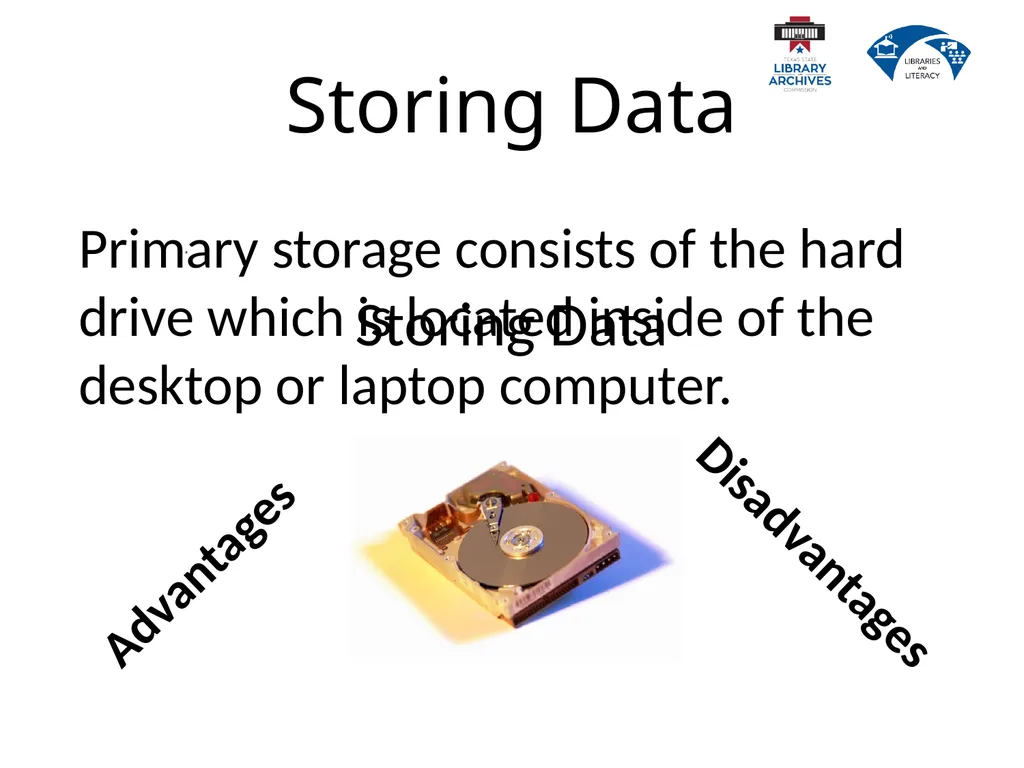
slide12. Storing Data Primary storage consists of the hard drive which is located inside of the desktop or laptop computer. Storing Data<br>
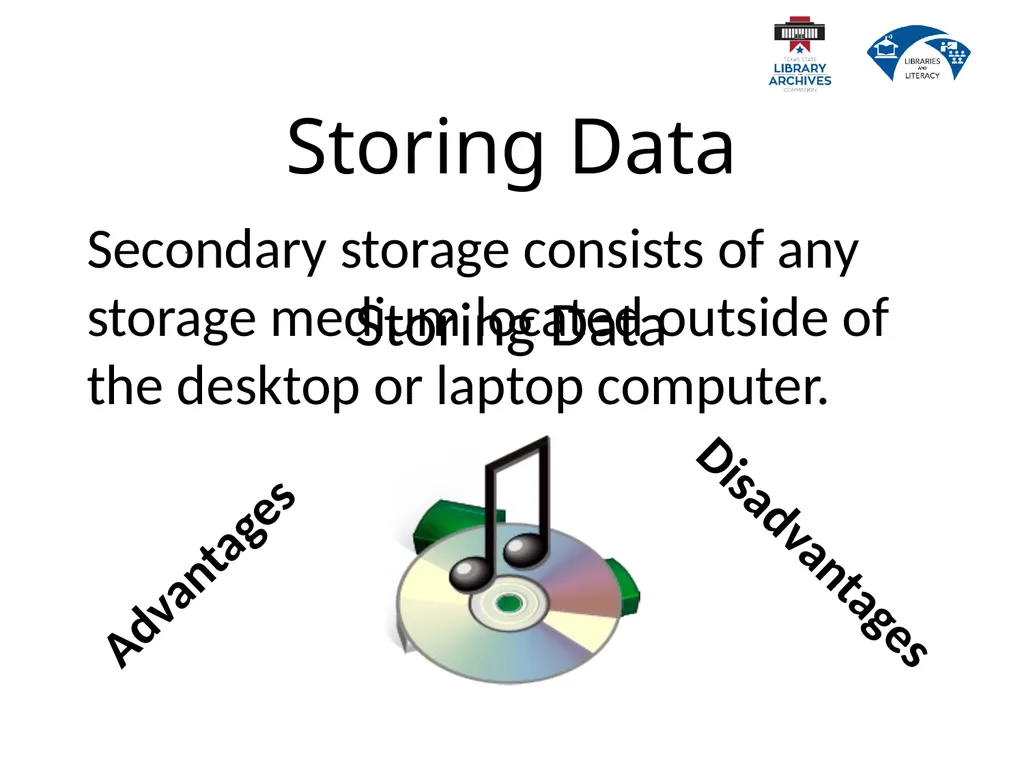
slide13. Storing Data Secondary storage consists of any storage medium located outside of the desktop or laptop computer. Storing Data<br>
slide14. Storing Data Storing Data<br>
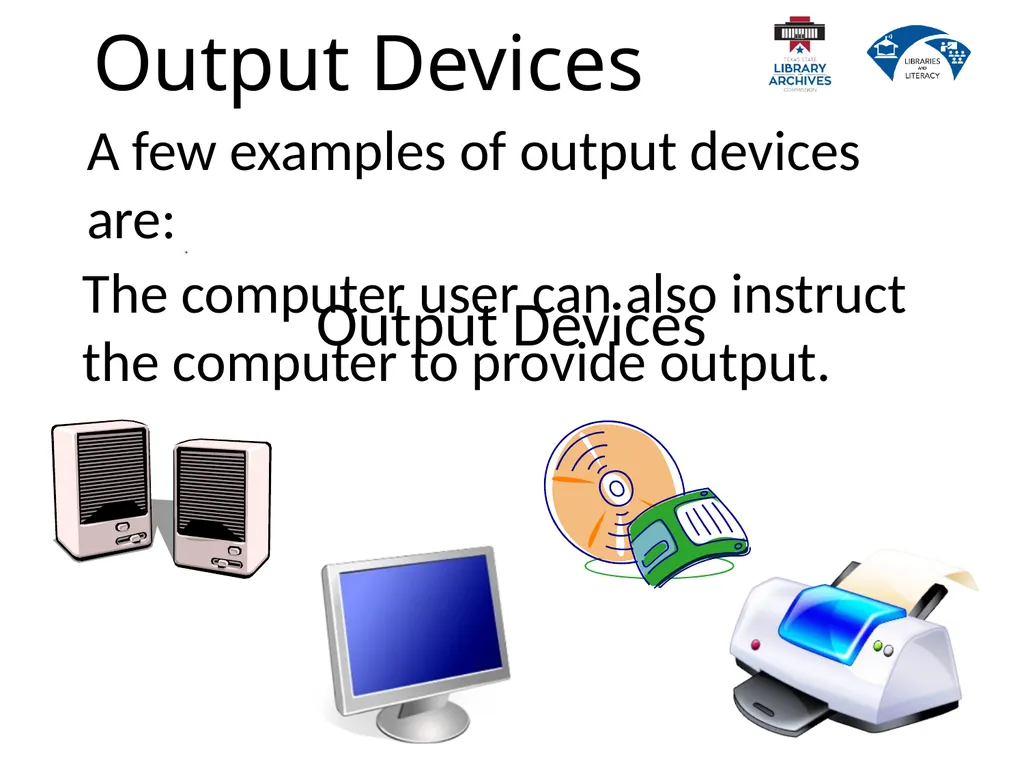
slide15. The computer user can also instruct the computer to provide output. Output Devices A few examples of output devices are: Output Devices<br>
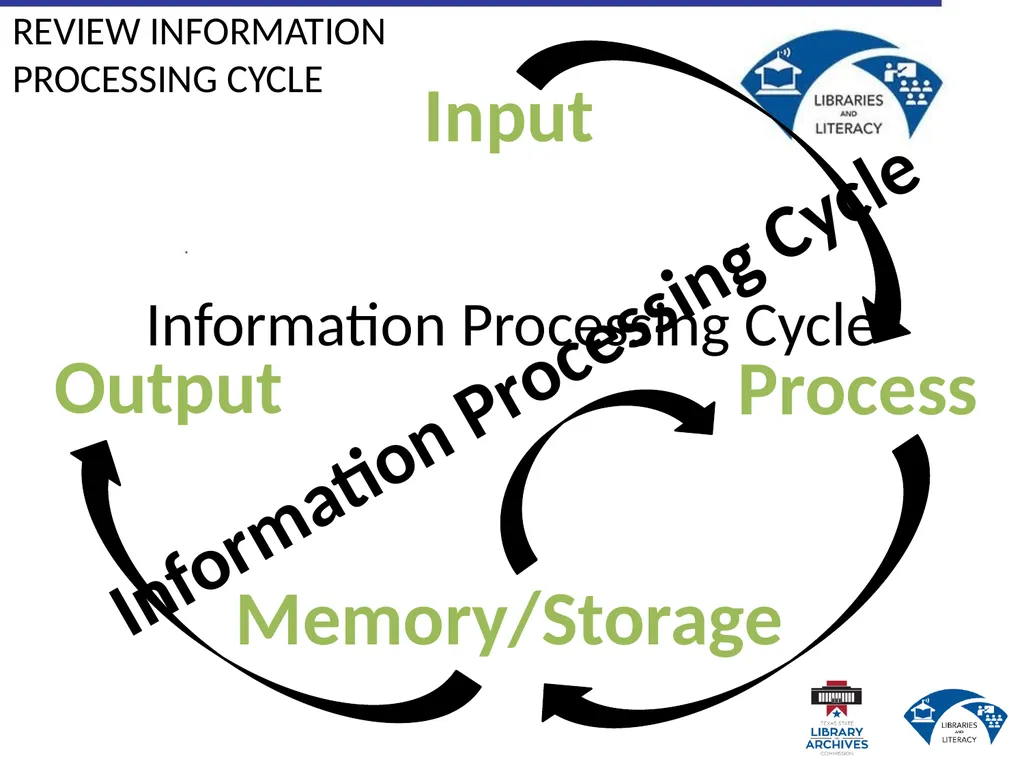
slide16. Information Processing Cycle Input Process Memory/Storage Output REVIEW INFORMATION
PROCESSING CYCLE Information Processing Cycle<br>
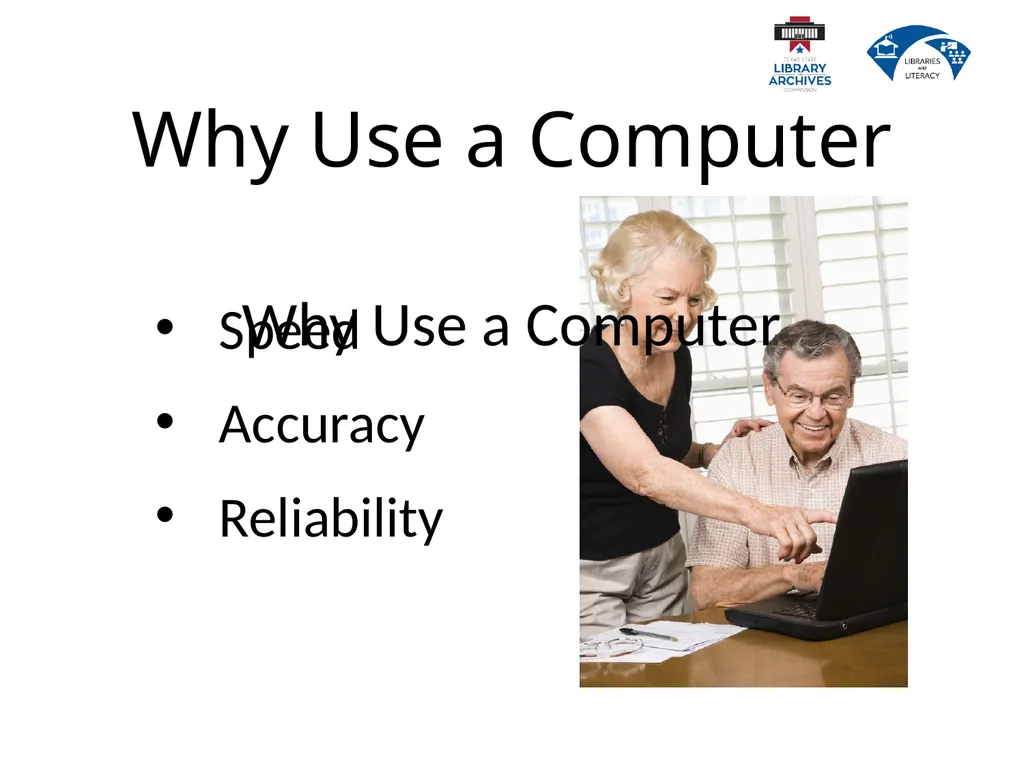
slide17. Why Use a Computer Speed
Accuracy
Reliability Why Use a Computer<br>
slide18. Computer Programs A computer program is a collection of step-by-step instructions that tell the computer how to perform a particular task or group of related tasks. Computer Programs<br>
slide19. Software There are two general types of software.
System software
Application software Software<br>
slide20. System Software System software generally comes preinstalled on your computer and you will, quite often, not even realize that you are interacting with it.
Operating Systems
Device Drivers System Software<br>
slide21. Operating Systems The two operating systems most users encounter are Microsoft Windows and Mac OS X.
Operating systems contain the instructions that allow the parts of a computer to work together by performing most, if not all, of the “behind the scenes” tasks such as transferring data from memory to storage devices. Operating Systems<br>
slide22. Device Drivers Device drivers contain the instructions which tell the computer how to interact with that particular device.
Many device drivers come preinstalled on the operating system but devices such as printers and scanners come with a device driver to install on the computer if necessary. Device Drivers<br>
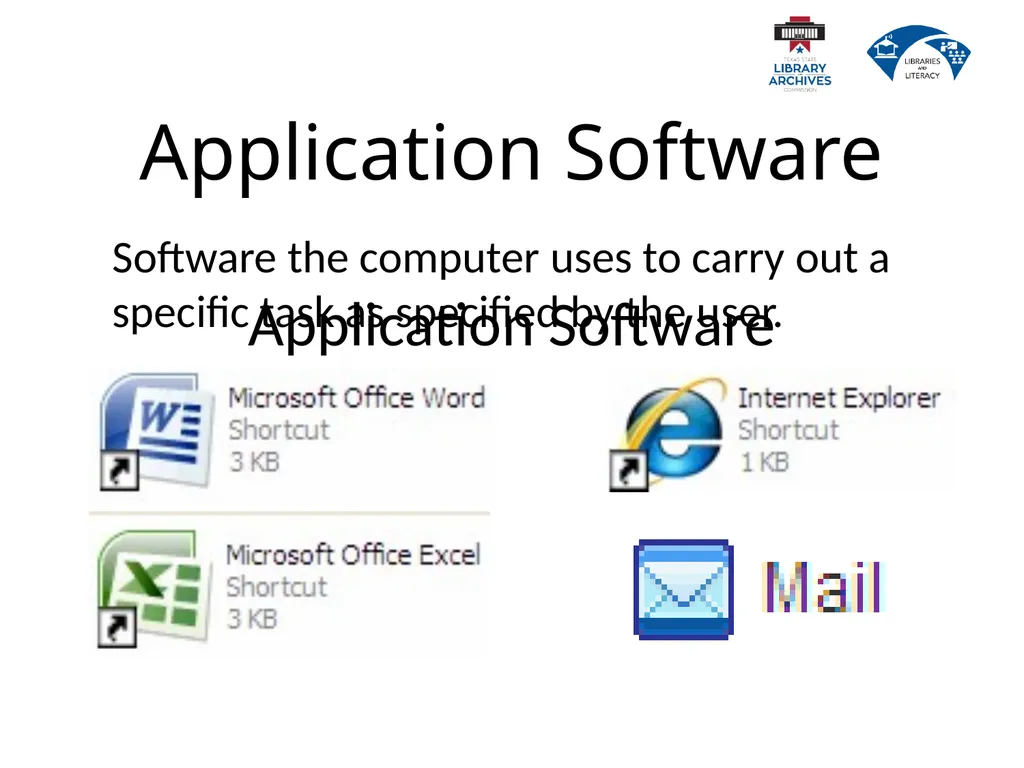
slide23. Application Software Software the computer uses to carry out a specific task as specified by the user. Application Software<br>
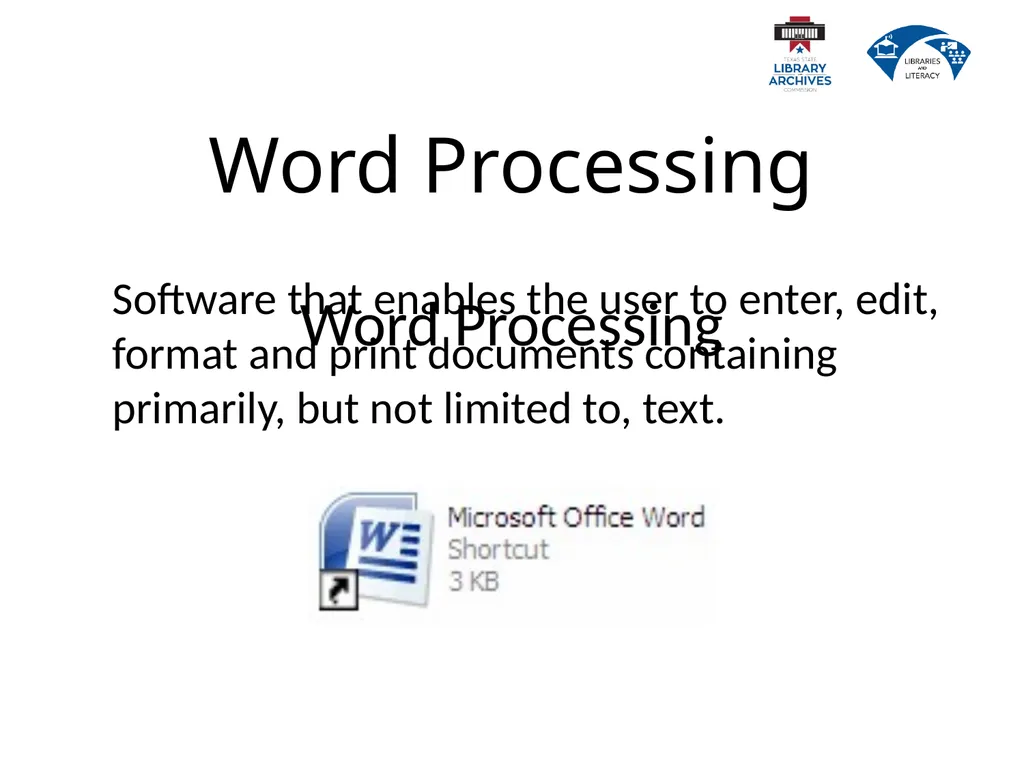
slide24. Word Processing Software that enables the user to enter, edit, format and print documents containing primarily, but not limited to, text. Word Processing<br>
slide25. Spreadsheets Software that enables the user to enter, edit, format, print, sort and calculate primarily numeric data. Spreadsheets<br>
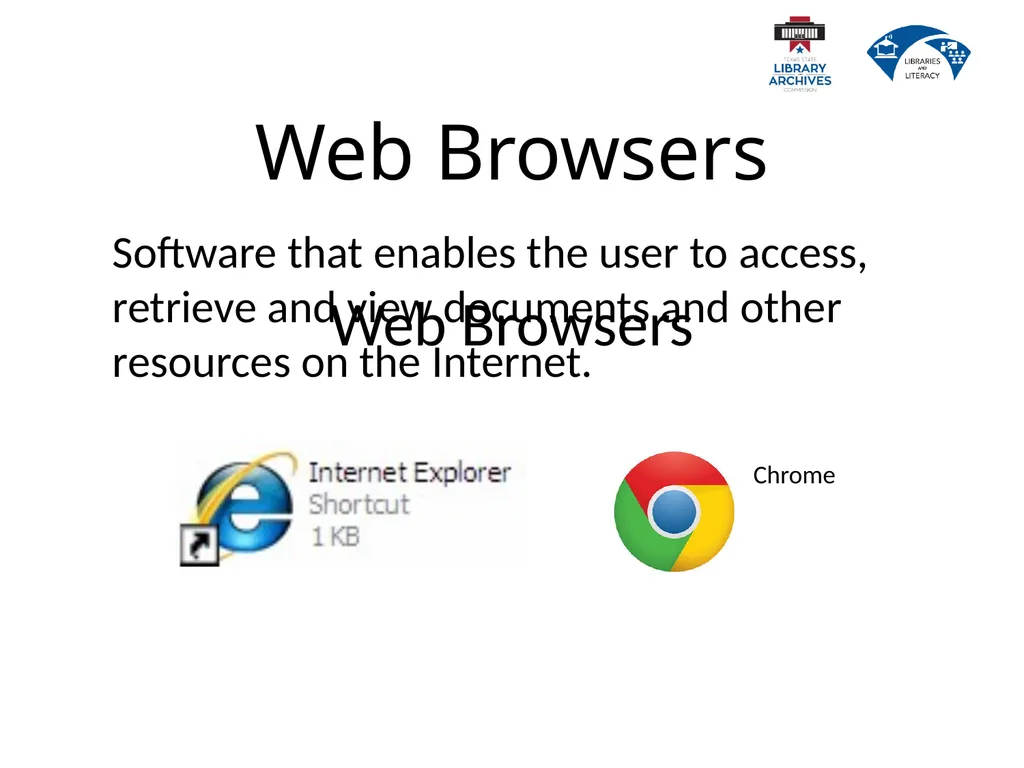
slide26. Web Browsers Software that enables the user to access, retrieve and view documents and other resources on the Internet. Chrome Web Browsers<br>
slide27. Email Software that enables the user to send and receive electronic mail, commonly known as email over the internet. Email<br>
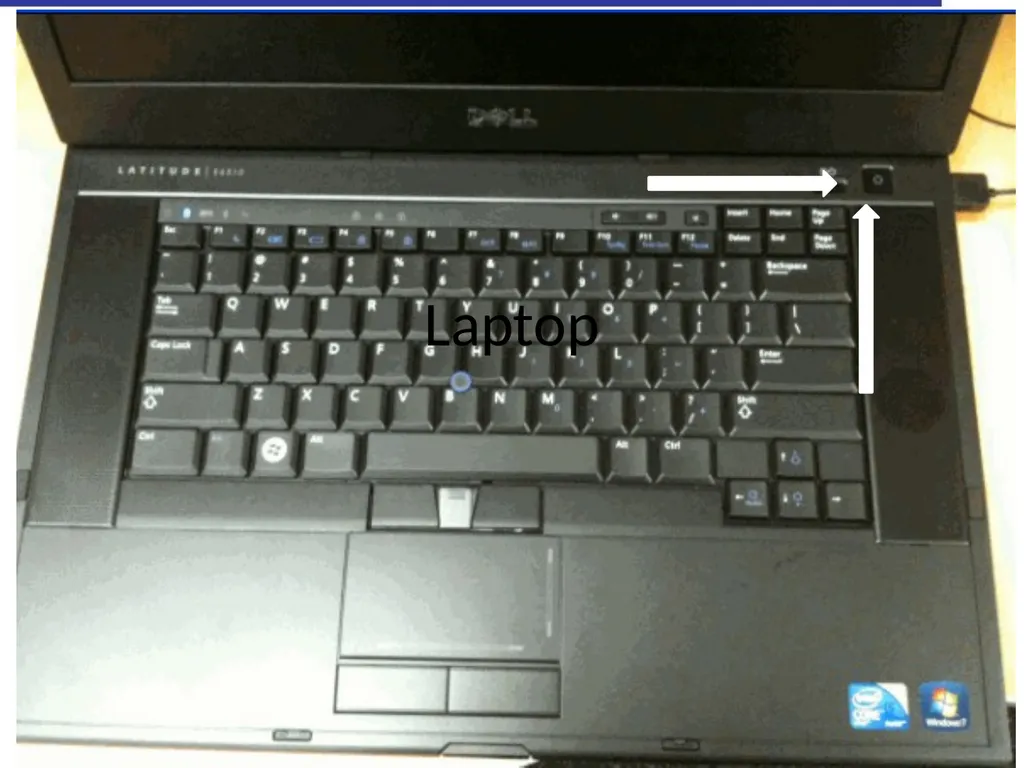
slide28. Turn on the Computers Laptop<br>
slide29. User Name
Type in if necessary
XXXXXXX Password
Type in the following password:
XXXXXX User Name<br>
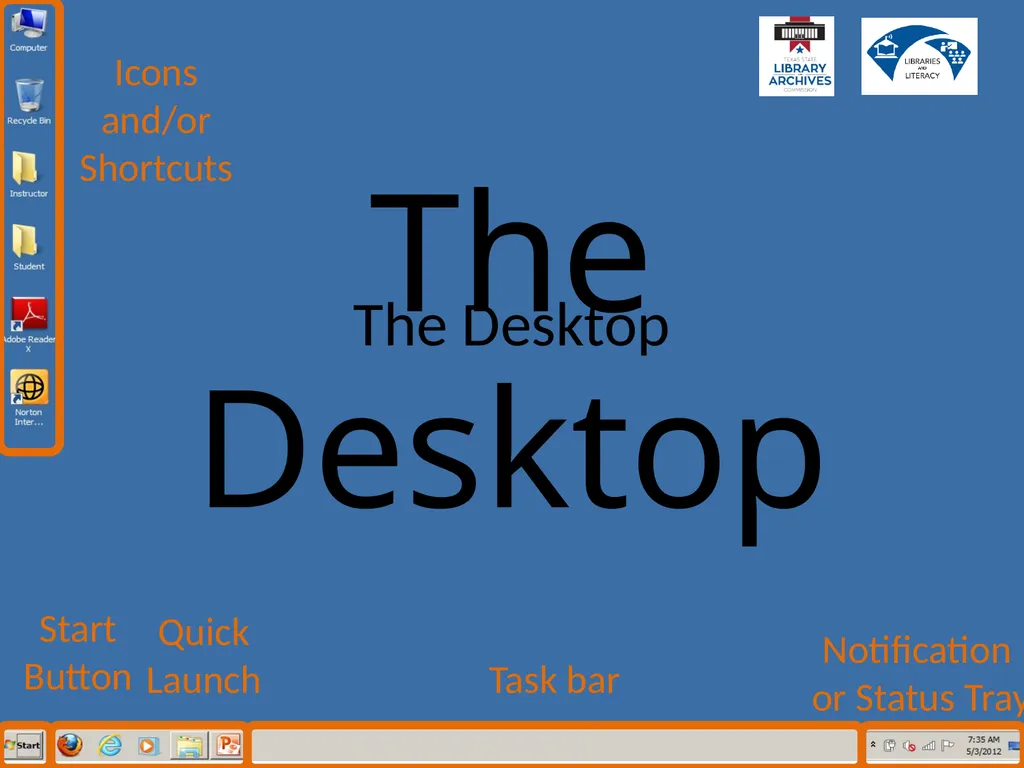
slide30. The
Desktop The Desktop<br>
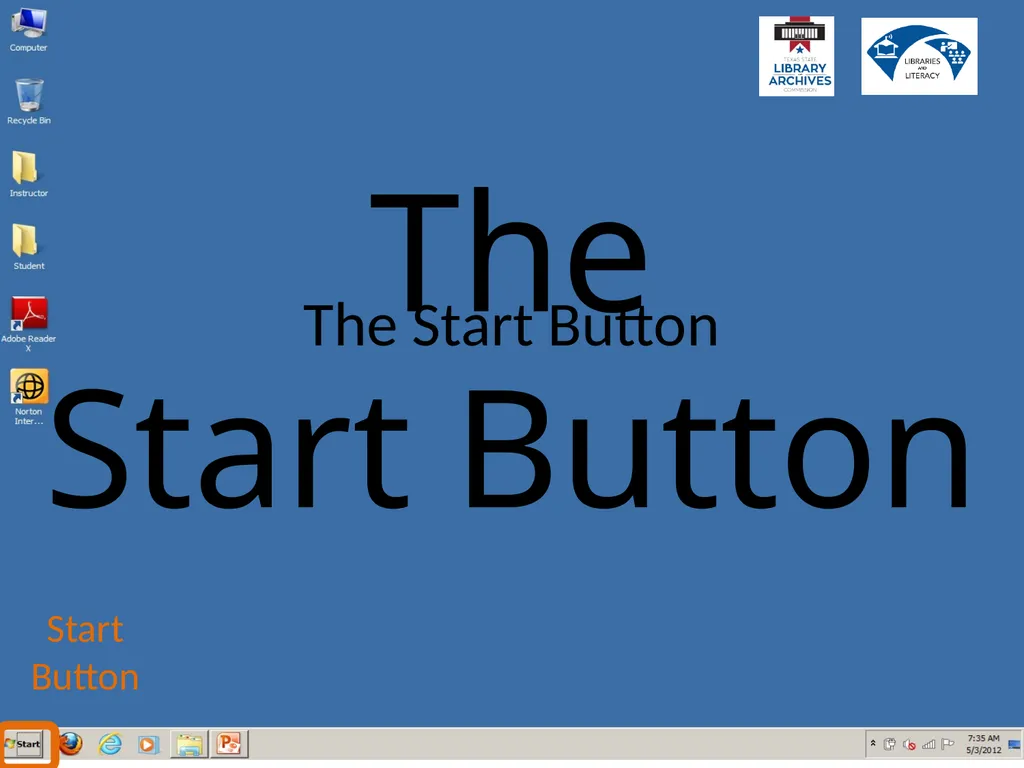
slide31. The
Start Button The Start Button<br>
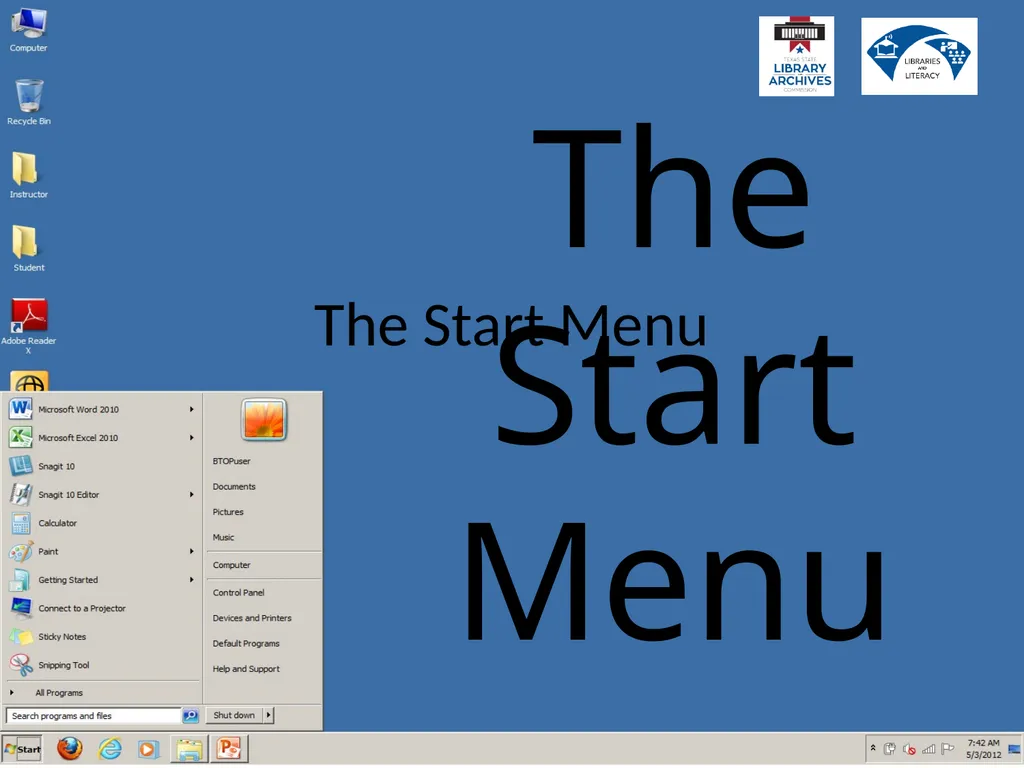
slide32. The
Start
Menu The Start Menu<br>
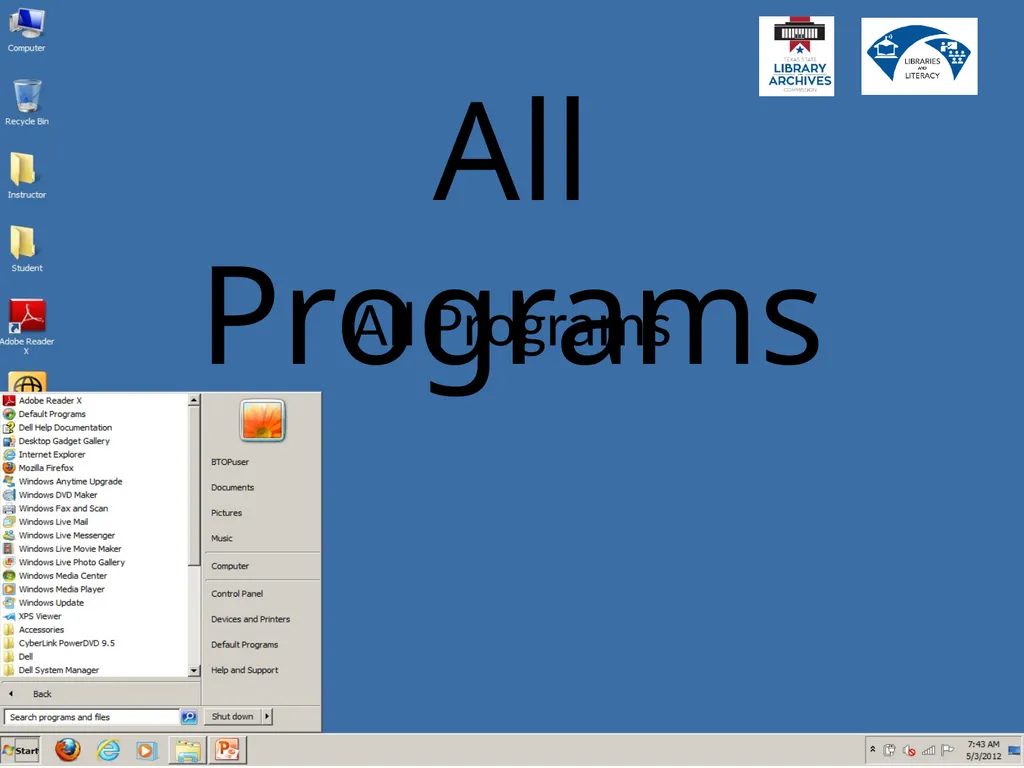
slide33. All
Programs All Programs<br>
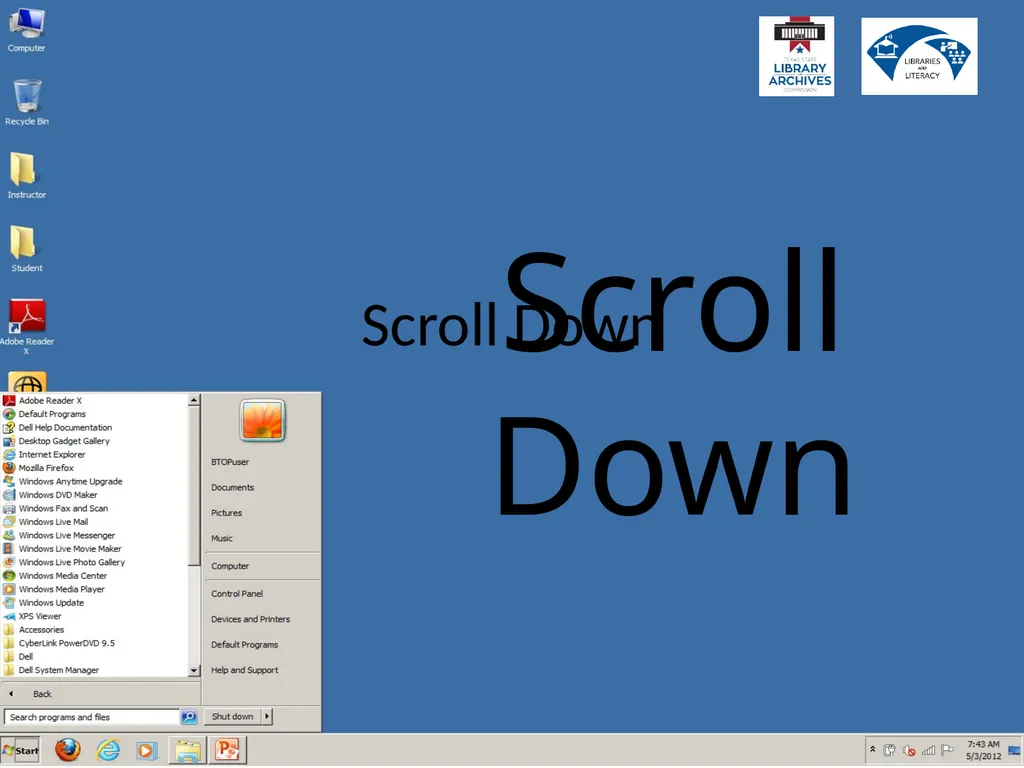
slide34. Scroll
Down Scroll Down<br>
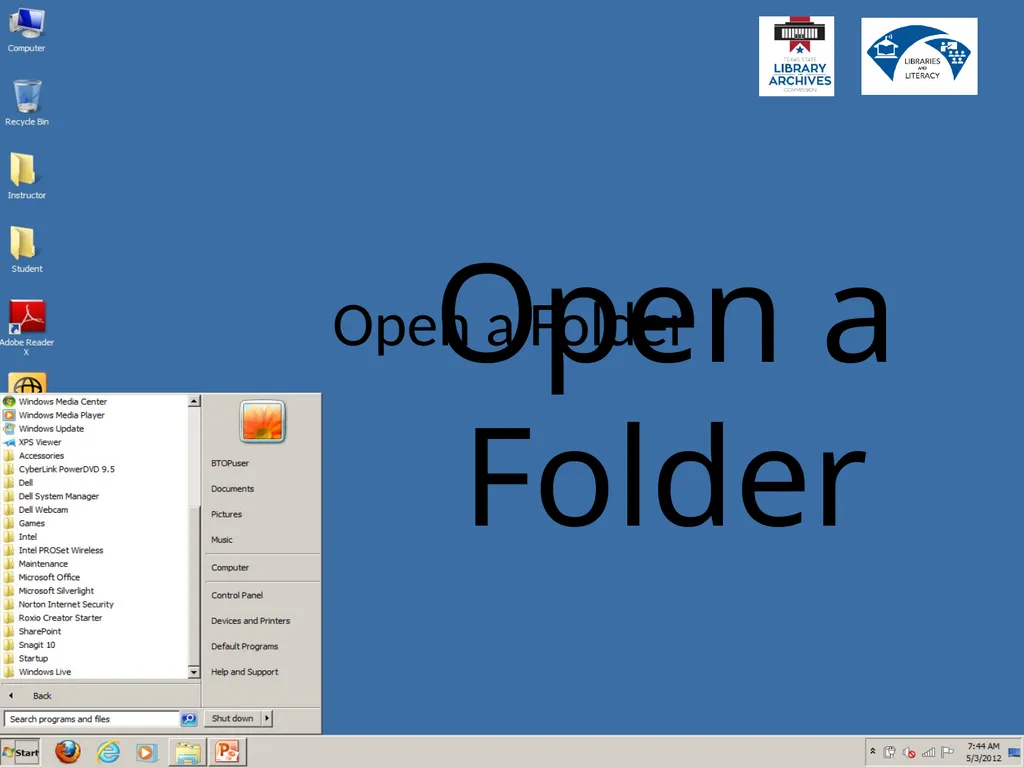
slide35. Open a
Folder Open a Folder<br>
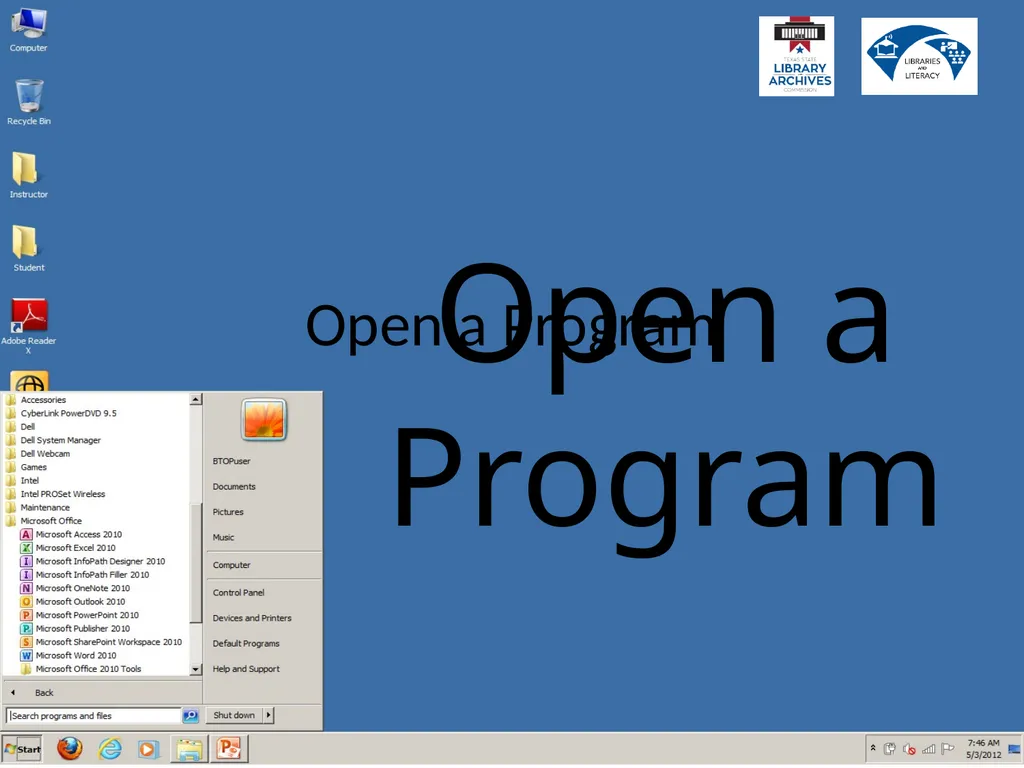
slide36. Open a Program Open a Program<br>
slide2. Learning Goals Describe why computers are important.
Explain how computers work.
Explain the difference between computer hardware and computer software.
Describe what an operating system is. Learning Goals<br>
slide3. Learning Goals Identify the operating system you have on your own computer and phone.
Define office productivity and communications software.
Turn on and log in to a computer.
Identify parts of the computer desktop. Learning Goals<br>
slide4. Importance Why is it important to learn how to use a computer? Importance<br>
slide5. What is a Computer? An electronic device that:
accepts data (input),
manipulates the data (process),
provides output (output) and
stores the results (storage). What is a Computer?<br>
slide6. Input Devices The user must provide the data through an input device such as: Input Devices<br>
slide7. Processing Data Processing Data<br>
slide8. Many people use the terms memory and storage interchangeably. However, they are not the same thing. Data in Memory Data in Memory<br>
slide9. Data in Memory Memory is a temporary holding space for data while it is being used by the user. Data in Memory<br>
slide10. Data in Memory Example: This presentation has been saved to “storage,” but we are viewing it through the computer’s memory. If I make a change to it and do not save it to “storage” again, the changes will be lost. Data in Memory<br>
slide11. The computer user can store data so that he or she may access it again. Storing Data Storing Data<br>
slide12. Storing Data Primary storage consists of the hard drive which is located inside of the desktop or laptop computer. Storing Data<br>
slide13. Storing Data Secondary storage consists of any storage medium located outside of the desktop or laptop computer. Storing Data<br>
slide14. Storing Data Storing Data<br>
slide15. The computer user can also instruct the computer to provide output. Output Devices A few examples of output devices are: Output Devices<br>
slide16. Information Processing Cycle Input Process Memory/Storage Output REVIEW INFORMATION
PROCESSING CYCLE Information Processing Cycle<br>
slide17. Why Use a Computer Speed
Accuracy
Reliability Why Use a Computer<br>
slide18. Computer Programs A computer program is a collection of step-by-step instructions that tell the computer how to perform a particular task or group of related tasks. Computer Programs<br>
slide19. Software There are two general types of software.
System software
Application software Software<br>
slide20. System Software System software generally comes preinstalled on your computer and you will, quite often, not even realize that you are interacting with it.
Operating Systems
Device Drivers System Software<br>
slide21. Operating Systems The two operating systems most users encounter are Microsoft Windows and Mac OS X.
Operating systems contain the instructions that allow the parts of a computer to work together by performing most, if not all, of the “behind the scenes” tasks such as transferring data from memory to storage devices. Operating Systems<br>
slide22. Device Drivers Device drivers contain the instructions which tell the computer how to interact with that particular device.
Many device drivers come preinstalled on the operating system but devices such as printers and scanners come with a device driver to install on the computer if necessary. Device Drivers<br>
slide23. Application Software Software the computer uses to carry out a specific task as specified by the user. Application Software<br>
slide24. Word Processing Software that enables the user to enter, edit, format and print documents containing primarily, but not limited to, text. Word Processing<br>
slide25. Spreadsheets Software that enables the user to enter, edit, format, print, sort and calculate primarily numeric data. Spreadsheets<br>
slide26. Web Browsers Software that enables the user to access, retrieve and view documents and other resources on the Internet. Chrome Web Browsers<br>
slide27. Email Software that enables the user to send and receive electronic mail, commonly known as email over the internet. Email<br>
slide28. Turn on the Computers Laptop<br>
slide29. User Name
Type in if necessary
XXXXXXX Password
Type in the following password:
XXXXXX User Name<br>
slide30. The
Desktop The Desktop<br>
slide31. The
Start Button The Start Button<br>
slide32. The
Start
Menu The Start Menu<br>
slide33. All
Programs All Programs<br>
slide34. Scroll
Down Scroll Down<br>
slide35. Open a
Folder Open a Folder<br>
slide36. Open a Program Open a Program<br>