Roof Top Unit Comparison Calculator Instructions 2 Using the menu on the left, choose between 4 tabs to move through the site After reading the description on the Home page: Click Calculate to start a new roof top unit comparison Click
"Roof Top Unit Comparison Calculator Instructions 2" is the property of its rightful owner. Permission is granted to
download and print the materials on this website for personal, non-commercial use only, and to display it
on your personal computer provided you do not modify the materials and that you retain all copyright
notices contained in the materials. By downloading content from our website, you accept the terms of this
agreement.
Presentation Transcript
01
Roof Top Unit Comparison Calculator Instructions<br>
02
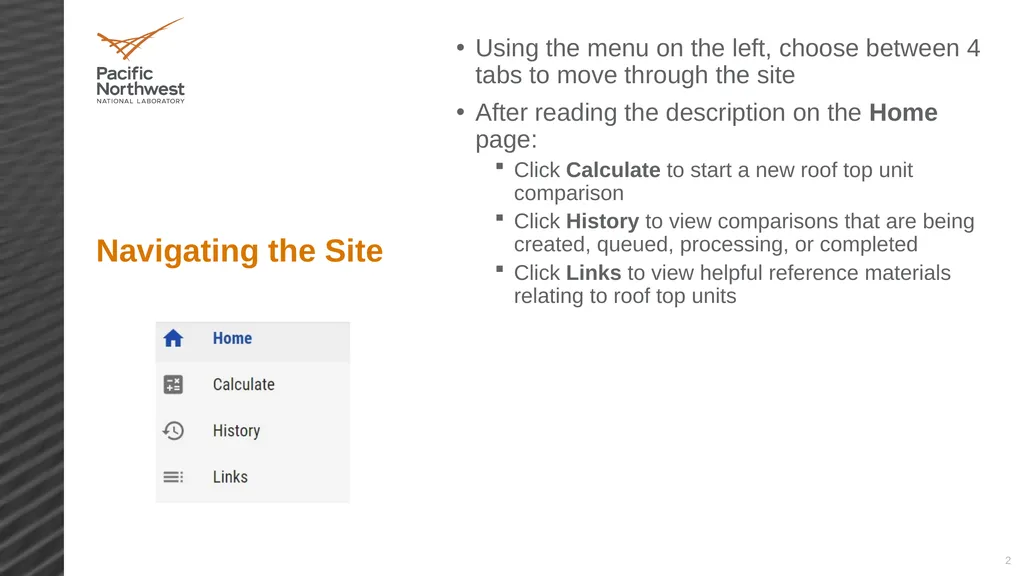
2 Using the menu on the left, choose between 4 tabs to move through the site
After reading the description on the Home page:
Click Calculate to start a new roof top unit comparison
Click History to view comparisons that are being created, queued, processing, or completed
Click Links to view helpful reference materials relating to roof top units Navigating the Site<br>
03
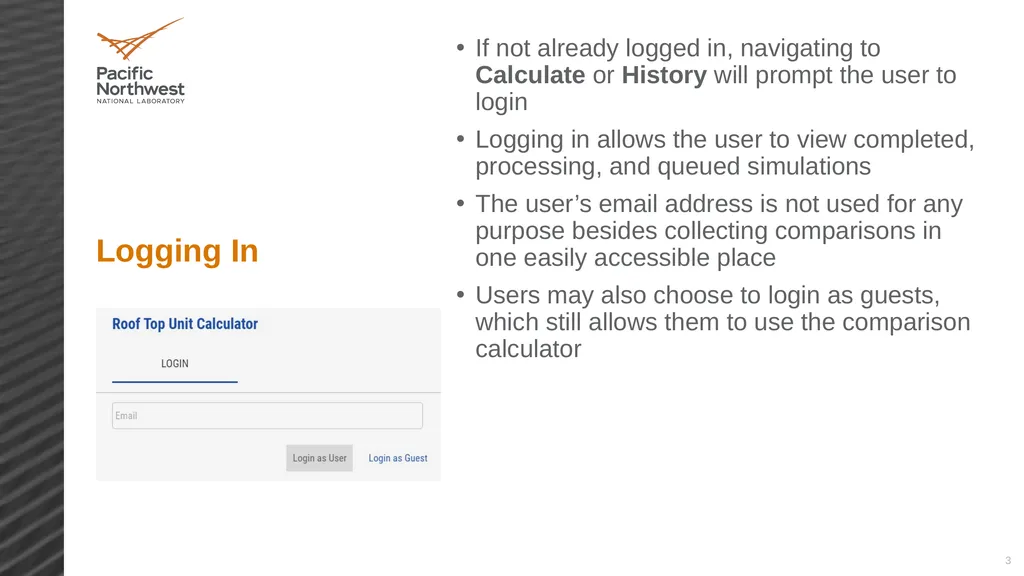
3 If not already logged in, navigating to Calculate or History will prompt the user to login
Logging in allows the user to view completed, processing, and queued simulations
The user’s email address is not used for any purpose besides collecting comparisons in one easily accessible place
Users may also choose to login as guests, which still allows them to use the comparison calculator Logging In<br>
04
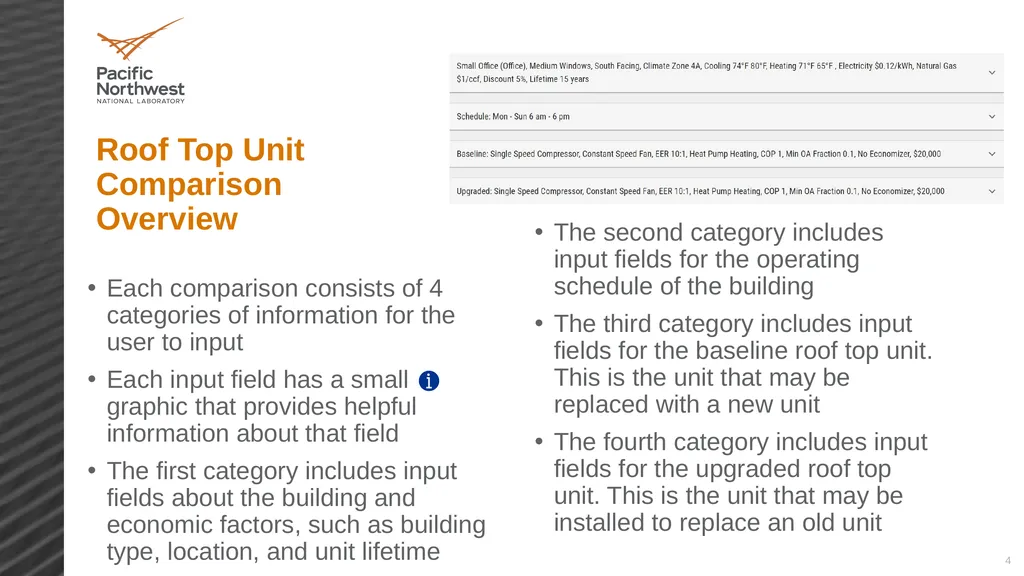
4 Roof Top Unit Comparison Overview Each comparison consists of 4 categories of information for the user to input
Each input field has a small graphic that provides helpful information about that field
The first category includes input fields about the building and economic factors, such as building type, location, and unit lifetime The second category includes input fields for the operating schedule of the building
The third category includes input fields for the baseline roof top unit. This is the unit that may be replaced with a new unit
The fourth category includes input fields for the upgraded roof top unit. This is the unit that may be installed to replace an old unit<br>
05
5 Key input fields: the following fields have the largest impact on energy consumption and cost, so ensure that they are entered accurately
Energy efficiency ratio
Heating equipment
Heating efficiency
Input fields are either drop-down menus or text boxes
Some input fields may change based on choices in prior fields
Numerical inputs are bounded and inputting a value outside those bounds will create an error
If the desired input value is not allowed or unknown, enter the closest allowed value or best approximation Creating a Roof top Unit Comparison<br>
06
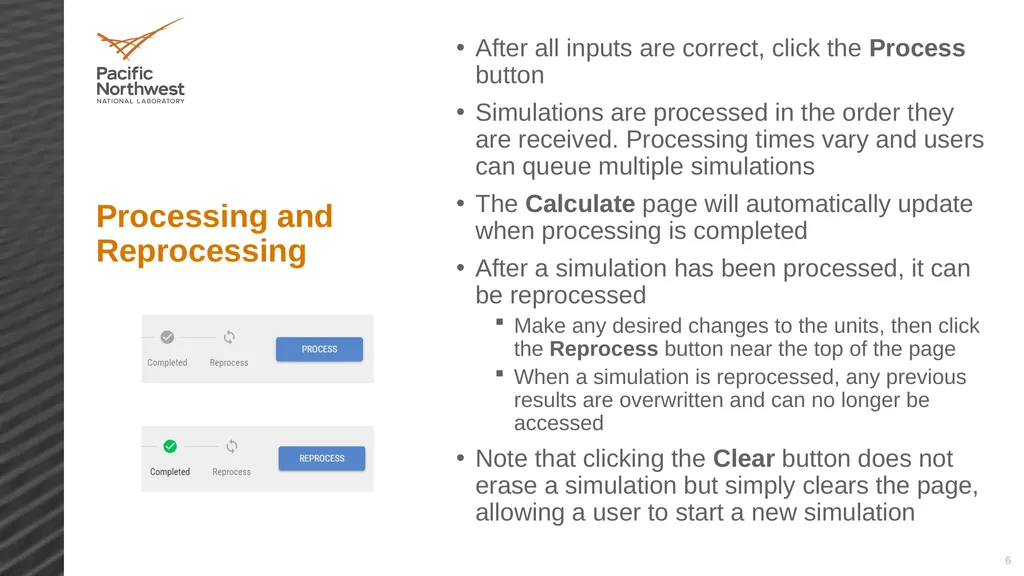
6 After all inputs are correct, click the Process button
Simulations are processed in the order they are received. Processing times vary and users can queue multiple simulations
The Calculate page will automatically update when processing is completed
After a simulation has been processed, it can be reprocessed
Make any desired changes to the units, then click the Reprocess button near the top of the page
When a simulation is reprocessed, any previous results are overwritten and can no longer be accessed
Note that clicking the Clear button does not erase a simulation but simply clears the page, allowing a user to start a new simulation Processing and Reprocessing<br>
07
7 After a comparison completes processing, the results of the calculator can be viewed
This page details the inputs to the calculator as well as helpful outputs
Energy consumption and cost values are separated by energy source for each unit
Economic calculations are automatically performed to assist in the decision-making process
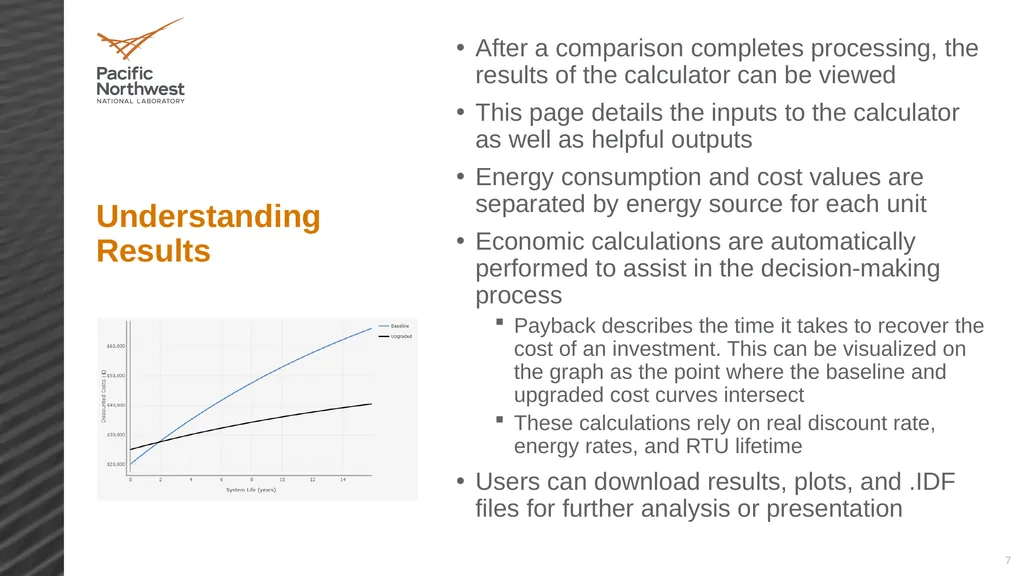
Payback describes the time it takes to recover the cost of an investment. This can be visualized on the graph as the point where the baseline and upgraded cost curves intersect
These calculations rely on real discount rate, energy rates, and RTU lifetime
Users can download results, plots, and .IDF files for further analysis or presentation Understanding Results<br>