01
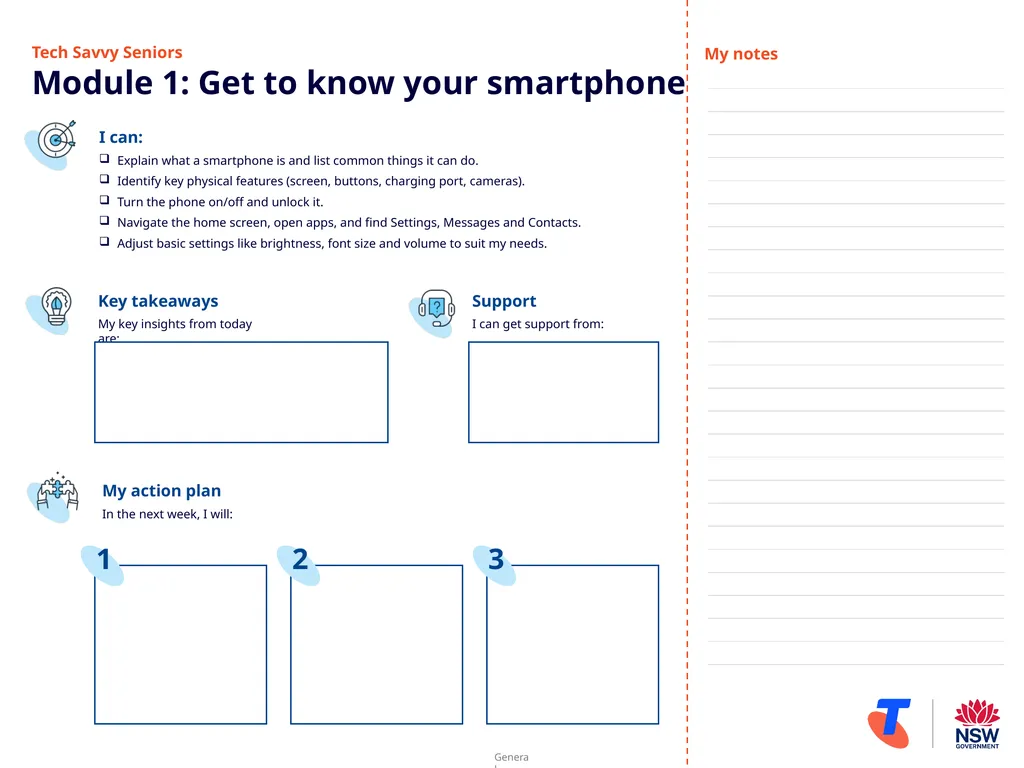
Tech Savvy Seniors�Module 1: Get to know your smartphone I can:
Explain what a smartphone is and list common things it can do.
Identify key physical features (screen, buttons, charging port, cameras).
Turn the phone on/off and unlock it.
Navigate the home screen, open apps, and find Settings, Messages and Contacts.
Adjust basic settings like brightness, font size and volume to suit my needs. Key takeaways
My key insights from today are: Support
I can get support from: My action plan
In the next week, I will: 1 2 3 My notes<br>
02
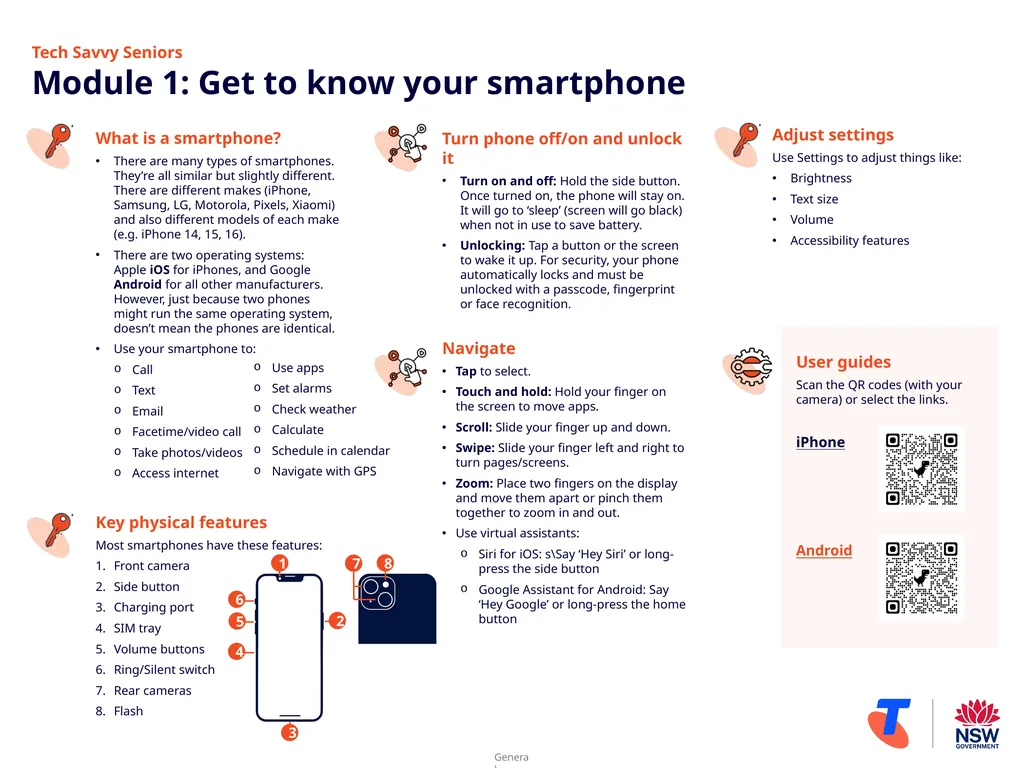
What is a smartphone?
There are many types of smartphones. They’re all similar but slightly different. There are different makes (iPhone, Samsung, LG, Motorola, Pixels, Xiaomi) and also different models of each make (e.g. iPhone 14, 15, 16).
There are two operating systems: Apple iOS for iPhones, and Google Android for all other manufacturers. However, just because two phones might run the same operating system, doesn’t mean the phones are identical.
Use your smartphone to:
Call
Text
Email
Facetime/video call
Take photos/videos
Access internet
Key physical features
Most smartphones have these features:
Front camera
Side button
Charging port
SIM tray
Volume buttons
Ring/Silent switch
Rear cameras
Flash Use apps
Set alarms
Check weather
Calculate
Schedule in calendar
Navigate with GPS Turn phone off/on and unlock it
Turn on and off: Hold the side button. Once turned on, the phone will stay on. It will go to ‘sleep’ (screen will go black) when not in use to save battery.
Unlocking: Tap a button or the screen to wake it up. For security, your phone automatically locks and must be unlocked with a passcode, fingerprint or face recognition.
Navigate
Tap to select.
Touch and hold: Hold your finger on the screen to move apps.
Scroll: Slide your finger up and down.
Swipe: Slide your finger left and right to turn pages/screens.
Zoom: Place two fingers on the display and move them apart or pinch them together to zoom in and out.
Use virtual assistants:
Siri for iOS: s\Say ‘Hey Siri’ or long-press the side button
Google Assistant for Android: Say ‘Hey Google’ or long-press the home button Adjust settings
Use Settings to adjust things like:
Brightness
Text size
Volume
Accessibility features Tech Savvy Seniors �Module 1: Get to know your smartphone User guides
Scan the QR codes (with your camera) or select the links.
iPhone
Android<br>