Introduction to Linux “Linux at the Command Line”
Description: Introduction to Linux Linux at the Command Line Don Johnson of BU IST Well start with a sign in sheet that include questions about your Linux experience and goals. Well end with a class evaluation. Well cover as much as we can in the
Related Topics
Download Presentation
"Introduction to Linux “Linux at the Command Line”" is the property of its rightful owner. Permission is granted to download and print the materials on this website for personal, non-commercial use only, and to display it on your personal computer provided you do not modify the materials and that you retain all copyright notices contained in the materials. By downloading content from our website, you accept the terms of this agreement.
Presentation Transcript
slide1. Introduction to Linux “Linux at the Command Line”
Don Johnson of BU IS&T<br>
slide2. We’ll start with a sign in sheet that include questions about your Linux experience and goals.
We’ll end with a class evaluation.
We’ll cover as much as we can in the time allowed; if we don’t cover everything, you’ll pick it up as you continue working with Linux.
This is a hands-on, lab class; ask questions at any time.
Commands for you to type are in BOLD About the class…<br>
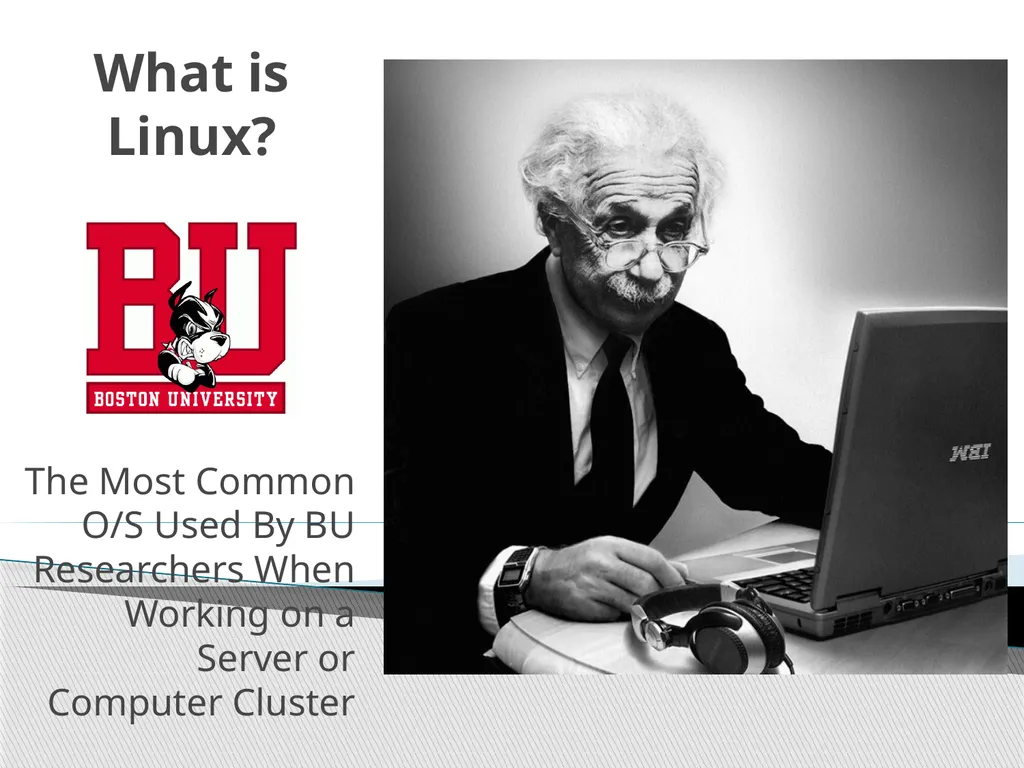
slide3. What is Linux? The Most Common O/S Used By BU Researchers When Working on a Server or Computer Cluster<br>
slide4. Linux is a Unix clone begun in 1991 and written from scratch by Linus Torvalds with assistance from a loosely-knit team of hackers across the Net.
64% of the world’s servers run some variant of Unix or Linux. The Android phone and the Kindle run Linux. What is Linux?<br>
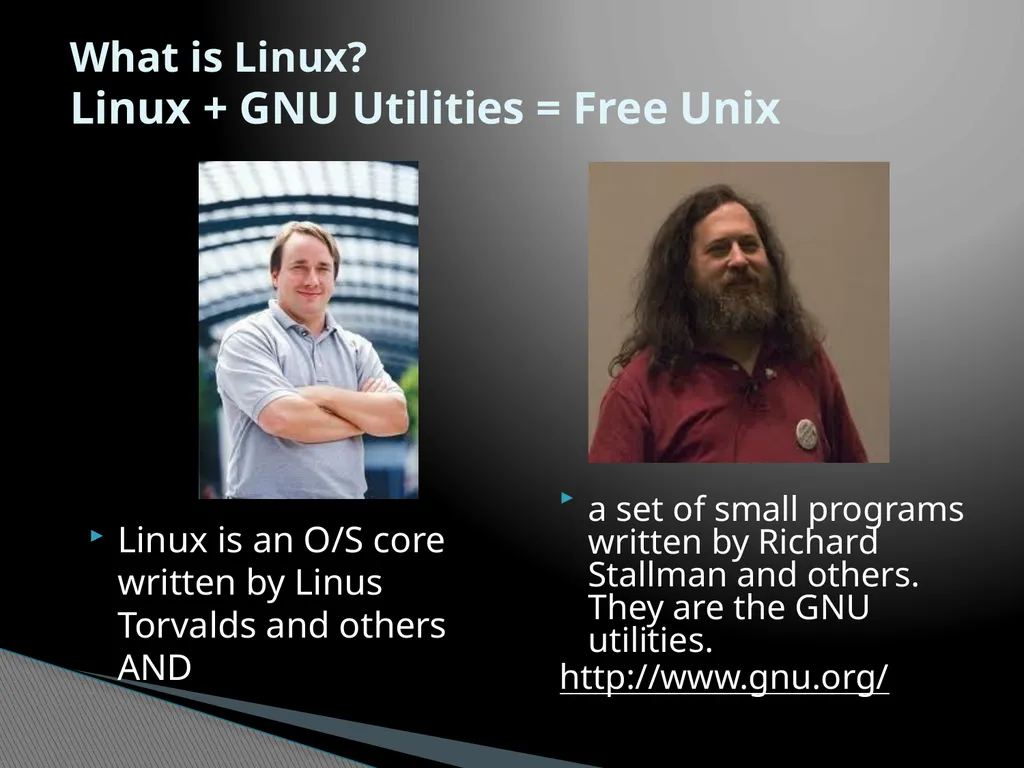
slide5. Linux is an O/S core written by Linus Torvalds and others AND a set of small programs written by Richard Stallman and others. They are the GNU utilities.
http://www.gnu.org/ What is Linux?Linux + GNU Utilities = Free Unix<br>
slide6. Network: ssh, scp
Shells: BASH, TCSH, clear, history, chsh, echo, set, setenv, xargs
System Information: w, whoami, man, info, which, free, echo, date, cal, df, free
Command Information: man, info
Symbols: |, >, >>, <, ;, ~, ., ..
Filters: grep, egrep, more, less, head, tail
Hotkeys: <ctrl><c>, <ctrl><d>
File System: ls, mkdir, cd, pwd, mv, touch, file, find, diff, cmp, du, chmod, find
File Editors: gedit, nedit What is Linux?“Small programs that do one thing well”(see unix-reference.pdf)<br>
slide7. You need a “xterm” emulation – software that emulates an “X” terminal and that connects using the “SSH” Secure Shell protocol.
Windows
Use StarNet “X-Win32:” http://www.bu.edu/tech/desktop/site-licensed-software/xwindows/xwin32/ Connecting to a Linux Host – Windows Client Software<br>
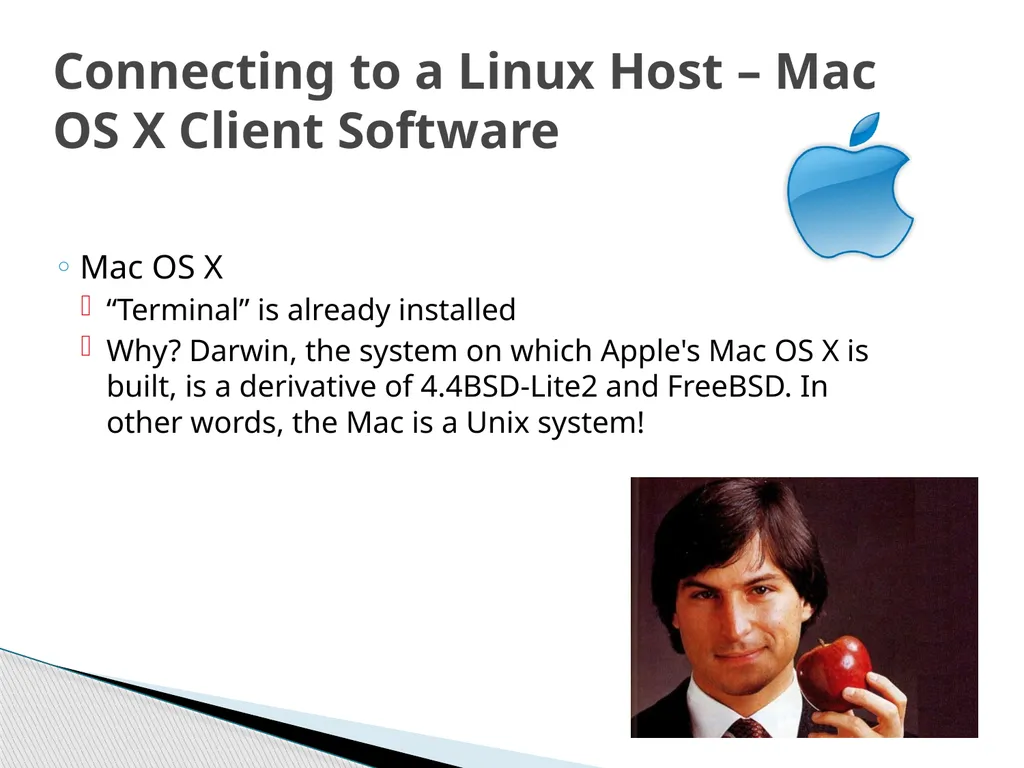
slide8. Mac OS X
“Terminal” is already installed
Why? Darwin, the system on which Apple's Mac OS X is built, is a derivative of 4.4BSD-Lite2 and FreeBSD. In other words, the Mac is a Unix system! Connecting to a Linux Host – Mac OS X Client Software<br>
slide9. Let the Linux Lab Begin! The Ideal Lab Facility Your Instructor Today<br>
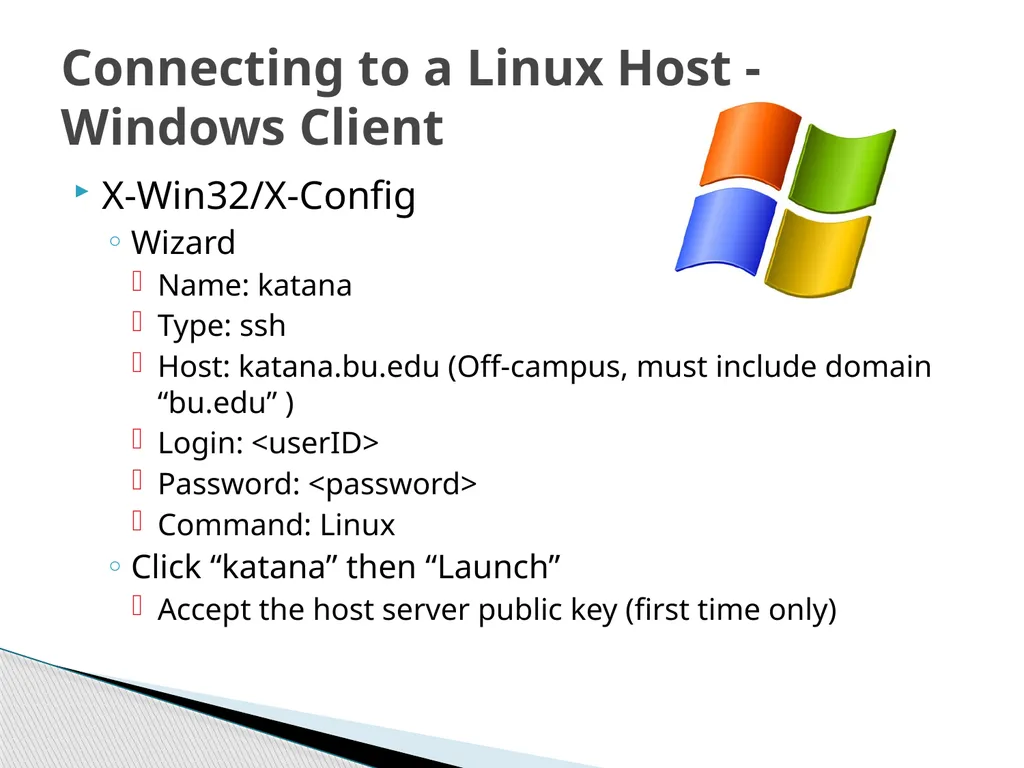
slide10. X-Win32/X-Config
Wizard
Name: katana
Type: ssh
Host: katana.bu.edu (Off-campus, must include domain “bu.edu” )
Login: <userID>
Password: <password>
Command: Linux
Click “katana” then “Launch”
Accept the host server public key (first time only) Connecting to a Linux Host -Windows Client<br>
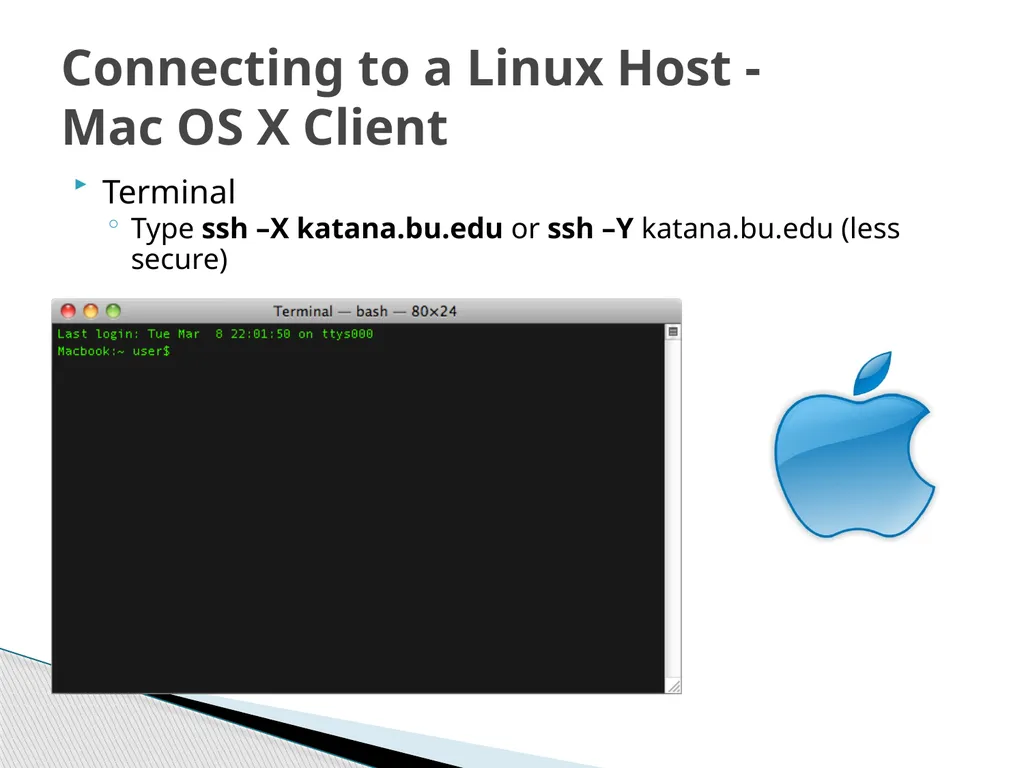
slide11. Terminal
Type ssh –X katana.bu.edu or ssh –Y katana.bu.edu (less secure) Connecting to a Linux Host -Mac OS X Client<br>
slide12. From the lab computer
Using File Explorer, copy the directory “\\scv-files.bu.edu\SCV\Training\Introduction to Linux” to “My Documents” on your lab machine
Linux
Connect to katana.bu.edu using X-Win32 and run this command:
cp -Rv /project/ssrcsupp/linux_class ~/
From a browser, download: http://ssrc.bu.edu/linux_class Obtaining the Course Material<br>
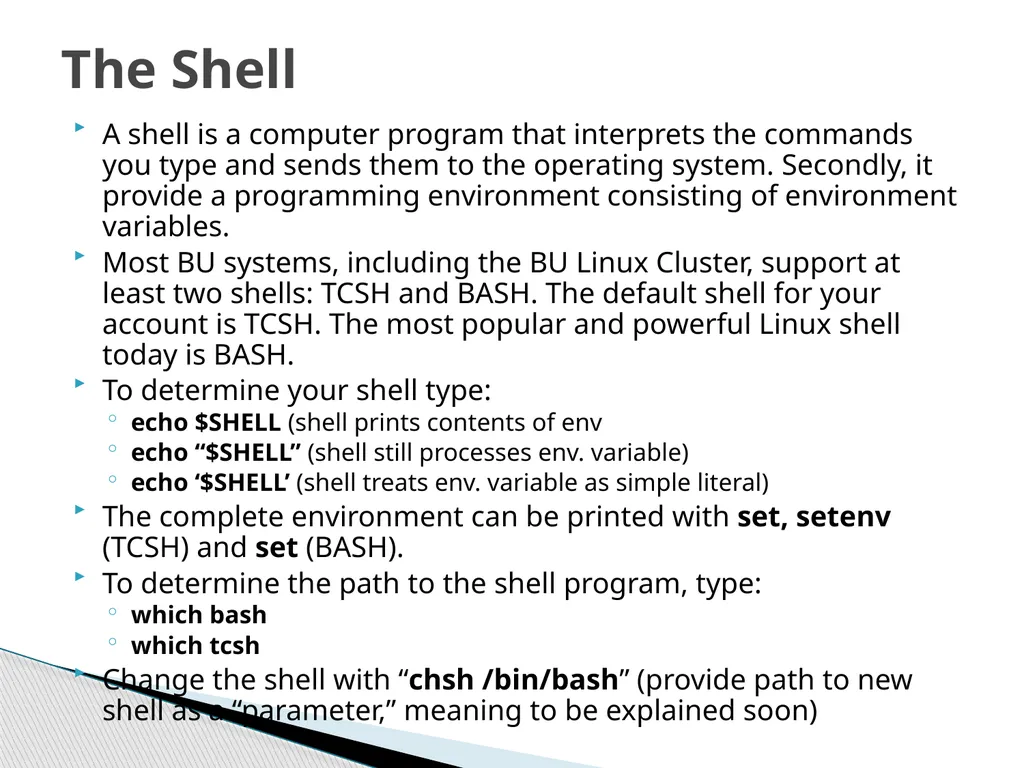
slide13. A shell is a computer program that interprets the commands you type and sends them to the operating system. Secondly, it provide a programming environment consisting of environment variables.
Most BU systems, including the BU Linux Cluster, support at least two shells: TCSH and BASH. The default shell for your account is TCSH. The most popular and powerful Linux shell today is BASH.
To determine your shell type:
echo $SHELL (shell prints contents of env
echo “$SHELL” (shell still processes env. variable)
echo ‘$SHELL’ (shell treats env. variable as simple literal)
The complete environment can be printed with set, setenv (TCSH) and set (BASH).
To determine the path to the shell program, type:
which bash
which tcsh
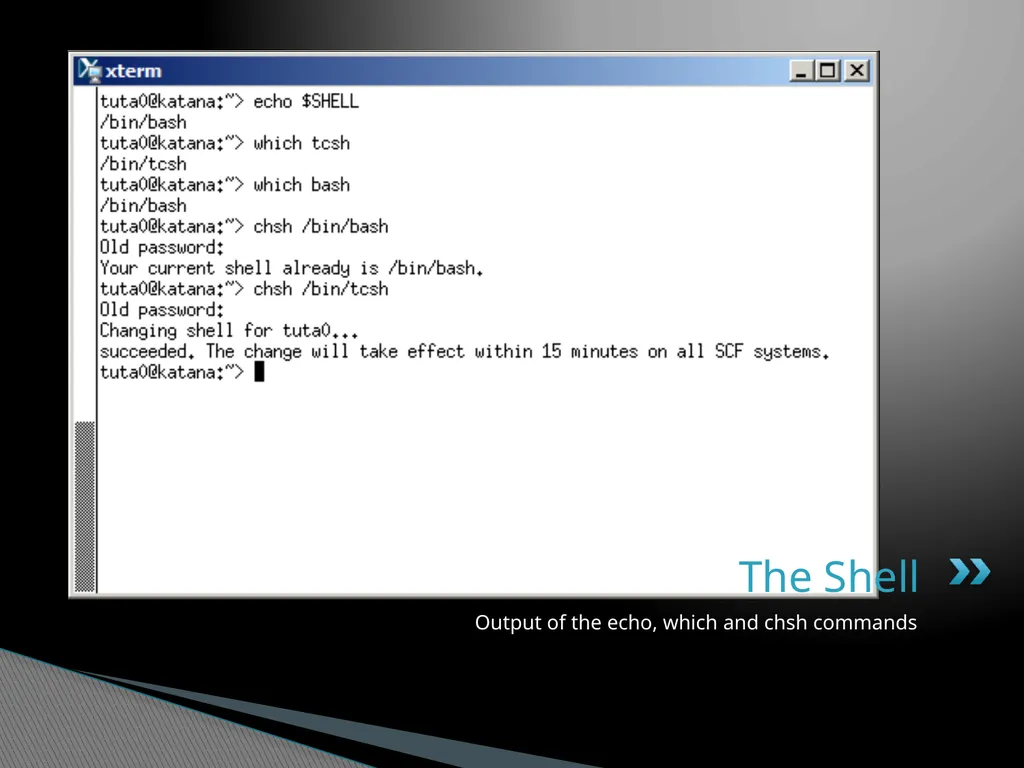
Change the shell with “chsh /bin/bash” (provide path to new shell as a “parameter,” meaning to be explained soon) The Shell<br>
slide14. Output of the echo, which and chsh commands The Shell<br>
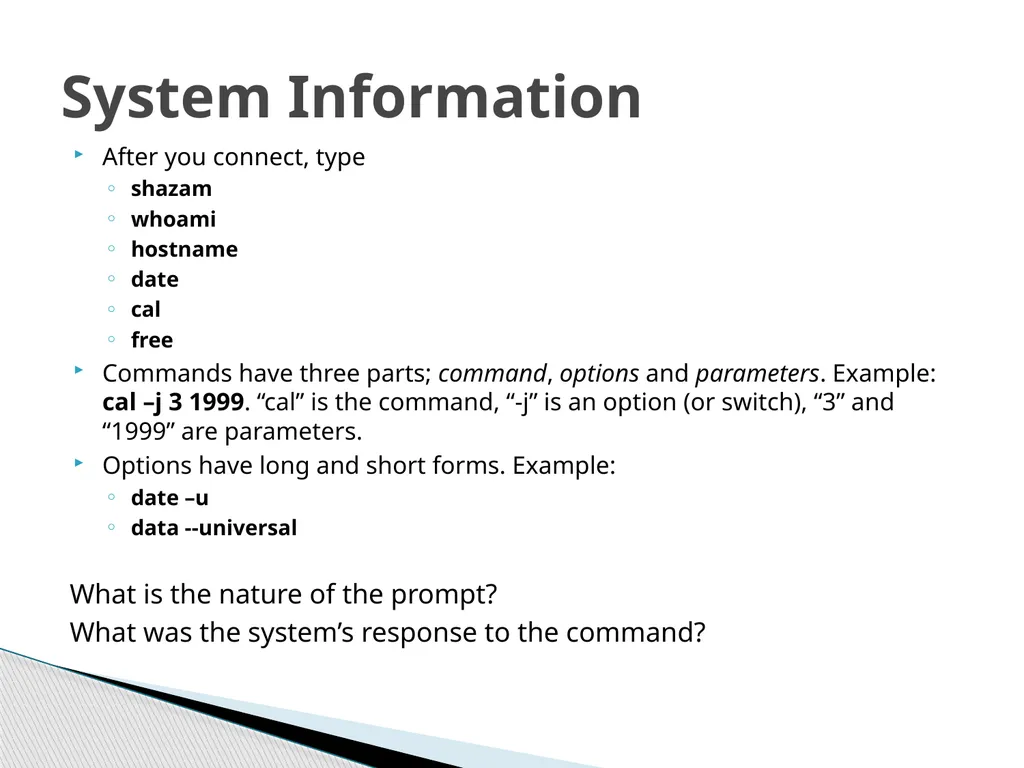
slide15. After you connect, type
shazam
whoami
hostname
date
cal
free
Commands have three parts; command, options and parameters. Example: cal –j 3 1999. “cal” is the command, “-j” is an option (or switch), “3” and “1999” are parameters.
Options have long and short forms. Example:
date –u
data --universal System Information What is the nature of the prompt?
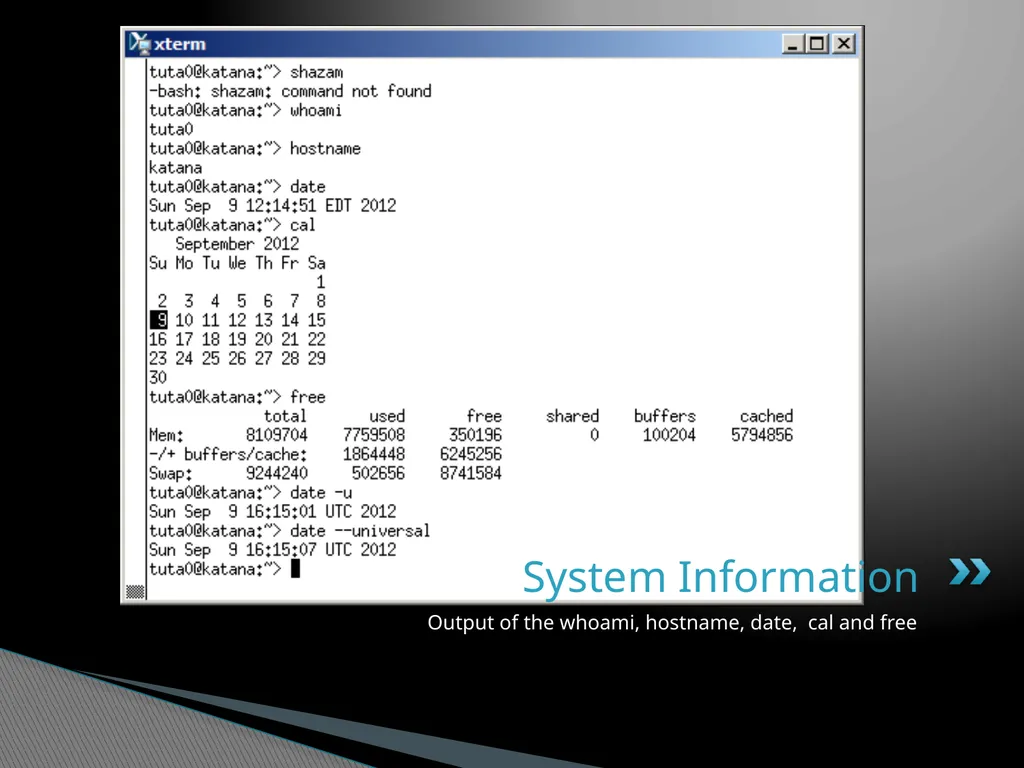
What was the system’s response to the command?<br>
slide16. Output of the whoami, hostname, date, cal and free System Information<br>
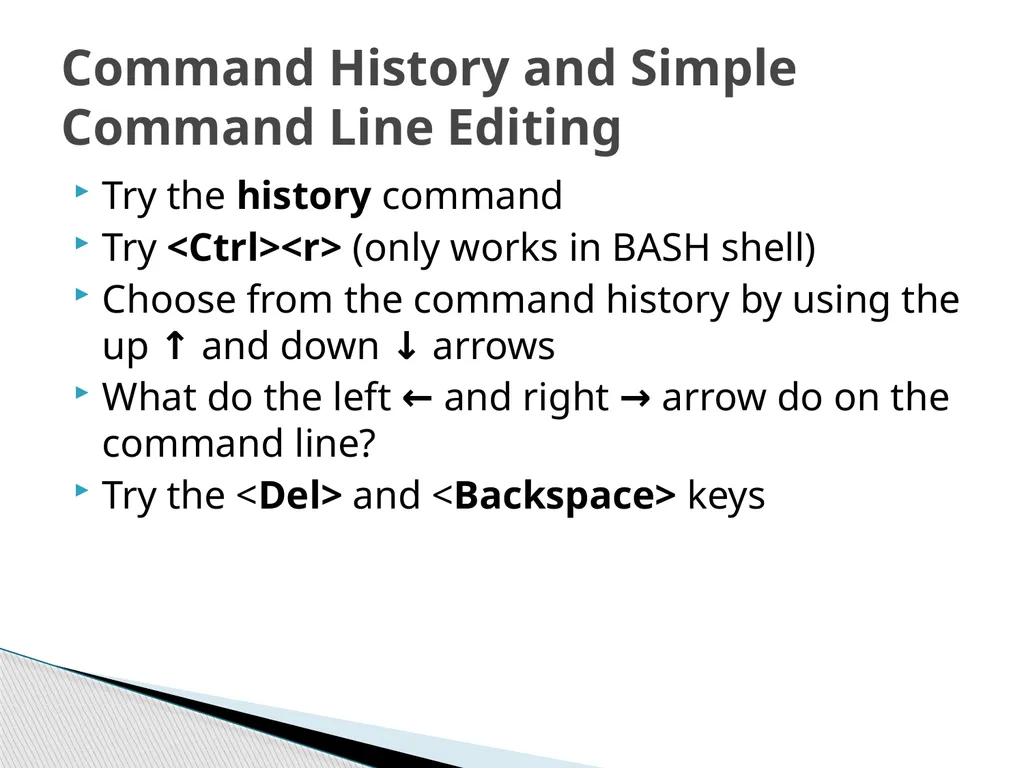
slide17. Try the history command
Try <Ctrl><r> (only works in BASH shell)
Choose from the command history by using the up ↑ and down ↓ arrows
What do the left ← and right → arrow do on the command line?
Try the <Del> and <Backspace> keys Command History and Simple Command Line Editing<br>
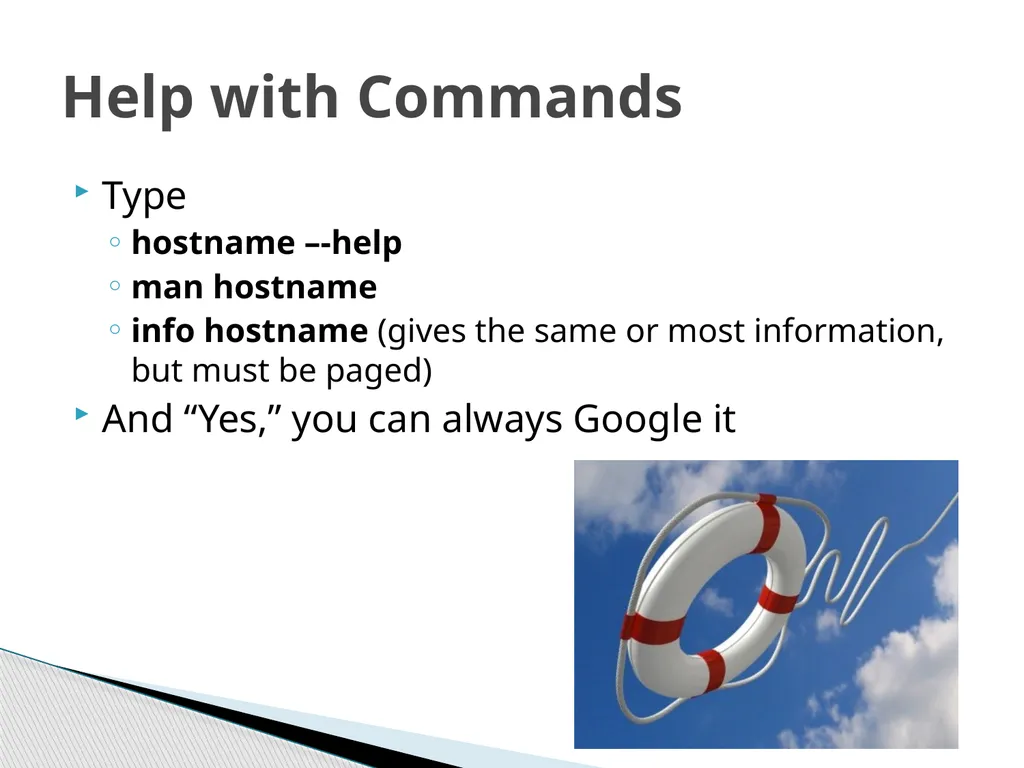
slide18. Type
hostname –-help
man hostname
info hostname (gives the same or most information, but must be paged)
And “Yes,” you can always Google it Help with Commands<br>
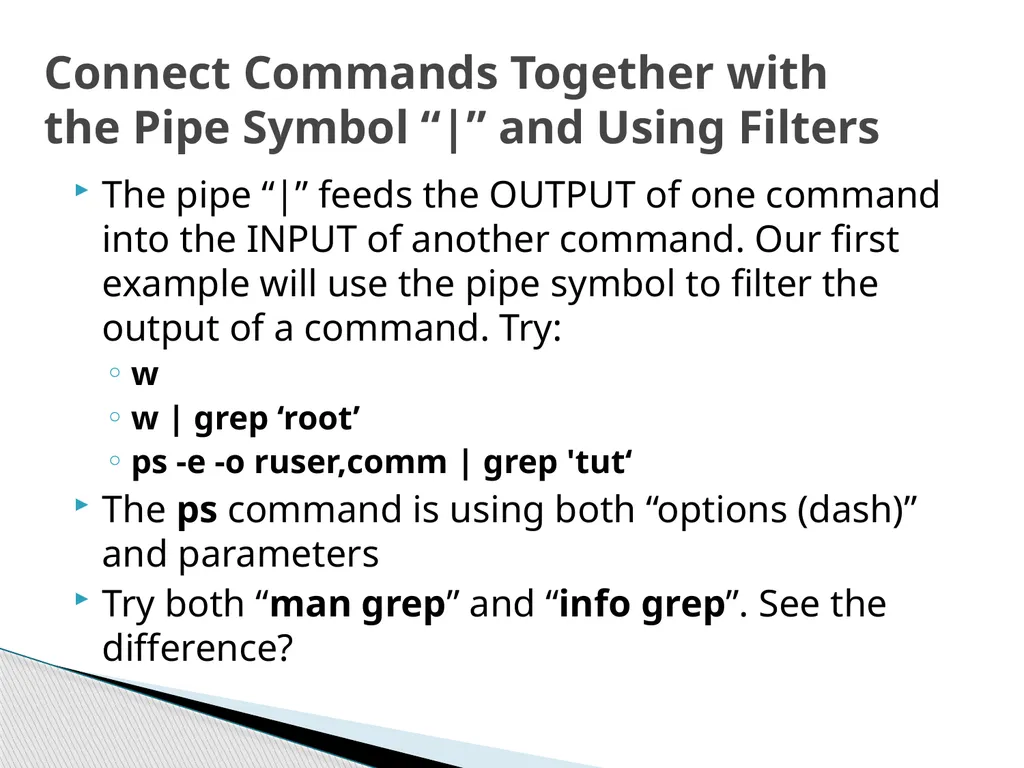
slide19. The pipe “|” feeds the OUTPUT of one command into the INPUT of another command. Our first example will use the pipe symbol to filter the output of a command. Try:
w
w | grep ‘root’
ps -e -o ruser,comm | grep 'tut‘
The ps command is using both “options (dash)” and parameters
Try both “man grep” and “info grep”. See the difference? Connect Commands Together withthe Pipe Symbol “|” and Using Filters<br>
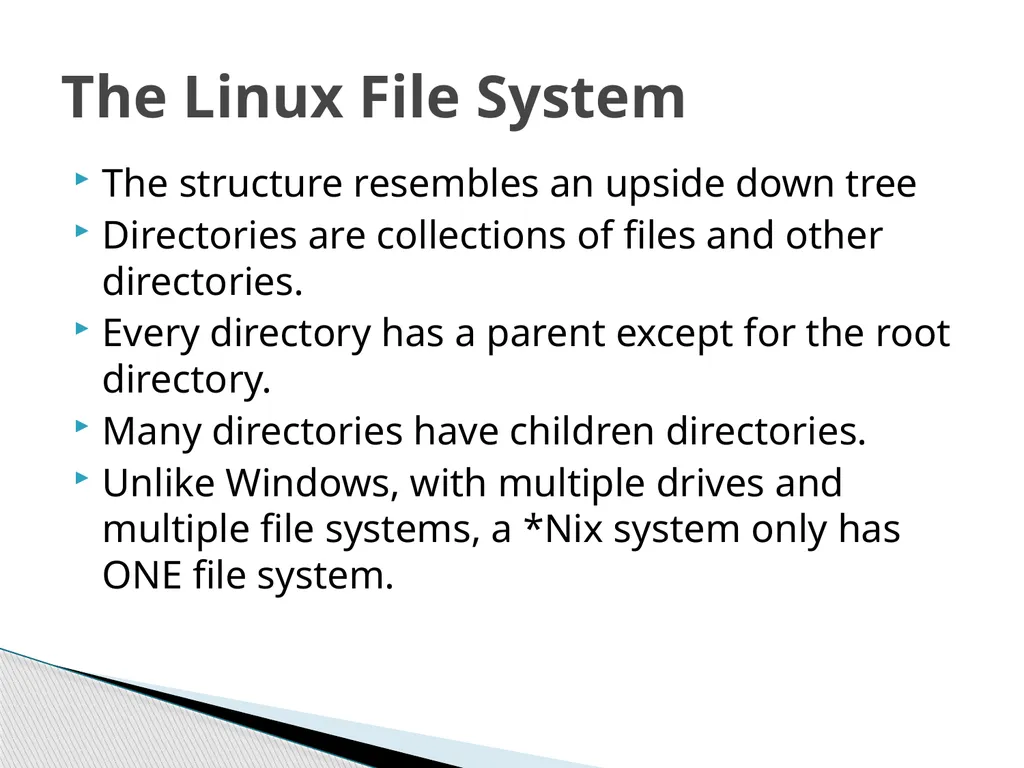
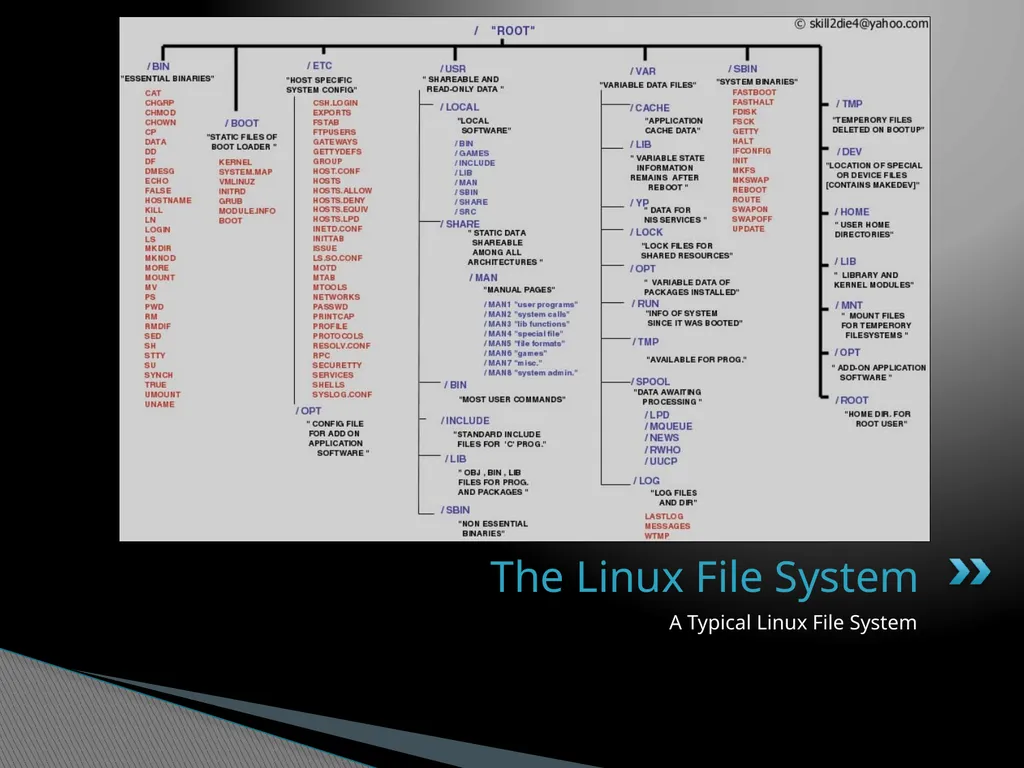
slide20. The structure resembles an upside down tree
Directories are collections of files and other directories.
Every directory has a parent except for the root directory.
Many directories have children directories.
Unlike Windows, with multiple drives and multiple file systems, a *Nix system only has ONE file system. The Linux File System<br>
slide21. A Typical Linux File System The Linux File System<br>
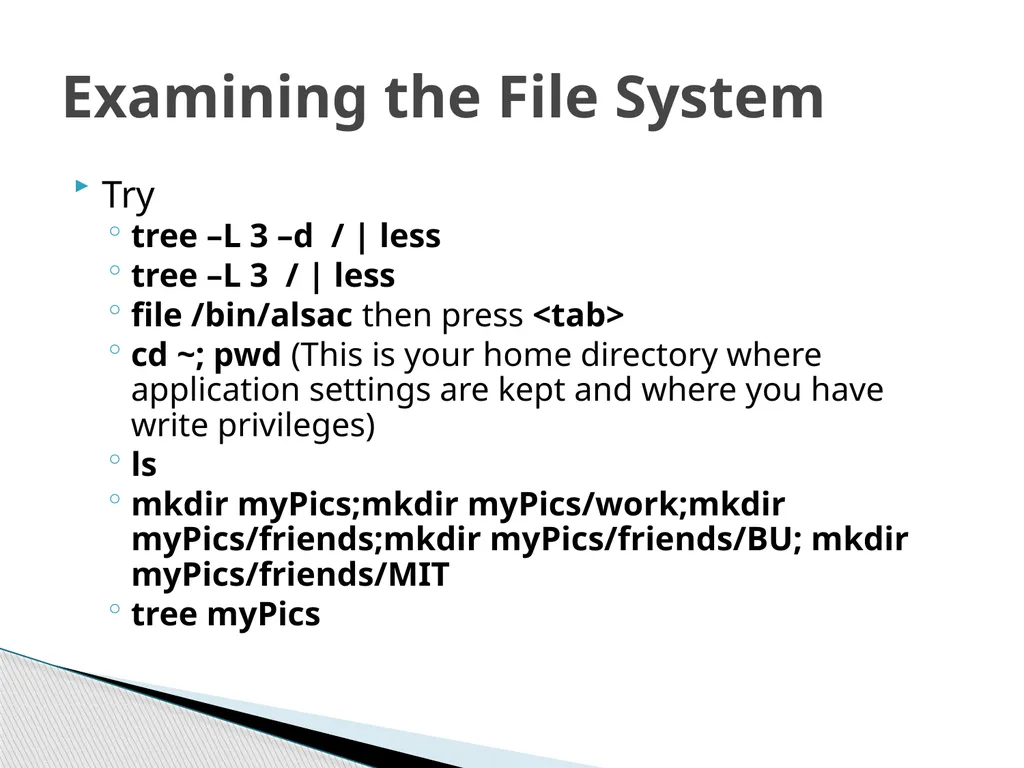
slide22. Try
tree –L 3 –d / | less
tree –L 3 / | less
file /bin/alsac then press <tab>
cd ~; pwd (This is your home directory where application settings are kept and where you have write privileges)
ls
mkdir myPics;mkdir myPics/work;mkdir myPics/friends;mkdir myPics/friends/BU; mkdir myPics/friends/MIT
tree myPics Examining the File System<br>
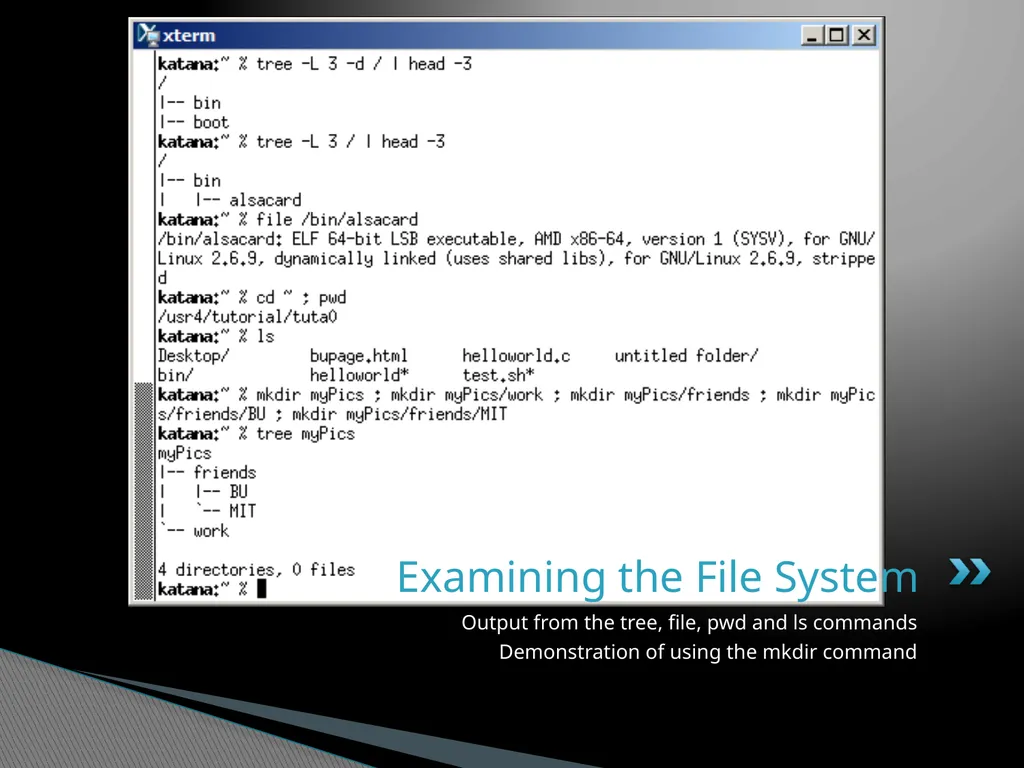
slide23. Output from the tree, file, pwd and ls commands
Demonstration of using the mkdir command Examining the File System<br>
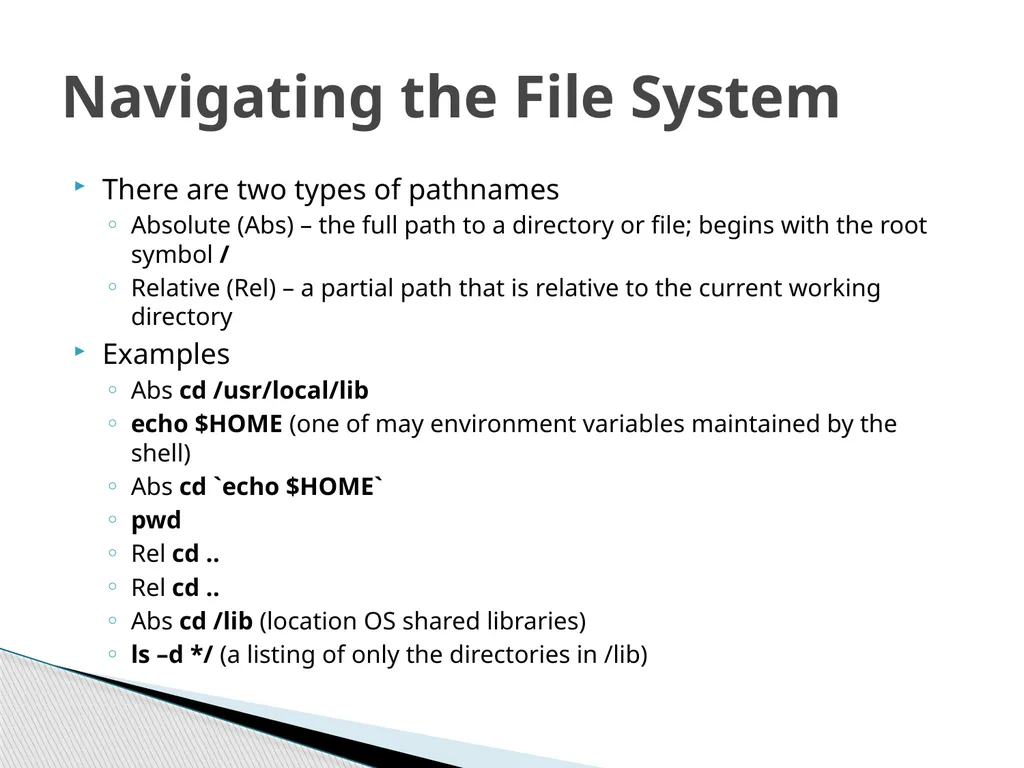
slide24. There are two types of pathnames
Absolute (Abs) – the full path to a directory or file; begins with the root symbol /
Relative (Rel) – a partial path that is relative to the current working directory
Examples
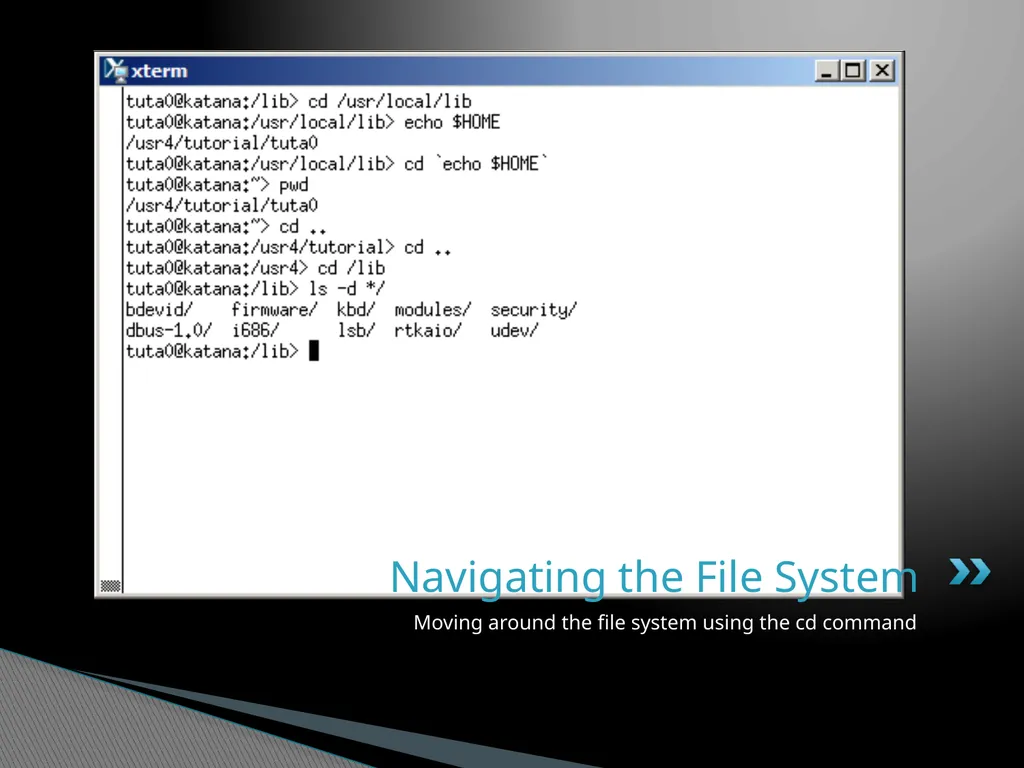
Abs cd /usr/local/lib
echo $HOME (one of may environment variables maintained by the shell)
Abs cd `echo $HOME`
pwd
Rel cd ..
Rel cd ..
Abs cd /lib (location OS shared libraries)
ls –d */ (a listing of only the directories in /lib) Navigating the File System<br>
slide25. Moving around the file system using the cd command Navigating the File System<br>
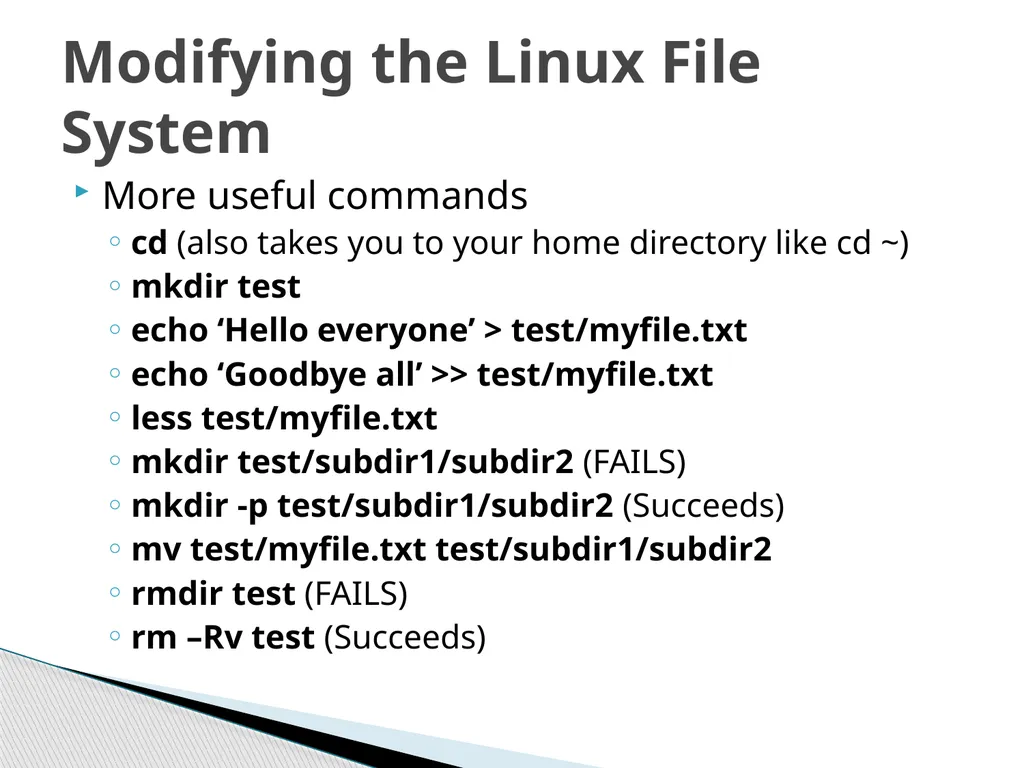
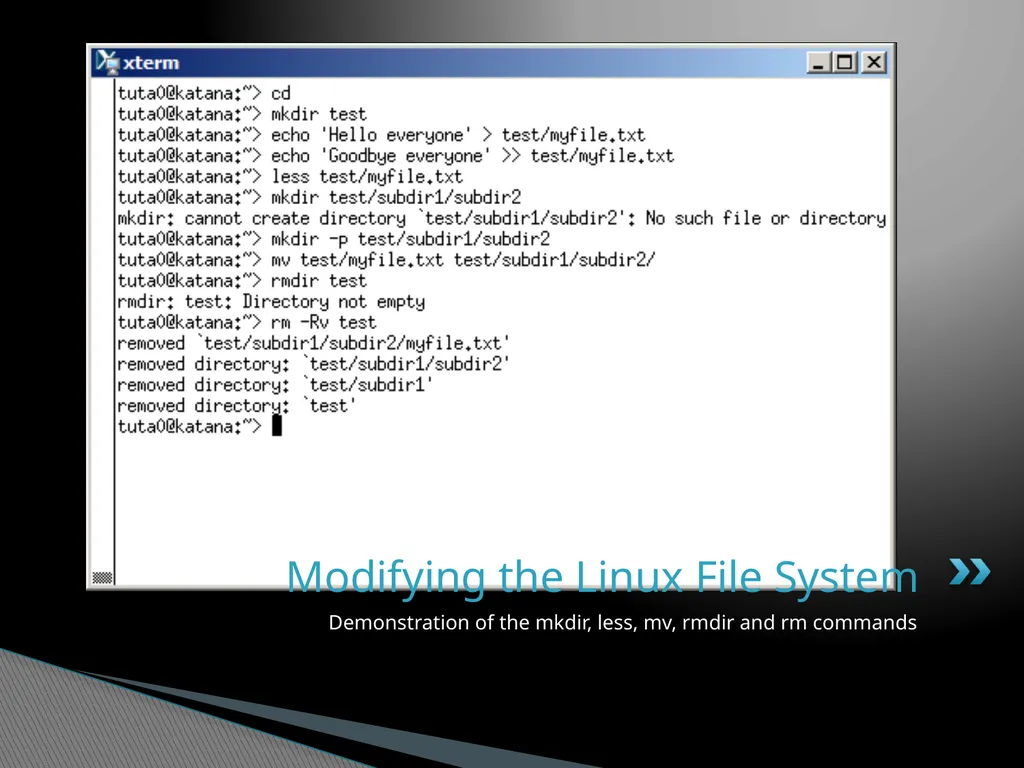
slide26. More useful commands
cd (also takes you to your home directory like cd ~)
mkdir test
echo ‘Hello everyone’ > test/myfile.txt
echo ‘Goodbye all’ >> test/myfile.txt
less test/myfile.txt
mkdir test/subdir1/subdir2 (FAILS)
mkdir -p test/subdir1/subdir2 (Succeeds)
mv test/myfile.txt test/subdir1/subdir2
rmdir test (FAILS)
rm –Rv test (Succeeds) Modifying the Linux File System<br>
slide27. Demonstration of the mkdir, less, mv, rmdir and rm commands Modifying the Linux File System<br>
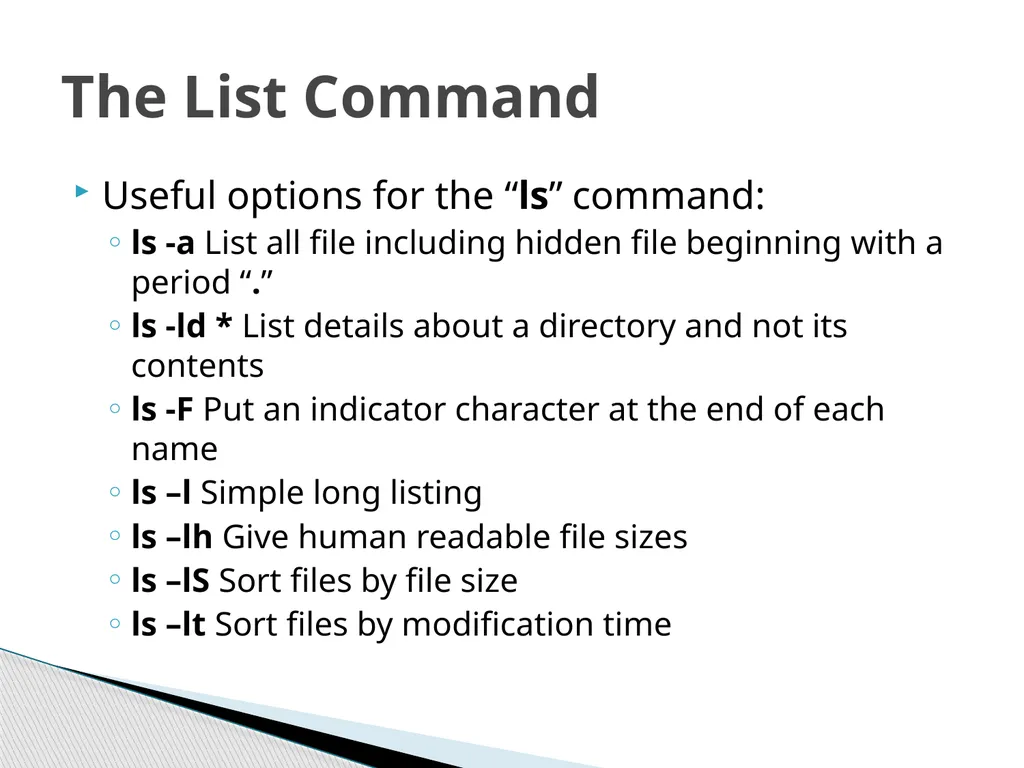
slide28. Useful options for the “ls” command:
ls -a List all file including hidden file beginning with a period “.”
ls -ld * List details about a directory and not its contents
ls -F Put an indicator character at the end of each name
ls –l Simple long listing
ls –lh Give human readable file sizes
ls –lS Sort files by file size
ls –lt Sort files by modification time The List Command<br>
slide29. Emacs
Vim
Nedit
Gedit
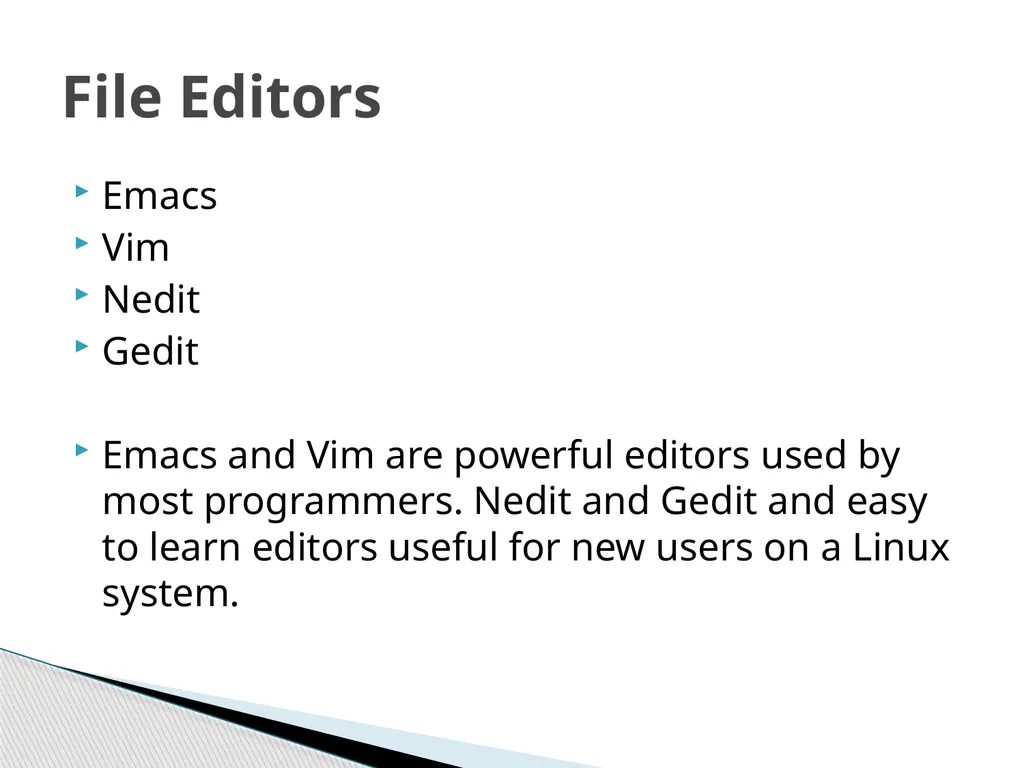
Emacs and Vim are powerful editors used by most programmers. Nedit and Gedit and easy to learn editors useful for new users on a Linux system. File Editors<br>

slide30. Finis<br>
Don Johnson of BU IS&T<br>
slide2. We’ll start with a sign in sheet that include questions about your Linux experience and goals.
We’ll end with a class evaluation.
We’ll cover as much as we can in the time allowed; if we don’t cover everything, you’ll pick it up as you continue working with Linux.
This is a hands-on, lab class; ask questions at any time.
Commands for you to type are in BOLD About the class…<br>
slide3. What is Linux? The Most Common O/S Used By BU Researchers When Working on a Server or Computer Cluster<br>
slide4. Linux is a Unix clone begun in 1991 and written from scratch by Linus Torvalds with assistance from a loosely-knit team of hackers across the Net.
64% of the world’s servers run some variant of Unix or Linux. The Android phone and the Kindle run Linux. What is Linux?<br>
slide5. Linux is an O/S core written by Linus Torvalds and others AND a set of small programs written by Richard Stallman and others. They are the GNU utilities.
http://www.gnu.org/ What is Linux?Linux + GNU Utilities = Free Unix<br>
slide6. Network: ssh, scp
Shells: BASH, TCSH, clear, history, chsh, echo, set, setenv, xargs
System Information: w, whoami, man, info, which, free, echo, date, cal, df, free
Command Information: man, info
Symbols: |, >, >>, <, ;, ~, ., ..
Filters: grep, egrep, more, less, head, tail
Hotkeys: <ctrl><c>, <ctrl><d>
File System: ls, mkdir, cd, pwd, mv, touch, file, find, diff, cmp, du, chmod, find
File Editors: gedit, nedit What is Linux?“Small programs that do one thing well”(see unix-reference.pdf)<br>
slide7. You need a “xterm” emulation – software that emulates an “X” terminal and that connects using the “SSH” Secure Shell protocol.
Windows
Use StarNet “X-Win32:” http://www.bu.edu/tech/desktop/site-licensed-software/xwindows/xwin32/ Connecting to a Linux Host – Windows Client Software<br>
slide8. Mac OS X
“Terminal” is already installed
Why? Darwin, the system on which Apple's Mac OS X is built, is a derivative of 4.4BSD-Lite2 and FreeBSD. In other words, the Mac is a Unix system! Connecting to a Linux Host – Mac OS X Client Software<br>
slide9. Let the Linux Lab Begin! The Ideal Lab Facility Your Instructor Today<br>
slide10. X-Win32/X-Config
Wizard
Name: katana
Type: ssh
Host: katana.bu.edu (Off-campus, must include domain “bu.edu” )
Login: <userID>
Password: <password>
Command: Linux
Click “katana” then “Launch”
Accept the host server public key (first time only) Connecting to a Linux Host -Windows Client<br>
slide11. Terminal
Type ssh –X katana.bu.edu or ssh –Y katana.bu.edu (less secure) Connecting to a Linux Host -Mac OS X Client<br>
slide12. From the lab computer
Using File Explorer, copy the directory “\\scv-files.bu.edu\SCV\Training\Introduction to Linux” to “My Documents” on your lab machine
Linux
Connect to katana.bu.edu using X-Win32 and run this command:
cp -Rv /project/ssrcsupp/linux_class ~/
From a browser, download: http://ssrc.bu.edu/linux_class Obtaining the Course Material<br>
slide13. A shell is a computer program that interprets the commands you type and sends them to the operating system. Secondly, it provide a programming environment consisting of environment variables.
Most BU systems, including the BU Linux Cluster, support at least two shells: TCSH and BASH. The default shell for your account is TCSH. The most popular and powerful Linux shell today is BASH.
To determine your shell type:
echo $SHELL (shell prints contents of env
echo “$SHELL” (shell still processes env. variable)
echo ‘$SHELL’ (shell treats env. variable as simple literal)
The complete environment can be printed with set, setenv (TCSH) and set (BASH).
To determine the path to the shell program, type:
which bash
which tcsh
Change the shell with “chsh /bin/bash” (provide path to new shell as a “parameter,” meaning to be explained soon) The Shell<br>
slide14. Output of the echo, which and chsh commands The Shell<br>
slide15. After you connect, type
shazam
whoami
hostname
date
cal
free
Commands have three parts; command, options and parameters. Example: cal –j 3 1999. “cal” is the command, “-j” is an option (or switch), “3” and “1999” are parameters.
Options have long and short forms. Example:
date –u
data --universal System Information What is the nature of the prompt?
What was the system’s response to the command?<br>
slide16. Output of the whoami, hostname, date, cal and free System Information<br>
slide17. Try the history command
Try <Ctrl><r> (only works in BASH shell)
Choose from the command history by using the up ↑ and down ↓ arrows
What do the left ← and right → arrow do on the command line?
Try the <Del> and <Backspace> keys Command History and Simple Command Line Editing<br>
slide18. Type
hostname –-help
man hostname
info hostname (gives the same or most information, but must be paged)
And “Yes,” you can always Google it Help with Commands<br>
slide19. The pipe “|” feeds the OUTPUT of one command into the INPUT of another command. Our first example will use the pipe symbol to filter the output of a command. Try:
w
w | grep ‘root’
ps -e -o ruser,comm | grep 'tut‘
The ps command is using both “options (dash)” and parameters
Try both “man grep” and “info grep”. See the difference? Connect Commands Together withthe Pipe Symbol “|” and Using Filters<br>
slide20. The structure resembles an upside down tree
Directories are collections of files and other directories.
Every directory has a parent except for the root directory.
Many directories have children directories.
Unlike Windows, with multiple drives and multiple file systems, a *Nix system only has ONE file system. The Linux File System<br>
slide21. A Typical Linux File System The Linux File System<br>
slide22. Try
tree –L 3 –d / | less
tree –L 3 / | less
file /bin/alsac then press <tab>
cd ~; pwd (This is your home directory where application settings are kept and where you have write privileges)
ls
mkdir myPics;mkdir myPics/work;mkdir myPics/friends;mkdir myPics/friends/BU; mkdir myPics/friends/MIT
tree myPics Examining the File System<br>
slide23. Output from the tree, file, pwd and ls commands
Demonstration of using the mkdir command Examining the File System<br>
slide24. There are two types of pathnames
Absolute (Abs) – the full path to a directory or file; begins with the root symbol /
Relative (Rel) – a partial path that is relative to the current working directory
Examples
Abs cd /usr/local/lib
echo $HOME (one of may environment variables maintained by the shell)
Abs cd `echo $HOME`
pwd
Rel cd ..
Rel cd ..
Abs cd /lib (location OS shared libraries)
ls –d */ (a listing of only the directories in /lib) Navigating the File System<br>
slide25. Moving around the file system using the cd command Navigating the File System<br>
slide26. More useful commands
cd (also takes you to your home directory like cd ~)
mkdir test
echo ‘Hello everyone’ > test/myfile.txt
echo ‘Goodbye all’ >> test/myfile.txt
less test/myfile.txt
mkdir test/subdir1/subdir2 (FAILS)
mkdir -p test/subdir1/subdir2 (Succeeds)
mv test/myfile.txt test/subdir1/subdir2
rmdir test (FAILS)
rm –Rv test (Succeeds) Modifying the Linux File System<br>
slide27. Demonstration of the mkdir, less, mv, rmdir and rm commands Modifying the Linux File System<br>
slide28. Useful options for the “ls” command:
ls -a List all file including hidden file beginning with a period “.”
ls -ld * List details about a directory and not its contents
ls -F Put an indicator character at the end of each name
ls –l Simple long listing
ls –lh Give human readable file sizes
ls –lS Sort files by file size
ls –lt Sort files by modification time The List Command<br>
slide29. Emacs
Vim
Nedit
Gedit
Emacs and Vim are powerful editors used by most programmers. Nedit and Gedit and easy to learn editors useful for new users on a Linux system. File Editors<br>
slide30. Finis<br>